
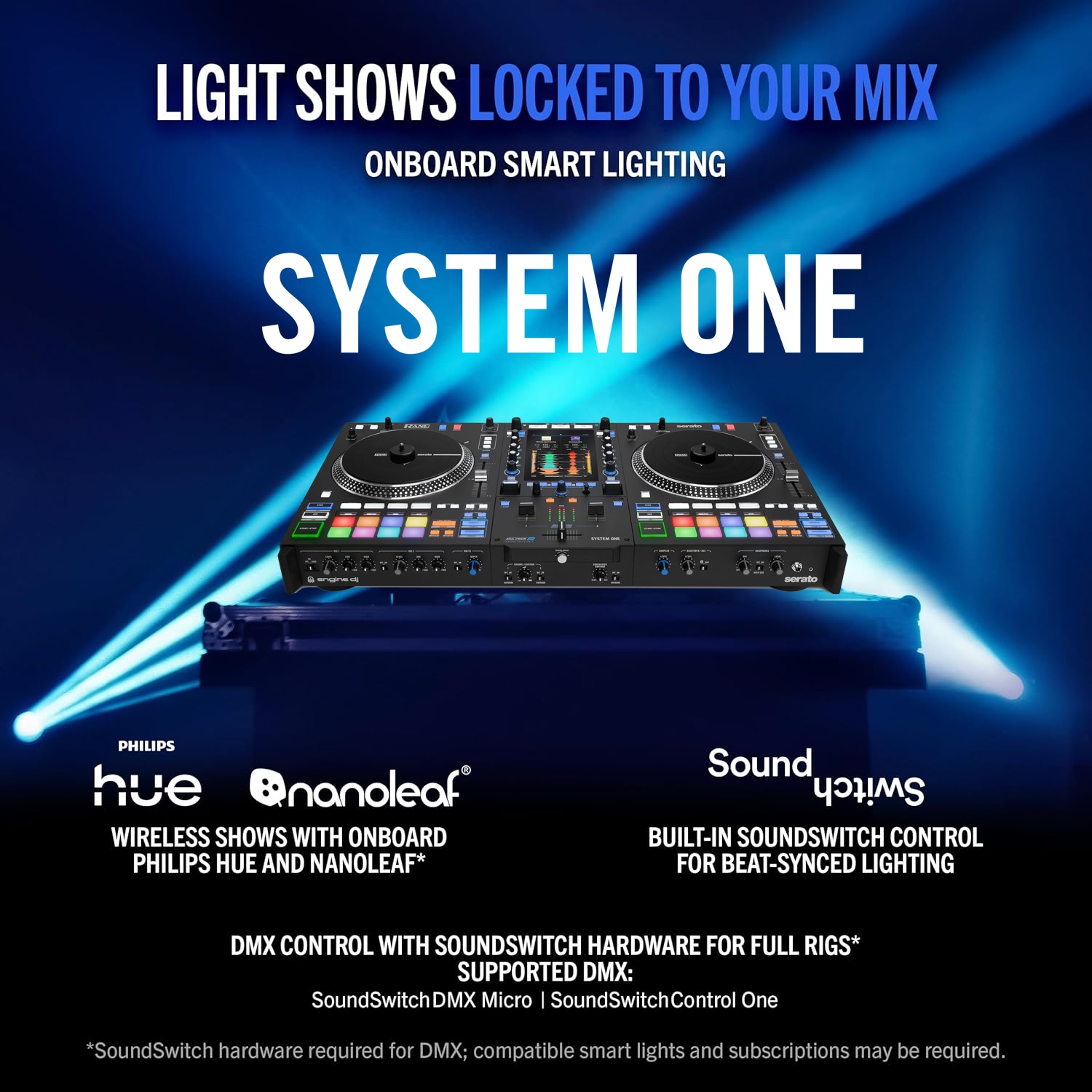
SYSTEM ONE is the first standalone DJ system for RANE customers, designed to make the transition to standalone seamless via the Engine OS platform. With this, SYSTEM ONE users gain access to the powerful, dynamic features and functions of Engine Lighting, a fully-integrated digital lighting performance tool which synchronizes your performance to most any DMX-controllable lighting fixtures, as well as a broad array of smart lighting fixtures from Phillips HUE and Nanoleaf. In this guide, we'll go over the basics of Engine Lighting and provide in-depth learning resources to make the most of this powerful tool.
TABLE OF CONTENTS
Getting Started
Engine Lighting offers two modes of operation for use on your SYSTEM ONE. To access these modes, navigate to the Engine Lighting console from your SYSTEM ONE's main menu.
Basic Mode - Phillips Hue & Nanoleaf
Engine Lighting Basic Mode comes free with all Engine OS devices and does not require a subscription to SoundSwitch to use. With Basic Mode, you can sync your supported Phillips Hue and Nanoleaf fixtures over Wi-Fi via to your DJ performance over a preset selection of lightshows. These lightshows are called Autoloops. Further, you can implement color overrides and other manual effects via the Engine Lighting console on the fly to tune the lightshow exactly as needed for the vibe of your performance. Please note: DMX fixture control is not supported in basic mode.
Check out the videos below for a breakdown of this setup process -- While the demonstrations depicted are performed on other Engine DJ hardware, the process is exactly the same with your SYSTEM ONE and all other Engine OS devices:
Advanced Mode - DMX via SoundSwitch
Engine Lighting Advanced Mode unlocks the full potential of Engine Lighting, powered by SoundSwitch, to seamlessly control custom-tuned, dynamic DMX lightshows. To use advanced mode, you'll need to have an active subscription or license for SoundSwitch, our desktop Digital Lighting Workstation (DLW), and a supported DMX interface, such as the SoundSwitch Control One or DMX Micro.
With SoundSwitch, you're not just limited to the preset lightshows provided in Basic Mode. Using SoundSwitch's Autoscript tool, you can quickly generate dynamic, responsive lightshows automatically tailored to each individual song in your library. You can manually tune these shows further in the Edit Mode window to your exact specifications, then unleash them aboard your Engine hardware in perfect synchronicity to your performance.
If you're new to SoundSwitch and Engine Lighting and want to give advanced mode a risk-free try, your SYSTEM ONE grants a free 2-month trial of the SoundSwitch software. To redeem this offer, check out this link.
Once you've obtained your license, all that's left is to set up a SoundSwitch project, add fixtures to your venue(s), script your Engine Library, and sync with your Engine hardware. Check out the video below for a complete overview of this process:
For an in-depth breakdown of the Engine Lighting setup and sync processes, check out our complete guide here.
Running SoundSwitch Lightshows with OmniSource
With the release of the Engine 4.6.0 and Serato 4.0.3 updates, the System One now supports OmniSource deployments with Serato DJ Pro, allowing you to assign individual decks between onboard Engine OS/Lighting and desktop Serato DJ Pro/SoundSwitch. To get acquainted with the recommended signal chains in this mode, please see the following step-by-step guide:
SoundSwitch & Engine Lighting | Utilizing OmniSource
SoundSwitch is a unique and advanced DLW, so we strongly encourage you to make full use of the SoundSwitch Support Library to get familiar with the core functions and features of the program. Below, we've included a curation of tutorials that cover these essential concepts in great detail:
Frequently Asked Questions
Below, we've detailed some of the most frequently asked questions regarding SoundSwitch and Engine Lighting in an easy to follow Q+A format:
Can I use Engine Lighting without a DMX interface?
While Engine Lighting's Basic Mode does not require a DMX interface to use, a supported DMX interface is absolutely required to use Advanced Mode.
What are the minimum system requirements for SoundSwitch?
Please see the following guide for a complete breakdown of SoundSwitch's MSRs: SoundSwitch | Minimum System Requirements
What DMX fixtures are supported by Engine Lighting and SoundSwitch?
Engine Lighting/SoundSwitch support most any DMX fixture that fits in a single DMX universe (512 channels). All that is required is a Fixture Profile which matches the manufacturer's DMX table. To check if your fixture already has a profile in the SoundSwitch DMX library, check out this helpful guide: SoundSwitch | How to Locate Fixture Profiles in the SoundSwitch DMX Library
If your fixture is not in the library, we'll be happy to add it for you. To request a fixture profile, please visit the support home page and click 'Contact Support', including an attached PDF copy of the fixture's complete user manual with cover page.
Does onboard Engine Lighting work with third-party DJ software such as Serato DJ Pro or Algoriddim djay?
Engine Lighting support is available when using local media and streaming services within Engine. To use SoundSwitch lighting control with compatible third-party DJ software, SoundSwitch must be running on the same computer as the DJ application.
Note: SoundSwitch is not currently compatible with Algoriddim djay. Support for djay is something we would like to explore in a future update.
How does fader mixing work with Engine Lighting?
Fader Mixing is a core feature that allows your lightshows to blend and transition between each other in-sync with your DJ performance. With your SYSTEM ONE, the intensity of each lightshow is governed by the upfader positions of each deck and/or the crossfader position, depending on your preferences. You can modify your fader settings in the Engine Lighting Preferences Menu.
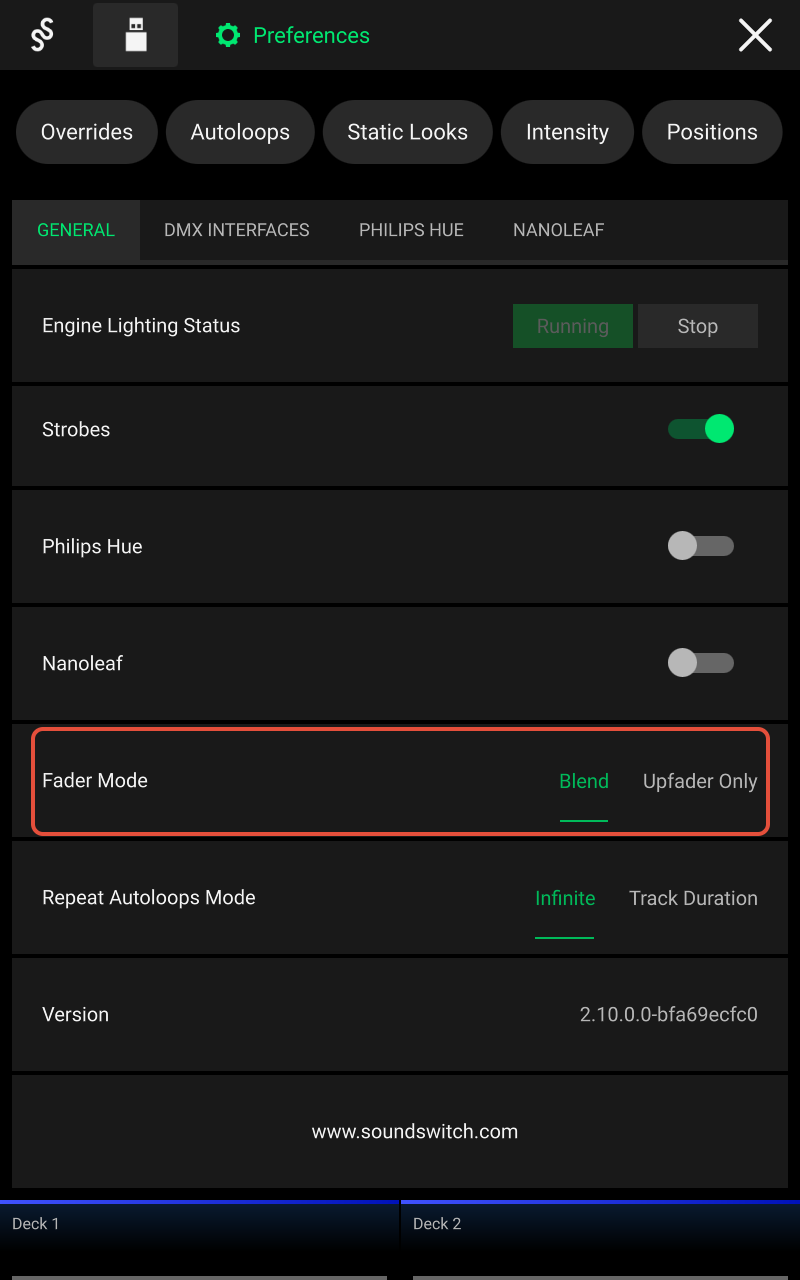
Blend Mode designates the mixing of each deck's lightshow to respond to the crossfader position. The priority given to either lightshow will depend on the relative position of the crossfader between either deck.
Upfader Only mode restricts lightshow response exclusively to your upfader position on either deck. When using this mode, it's important to keep the active deck's lightshow at unity and the inactive deck's lightshow zeroed out if you wish to only project the active deck's lightshow. As well, be mindful that the crossfader position will have no effect on Engine Lighting's response in this mode.
Regardless of the mode selected, the overall intensity (dimming) of the lightshows on either deck will be affected by the respective deck's upfader positions, so it's a good idea to aim for unity on your active deck's upfader wherever possible, attenuating volume with the channel gain knob where needed.
I'm having trouble with Engine Lighting.. Help!
If you're in need of assistance with your Engine Lighting deployment, don't fear! You have access to 24/7 chat support via the Engine Lighting Help Center. If your question is not fully resolved via our chat support, our assistant will facilitate a connection with our team for additional troubleshooting.