
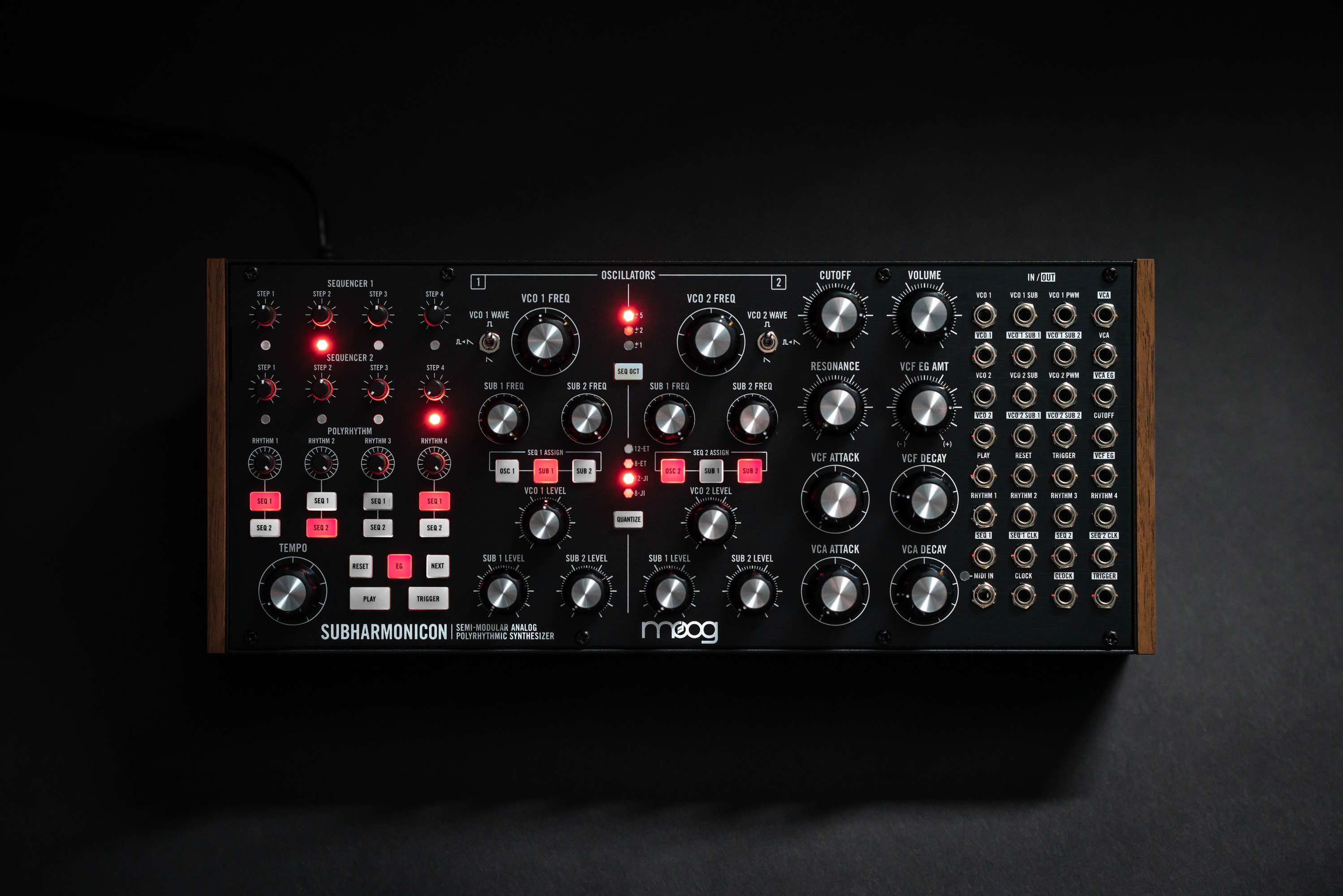
For general troubleshooting of the Subharmonicon, we recommend following the steps in order:
TABLE OF CONTENTS
SysEx Software
Some of these troubleshooting steps requires the use of a SysEx software. This is a piece of software specifically designed for sending and receiving SysEx (.syx) files. These procedures specifically require sending the SysEx files from the software to the synth. Below are the two recommended SysEx software, and their associated method for setting up a MIDI output.
SysEx Librarian (Mac) - The synth will appear in the drop-down menu at the top of the screen.
Bome Send SX (Windows) - Go to MIDI Out and select the synth from the choices provided.
If you are having issues sending a SysEx file, a common solution can be to adjust the SysEx data transfer speed to transfer slower.
SysEx Librarian - Settings > Transmit Speed
Bome Send SX - Options > Settings > Actual MIDI Speed
INIT Patch Setup
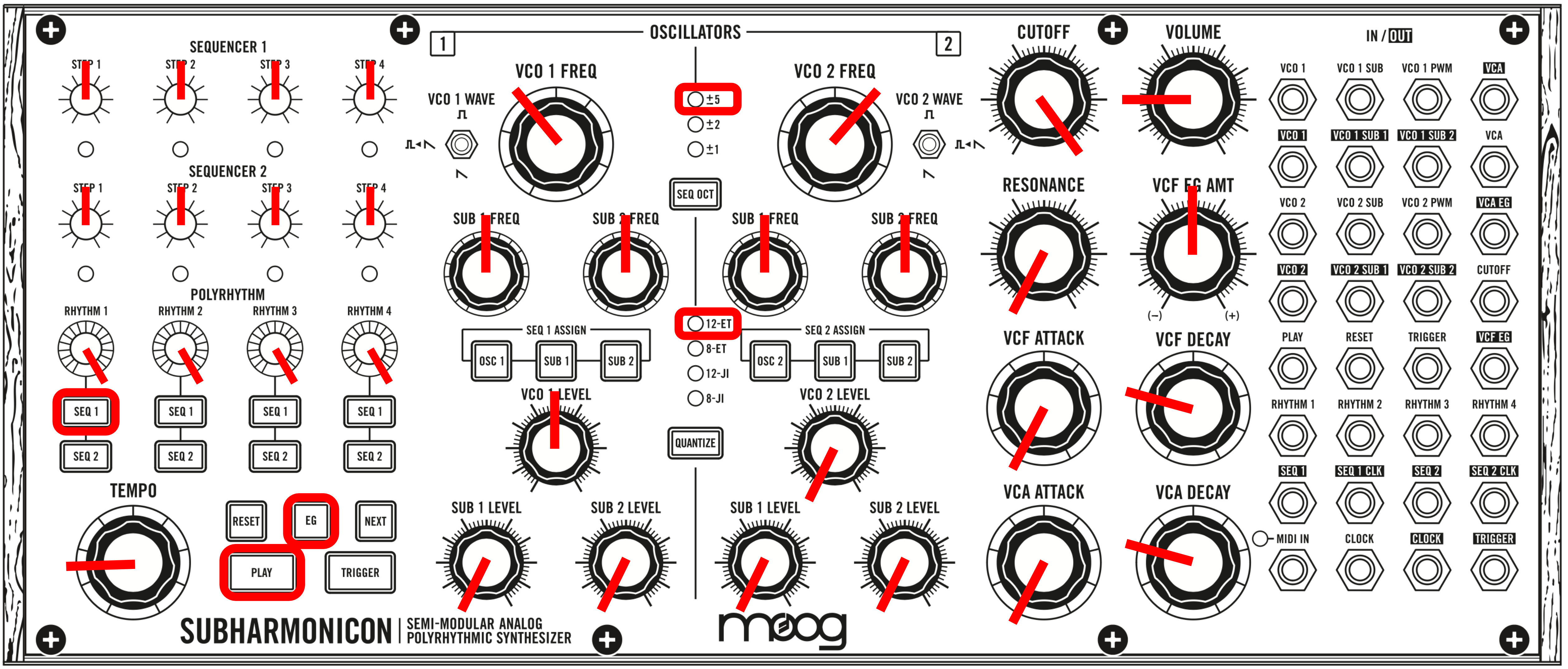
To rule out the possibility that your current patch is causing the problem, switch the synth to an INIT (initialized) patch. Set your panel to match the settings shown here:
Note Calibration
- Power on the Subharmonicon.
- Leave the instrument powered on for at least 20 minutes to warm up.
- Press and hold the SUB 1 buttons in BOTH the SEQ 1 ASSIGN and SEQ 2 ASSIGN sections simultaneously for 5 seconds.
- You will see the Sequencer 1 Step LEDs blink back and forth somewhat erratically while the process is in place. When the Note Calibration finishes, the LEDs will stop blinking and return to normal function.
- You can also press and hold the EG button to listen to the oscillators calibrate while the Note Calibration is in progress.
Firmware Update
- Download the latest firmware update HERE.
- Connect Subharmonicon to your computer using a USB-to-MIDI cable or via your MIDI-enabled interface. Avoid connecting through a USB hub, if possible, as many USB hubs do not work reliably and can cause the update to fail.
- Drag the following files from the Subharmonicon_Firmware_v1_1_1 folder into your SysEx application's main window:
- Subharmonicon_FIRMWARE_INVALIDATE.syx
- Subharmonicon_FIRMWARE_ERASE.syx
- Subharmonicon_Firmware_v1_1_1.syx
- Select your MIDI interface as your MIDI output device in the SysEx application
- Send or Play "subharmonicon_FIRMWARE_INVALIDATE.syx" from your SysEx application to your Subharmonicon. You should see the Step 1 LED of Sequencer 1 blinking on/off; this means the unit is now in Boot-Loader Mode. The old firmware still needs to be erased.
- Send or Play "subharmonicon_FIRMWARE_ERASE.syx" from your SysEx application to your Subharmonicon. You should see the Step 2 LED of Sequencer 1 blinking on/off; this means the old firmware has been successfully erased and the instrument is ready for new firmware.
- Send or Play the new firmware file "Subharmonicon_Firmware_v1_1_1.syx". The Sequencer 2 LEDs will "fill up," lighting progressively from left to right to indicate that the firmware file is received. When the firmware upload is complete, the Step 3 LED of Sequencer 1 will blink a few times to indicate successful firmware installation.
- Subharmonicon will reboot with its customary light show and is ready to use.
If you are having MIDI connectivity issues, verify that you are using the dongle that shipped with the Subharmonicon rather than one from another manufacturer.