
TABLE OF CONTENTS
Symptom
Some or all of the Reaktor content is missing or is not loading correctly when using Reaktor.
Note: The products below are all Reaktor-based, thus the below solutions apply to these products.

Solutions
Please try all of the solutions provided below. If one does not solve the problem, please try the next available solution.
1. The Browser is set to show user content
If this is the first time Reaktor is used, the Browser will appear empty if set to show only User content.
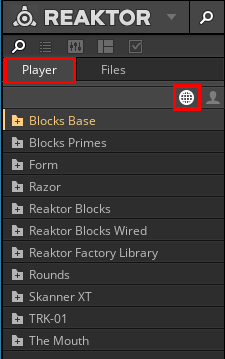
To display Factory content, click the Player tab, then the global icon in the upper section of the Browser.
2. Reinstall the missing products and Reaktor via Native Access
Note: To reinstall a product on OS X 10.9, refer to this article instead.
- Follow the instructions provided in this article to reinstall your missing products and Reaktor via Native Access.
- After the reinstallation process is finished, launch Reaktor in standalone mode to verify that the product is now available.
Note: Third-party Reaktor ensembles cannot be reinstalled from Native Access. They can be downloaded from the original manufacturer's website.
If these steps do not solve the problem, proceed to the next solution.
3. The content is missing because the Reaktor directories are set incorrectly
To check if the Reaktor directories are correctly set, follow the steps below:
- Launch Reaktor in standalone mode.
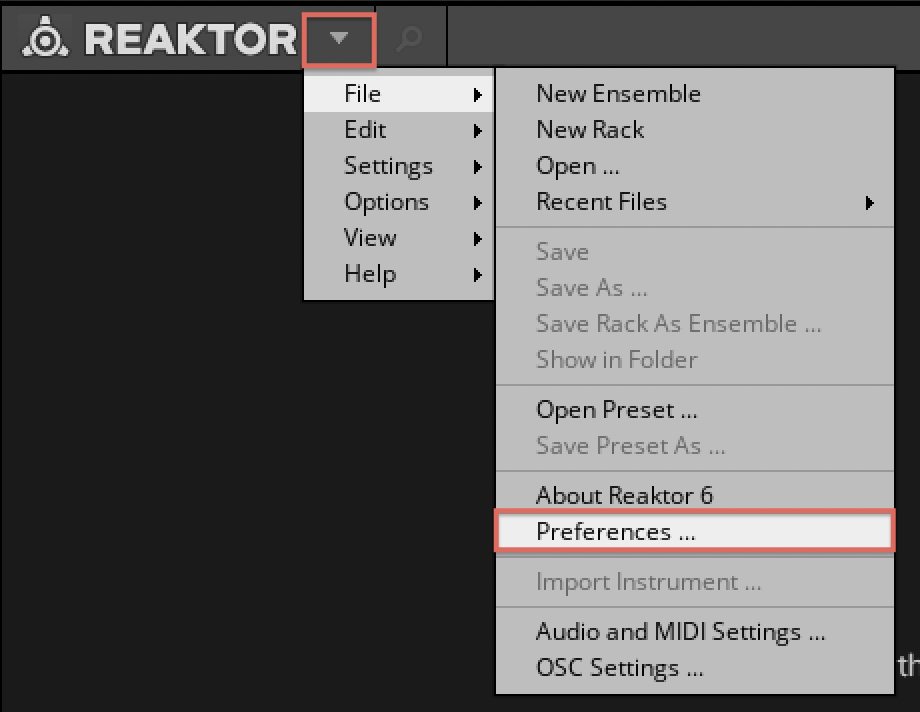
- Click on the small arrow icon at the top left of the main Reaktor window and navigate to the File > Preferences pane.
- Click on the Directories tab and check the file paths in the Factory Library, User Library, User Ensembles, and User Blocks fields. The paths should be set as follows, depending on your operating system:
- macOS: Macintosh HD > Users > *Username* > Documents > Native Instruments > Reaktor 6 > (folder name)
- Windows: C: > Users > *Username* > My Documents > Native Instruments > Reaktor 6 > (folder name)
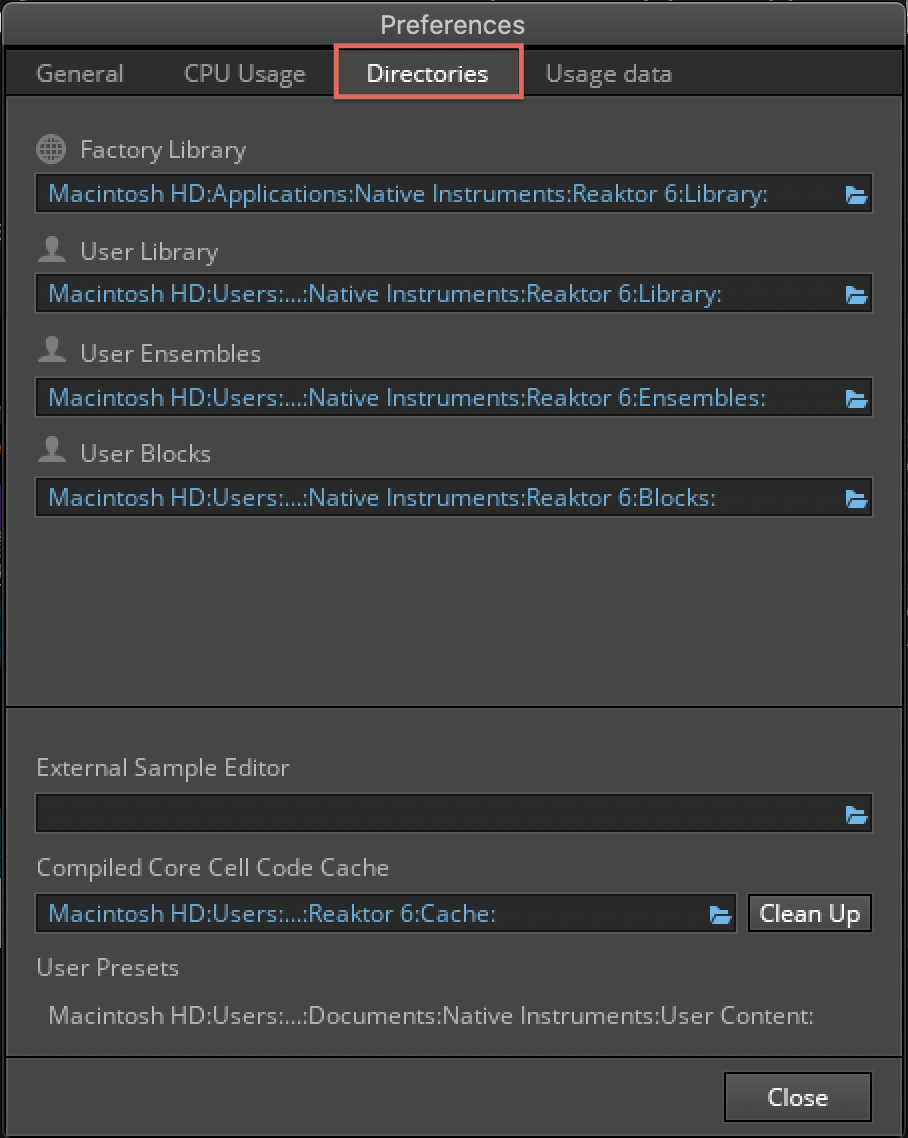
- If the paths are different, make sure to set them properly and ensure all of your content is set in the appropriate folders.
4. The content is missing when loading Reaktor in Komplete Kontrol
If a Reaktor product appears to be missing in Komplete Kontrol, try reinitializing the Komplete Kontrol database.
You can do so by following Chapter 3 in this article.