

If your Guitar Rig Browser is empty or incomplete, please follow these troubleshooting steps.
TABLE OF CONTENTS
Guitar Rig 6 / 7
Causes
The Guitar Rig 6 / 7 Browser features color-tagging, as well as a User Content section.
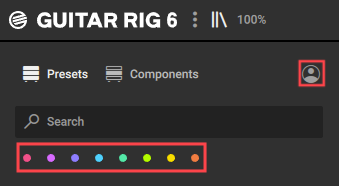
If these Browser filters are applied before any color tagging or user content is established, this can result in a browser or preset list that appears to be empty or incomplete.
Solutions
- Check to ensure that all color tags are de-selected. These will only display content after some Guitar Rig presets have been color-tagged as favorites.
- Check to ensure that the User Content Icon (“person-symbol”) is deselected. Content will not appear here until at least one user-created Guitar Rig preset has been saved.
If the Guitar Rig 6 Browser still appears empty or incomplete, try resetting the Guitar Rig Database:
- Launch the Guitar Rig standalone application:
macOS:
Macintosh HD > Applications > Native Instruments > Guitar Rig 6 / 7
Windows:
C: > Program Files > Native Instruments > Guitar Rig 6 / 7 - Go to:
File > Preferences...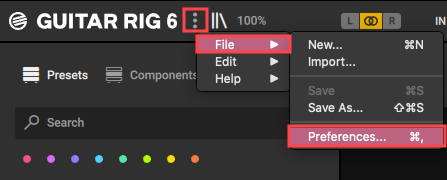
- Click the Library icon, then go to the following:
Reset Library > Reset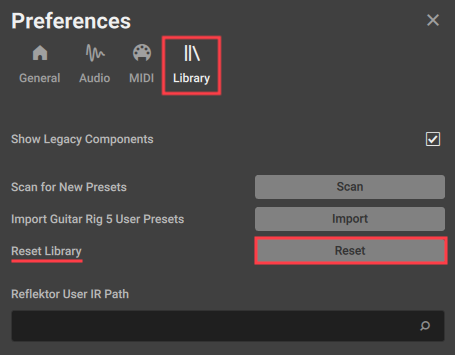
- Once the Library is Reset, quit and re-launch the Guitar Rig software in Standalone Mode. Check the Guitar Rig Browser to verify that the content is now present.
- Quit the Standalone Guitar Rig software, and launch the Guitar Rig plug-in to verify that the content is now displayed in its Browser.
macOS
- Quit Guitar Rig.
- Open the following directory:
Macintosh HD > Users > *User Name* > Library > Application Support > Native Instruments > Guitar Rig 6 / 7Note: The User Library folder is hidden by default. See this article to learn how to access its contents.
- Delete the folder named "Database".
- Relaunch the Guitar Rig software to check the browser.
Windows
- Quit Guitar Rig.
- Open the following directory:
C: > Users > *User Name* > AppData > Local > Native Instruments > Guitar Rig 6 / 7Note: AppData is a hidden folder. Read this article to learn how to display hidden folders on Windows.
- Delete the folder named "Database".
- Relaunch the Guitar Rig software to check the browser.
Guitar Rig 5
Update Guitar Rig 5
- Quit Guitar Rig 5.
- Launch Native Access.
- Check the Updates section to make sure the latest Guitar Rig 5 version is installed.
Note: The latest Guitar Rig 5 update can also be downloaded from the Updates section of the Native Instruments website.
Reset the Guitar Rig 5 Database
- Launch Guitar Rig 5.
- Click the Options tab.
- Click the Reset button in the Reset Database section.
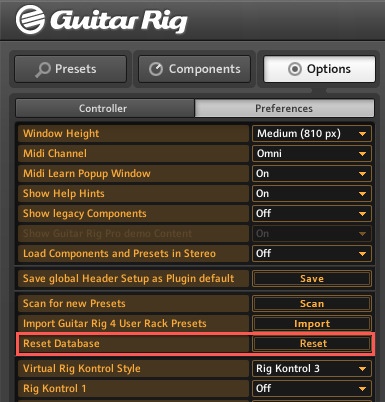
- Quit and relaunch the Guitar Rig 5 software to check the browser for content and presets.
macOS
- Quit Guitar Rig 5.
- Open the following directory:
Macintosh HD > Users > *User Name* > Library > Application Support > Native Instruments > Guitar Rig 5
Note: The User Library folder is hidden by default. See this article to learn how to access its contents. - Delete the folder named "Database".
- Relaunch the Guitar Rig 5 software to check the browser.
Windows
- Quit Guitar Rig 5.
- Open the following directory:
C: > Users > *User Name* > AppData > Local > Native Instruments > Guitar Rig 5Note: "AppData" is a hidden folder. Read this article to learn how to display hidden folders on Windows.
- Delete the folder named "Database".
- Relaunch the Guitar Rig 5 software to check the browser.