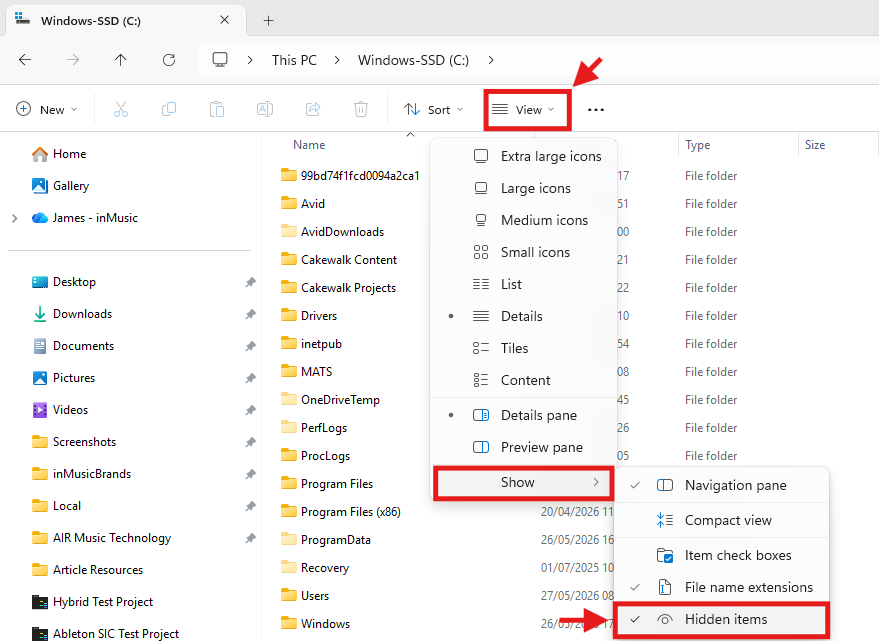
This article explains how to access hidden files and folders on Windows.
You may be asked to access the AppData or ProgramData folders to troubleshoot an issue. The steps below show you how to do this.
TABLE OF CONTENTS
AppData Folder
- Click on the Windows start button on the bottom left of your screen.
- Type "%localappdata%" and click on the option which appears.
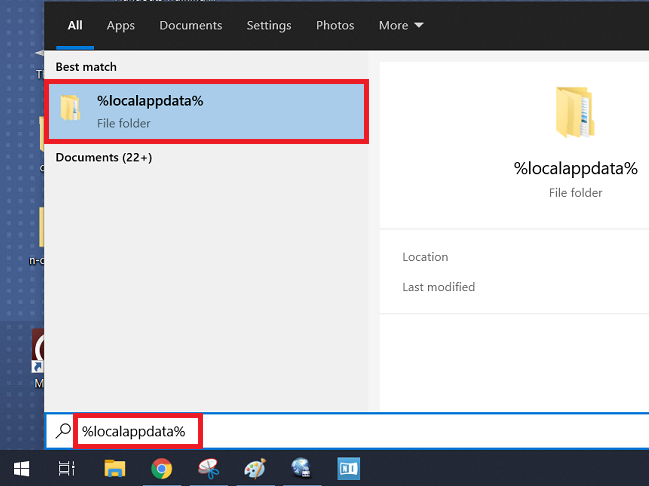
Now you can navigate to the required folder from within the AppData Local folder.
ProgramData Folder
- Click on the Windows start button on the bottom left of your screen.
- Type "%programdata%" and click on the option that appears.
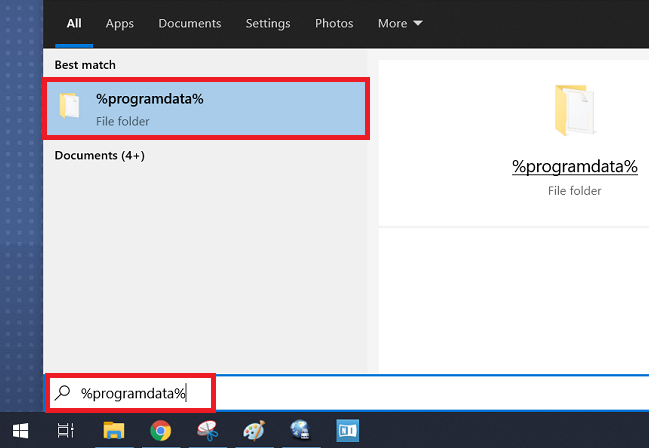
Now you can navigate to the required folder from within the ProgramData folder.
Permanently enable or disable Hidden Items
If you wish to make hidden files and folders permanently visible, you can do so via the following steps:
- Open a File Explorer window.
- Navigate to the View tab at the top of the window.
- Click on the Hidden items option to enable hidden files and folders to become visible.