In the unlikely event that you cannot find your Native Instruments plug-ins in Cubase, they were possibly blacklisted. NI plug-ins may become blacklisted if you move VST2 plug-ins into the VST3 plug-in folder.
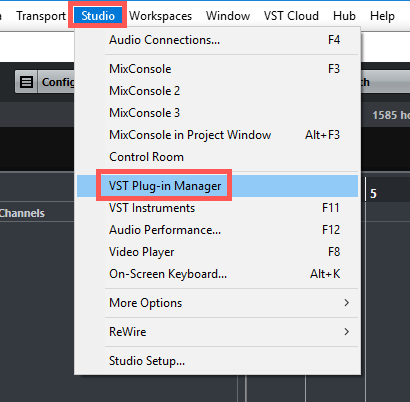
You can re-enable those plug-ins in the VST Plug-in Manager, located in the following sub-menu at the top of the window:
- Studio > VST Plug-in Manager
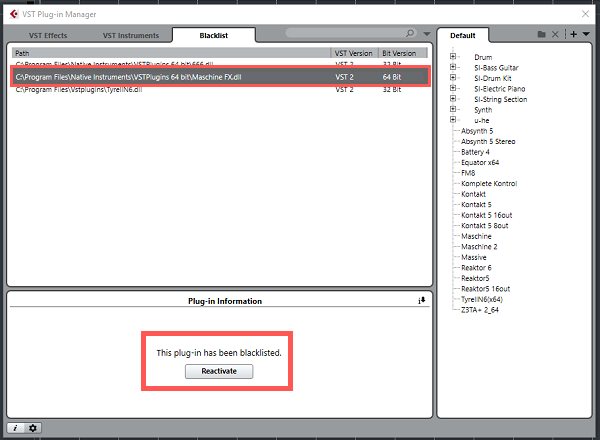
Click on the Blacklist tab. This is where all blacklisted plug-ins are located. 32-bit plug-ins cannot be re-enabled since they are not supported by Cubase 9. You can, however, reactivate 64-bit plug-ins if necessary by selecting the plug-in and clicking Reactivate.
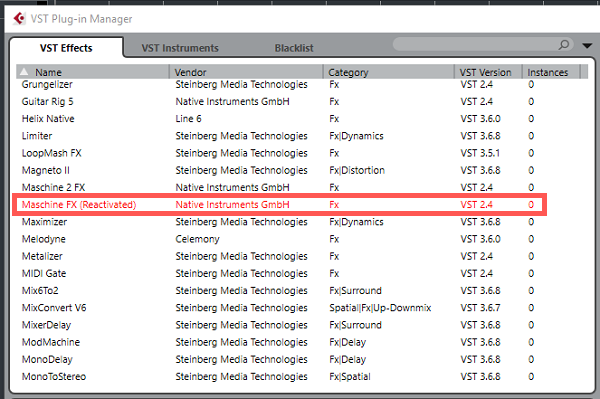
A re-enabled plug-in will then be displayed in the appropriate list (VST Effects or VST Instruments) in the VST Plug-in Manager. You will easily recognize it since re-enabled plug-ins show up in red.
If a particular plug-in is nowhere to be found in the VST Plug-in Manager and is not blacklisted either, you may need to add its destination path as explained below:
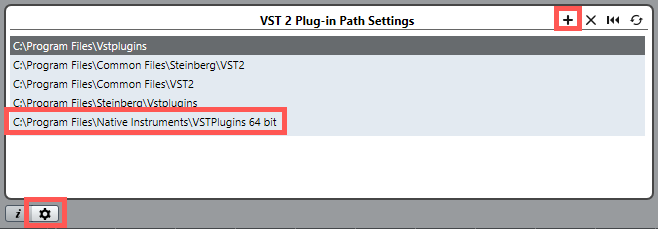
- Click on the gear icon at the bottom left of the VST Plug-in Manager window to open the Plug-in Path Settings.
- Click on the + sign on the top right of the bottom half window, as seen in the picture below.
- Add the destination path where your NI plug-ins have been installed in.
By default, the path is as follows:
- C: > Program Files > Native Instruments > VSTPlugins 64 bit