
In this article, we will be exploring how to register your hardware and related software products included with your Traktor.
Please use the Table of Contents to choose the version of Native Access you are registering your Tracktor product with:
TABLE OF CONTENTS
- Included Registration Card
- Native Access 2
- Native Access 1
- Registration Cards With Two Serials
- Getting Started Guides
Included Registration Card
When purchasing a Traktor Pro hardware product, you will find a registration card in your product box like the one pictured below. The bottom of the card shows the Traktor serial:
Native Access 2
Registering your Traktor Product
- Open Native Access and log in with your Native Instruments email and password.
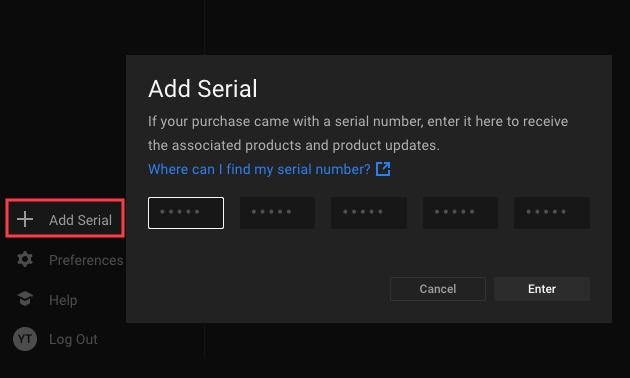
- Click on Add Serial on the left side pane of Native Access.
- Enter your serial number and click Enter.
Locating your Traktor Software Download
After registering your Traktor Pro hardware, the Traktor Pro software serial number is automatically added to your account. To locate your software download, follow these steps:
- Click Library > Available > All.
- Click the Refresh button.
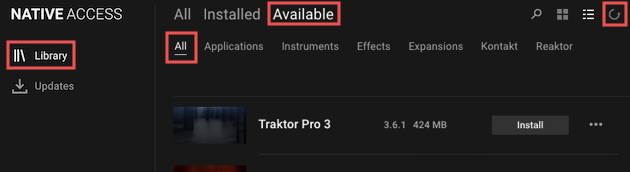
- Your software download now appears in the list of available products.
Native Access 1
Registering your Traktor Product
- Open Native Access and log in with your Native Instruments email and password.
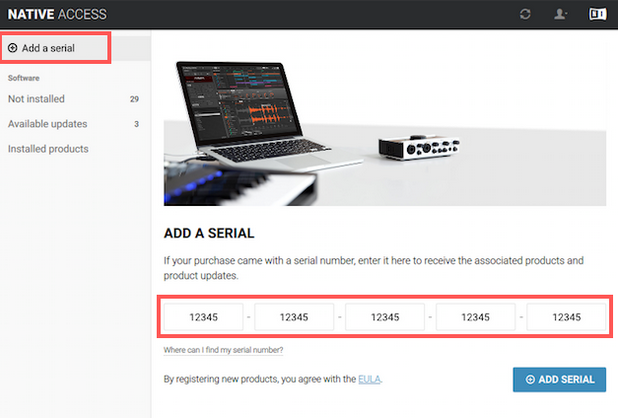
- Click on Add a Serial in the upper left corner of Native Access.
- Enter your serial number and click ADD SERIAL.
Locating your Traktor Software Download
After registering your Traktor Pro hardware, the Traktor Pro software serial number is automatically added to your account. To locate your software download, follow these steps:
- Navigate to the Not Installed tab.
- Click the Refresh button.
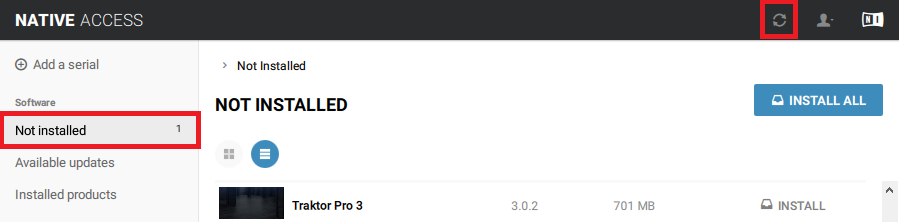
- Your software will now appear in the list of not-installed products.
Registration Cards With Two Serials
With earlier Traktor devices, you may find a registration card with both a hardware and software serial number. If this is the case, please follow the registration steps at the web address printed on the card: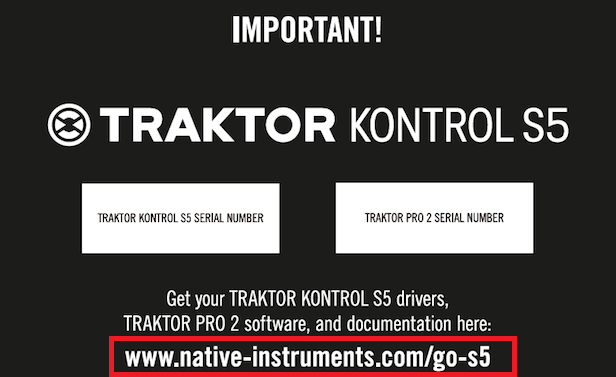
Getting Started Guides
To obtain specific 'Getting Started' instructions for your particular device, please use the link printed on the flyer contained in your NI product's box.
In our example from the Included Registration Card section above, you will find the 'Getting Started' instructions for Traktor at:
www.native-instruments.com/setup-traktor.