
In this article, you'll find troubleshooting steps and learn how to locate your default factory content, including the factory presets, on Windows 10/11.
TABLE OF CONTENTS
- The Factory Content was not found
- Missing Presets
- If the content is missing from the default install locations:
- Glossary
The Factory Content was not found
Users may experience an error when attempting to launch their AIR Music Tech plug-in, prompting to locate the .big content file for a specific plug-in. In the example below, we'll be using Xpand!2 and redirecting the plug-in to the factory content.
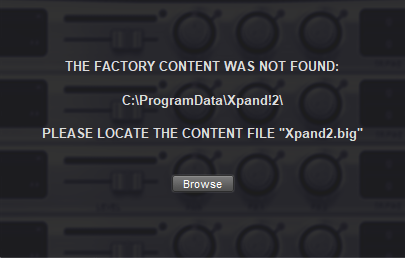
- Locate the factory content
We want to confirm the .big file has been installed on the system. The ProgramData location shown in the screenshot above is a hidden file location.
To view this location, you can copy the C:\ProgramData\AIR Music Technology location into File Explorer or select View -> Show -> Enable Hidden Items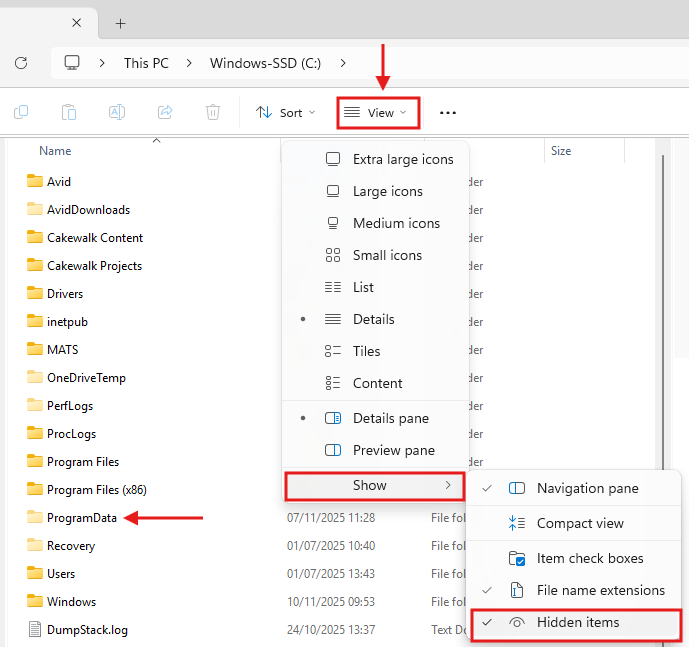
- Note: The Xpand!2, content location is a little different to other classic AIR Titles, as it is found in C:\ProgramData\Xpand!2
- See the Glossary below to help you locate your plugin's content.
- Note: The Xpand!2, content location is a little different to other classic AIR Titles, as it is found in C:\ProgramData\Xpand!2
- If the .big files are present
- Redirect the plug-in content location
- Within the plug-in, click Browse
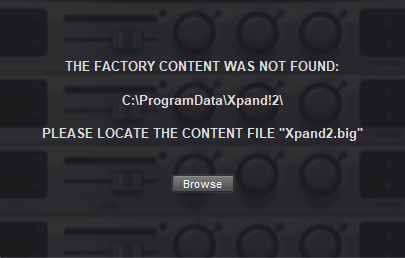
- Choose the content location where the .big file is located
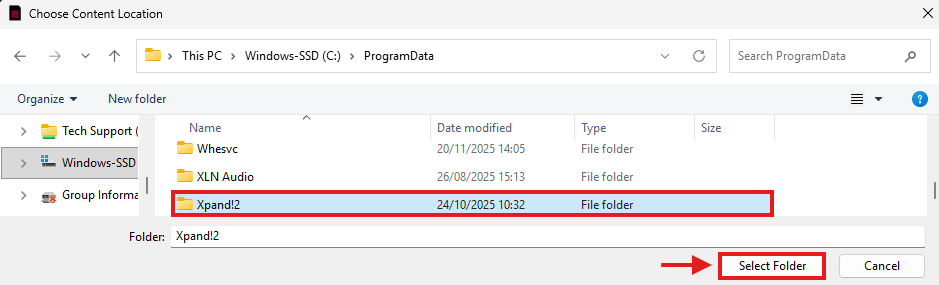
- Click Select Folder
- Reload the plug-in in your DAW or restart your DAW to apply the changes
- Within the plug-in, click Browse
- Redirect the plug-in content location
If the .big files are missing - See the steps below referencing the Default content locations via the Glossary. If the content is not in the default location, please check the x86 Program Files variant of the default locations. For example:
- C:\Program Files (x86)\AIR Music Technology\Hybrid
Missing Presets
Users may find that the Preset drop-down menu is not showing any presets other than Default. Typically, the factory content is installed, but the plug-in is attempting to read a different location. We can correct this via the steps below:
- Confirm the factory content is installed
- Go to the main parent folder for your AIR Music Tech content:
C:\Program Files\AIR Music Technology
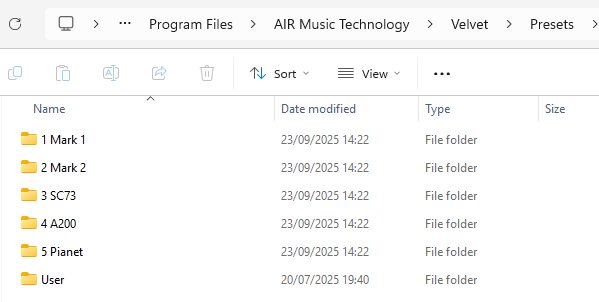
Important Note - Here you will find folders for each AIR plug-in - Open the folder for your affected plug-in. In the example below, we'll use Velvet:
C:\Program Files\AIR Music Technology\Velvet - Check for a Presets folder
- Open the folder and confirm the content is present
- Go to the main parent folder for your AIR Music Tech content:
- If the factory presets/content are present, copy the entire AIR Music Technology\AIR plug-in folder
- Go to the following file location:
C:\Program Files (x86)\AIR Music Technology - Paste the folder into this location
- Close and restart your DAW for the changes to take effect
If the content is missing from the default install locations:
Temporarily uninstall/disable third-party antivirus/firewall software
If the .big files or ProgramData folder are present, but the plug-in cannot be directed to the content location, a third-party antivirus or firewall may be causing a system block, stopping the plug-in from accessing the folder.
To uninstall the third-party antivirus/firewall software, use the manufacturer's dedicated uninstallerUninstall/Reinstall the Plug-in
For our Classic AIR Titles, please use the dedicated Microsoft Uninstall Troubleshooting tool via the steps referenced in our AIR Music Tech | Classic Title 2025 Updates uninstall guide.
Glossary
Below is a table of all our current Classic AIR Plug-ins and their default install locations.
Please copy the specific location for your content into Windows File Explorer to be directed to these folders.
| Plug-In | Factory Content | Factory Presets |
| Boom | C:\Program Files\AIR Music Technology\Boom | |
| DB-33 | C:\Program Files\AIR Music Technology\DB-33 | |
| Drum Synth 500 | C:\Program Files\VstPlugins\Drumsynth 500 | C:\ProgramData\AIR Music Technology\Drumsynth 500 |
| Hybrid 3 | C:\Program Files\AIR Music Technology\Hybrid\Content | C:\Program Files\AIR Music Technology\Hybrid |
| Loom II | C:\Program Files\AIR Music Technology\Loom | C:\Program Files\AIR Music Technology\Loom |
| Mini Grand | C:\ProgramData\AIR Music Technology\Mini Grand | C:\Program Files\AIR Music Technology\Mini Grand |
| Strike | C:\ProgramData\AIR Music Technology\Strike | |
| Structure 2 | C:\ProgramData\AIR Music Technology\Structure | |
| The Riser | C:\Program Files\AIR Music Technology\theRiser | |
| Transfuser 2 | C:\ProgramData\AIR Music Technology\Transfuser | |
| Vacuum Classic | C:\ProgramData\AIR Music Technology\Vacuum | |
| Vacuum Pro | No dedicated factory content folder | C:\Program Files\AIR Music Technology\VacuumPro |
| Velvet | C:\ProgramData\AIR Music Technology\Velvet | C:\Program Files\AIR Music Technology\Velvet |
| Xpand!2 | C:\ProgramData\Xpand!2 | C:\Program Files\AIR Music Technology\Xpand!2 |
| Creative FX Collection Plus | No dedicated factory content folder | C:\Program Files\AIR Music Technology* |
*Preset folders are in individual folders within AIR Music Technology, such as "AIR Flanger".