

The inMusic Software Center is the central hub for downloading and authorizing your inMusic software. This article provides basic troubleshooting steps to resolve download errors seen within the inMusic Software Center.
TABLE OF CONTENTS
Example Download Errors
See below, example download error messages with a brief overview on why they occur - See the linked bullet points underneath each topic to run through the troubleshooting steps accordingly:
Error: Download *Product Name* Failed - Aborted
This error usually appears at the final stage of the download process. The download begins by creating a temporary file, with extension '.INMDOWNLOAD'; similar to how web browsers handle temporary files during downloads.
If you encounter a message stating 'aborted' towards the end of the download, a firewall/antivirus software is likely blocking the download from completing and becoming the final file/folder/installer.
- Confirm Drive Space & Download Location
- Temporarily Disable/Uninstall Third-party Antivirus/Firewalls
Windows Specific Troubleshooting
- Disable / Adjust Firewall Authorizations
- Specifying Firewall Access for Services and Apps
- Clear the inMusic Software Center files
EACCES: Permission denied, access /Users/username/Downloads/InMusic
This error typically occurs when there is not enough storage on the system. But it can also be caused by a firewall/antivirus software or general user/account permissions, causing a block when attempting to download the content.
- Confirm Drive Space & Download Location
- Adjust Default Browser settings & Clear Cache/Cookies
- Temporarily Disable/Uninstall Third-party Antivirus/Firewalls
- Confirm your Windows account is part of the Administrators group
Error: ENOTFOUND
This error occurs when the system cannot connect to the servers that provide the download content. This is specifically a DNS issue, as your system is unable to resolve the hostname.
Error: ECONRESET
This error occurs when the connection has been established for the download, but was interrupted or reset during the download. This can be fixed by disabling the system sleep when attempting large downloads and ensuring you have a stable internet connection.
Troubleshooting Index
General Troubleshooting
Confirm Drive Space & Download Location
Ensure the drive you are downloading content to has enough space. You can verify the size needed to download and install a product via the inMusic Software Center by clicking on the i icon next to the product name.
To confirm the download location within the Software Center:
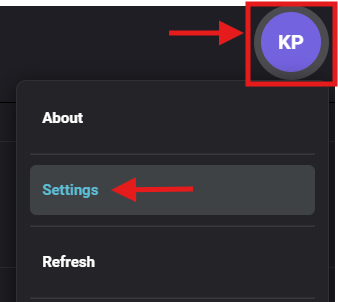
- Navigate to the inMusic Software
- Click on your initials and then click 'Settings'
- Click 'Change' to confirm the download path
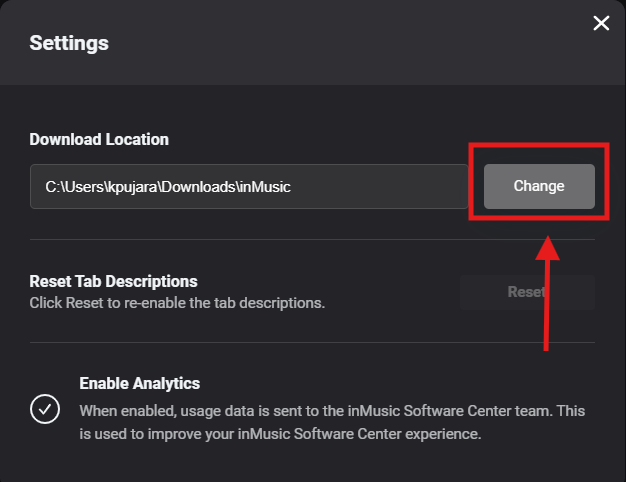
Please note: If you have specified your 'Documents' folder, ensure OneDrive (Windows or iCloud (MacOS) is not synced to it.
Adjust Default Browser settings & Clear Cache/Cookies
Certain browsers may be causing blocks with how the file is completing the download, causing these error messages. Below are troubleshooting steps that can help resolve issues caused by a specific browser:
- Clear the Cache / Cookies on your web browser via the browser's settings/preferences
- Try a different web browser and set this as your default browser while attempting to log in/download your content
- On Windows: Try using Microsoft Edge or Firefox
- On macOS: Try using Chrome or Firefox
- Adjust internal browser security settings:
- Google Chrome: Settings -> Security page and temporarily lowering the security/safe browsing option while trying to log in.
- Mozilla Firefox: Settings -> Privacy & Security, scroll down to the HTTPS-Only Mode section, and select the "Don't enable" option
Temporarily Disable/Uninstall Third-party Antivirus/Firewalls
If you have any third-party antivirus or firewalls installed, these can both disrupt and block downloads and installations for users. We recommend temporarily disabling/uninstalling any third-party antivirus software and firewalls before attempting a download.
Please note: For most Anti-Virus software, it's recommended to run the uninstaller from the manufacturer to remove all contents on your machine.
Windows Specific Troubleshooting
Adjust Windows Firewall Access
Users can manually change their Firewall settings if they haven't previously allowed the inMusic Software Center to communicate on an available network. Follow the steps below to adjust your firewall settings:
- Open Control Panel
- Go to System & Security
- Open Windows Defender Firewall
- Open Allowed Apps via the Allow an app or feature through Windows Defender Firewall
- Locate inmusic software center.exe and check each box to allow it through your firewall

Check Windows Protection
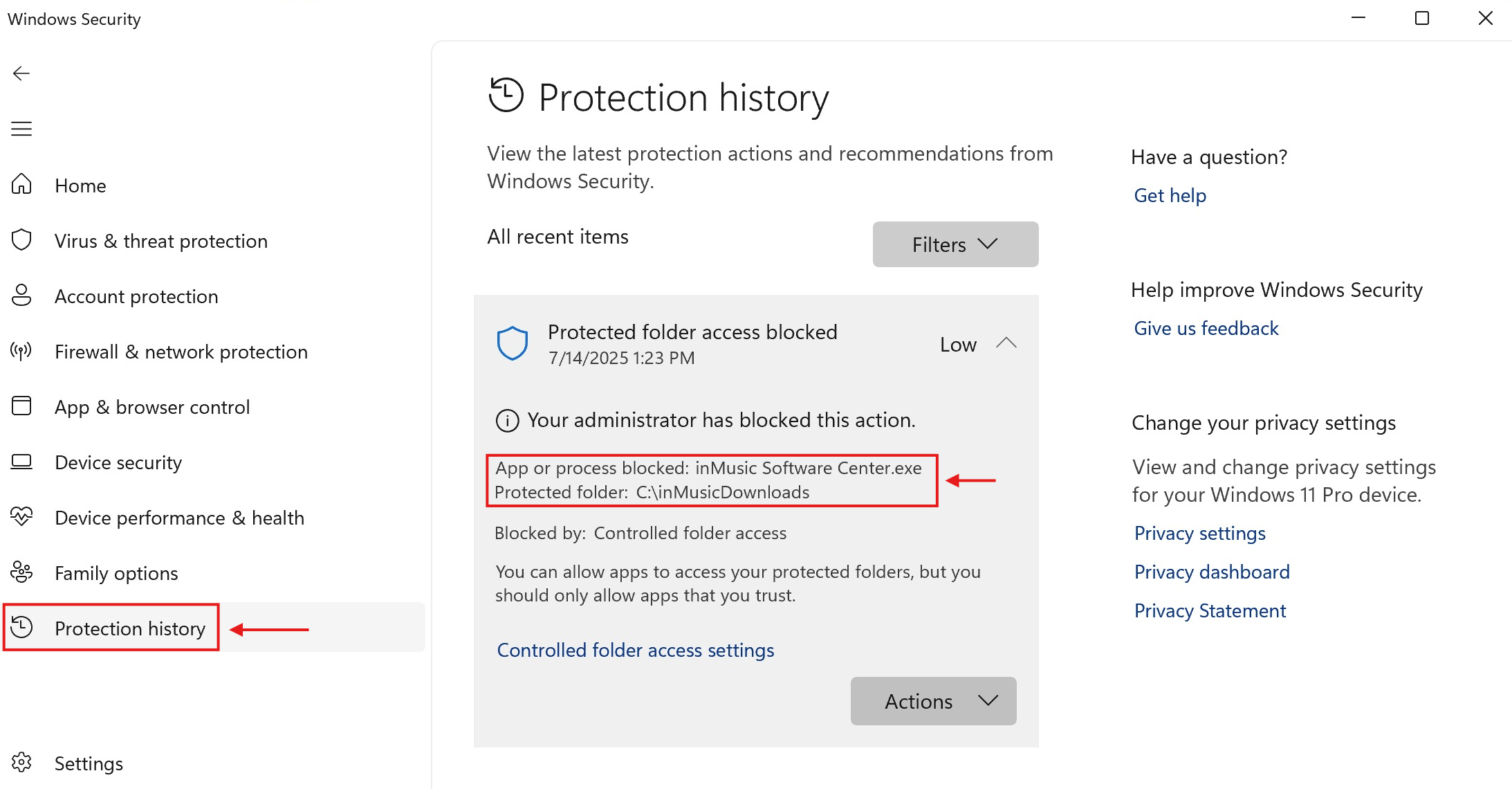
Windows Protection History can show potential blocks performed by your operating system. To check for these blocks, follow the steps below:
- Navigate to the search bar at the bottom of your PC's screen
- Type in 'Protection'
- Locate and launch 'Virus & threat protection'
- Navigate to the tab 'Protection History'
- Check whether any blocks are enabled
- If you see this specified under 'Downloads' or as inMusic Software Center, please permit it.
Confirm your Windows account is part of the Administrators group
Some applications require permissions that are only available for Administrator accounts. To ensure your account is set correctly. Please see the guide below:
- Go to Settings > Accounts > Other users
- Select your user account and confirm it is set as Administrator
- If it is not, add it to the Administrators group, then restart the computer
Clear the inMusic Software Center files
If you continue to get error messages when trying to log in to the inMusic Software Center or when trying to download your software and expansions. Please follow the steps below to remove the backend files:
- Close the Software Center
- Go to the following file locations:
- C:\Users\USERNAME\AppData\Local
- C:\Users\USERNAME\AppData\Roaming
- Delete the folders from each location:
- AppData\Local - inMusicBrands
- AppData\Roaming - inMusic Software Center
- Empty the recycling bin
- Redownload the inMusic Software Center for Windows
- Launch the inMusic Software Center
- Log in to your account, and reattempt the download
Windows: Flush the DNS Cache
For errors where the connection is not being made to start the download - ENOTFOUND. Please use the guide below to flush the DNS Cache:
- Close the Software Center
- In the Windows Search bar, type CMD
- Right-click on Command Prompt and select Run as Administrator
- Copy and paste the following prompt:
ipconfig /flushdns - Press Enter and let the command complete
- Restart your PC
For persistent ENOTFOUND errors, please repeat the steps above, but copy and paste the following prompt instead:
netsh winsock reset
Mac Specific Troubleshooting
Disable / Adjust Firewall Authorizations
If the Firewall on your Mac is currently active, please disable it via the steps below
- 1. Click the Apple menu and select System Settings.
- In the sidebar, scroll down and click Network.
- Select Firewall and toggle the switch to Off.
Specifying Firewall Access for Services and Apps
Within the Firewall settings, you can customize which apps and services can access your Mac through the firewall:
- After enabling the firewall, click Options
- If the Options button is disabled, ensure the firewall is turned on.
- Click the Add button below the list of applications and services.
- Select the apps or services you want to manage.
- After adding an app or service, click the app's corresponding up and down arrows to choose whether to allow or block connections through the firewall.
Clear the inMusic Software Center files
If you continue to get error messages when trying to log in to the inMusic Software Center or when trying to download your software and expansions. Please follow the steps below:
- Close the Software Center
- Launch Finder
- Hold the 'Option' key on your keyboard
- Click 'Go' in Finder, and select 'Library.'
- Go to the following file locations:
- Macintosh HD \ Users \ [USER NAME] \ Library \ Application Support
- Delete the folders from each location:
- com.inmusicbrands.softwareunlock
- inMusic Software Center
- Empty the Trash
- Redownload the inMusic Software Center for macOS
- Launch the inMusic Software Center
- Log in to your account, and reattempt the download
macOS: Flush the DNS Cache
For errors where the connection is not being made to start the download - ENOTFOUND. Please use the guide below to clear the DNS Cache:
- Close the Software
- Open Terminal
- Enter the following prompt:
sudo dscacheutil -flushcache; sudo killall -HUP mDNSResponder - Enter your password once prompted
- Once the DNS Cache is cleared, please launch the Software Center and attempt your download
If you continue to encounter problems, please reach out to our customer support team for further assistance.