
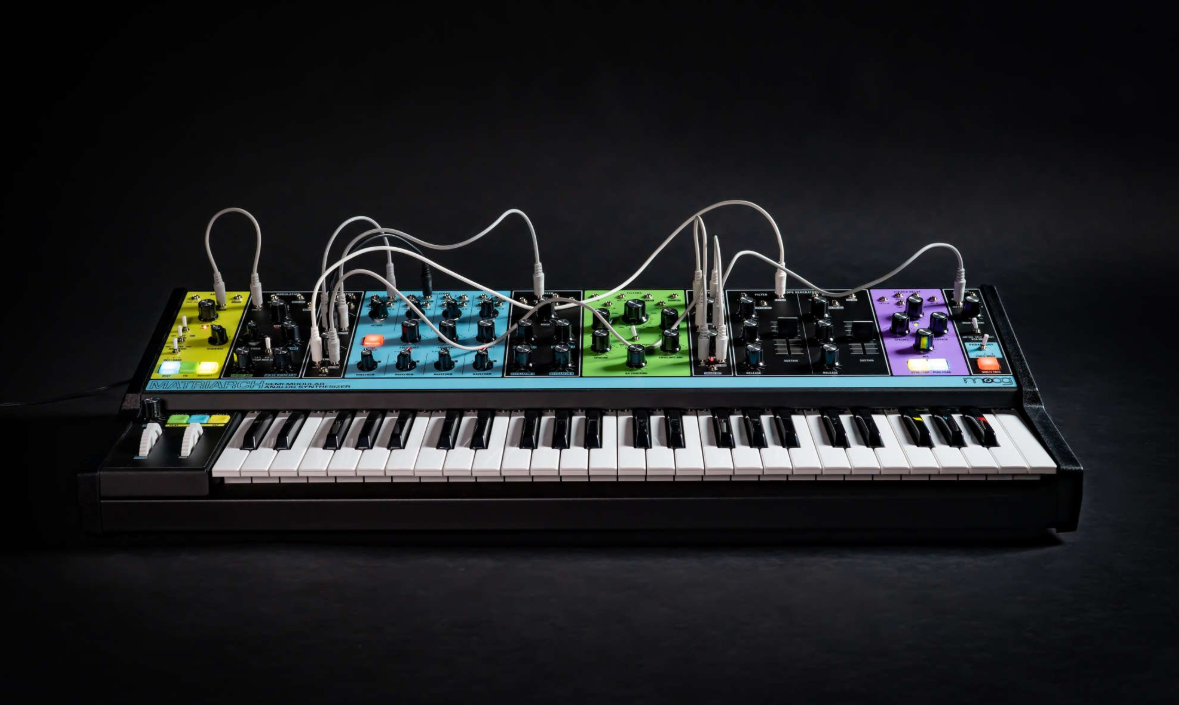
For general troubleshooting of the Matriarch, we recommend following the steps listed below, checking for resolution between each step:
TABLE OF CONTENTS
SysEx Software
Some of these troubleshooting steps requires the use of a SysEx software. This is a piece of software specifically designed for sending and receiving SysEx (.syx) files. These procedures specifically require sending the SysEx files from the software to the synth. Below are the two recommended SysEx software, and their associated method for setting up a MIDI output.
SysEx Librarian (Mac) - The synth will appear in the drop-down menu at the top of the screen.
Bome Send SX (Windows) - Go to MIDI Out and select the synth from the choices provided.
If you are having issues sending a SysEx file, a common solution can be to adjust the SysEx data transfer speed to transfer slower.
SysEx Librarian - Settings > Transmit Speed
Bome Send SX - Options > Settings > Actual MIDI Speed
INIT Patch Setup
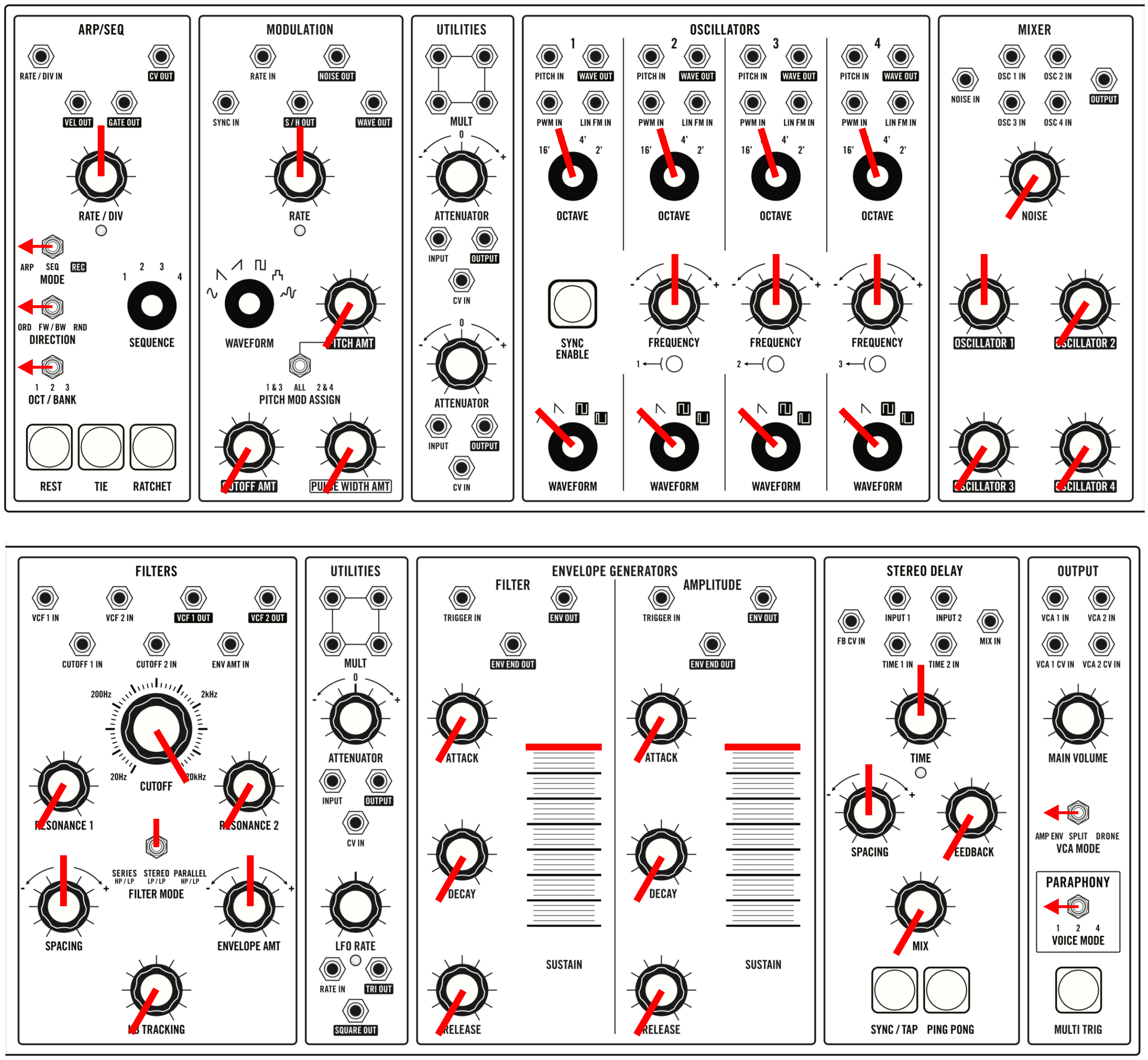
To rule out the possibility that your current patch is causing the problem, switch the synth to an INIT (initialized) patch. Set your panel to match the settings shown here:
Global Settings
- Hold down the HOLD and SYNC buttons for three seconds until you see the SYNC button blinking.
- Once blinking, press and hold the highest black key and while holding hit the lowest black key.
- You should see a flash across the LHC buttons above the pitch and mod wheel indicating that factory global settings have been restored.
- A video detailing how to perform this procedure can be found HERE.
Note Calibration
- Let the synth warm up for 15 minutes before initiating the calibration.
- Holding down the HOLD and SYNC buttons for three seconds until you see the SYNC button blinking.
- Once blinking, hold the PLAY, HOLD, and TAP buttons, and then press the lowest white key on the keyboard.
- A video detailing how to perform this procedure can be found HERE.
Pot Calibration
- Download the Pot Calibration files HERE.
- Connect the Matriarch via USB to a computer or laptop and open your SysEx program of choice.
- Open your SysEx sending software & select the Matriarch as the MIDI Out.
- Start by turning the following knobs fully counter clockwise – GLIDE, ARP RATE, LFO RATE, OSC 2, 3, & 4 FREQ, DELAY SPACING, DELAY TIME.
- Set the FINE TUNE control on the back fully counter clockwise (looking from the back of the Matriarch).
- Hold the PITCH & MOD WHEELS at their lowest position.
- Send the “Matriarch_Pot_Cal_LOW.syx” file to the Matriarch.
- Now turn all the knobs mentioned fully clockwise.
- Set the FINE TUNE control fully clockwise (looking from the back of the Matriarch).
- Hold the PITCH & MOD WHEELS at their highest position.
- Send the “Matriarch_Pot_Cal_HIGH.syx” file to the Matriarch.
- Now set all the knobs mentioned to their center (12 o’clock) position including the FINE TUNE control and the PITCH & MOD WHEELS.
- Send the “Matriarch_Pot_Cal_CENTER.syx” to the Matriarch.
- This completes the pot calibration.
- A video detailing how to perform this procedure can be found HERE.
Firmware Update
- Download the firmware files HERE.
- Connect a USB cable from Matriarch to your computer.
- Select the SysEx file “Matriarch_FIRMWARE_INVALIDATE.syx” included with this download and click Send. On the Matriarch, the Arp Rate LED will start blinking red/green.
- In the SysEx sending software, re-select Matriarch as your MIDI output device (Matriarch reboots and needs to be re-selected after INVALIDATE).
- Select the SysEx file “Matriarch_FIRMWARE_ERASE.syx” included with this download and click Send. On the Matriarch, the Arp Rate LED will blink green. Matriarch is now ready for new firmware.
- Select the new firmware file “Matriarch_Firmware_v1_3_0.syx” included with this download and click Send. The Matriarch Arp Rate LED will blink yellow-orange while receiving.
- You’re done! Matriarch will reboot to the new firmware when done
- A video detailing how to perform this procedure can be found HERE.