
This article explains how to route the audio signals from each instrument loaded into Kontakt's Rack to separate channels in the Logic Pro X mixer. Each channel can then be individually processed and mixed in Logic.
Follow these instructions to configure Kontakt and Logic for use with multiple outputs:
TABLE OF CONTENTS
- Load Kontakt in Logic Pro X
- Configuration of the Kontakt output channels
- Creating instrument output channels for Kontakt in Logic Pro X
- Assignment of instruments to separate outputs in Kontakt
Note: These instructions apply to all current versions of Kontakt. If you are using Kontakt 6, simply select the plug-in labeled "Kontakt" and follow these instructions.
Load Kontakt in Logic Pro X
- Create a software instrument in Logic.
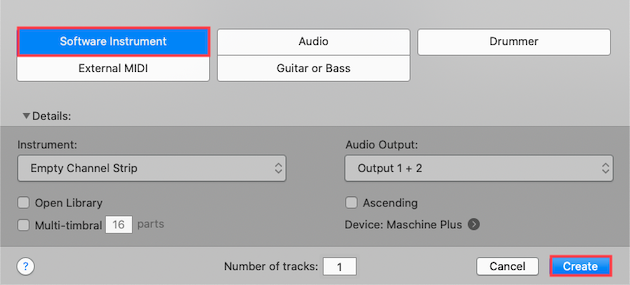
- Load Kontakt as a multi output plug-in:
Instrument > AU Instruments > Native Instruments > Kontakt > Multi-Output (16xStereo)
Note: In this example, Multi Output (16xStereo) was selected, which means that 16 separate contact output channels are available.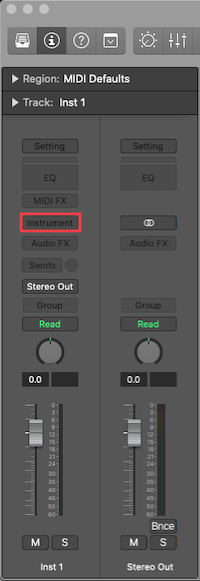
Configuration of the Kontakt output channels
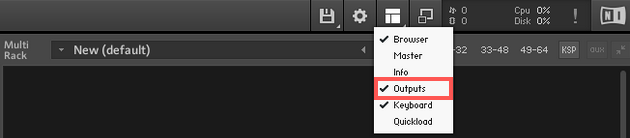
- Once Kontakt's user interface is displayed, activate the Outputs option in Kontakt's Workspace menu to display the Outputs section.
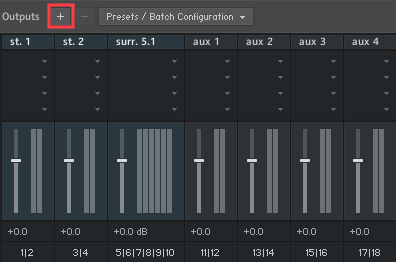
- Click ' + ' next to Outputs to open the Outputs dialog.
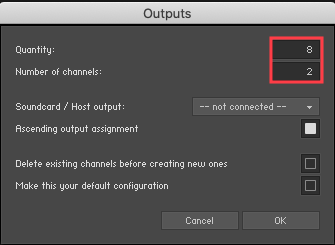
- Under Quantity , select the desired number of additional output channels by clicking in the input field and moving the mouse up or down. Under Number of channels, you can configure the channel configuration for all newly created output channels. Select 1 for mono output channels and 2 for stereo output channels. In our example, we want to set up a total of 8 stereo output channels in Kontakt. Therefore, we select a Quantity of 8 and a Number of channels of 2.
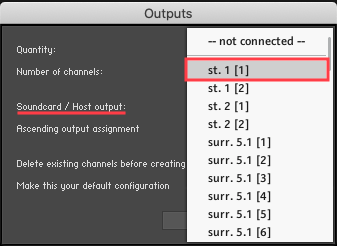
- For Soundcard / Host output, select st. 1 [1].
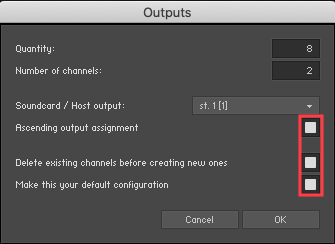
- Enable the following options:
- Ascending output assignment (assigns each new channel to the next available outputs).
- Delete existing channels before creating new ones (creates new output channels).
- Make this your default configuration (saves the setup for future Digital Performer projects). - Click OK
to confirm.
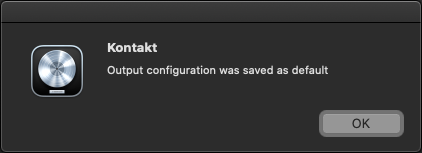
- If you have correctly followed the steps above, the message "Output Configuration was saved as default" will be displayed. Click OK to continue.
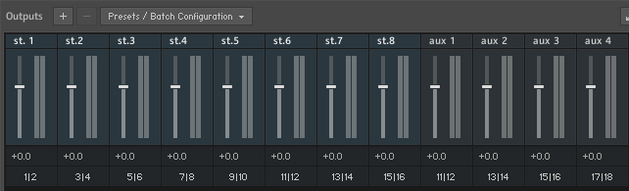
The Kontakts Outputs section now displays the 8 Master Channel Outputs, each routed to a different stereo output of Logic Pro X.
Creating instrument output channels for Kontakt in Logic Pro X
- Open the Mixer view in Logic Pro X.
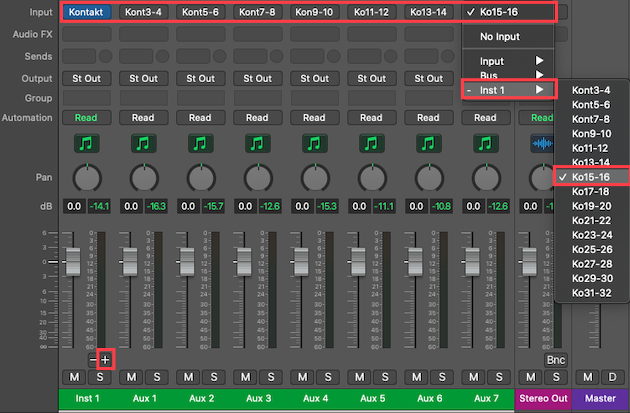
- Click the + symbol in the bottom right corner of the Kontakt instrument track. Each click adds an aux track. Create 7 new aux tracks. The input of each aux track is automatically assigned to another Kontakt output channel in ascending order.
Assignment of instruments to separate outputs in Kontakt
- Now you can route all the instruments you've loaded into the Kontakt Rack to separate output channels. When you load an instrument into the Rack, it's initially automatically assigned to the first stereo output channel, St.1 . In the header of each instrument, select the desired output channel. In this example, an instrument from Kontakt Retro Machines is sent to output st.2 [2 ch. routed 3|4].
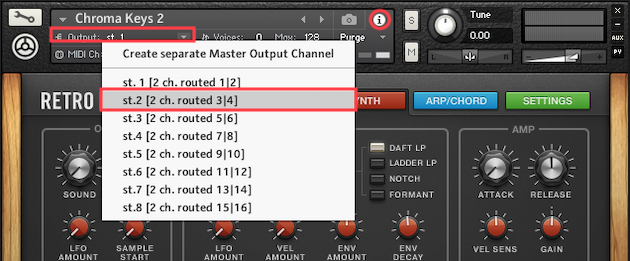
- Repeat this process for all instruments loaded in the rack, selecting one available stereo output channel at a time.
When you play an instrument in Kontakt, its audio signal is routed through the corresponding aux track in Logic to which the output is assigned.