
This guide explains how to create an Aggregate Device on macOS, allowing you to use multiple audio interfaces together within your audio applications.
TABLE OF CONTENTS
How Aggregate Devices Work
An Aggregate Device combines multiple audio interfaces into a single virtual device. This allows your DAW or audio software to access inputs and outputs from multiple devices at the same time.
Creating an Aggregate Device
- Launch the Audio MIDI Setup, which is located here: Macintosh HD > Applications > Utilities.
- Click on Window in the menu bar and choose Show Audio Devices.
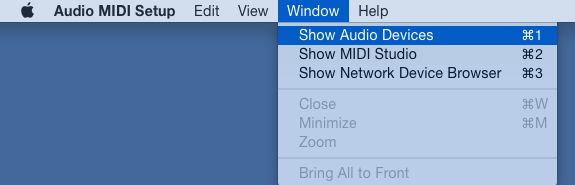
- In the Audio Devices window of the Audio MIDI Setup, click the Add (+) button. A drop-down window will appear. Select Create Aggregate Device from the menu.
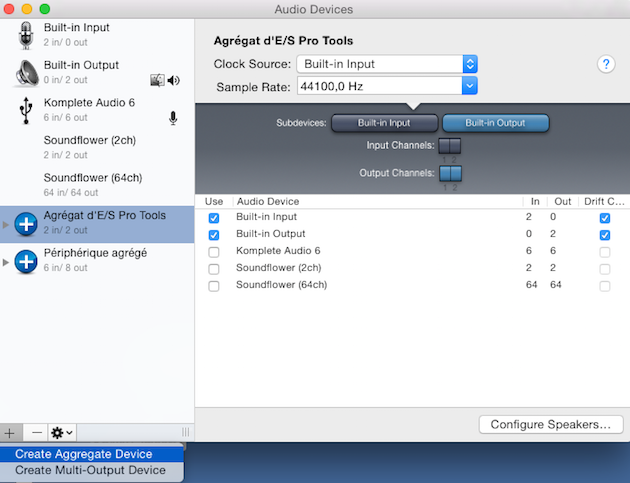
- A new aggregate device will appear in the list on the left side of the window. To rename the device, double-click it.
- A list of all the physical audio interfaces currently connected to your computer will appear in the selection section on the right-hand side. Check the boxes to enable the physical interfaces you require for your aggregate device.
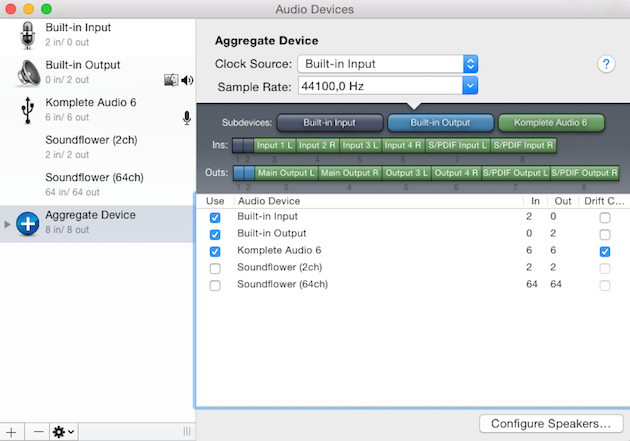
Note: In addition to displaying the currently connected audio devices, the number of inputs ("In") and outputs ("Out") available for each device is also listed.
- Close the Audio MIDI Setup.
- Open an audio application of your choice and select the newly created Aggregate Device as your input and output device. Note that the inputs and outputs have generic names. They follow the order of the devices in the Aggregate Device selection window as shown above.
You can now use the inputs and outputs from multiple audio interfaces within your audio application.