
This guide explains how to mount an ISO or DMG disk image on macOS in order to install Native Instruments products.
Follow the steps below to open the disk image and start the installation.
Download
Once the download is complete, you will see a file with the extension ".iso" or ".dmg" in the download directory.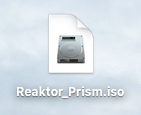
Installation
- Open the downloaded .iso/.dmg file with the Disk Image Mounter utility, which is installed on all macOS computers. Right-click the file and select Open with > DiskImageMounter from the menu:
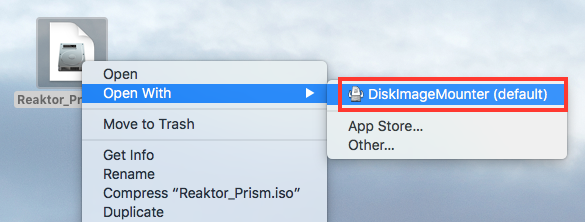
Note: It is important to use Apple's DiskImageMounter and no other third party tool, in order to guarantee a flawless procedure.
- The Disk Image will be mounted as a virtual drive. Double-click the file with the extension '.pkg' that is inside the virtual drive to start the installation:
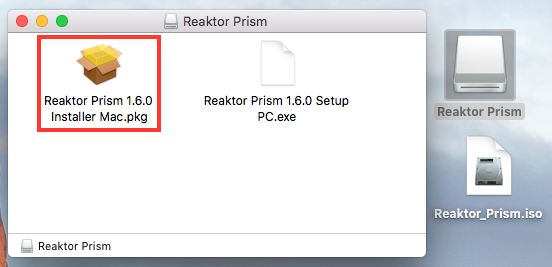
- When the installation has finished, unmount the virtual drive by dragging it to the Trash.
Note: We recommend creating a backup of the .iso/.dmg file for future use. If you encounter any problems during the installation, refer to the articles linked in the Related articles area below this text.