If you see the message “*app is not optimized for your Mac and needs to be updated,” it means the application is using older 32-bit technology that may not be supported on newer versions of macOS.
This guide explains what this message means and how to check whether an application is 32-bit or 64-bit on your system.
How to Check if an App is 32-bit or 64-bit
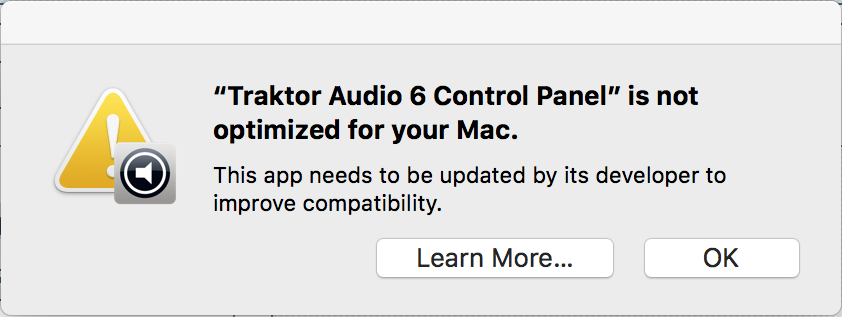
You can, of course, continue using your 32-bit applications with your Mac today. Using 32-bit software has no nefarious effect on your data, your computer or your external devices.
If you want to check whether an application is 32 or 64-bit you can do so as follows:
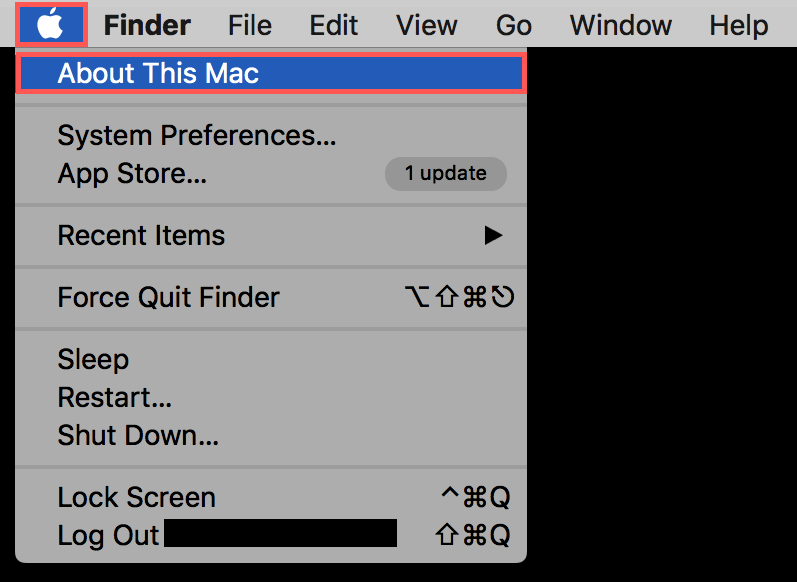
- From the Apple menu, choose About This Mac.
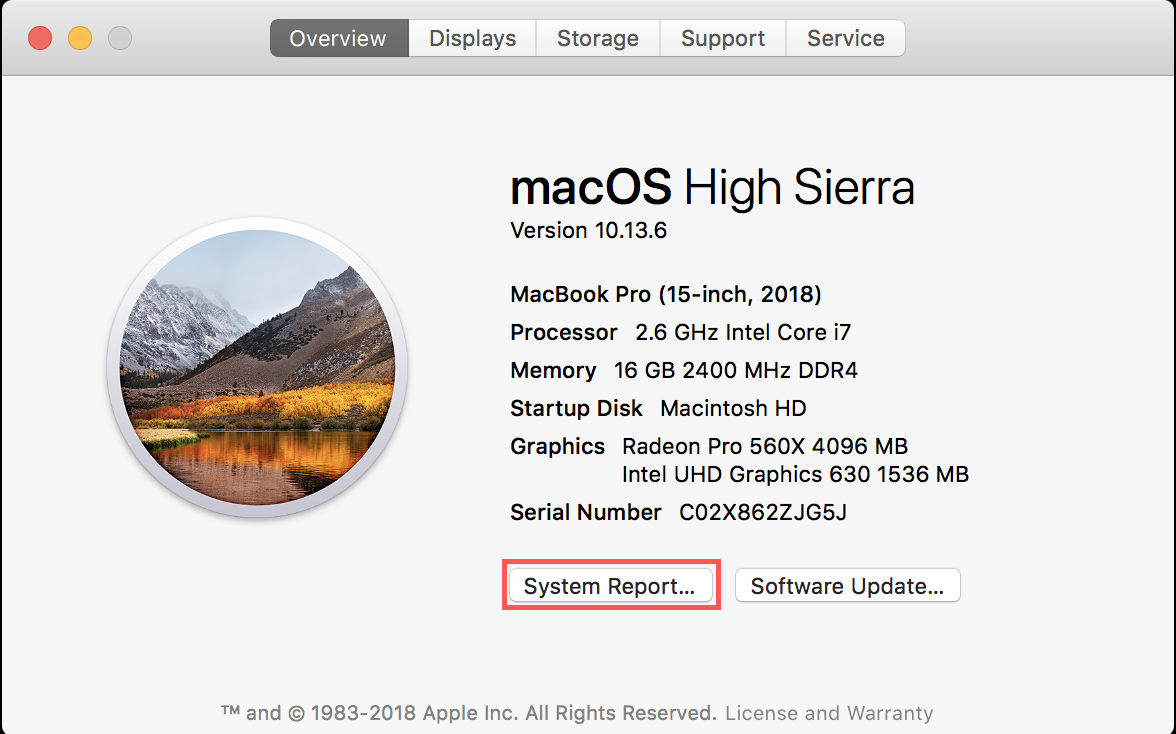
- Click the System Report button.
- Scroll down to Software in the sidebar.
- Select Applications.
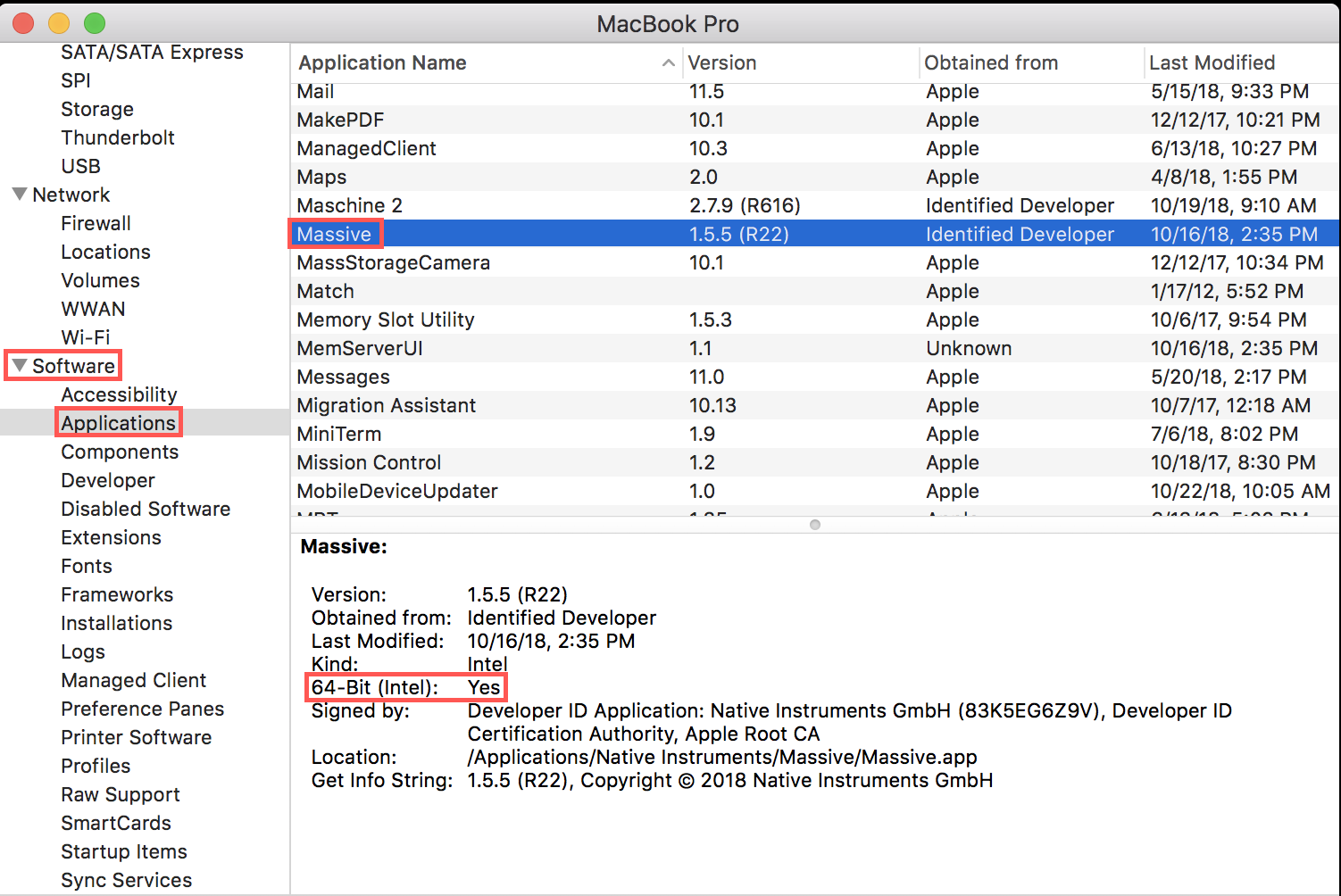
- When you select an individual application, you will see a field titled 64-bit (Intel).
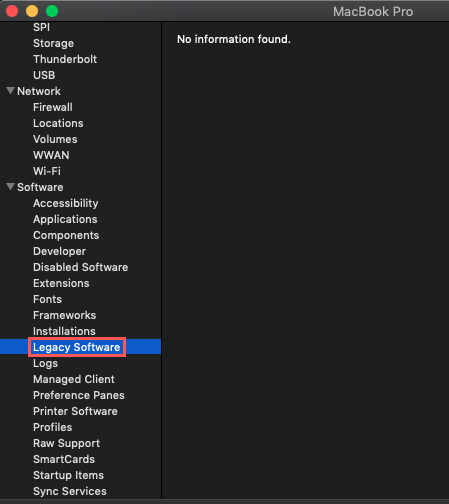
Yes indicates 64-bit; No indicates 32-bit. - If you're using macOS Mojave, select Legacy Software in the sidebar to see all applications that have not been updated to use 64-bit processes.