When launching a Native Instruments application on macOS 10.14 (or higher), the following message is displayed:
*appname* would like to access the microphone
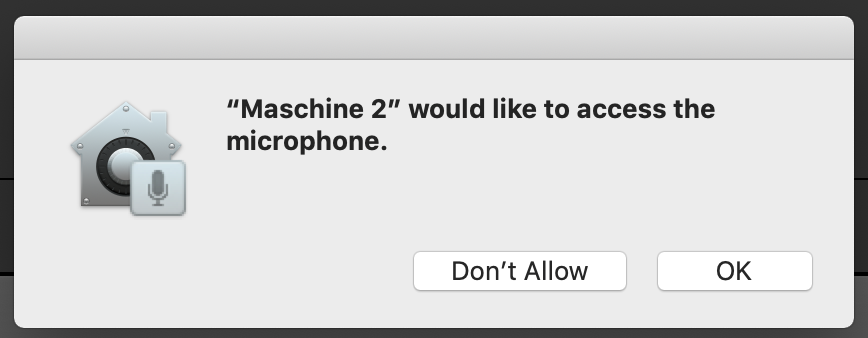
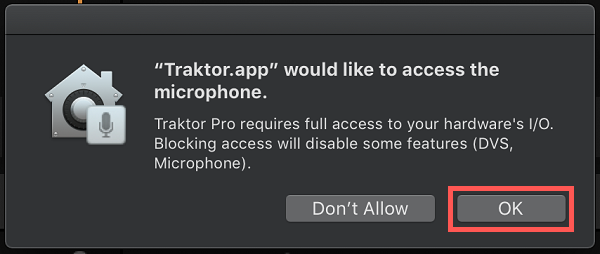
You can click OK in order to enable microphone access. If you click Don't Allow and prevent access, you may experience issues such as:
- No incoming signal going to the Input Decks
- No DVS support
- Audio performance issues
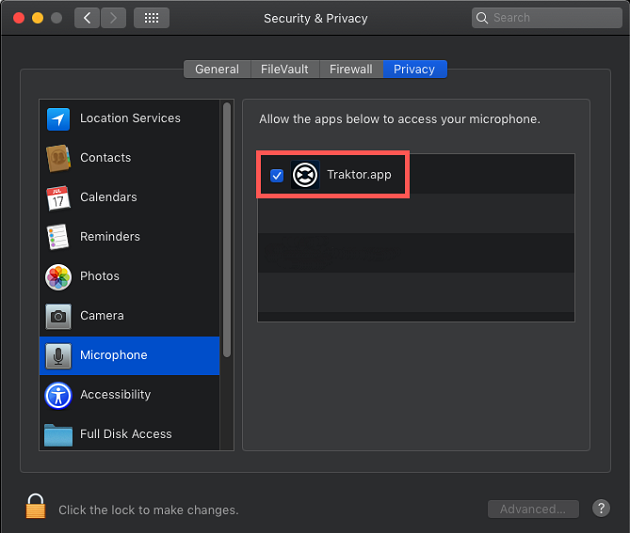
In case you inadvertently chose Don't Allow or ignored the prompt, you can also adjust your Mac settings to enable microphone permission:
- Go to System Preferences > Security & Privacy > Privacy > Microphone
- Click on the lock icon next to Click the lock to make changes and enter your computer log-in details.
- Enable the microphone setting for your app(s) by ticking the box next to *app.name*.app. In the below example, we are enabling the microphone access for Traktor.app.