
This guide explains how to enable Full Disk Access on macOS for Native Instruments applications and audio software to ensure proper performance and prevent common issues.
TABLE OF CONTENTS
Why Full Disk Access Is Required
On macOS, Native Instruments products and the audio software they are used with require Full Disk Access in order to function correctly.
Full Disk Access is required to avoid the following issues:
- The standalone version of a Native Instruments app crashes.
- The DAW crashes when trying to load or playback the project.
- The Native Instruments app browser is empty or incomplete.
- Issues while exporting or rendering audio.
- Long loading times when opening presets.
- Native Instruments plug-ins are blacklisted by the DAW.
- Plug-In Validation fails in Logic Pro.
Note: More information on Full Disk Access can be found on the Apple website.
Enabling Full Disk Access on macOS
Please grant Full Disk Access to all NI apps, NTKDaemon and other audio software:
- Open your Mac's System Preferences and select Security & Privacy.
- In the Privacy tab, choose Full Disk Access.
- If available, click the lock icon in the bottom left of the window and enter your macOS password.
- Ensure that your desired app appears in the list.
If it does not appear in this list, click the + icon and add the location of the app from here:
- Native Access and other audio software: Macintosh HD > Applications
- Other NI apps: Macintosh HD > Applications > Native instruments - Once completed, click the lock icon again (if available).
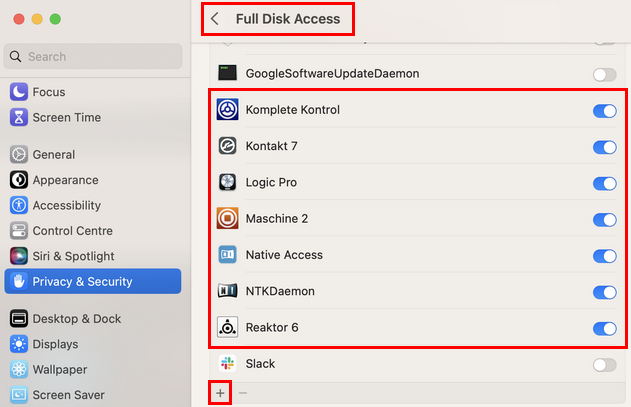
Note: the look of the Full Disk settings can vary depending on your macOS version.
- Restart your computer.