
In some cases, it may be necessary to run a Windows program in administrator mode. Depending on whether you want to start the program once or always in administrator mode, follow the respective steps:
Always run a Program as an Administrator
- Start Windows File Explorer and open the program's location. Usually, this is:
C: > Program Files > *Program Name Folder* - Right-click the program file (.exe) and choose Properties.
- In the Compatibility tab, activate the option Run this program as an administrator.
- Click Apply, then OK.
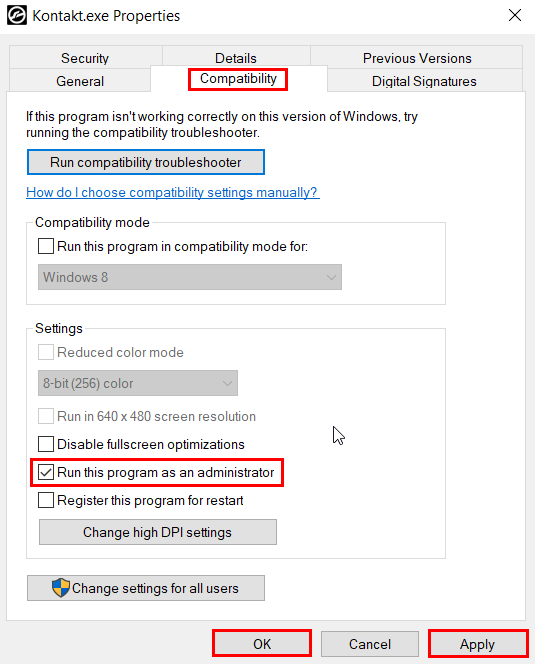
Note: Depending on your Windows Account Settings, you may receive a warning message. Click Continue to confirm the changes.
Run a Program once as an Administrator
- Start Windows File Explorer and open the program's location. Usually, this is:
C: > Program Files > *Program Name Folder* - Right-click the program file (.exe) and choose Run as administrator.
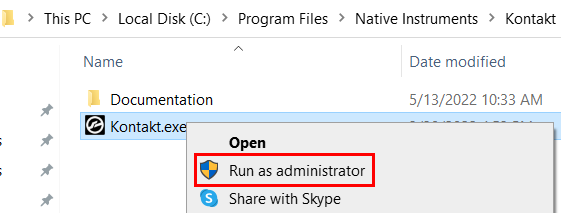
Note: Depending on your Windows Account Settings, you may receive a warning message. Click Continue to proceed.