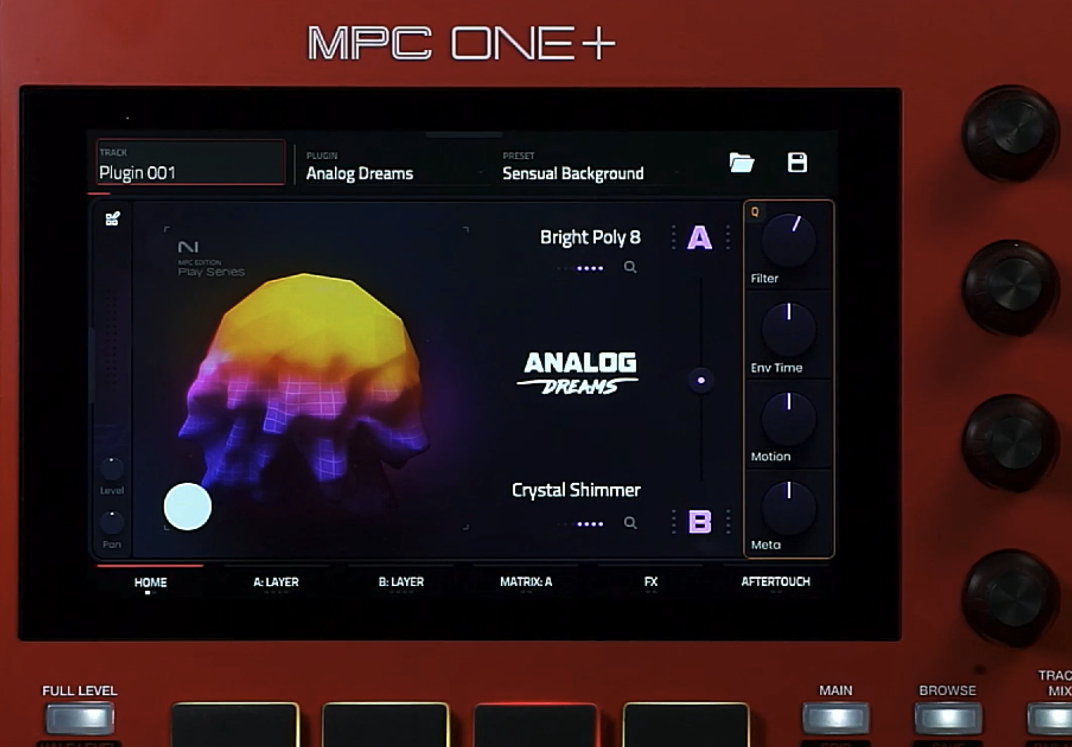
Note: If you want to learn more about the specifics of the MPC Editions, compatibility, etc. please read the Frequently Asked Questions in this article: MPC Editions FAQs
Setup Instructions
Updating your MPC Hardware
The NI Expansion Pack MPC Editions require the MPC3 firmware. MPC3 is a free update for MPC OS hardware: Akai Pro MPC - Firmware Update Walkthrough
Redemption / Download / Installation
- Connect to the internet and ensure that the connection is stable.
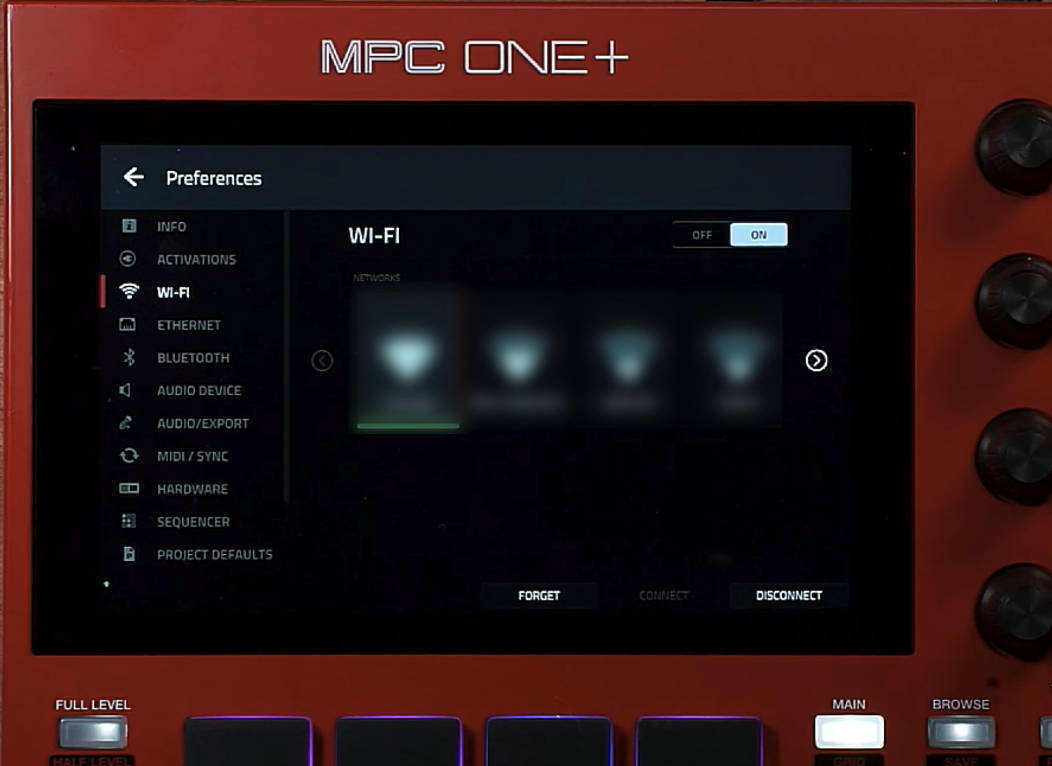
- On your MPC hardware, press the Menu button.
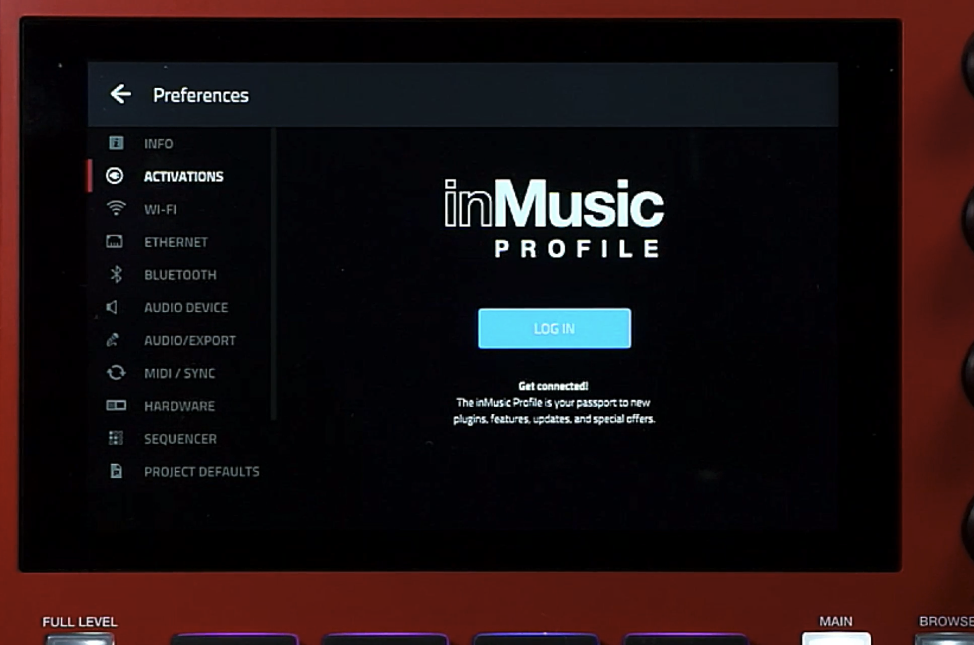
- Navigate to Preferences and tap the Activations tab on the left.
- Log in to your inMusic Profile:
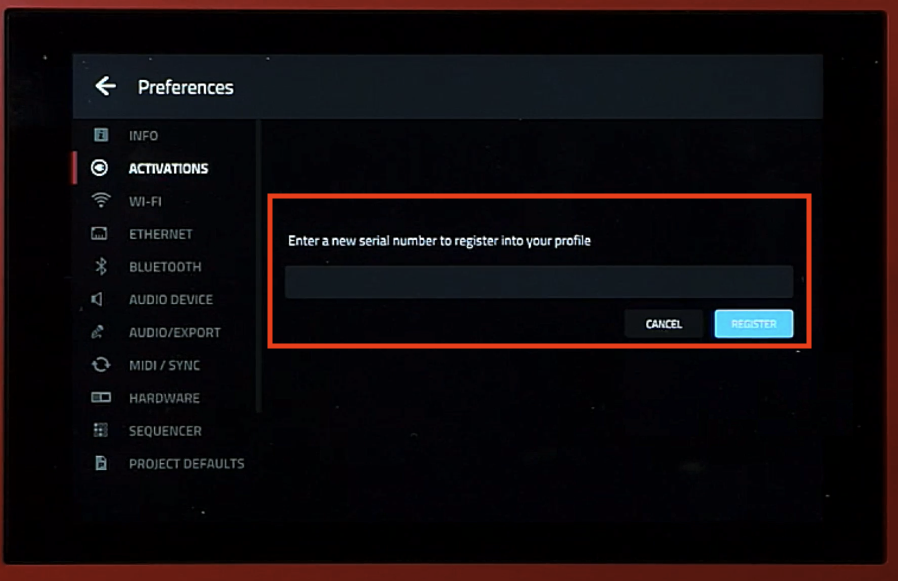
- Tap ENTER SERIAL towards the top of your display:
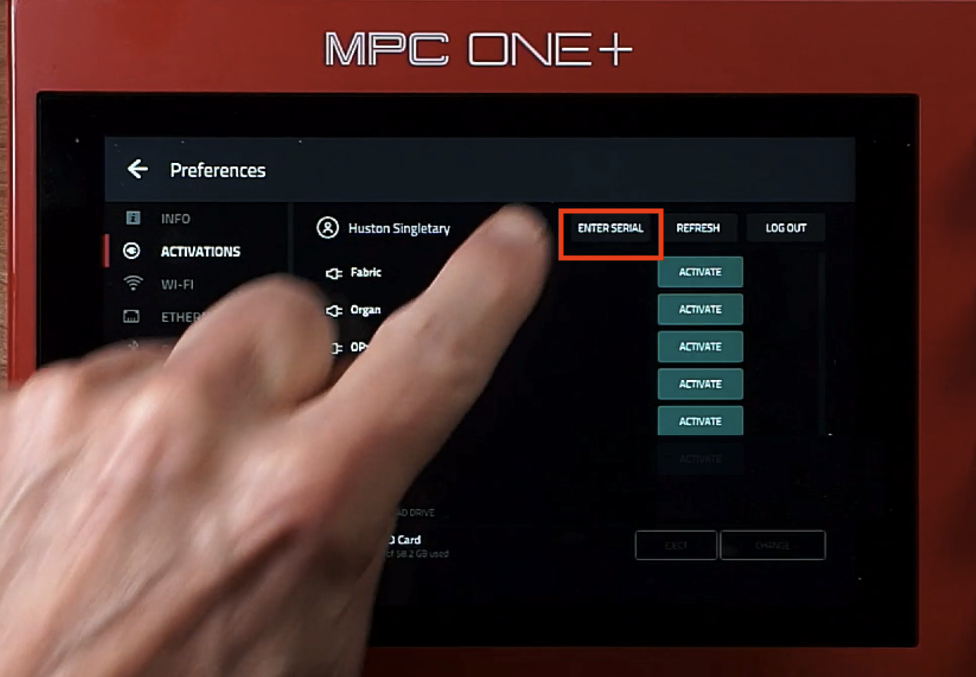
- Type / Enter the 30-digit license supplied by Native Instruments from the order confirmation email and tap REGISTER. Note, upon entering your license ensure to type this exactly as seen while including the '-' between each of the 4 digits: NIAD0-XXXX-XXXX-XXXX-XXXX-XXXX
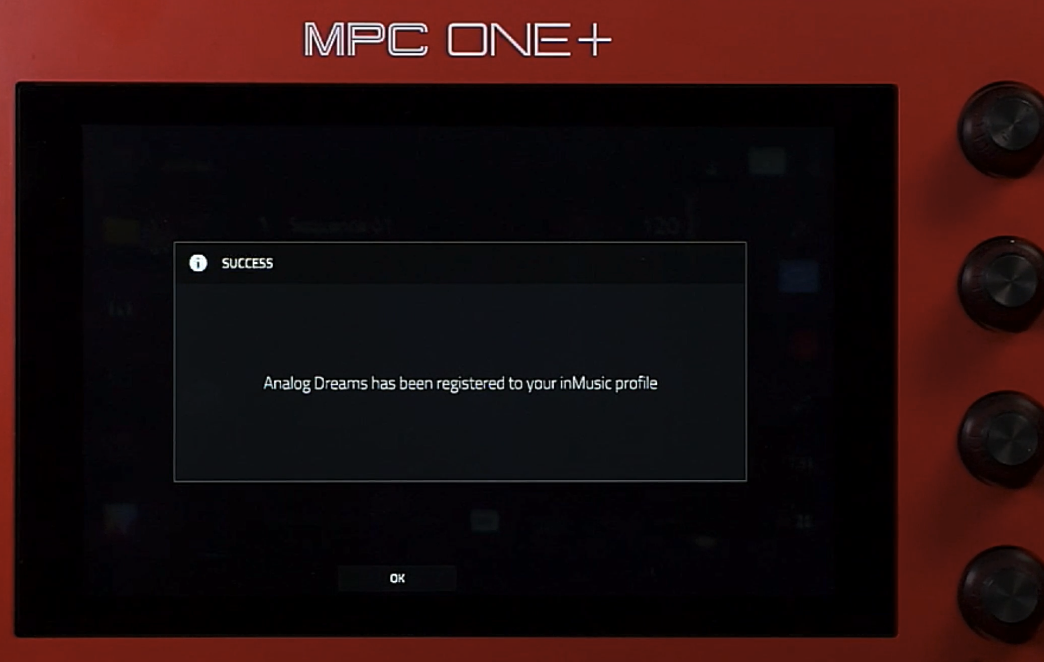
- Your Play Series product has been registered:
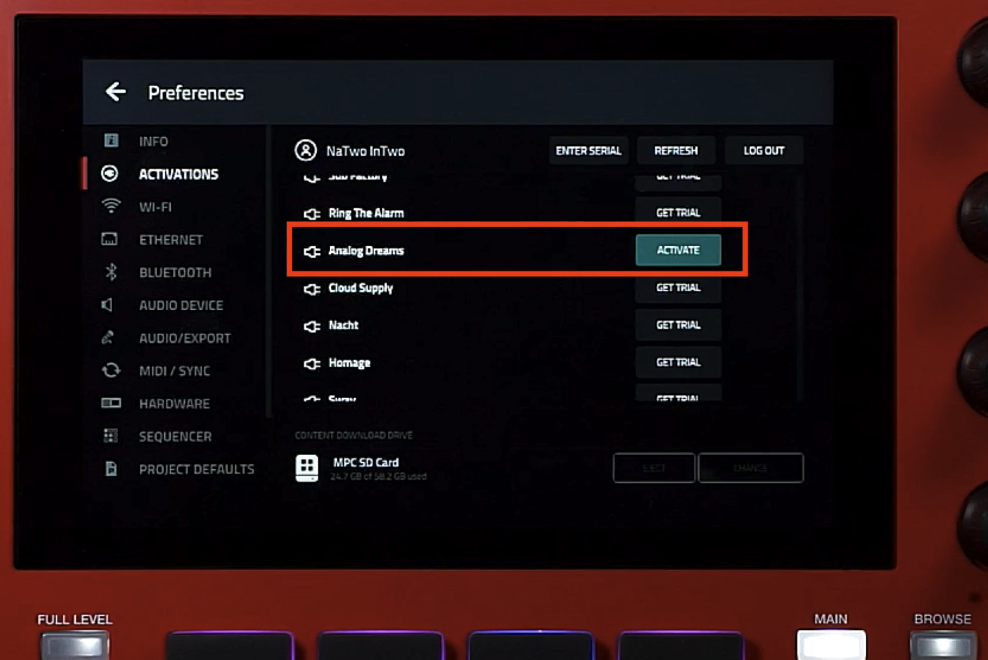
- Observe your list of plugins from the Activations pane to view your newly redeemed NI Play Series plugin. Tap Refresh if it is missing from the list and ensure you're connected to the internet.
- Tap the Activate button:
- Select a drive as the download location. Tap the Change button to change the drive.
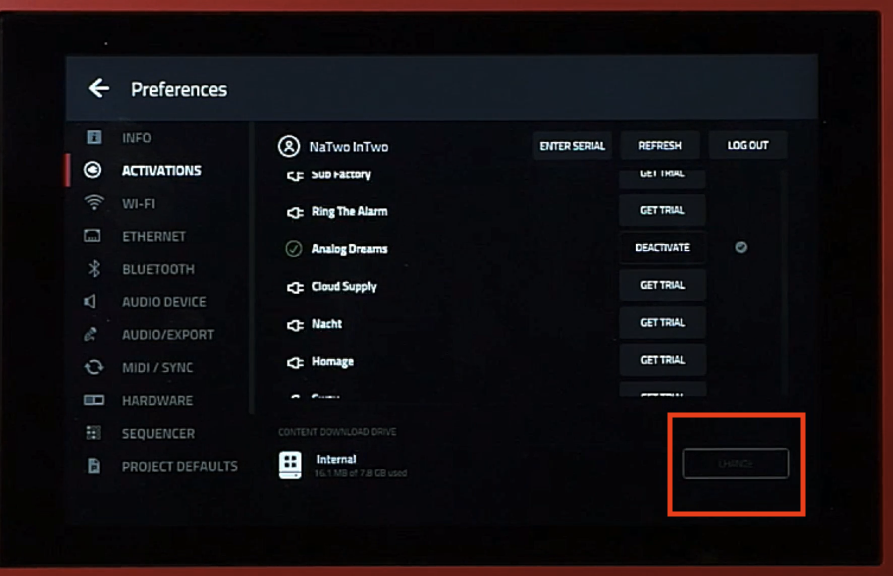
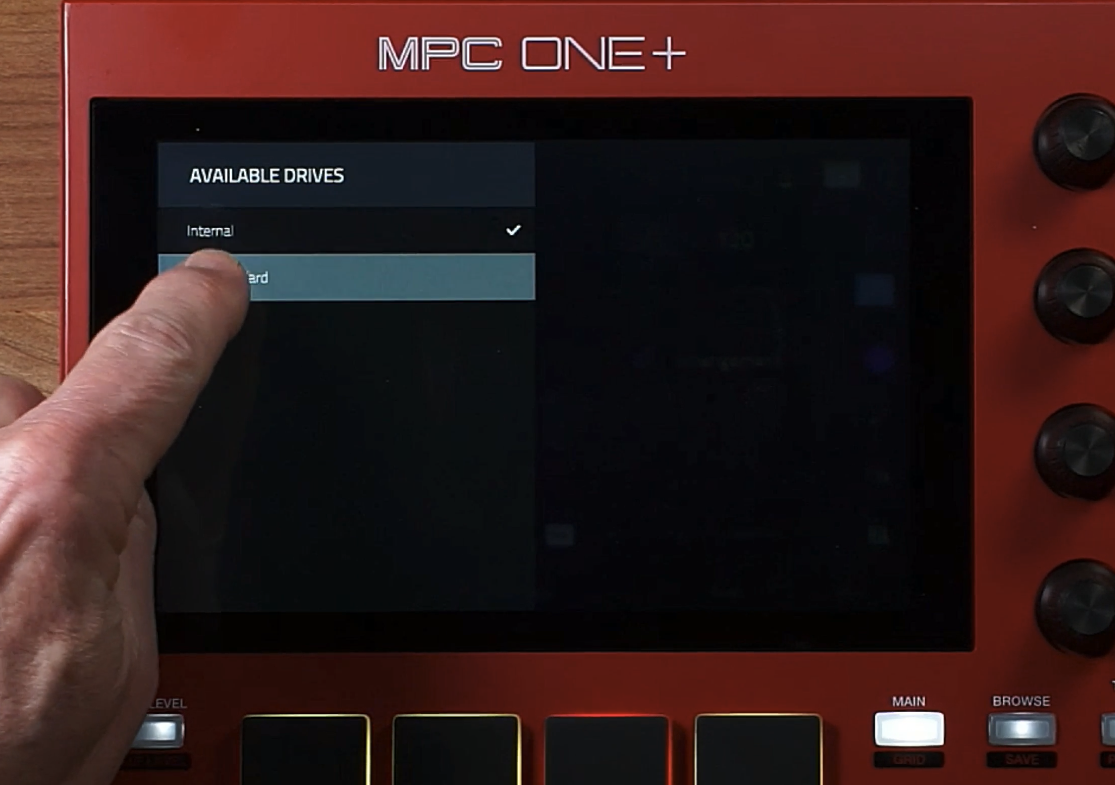
- Ensure a storage device (formatted to exFAT) is connected to your MPC and tap the Download button to start the download:
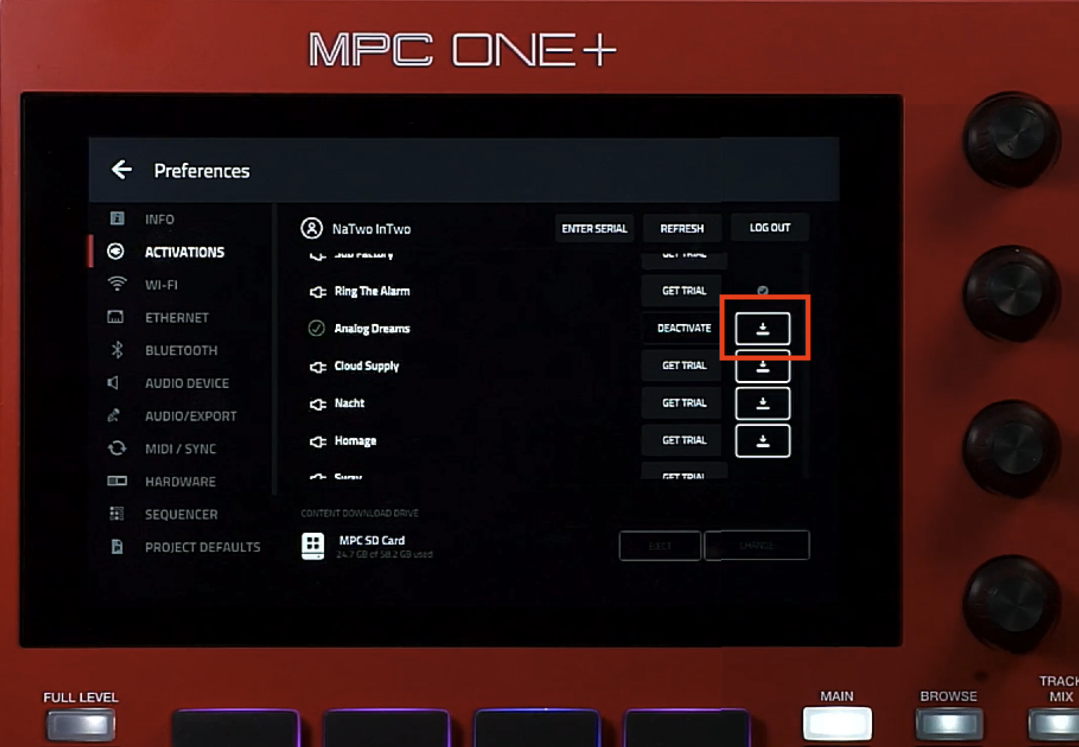
Loading a Play Series plugin on your MPC hardware
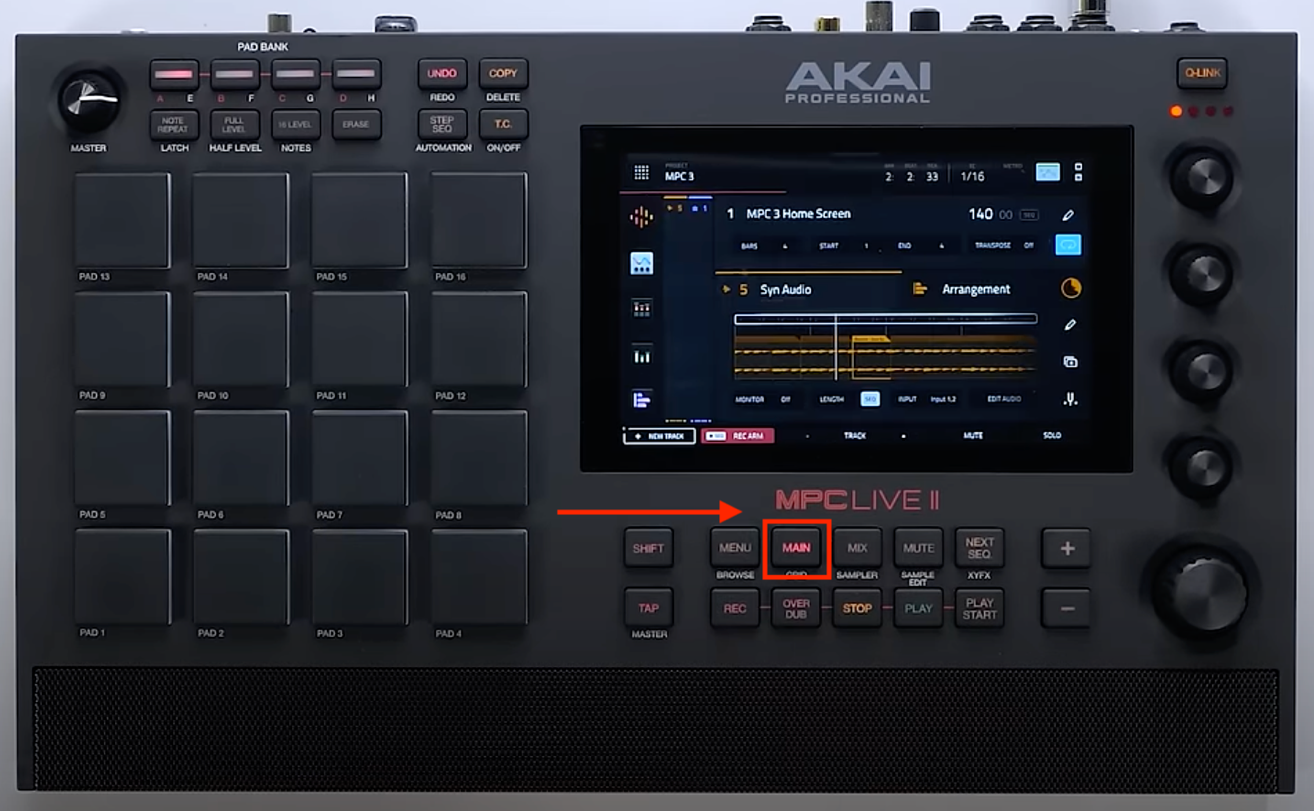
- Press the Main button on your MPC:
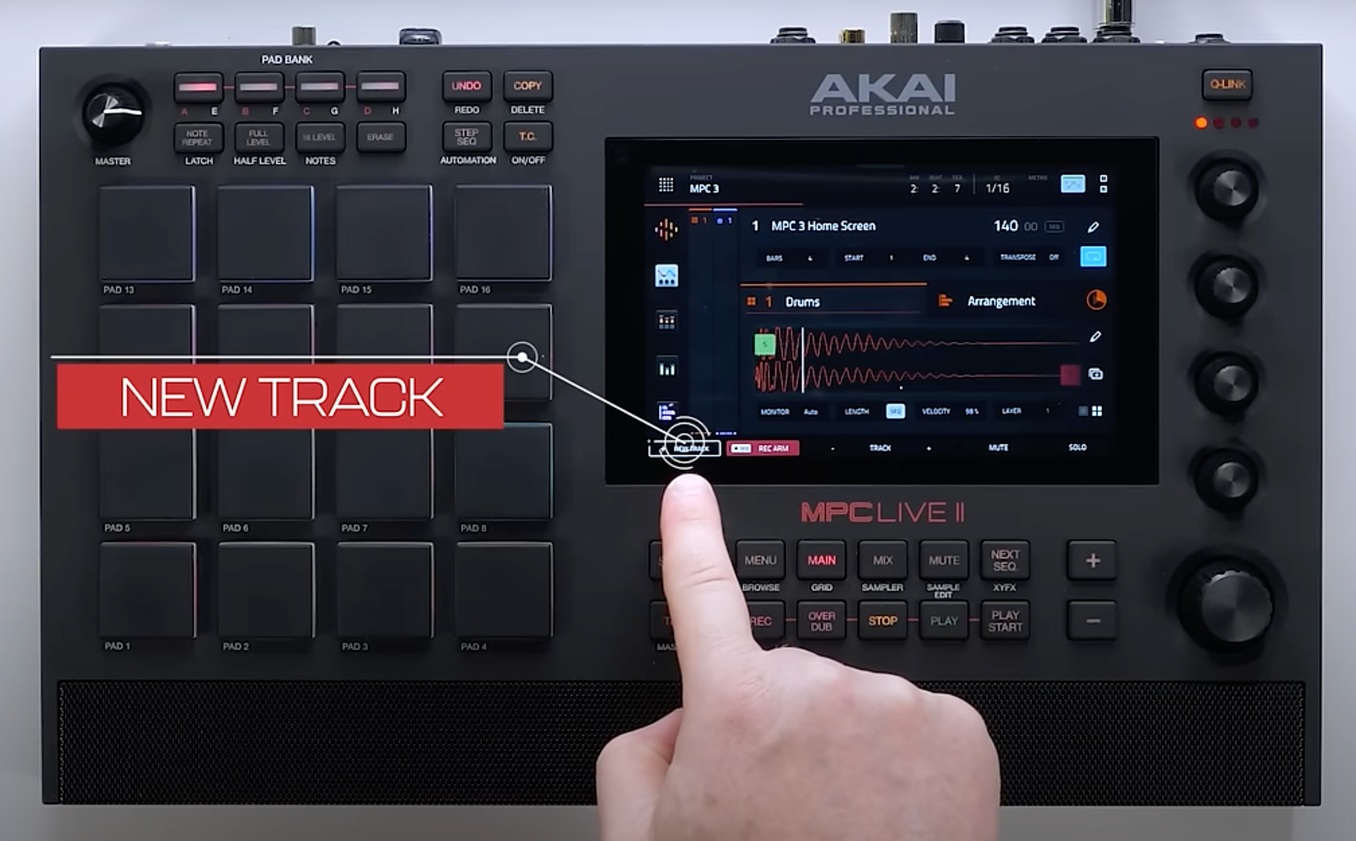
- Tap New Track on the bottom left side of your display:
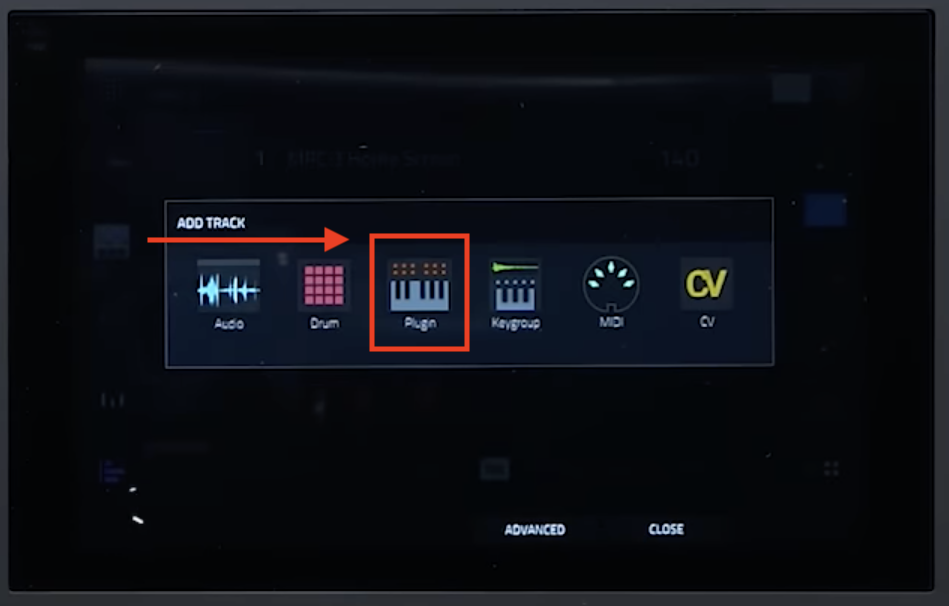
- Select Plugin:
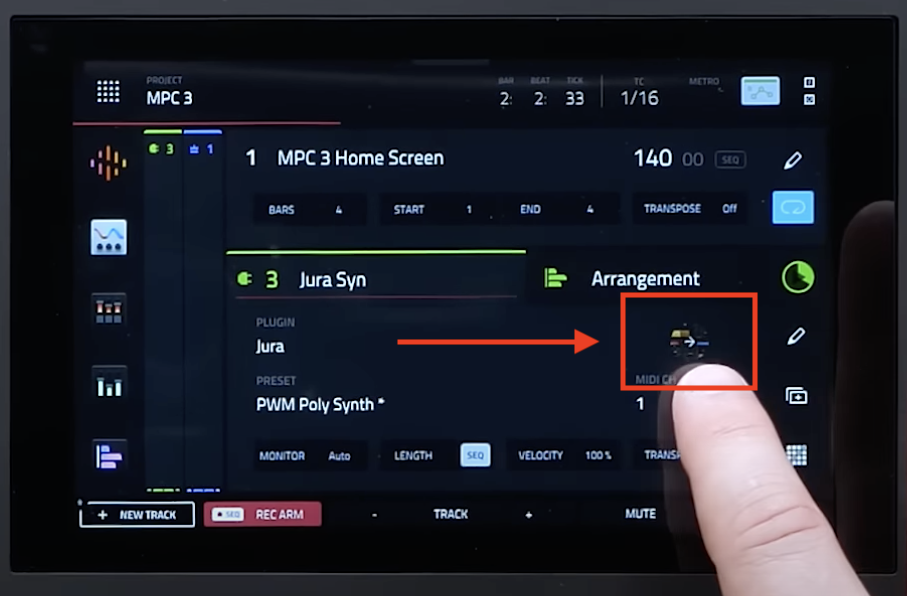
- Double tap the plugin drop down box (the example below currently shows 'Jura'), and select your Play Series plugin.
- Tap the Editor icon to view the GUI:
- Your Play Series plugin has been loaded: