
In this article, we show how to share custom Guitar Rig presets across different computers.
Use the table of contents below to select your operating system for your version of Guitar Rig.
TABLE OF CONTENTS
Guitar Rig 5
Windows
Note: Ensure that the latest version of Guitar Rig 5 has been installed via Native Access on all the computers you are using.
Sharing a Guitar Rig 5 Database with Different Computers
Follow the below steps to share a Guitar Rig 5 database with different computers:
- Copy the folder named 'Guitar Rig 5' located under the below path to a USB stick or external hard drive. The folder is found here:
C: > Users > *your username* > AppData > Local > Native Instruments > Guitar Rig 5Note: In order to view the folder "AppData", you need to make hidden folders visible. Read this article to learn more.
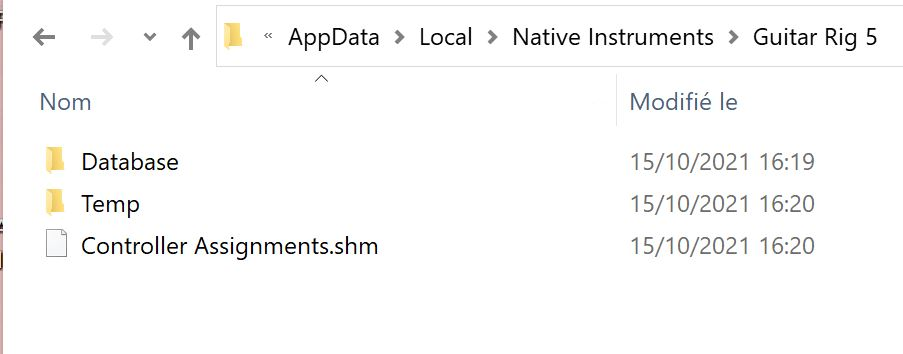
- On your second computer, place the folder 'Guitar Rig 5' in exact same location (C: > Users > *username* > AppData > Local > Native Instruments > Guitar Rig 5).
- Copy the Guitar Rig 5 'Sounds' folder containing your user presets to your second computer (via USB stick or external hard drive). The default installation path of the 'Sounds' folder is:
C: > Users > *your username* > Documents > Native Instruments > Guitar Rig 5 > Sounds
Your custom presets and tags are now available on both computers
Mac OS
Note: Ensure that the latest version of Guitar Rig 5 has been installed via Native Access on all the computers you are using.
Sharing a Guitar Rig 5 Database with Different Computers
- Copy the folder named "Guitar Rig 5" located under the following path to a USB stick or external hard drive:
Macintosh HD > Users > *your username* > Library > Application Support > Native Instruments > Guitar Rig 5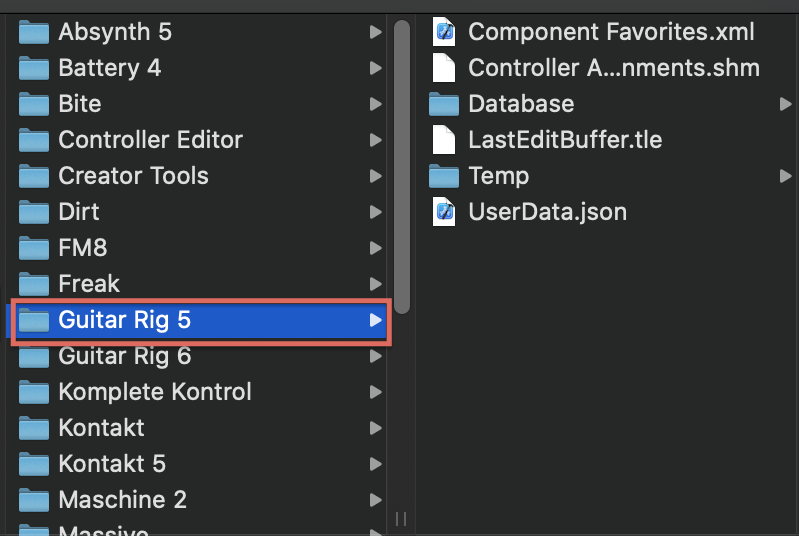
Note: The user Library folder is hidden by default. See this article to learn how to access its contents.
- On your second computer, place the folder 'Guitar Rig 5' in exact same location (Macintosh HD > Users > *your username* > Library > Application Support > Native Instruments > Guitar Rig 5).
- Copy the Guitar Rig 5 'Sounds' folder containing your user presets to your second computer (via USB stick or external hard drive). The default installation path of the 'Sounds' folder is: Macintosh HD > Users > *your username* > Documents > Native Instruments > Guitar Rig 5 > Sounds
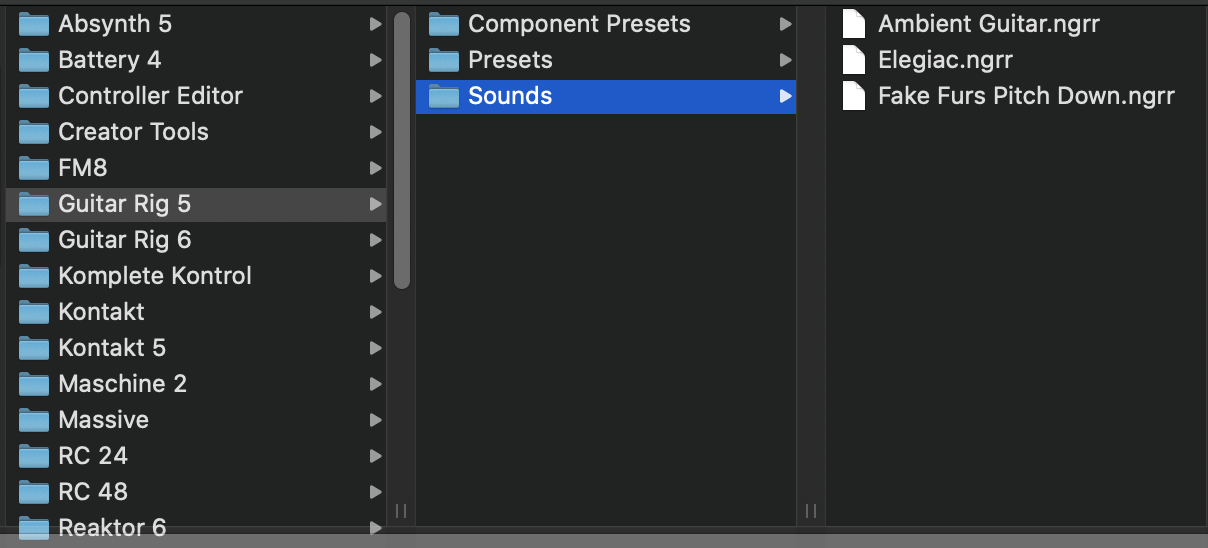
Your custom presets and tags are now available on both computers.
Guitar Rig 6
Windows
Note: Ensure that the latest version of Guitar Rig 6 has been installed via Native Access on all the computers you are using.
Sharing a Guitar Rig 6 Database with Different Computers
Follow the below steps to share a Guitar Rig 6 database with different computers:
- Copy the folder named 'Guitar Rig 6' located under the below path to a USB stick or external hard drive. The folder is found here:
C: > Users > *your username* > AppData > Local > Native Instruments > Guitar Rig 6Note: In order to view the folder "AppData", you need to make hidden folders visible. Read this article to learn more.
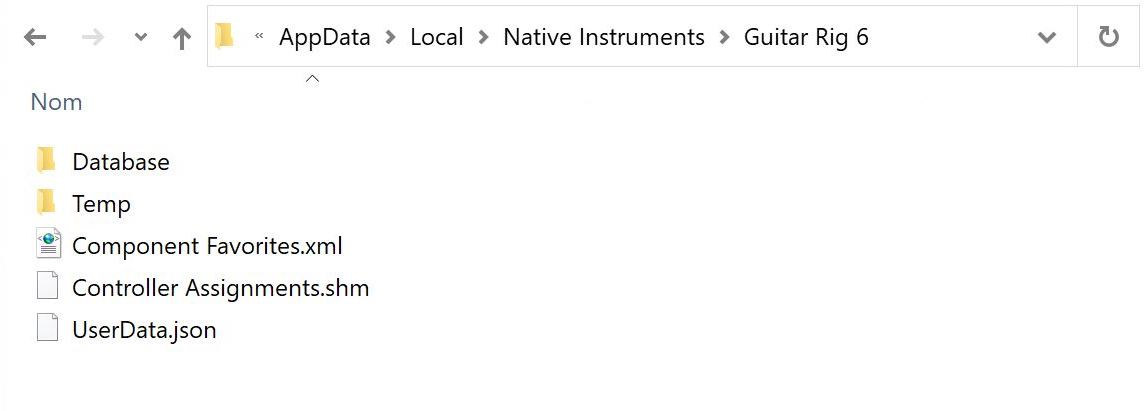
- On your second computer, place the folder 'Guitar Rig 6' in exact same location (C: > Users > *username* > AppData > Local > Native Instruments > Guitar Rig 6).
- Copy the Guitar Rig 6 folder containing your user presets to your second computer (via USB stick or external hard drive). The default installation path of the folder is:
C: > Users > *your username* > Documents > Native Instruments > User Content > Guitar Rig 6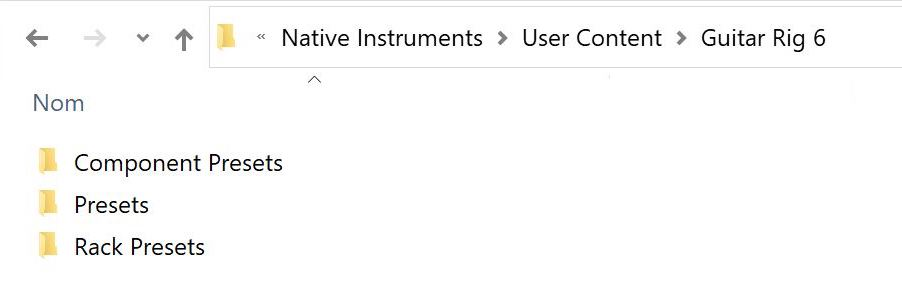
Your custom presets and tags are now available on both computers.
Mac OS
Note: Ensure that the latest version of GUITAR RIG 6 has been installed via Native Access on all the computers you are using.
Sharing a Guitar Rig 6 Database with Different Computers
- Copy the folder named "Guitar Rig 6" located under the following path to a USB stick or external hard drive:
Macintosh HD > Users > *your username* > Library > Application Support > Native Instruments > Guitar Rig 6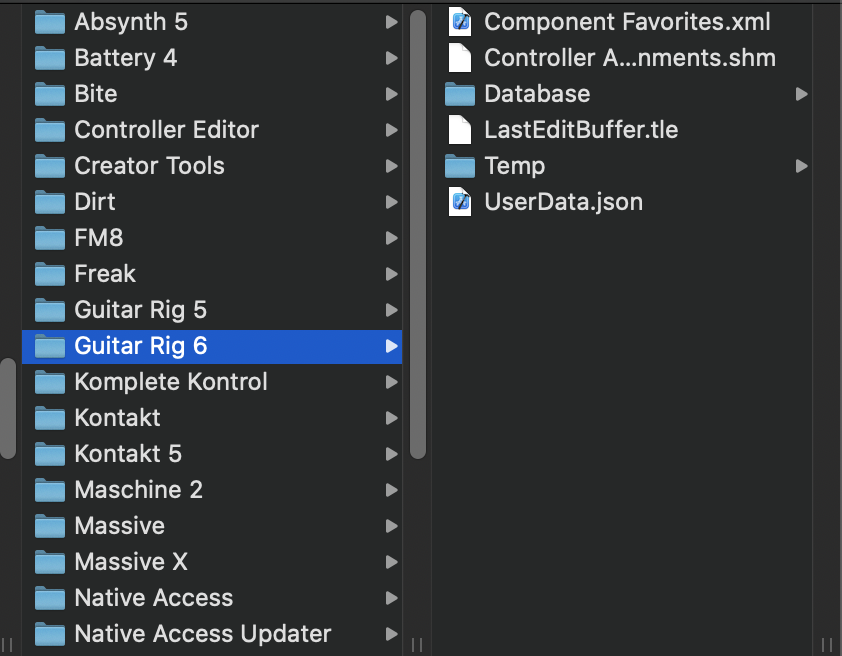
Note: The user Library folder is hidden by default. See this article to learn how to access its contents.
- On your second computer, place the folder 'Guitar Rig 6' in exact same location (Macintosh HD > Users > *your username* > Library > Application Support > Native Instruments > Guitar Rig 6).
- Copy the Guitar Rig 6 folder containing your user presets to your second computer (via USB stick or external hard drive). The default installation path of the folder is: Macintosh HD > Users > *your username* > Documents > Native Instruments > User Content > Guitar Rig 6
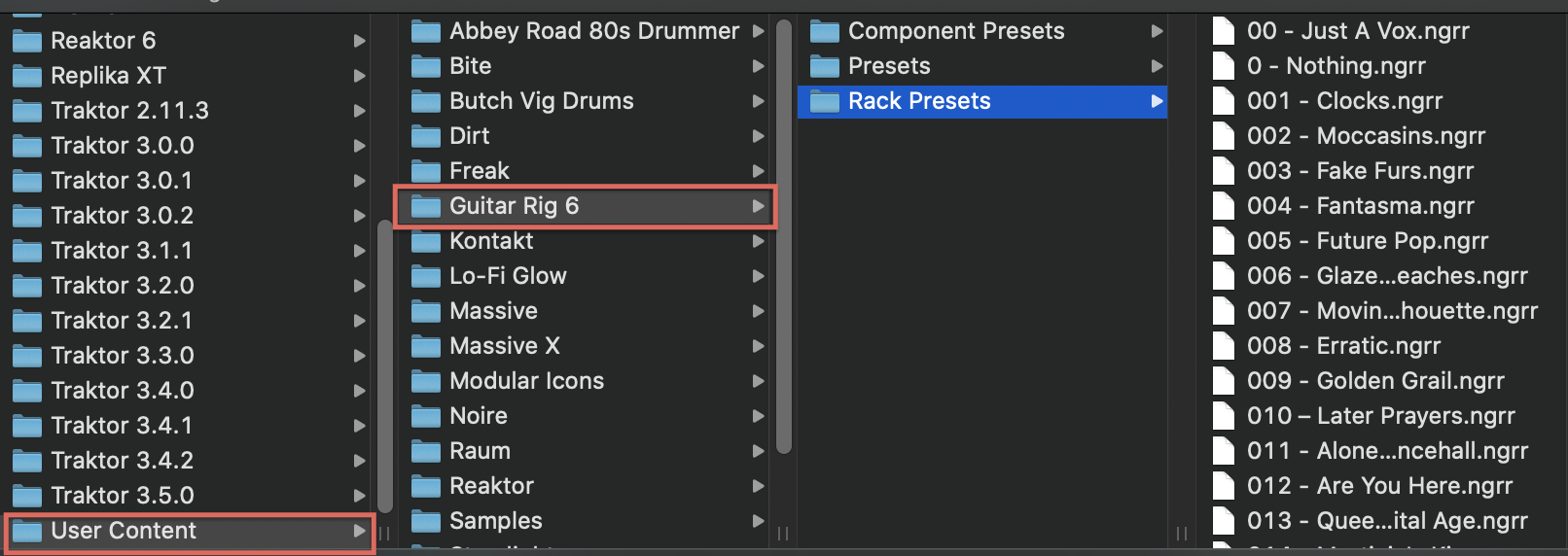
Your custom presets and tags are now available on both computers.