
You may find that the Battery 4 Factory Library content is missing or is not loading correctly. To resolve this, please try all of the solutions provided below.
Enable the Battery 4 Browser Section
The Battery 4 Factory Library can be accessed via the Battery 4 Browser, which is located on the left-hand side of the software interface.
If you can not see the browser, click the Magnifier symbol within the Battery 4 menu to make it visible:

If this has not solved the issue, please proceed to the next solution below.
Check / Repair the Library Installation Path
If the Battery 4 Factory Library is not available in the Browser, make sure the directory path is set correctly by following the steps below:
1. Open the Battery 4 Preferences from the File menu and go to the Library tab. By default, the Battery 4 Factory Library path is listed under LIBRARY > FACTORY > LOCATION.
Note: The default Mac OS and Windows installation paths are:
• Mac OS: Macintosh HD > Users > Shared
• Windows: C: > Users > Public > Public Documents
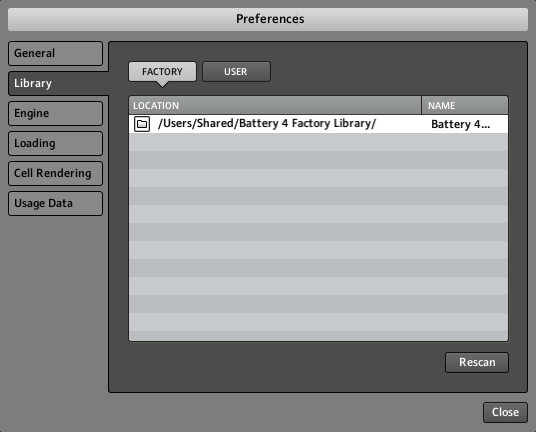
2. If the Battery 4 Factory Library path is not set to the correct location in Preferences, quit Battery 4 and start Native Access.
3. In Native Access, go to Library > Installed and scroll to the Battery 4 Factory Library listing.
4. If the Battery 4 Factory Library has an exclamation tab, use the Native Access Repair function.
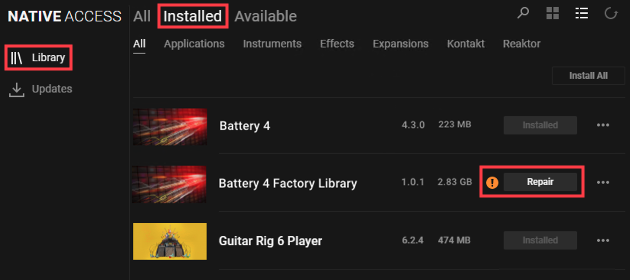
Note: If the Library does not appear in the Installed section of Native Access, check the Available section to download the Battery 4 Factory Library.
5. Once the repair is complete, re-launch the standalone version of the Battery 4 software. Battery 4 will now scan the Battery 4 Factory Library folder. This may take several minutes.

If this has not solved the issue, please proceed to the next solution below.
Reinitialize the Battery 4 Database
If the issue persists, try re-setting the Battery 4 database.
1. Quit the Battery 4 software and navigate to the following location of your computer:
• Mac OS: Macintosh HD > Users > *Your User Name* > Library > Application Support > Native Instruments
• Windows: C: > Users > *Your User Name* > AppData > Local > Native Instruments
The User Library is a hidden folder on macOS. To show all hidden files, press Shift + Command + . (period)
AppData is a hidden folder on Windows. To show hidden files, click View > Show > Hidden items.
2. Delete the folder named Battery 4 that you find in this directory location.
3. Relaunch the standalone version of the Battery 4 software. Battery 4 will now scan the Battery 4 Factory Library folder.
This may take several minutes.

If this has not solved the issue, please proceed to the next solution below.
Reinstall the Battery 4 Factory Library
1. Quit the Battery 4 software, and launch Native Access.
2. In Native Access, go to Library > Installed and scroll to the Battery 4 Factory Library listing.
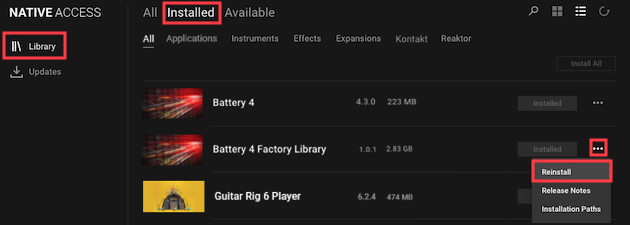
4. Once the reinstallation is complete, re-launch the standalone version of the Battery 4 software. Battery 4 will now scan the Battery 4 Factory Library folder. This may take several minutes.

Once complete, the Battery 4 Factory Library will be available in the Battery 4 Browser.