
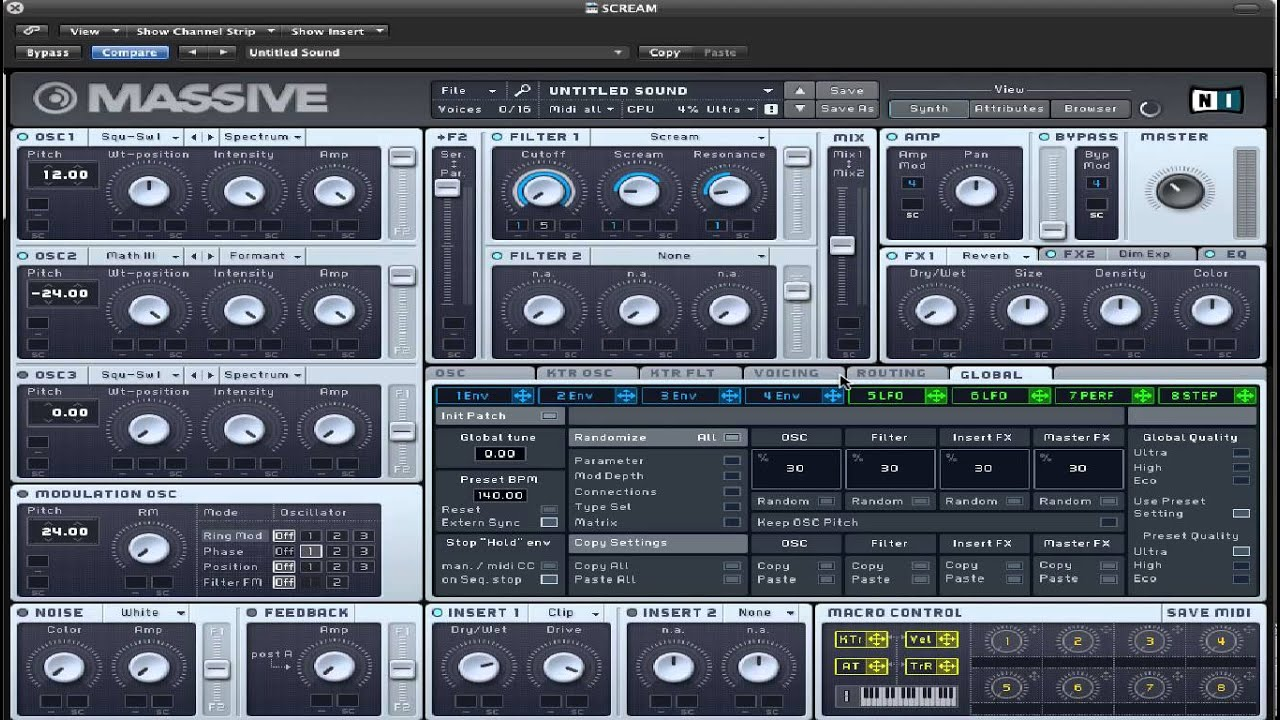
This guide explains how to load expansion presets in MASSIVE and access your installed sound libraries. Whether you're browsing for factory content or third‑party expansions, these steps will help you quickly locate and load presets inside MASSIVE.
Note: After installing the Expansion, it is important to run Massive in stand-alone mode before using it as a plug-in in your DAW. This step is required for Massive to detect the Expansion.
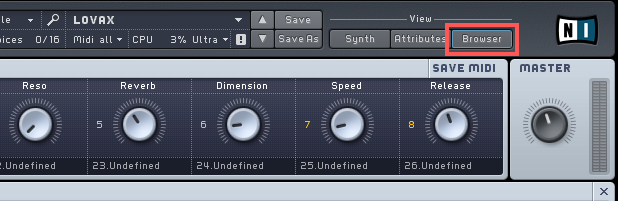
- Launch Massive and switch to the Browser View by clicking the Browser button.
- The Expansion - Halcyon Sky in our example - now shows up under Bankname. The Presets included in the Expansion appear on the right side of the Browser. Double-click any of them to load them to Massive.
If it is the first time you open Massive Standalone after installing the Expansion, Massive will need a minute or two to update its database and display your Expansion under Bankname.
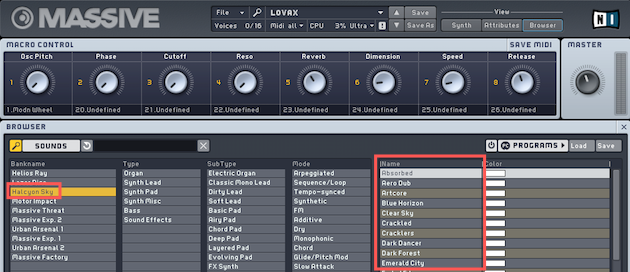
Note: The Browser can be used in two alternative view modes that are toggled by clicking the SOUNDS button in the View’s upper-left corner. When this is deactivated, you will see the File Tree View; when activated, you can browse your Sounds in the Database View.