
You may find that after installing a Massive X Expansion, the new presets do not appear in the MASSIVE X browser.
This issue is usually caused by an outdated version of Massive X and/or the Massive X Factory Library.
To resolve this, start Native Access and click the Updates tab. If any updates appear in this section, please install them.
If the issue persists, please continue:
TABLE OF CONTENTS
MacOS
Reinitialize the Massive X database as follows:
1. Click Go in the Finder menu bar while holding down the alt key on your computer's keyboard. Choose the appearing Library entry in the drop-down menu.
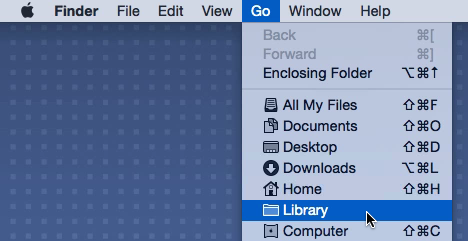
2. In your user Library folder, navigate to Application Support > Native Instruments
3. Delete the Massive X folder.
4. Restart your DAW and load an instance of Massive X. It will regenerate its database and the new presets will now appear.
Windows
This is most likely due to a plug-in administration issue. Follow these steps to resolve the problem:
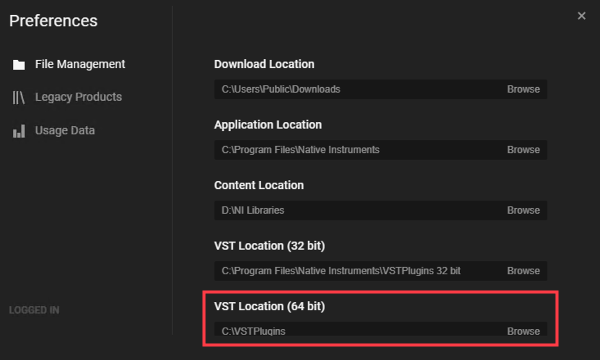
1. Start Native Access and click Preferences on the left.
2. Take note of the VST Location (64 bit). In our example, we have chosen the custom location C:/VSTPlugins:
3. Open your DAW and navigate to the preferences where you can configure the VST folder locations.
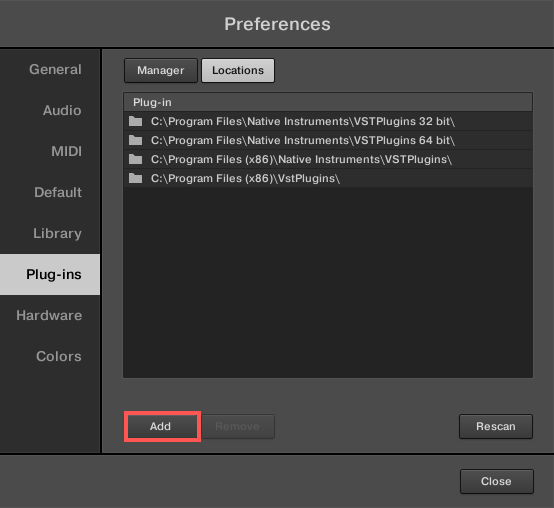
In the plug-in preferences of your DAW, you will be able to add or browse to the folder which contains your VST plug-ins. For example, in Maschine's Preferences, under Plug-ins > Locations, the VST Location (64 bit) from Native Access can be added to the list by clicking the Add button:
In Ableton Live, this option is found in:
Preferences > Plug-ins > Plug-In Sources (Live 10.1 and later)
Preferences > File Folder > Plug-in Sources (versions previous to Live 10.1)
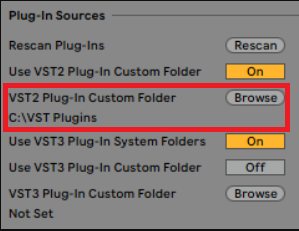
If you are using a DAW other than Ableton Live, then please refer to the documentation for your specific DAW for steps on how to add a VST folder location.
4. Restart Native Access and go to Library > Installed to reinstall Massive X.
5. Scroll to the Massive X listing and select Reinstall from the three dots menu.
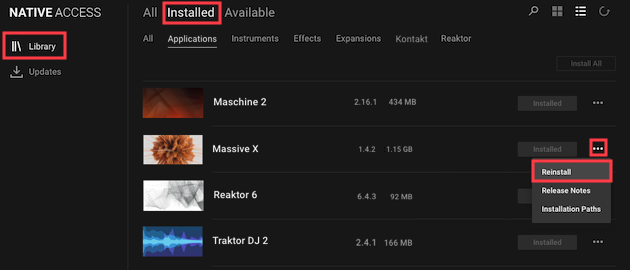
6. Once Massive X has been reinstalled, restart your DAW. It should now scan the folder where the correct version of Massive X is located. Your presets will now appear.
If the new presets still do not appear, reinitializing the Massive X database manually should resolve the issue:
7. In the Windows File explorer, navigate to the following folder:
C: > Users > Username > AppData > Local > Native Instruments
8. Delete the Massive X folder.
9. Restart your DAW and load an instance of Massive X. It will regenerate its database and the new presets will now appear.