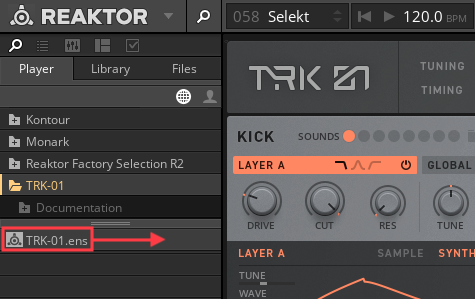
This guide explains how to load instruments and effects in Reaktor.
You’ll learn how to open ensembles in standalone mode or load Reaktor as a plug-in within your DAW.
Using the Player Browser
- Open the Reaktor software in standalone mode or as a plug-in in your DAW. The standalone application is installed in this location:
Mac: Macintosh HD > Applications > Native Instruments > Reaktor 6
Windows: C: > Program Files > Native Instruments > Reaktor 6 - Click the Play column on the Start Screen.
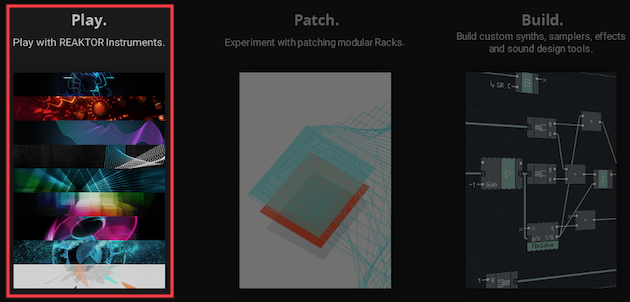
Note: If the Start Screen does not appear, the browser is automatically available. The Start Screen can be enabled in Reaktor Preferences > General > On startup.
- The Player browser displays all Reaktor instruments and effects that are installed.
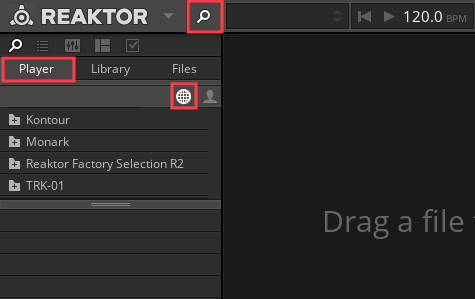
Note: Click the magnifying symbol if the Player browser does not appear.
- Scroll through the upper section of the Player browser to select a Reaktor instrument or effect. Clicking the plus (+) icon expands the folder and shows the instrument file. In this example this is TRK-01.ens.
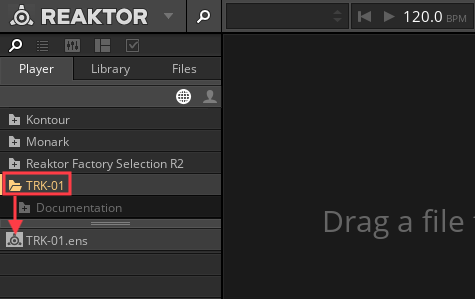
- Double click the Reaktor instrument file to open it. Alternatively, the instrument file can be dragged to the right.