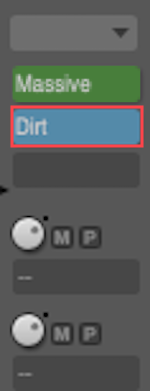
This article explains how to insert Native Instruments plug-ins in Digital Performer, including:
- Inserting instrument plug-ins (e.g. Kontakt, Massive, etc.) in a software instrument track.
- Routing MIDI tracks in Digital Performer to software instrument tracks.
- Inserting effect plug-ins (e.g. Guitar Rig, Mod Pack, Replika, etc.) into an audio FX insert slot.
- Some NI products can be inserted as both Instrument or Effect plug-ins (e.g. Absynth, FM8, and Reaktor).
TABLE OF CONTENTS
Inserting Instruments in Digital Performer
Creating the Instrument Track
- Create an Instrument Track in Digital Performer and choose an NI plug-in (e.g. Massive) by selecting from the following menu:
Project > Add Track > Instrument Track > Native Instruments > Massive (Stereo)
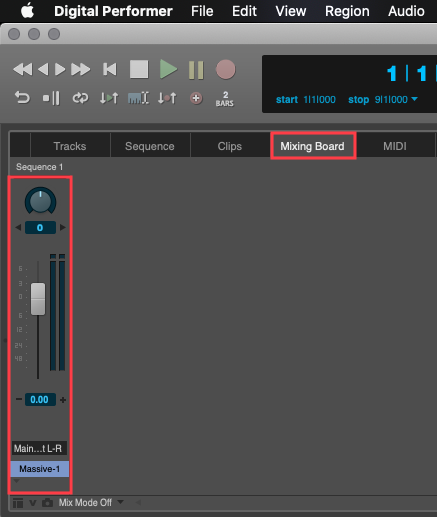
- Once created, the Instrument track will also appear in the Digital Performer Mixing Board.
Routing MIDI to the Software Instrument Track
In Digital Performer, it is also required to create a MIDI track and route it to the instrument track (e.g. track containing Massive). Otherwise, the instrument plug-in cannot be triggered by MIDI Keyboard or Pad controller input.
- Create a MIDI track in Digital Performer:
Project > Add Track > MIDI Track
- Route the MIDI Track to the instrument track containing Massive.
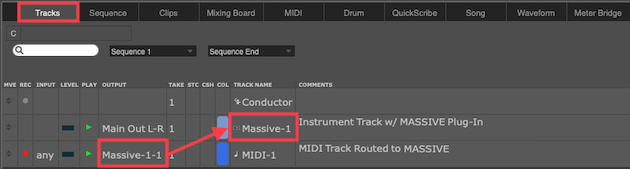
Events from the MIDI track will now trigger the instrument track containing Massive.
Inserting Effects
Effects plug-ins can be used in a DAW as an Insert effect or a Send effect. This guide demonstrates how to set up Insert effects. For further information about effects routing in Digital Performer, please consult the Digital Performer manual.
Loading the Effect Plug-in
- In the Digital Performer Mixing Board, click an empty insert slot to open the Insert Effects list.
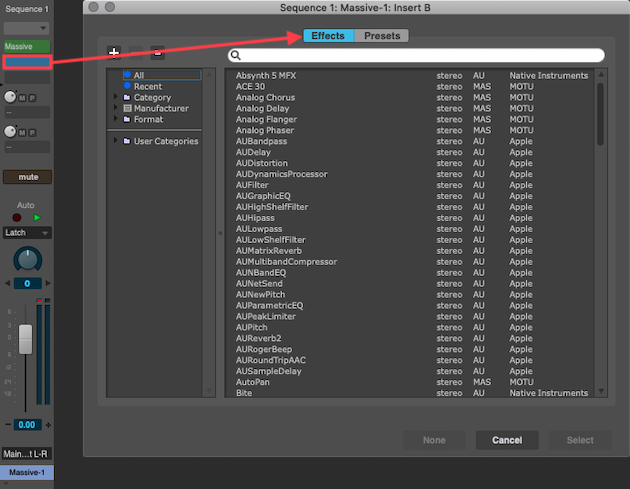
- Choose an NI effect from this list. Use the search bar near the top of the Insert Effects list to quickly find a plug-in. In this example, the distortion effect Dirt is chosen.
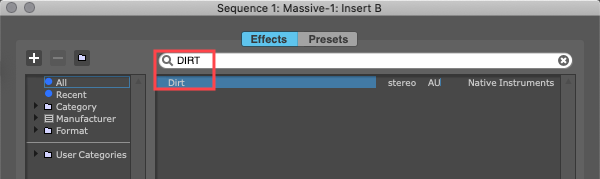
The Dirt effect plug-in will now process the output signal of the software instrument track containing Massive. After loading the Dirt effect plug-in, its interface will open automatically for editing.
If you wish to open it again after closing its window, click the effect plug-in's name in the channel strip.