
This article explains how to insert Native Instruments plug-ins in GarageBand, including:
- Inserting instrument plug-ins (e.g. Massive X, Kontakt, etc.) in a Software Instrument track.
- Inserting effect plug-ins (e.g. Guitar Rig, Supercharger, etc.) in an Audio FX slot.
Note: Some NI products can be inserted both as instrument or effect plug-in (e.g. Absynth 5 / Absynth 5 FX, etc.).
Inserting NI Software Instruments in GarageBand
Create a new track in Garageband by selecting:
Track > New Track...
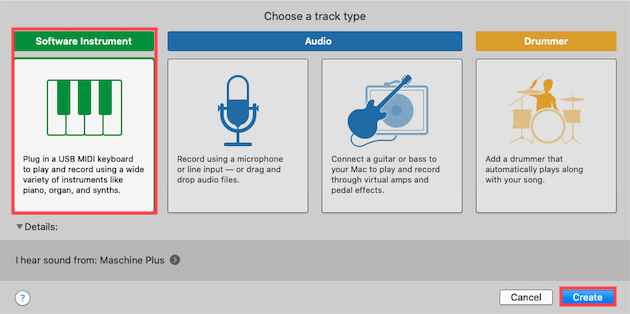
- In the following dialog, select Software Instrument and click Create.
- By default, GarageBand will load a Classic Electric Piano from its internal sound library. Press the Smart Controls button to view the Smart Controls pane in the lower part of the GarageBand window. Pressing the B key on your computer's keyboard will also display the Smart Controls pane.

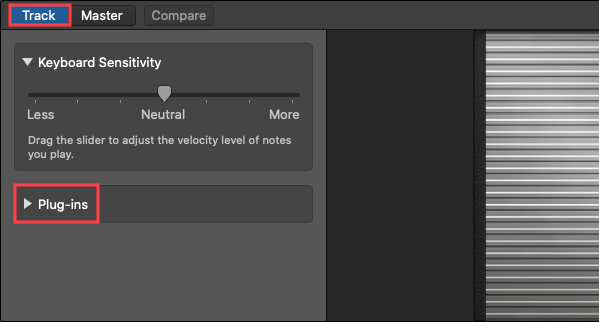
- On the left side of the Smart Controls pane, click the Track button to access the Plug-ins menu.
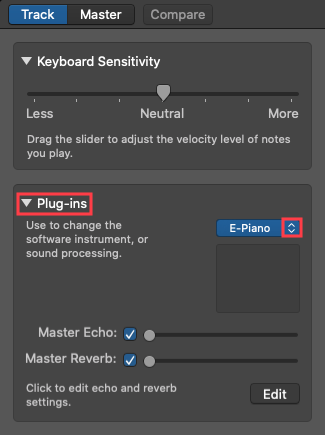
- Within the Plug-ins menu, click the selector tab on the instrument plug-in slot.
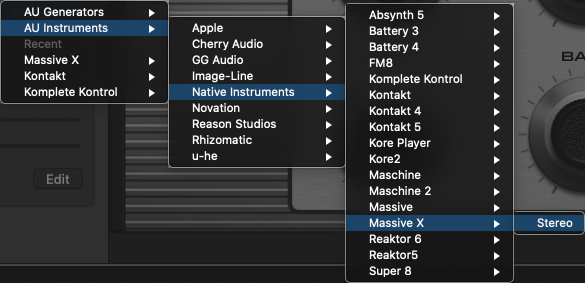
- Browse the AU Instruments menu to find the Native Instruments plug-in you wish to open. In this example, we choose a Stereo instance of Massive X.
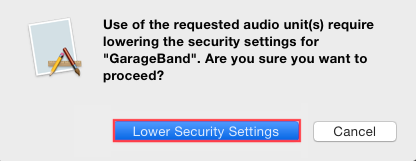
- If you get a warning message, press the Lower Security Settings button to proceed.
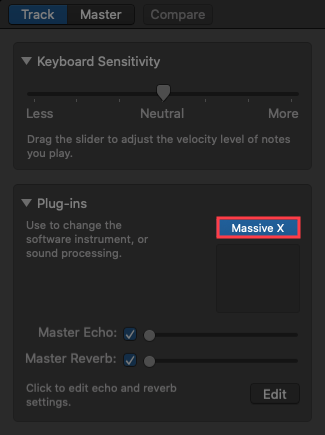
- Massive X is now loaded in GarageBand and its window is open for editing. If you do not see the Massive X plug-in window, click on the Instrument plug-in slot named Massive X in the Plug-ins menu.
You can now play the plug-in's sounds via a MIDI keyboard or record MIDI data on the Software Instrument track in the Arrange window for playback.
Inserting NI Effects in GarageBand
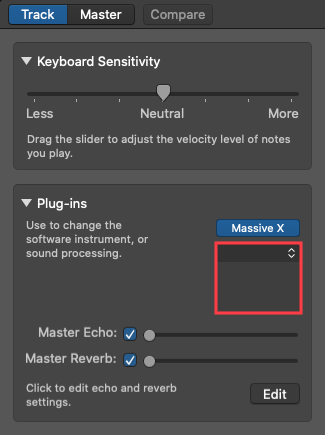
- When hovering your mouse over the Audio Effect slot (directly under the Instrument slot), you will see four empty Audio FX slots. To add an AU effect plug-in, click one of these empty slots.
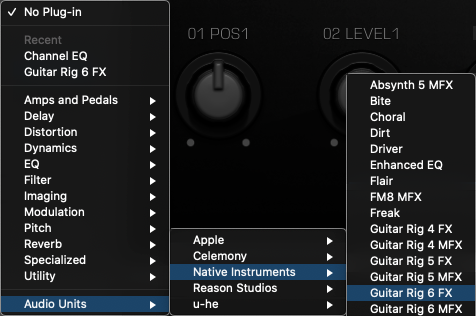
- Browse through the Audio Units menu to the NI effect plug-in you wish to load. In our example, we choose GUITAR RIG.
- The effect plug-in is now loaded in GarageBand and its window is open for editing. If the plug-in window is not displayed, click on the respective entry in the Plug-ins menu.
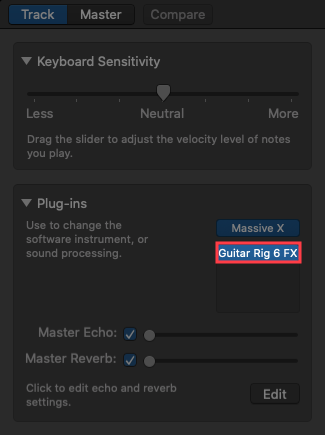
The effect plug-in is now loaded in an Audio FX slot and will process the output signal of the Audio or Software Instrument track.