
This article explains how to insert Native Instruments plug-ins in Cubase, including:
- Inserting instrument plug-ins (e.g. Massive, Kontakt, etc.) in an Instrument Track.
- Inserting effect plug-ins (e.g. Guitar Rig 5, Supercharger, etc.) as Audio Inserts.
- Some NI products can be inserted both as instrument or effect plug-in (e.g. Absynth 5 / Absynth 5 FX, etc.).
- Some NI products can be inserted both as instrument or effect plug-in (e.g. Absynth 5 / Absynth 5 FX, etc.).
Inserting an NI Instrument Plug-in
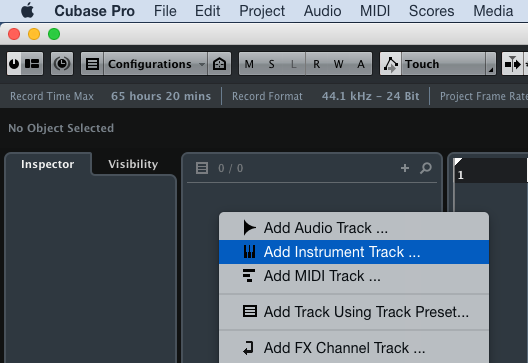
- Right-click on the Tracklist in Cubase and choose Add Instrument Track... from the context menu.
- In the Add Instrument Track window, open the Instrument drop-down menu and select the NI plug-in you wish to use. In our example, we select Massive.
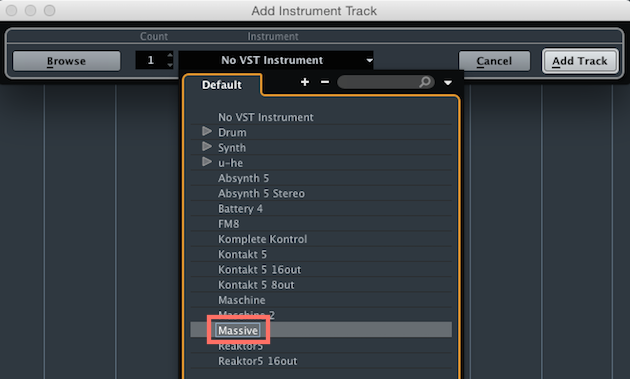
- Click Add Track to create a new Instrument Track for Massive.

- Massive is now loaded in an Instrument Track automatically named Massive 01 where you can record or draw MIDI events that will control Massive. In order to play the plug-in via your MIDI keyboard, make sure the Record Enable button is active.
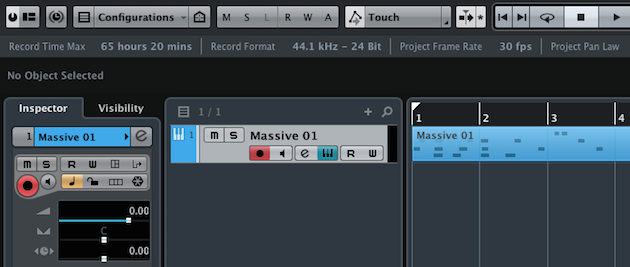
- To show or hide the instrument plug-in's GUI, click on the Edit VST Instrument button in the Inspector.
Inserting a NI Plug-in as Insert Effect
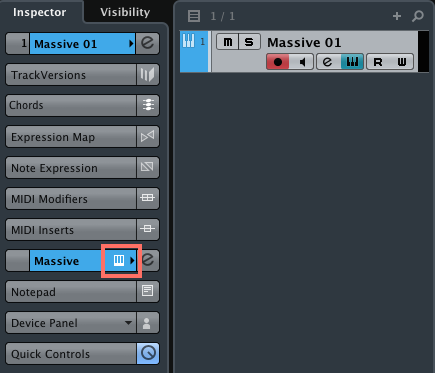
- In the Inspector, under the Instrument Name box (in this example, Massive), click Audio Insertsto open the Audio Inserts rack.
- If you cannot see the Audio Inserts under the Instrument Name, click the Instrument Name once.
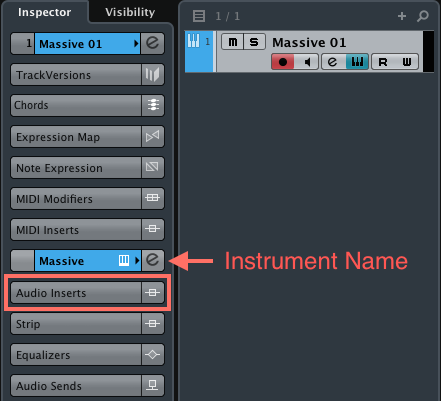
- If you cannot see the Audio Inserts under the Instrument Name, click the Instrument Name once.
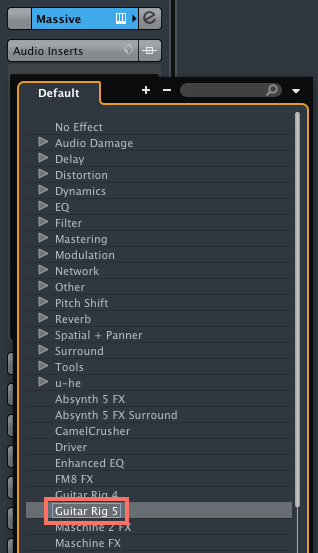
- Click on an empty Audio Insert slot and select the effect plug-in you wish to load from the drop-down menu. In our example, we select Guitar Rig 5.
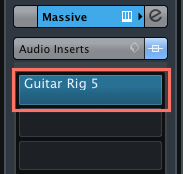
- Guitar Rig 5 now shows up under the Instrument Name as Audio Insert effect. To show or hide the effect plug-in's GUI, click on its name in the Audio Inserts rack once.
Please note there are several different ways to insert instrument and effect plug-ins in Cubase. We have only presented here the most effective and simple one.