
This guide explains how to use the Batch Re-save function in Kontakt to fix missing sample issues and restore proper file paths for a library.
TABLE OF CONTENTS
Before You Begin
- In Kontakt 7 and later, Batch Re-save is only available in the standalone version.
- Use Batch Re-save only on individual libraries, not entire drives or large folders.
- If you need compatibility with older versions of Kontakt, perform the Batch Re-save using that version.
When to Use Batch Re-save
Performing a Batch re-save will correct the file paths of the samples for all Kontakt Instruments within a Library.
Important:
- In case you need to open the Library with an older Kontakt version, use this older version of Kontakt for the Batch re-save process. If you batch re-save a Library with e.g. Kontakt 7, it will no longer load in Kontakt 6, Kontakt 5, etc.
- Batch re-save should only be used on single Libraries. It is not recommended to batch re-save an entire disk or directory of Libraries.
Batch Re-saving a Kontakt Library
In this example, we try to load The Giant Instrument from The Giant Library, but Kontakt cannot locate the samples corresponding to the Instrument.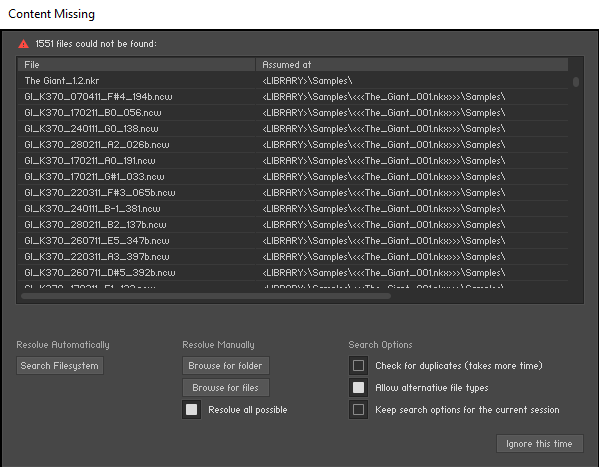
To resolve this issue, follow these steps:
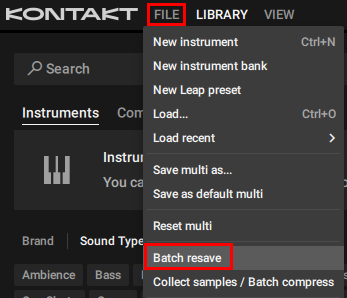
- Select Batch re-save from the File drop-down menu within Kontakt's Main Control Panel.
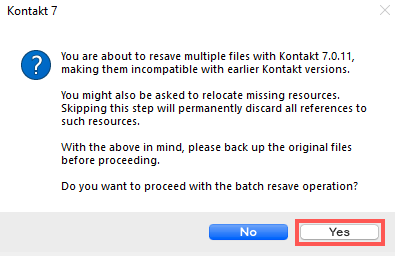
- A warning dialog appears. Click Yes to proceed.
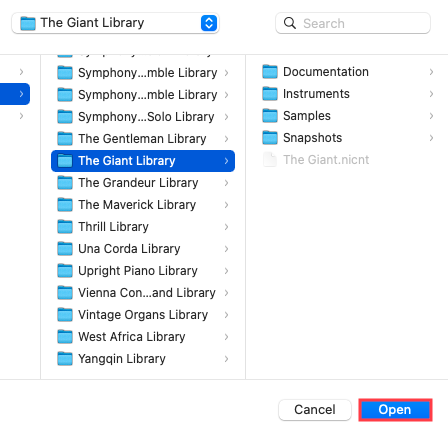
- Locate the Library folder in Finder or Windows Explorer. In this example, we are selecting The Giant Library. Once selected, click Open to proceed.
- At this point, Kontakt will check the Library. If samples are missing, a Content Missing dialog will appear. In this dialog, click Browse for folder.
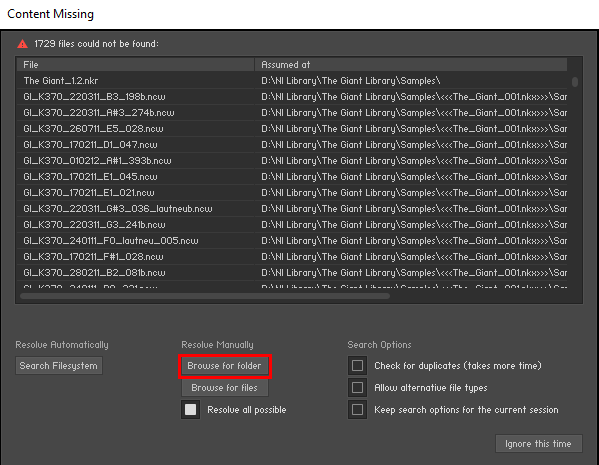
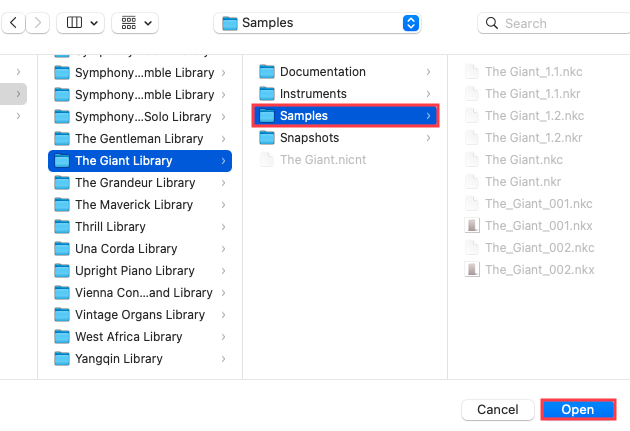
- In the Locate Folder window which now appears, select your Library's Samples folder. Once selected, click Open to proceed.
Kontakt will now batch re-save the Library and re-link all the Library's Instruments to their respective sample content. Your Kontakt Library's Instruments will now load correctly.