
This guide explains how to back up and transfer your Quick-Load catalog in Kontakt, allowing you to restore your custom instrument, bank, and multi setups across installations or systems.
TABLE OF CONTENTS
About the Quick-Load Catalog
The Quick-Load menu in Kontakt allows you to manage and quickly load your Instruments, Banks, and Multis in a customized manner.
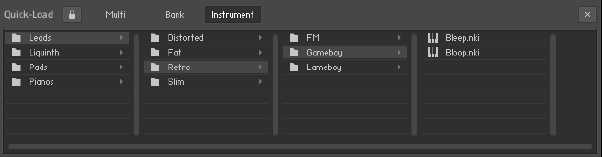 If you want to backup your Quick-Load Catalog for a reinstallation or to transfer it to a newer Kontakt version, please follow these steps:
Creating a Quick-Load Backup
macOS
- Open a Finder window and click on Go in the top menu bar, then press down the Alt key. Click the Library entry which becomes visible in the drop-down menu to access the User Library.
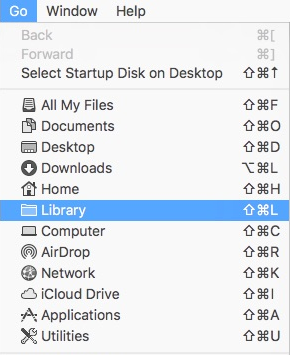
- Navigate to Library > Application Support > Native Instruments
- Open the folder for your version of Kontakt.
Note: The folder for Kontakt 6 will be named simply as "Kontakt".
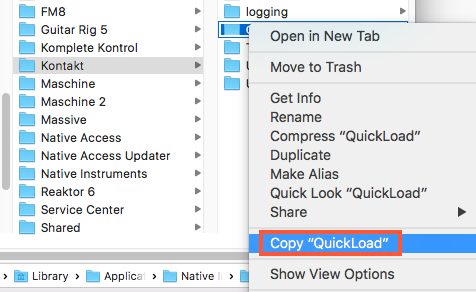 Right-click the "QuickLoad" folder to Copy it to the clipboard.
 - Paste the copied folder to e.g. your Desktop.
You can place this backup copy of the "QuickLoad" folder back into the above location after reinstalling Kontakt, or paste it into a different Kontakt version's folder in the same location.
Windows
- Open an Explorer window, navigate to the folder
C: > Users > Username > AppData > Local > Native Instruments - Open the folder for your version of Kontakt.
Note: The folder for Kontakt 6 will be named simply as "Kontakt".
Right-click the "QuickLoad" folder to Copy it to the clipboard.
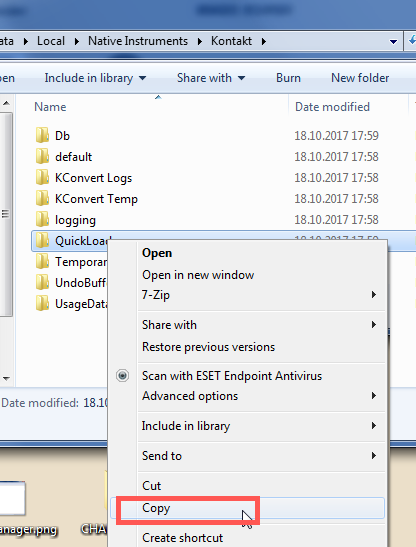
- Paste the copied folder to e.g. your Desktop.
You can place this backup copy of the "QuickLoad" folder back into the above location after reinstalling Kontakt, or paste it into a different Kontakt version's folder in the same location.