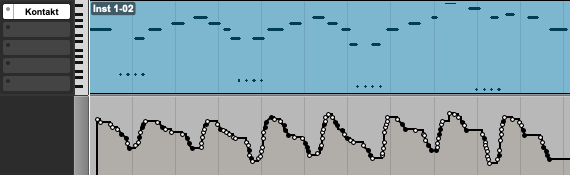
This guide explains how to automate the Dynamics knob in Kontakt Symphony Series and Essentials libraries using MIDI and DAW automation.

TABLE OF CONTENTS
Editing Dynamics Automation
How Dynamics Automation Works
Most performance controls in Symphony Series / Essentials libraries use standard host automation.
The Dynamics knob is different, it is controlled via MIDI CC #1 (modulation wheel) instead of standard plugin automation.
Recording Dynamics Automation in Your DAW
You can control and record Dynamics automation in two ways:
- Move the modulation wheel on your MIDI controller
- Draw MIDI automation data directly in your DAW
This will record automation data for the Dynamics parameter.
Editing Dynamics Automation
After recording, you can access and edit the Dynamics automation data in your DAW’s MIDI editor.
Accessing the MIDI Automation Editor in Your DAW
Ableton Live
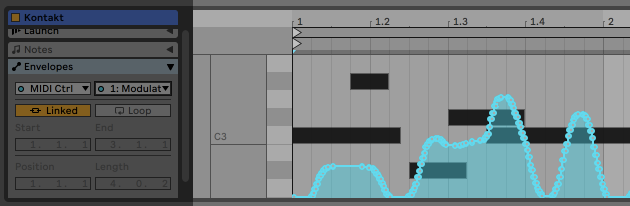
- Double click the MIDI clip containing your Dynamics knob automation to access the Clip View Editor below.
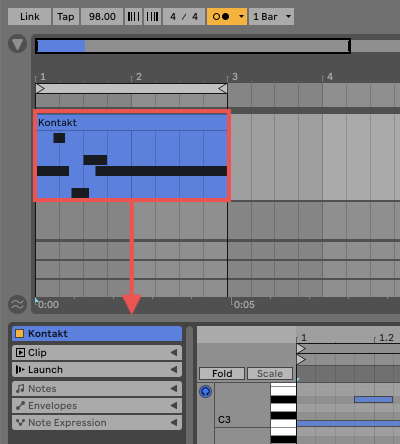
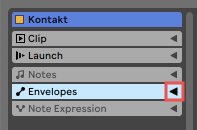
- Click to expand Envelopes along the left side pane.
- Select MIDI Ctrl from the Device Chooser menu and 1: Modulation Wheel from the Control Chooser menu.
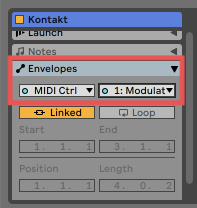
The Automation Envelope data is displayed directly over the MIDI Clip note area and is available for further editing.
Bitwig Studio
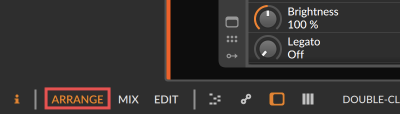
- Click ARRANGE on the lower-left corner of Bitwig Studio.
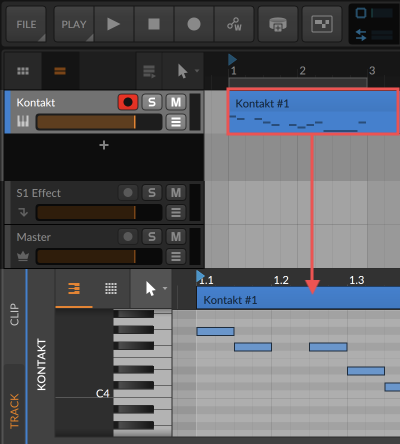
- Double click the Arranger Clip containing your Dynamics knob automation to access the Editor Panel below.
- Click the Automation symbol along the bottom to access the Automation Editor Panel.
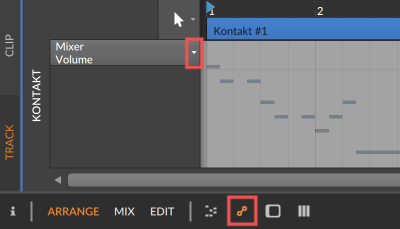
- Select MIDI Ch. 1 Modulation (#1) from the left side pane of the Automation Editor Panel menu.
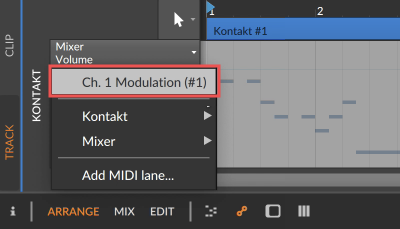
The Automation data is displayed directly over the MIDI clip note area and is available for further editing.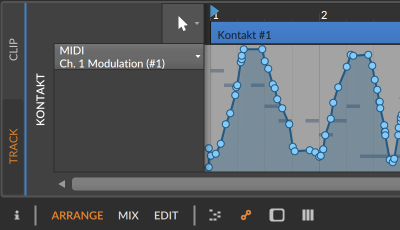
Cubase
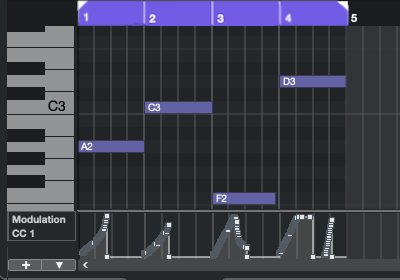
- Double click the MIDI region containing your Dynamics knob automation to access the Key Editor below.
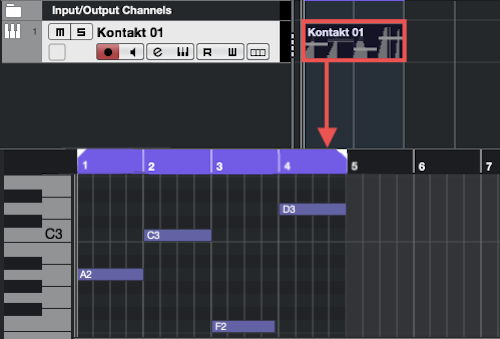
- Click the Controller Selection menu (under the vertical key column) and select CC 1 (Modulation).
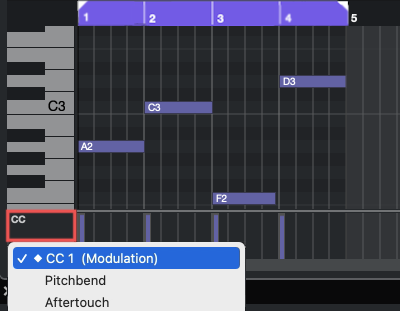
The Automation data is displayed directly under the MIDI note area and is available for further editing.
FL Studio
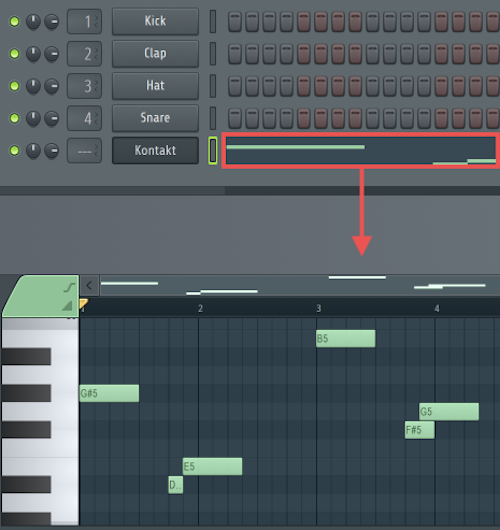
- On the FL Studio sequencer, double click the note region containing your Dynamics knob automation to access the Piano Roll window below.
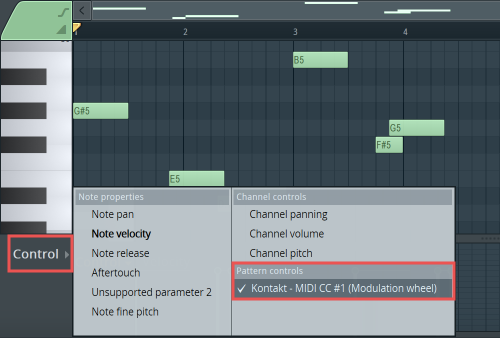
- In the piano roll window, click to expand the Target Control menu along the left side pane (under the vertical key column) and select Kontakt - MIDI CC #1 (Modulation Wheel).
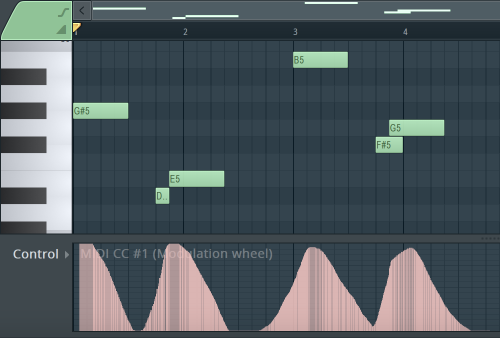
The Automation data is displayed directly under the pattern MIDI notes and is available for further editing.
GarageBand
- Double click the MIDI region containing your Dynamics Knob automation to access the Piano Roll Editor below.
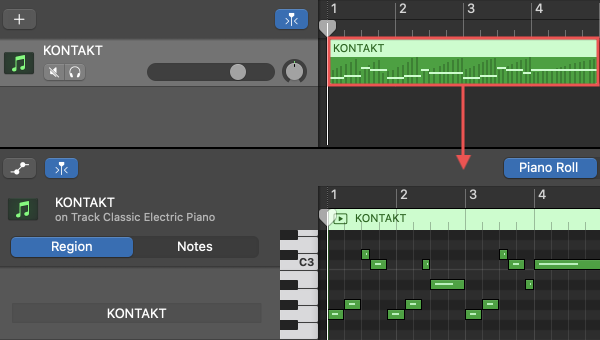
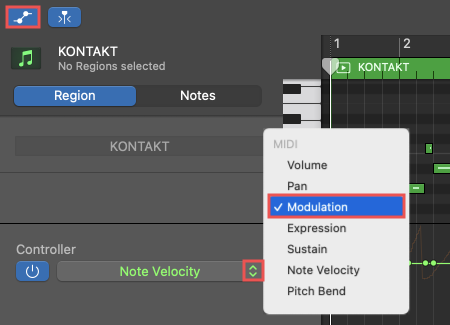
- Click the Show / Hide Automation tab at the top of the editor and select MIDI > Modulation from the Controller menu below.
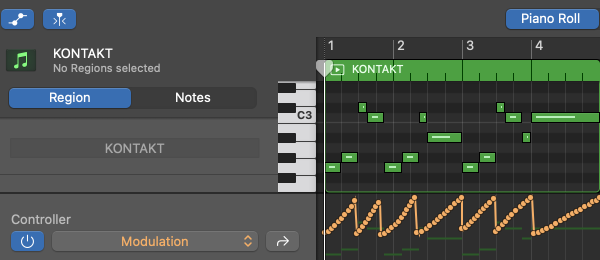
The Automation Envelope data is displayed directly under the MIDI Clip note area and is available for further editing.
Logic Pro
- Double click the MIDI region containing your Dynamics Knob automation to access the Piano Roll editor below.
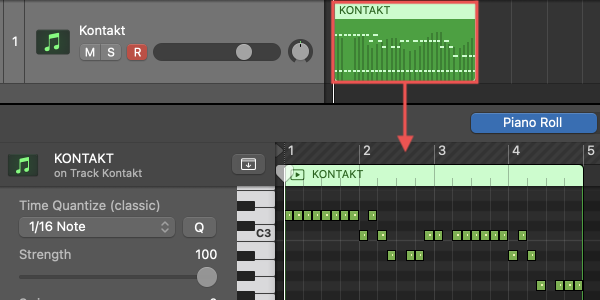
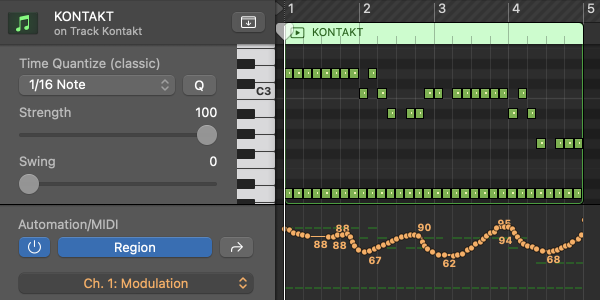
- Click the Show / Hide Automation tab at the top of the editor and select MIDI > Modulation from the Automation/MIDI menu below.
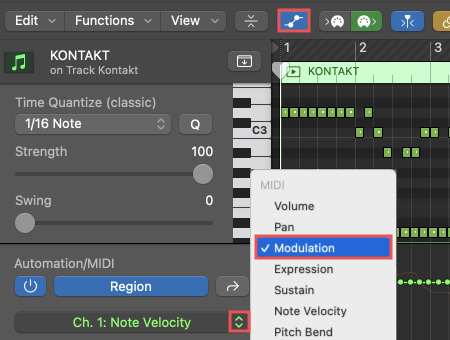
The Automation Envelope data is displayed directly under the MIDI Clip note area and is available for further editing.
Pro Tools
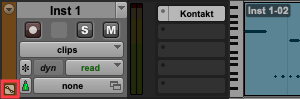
- Click to expand the Show/hide automation lanes menu on the Instrument Track containing Kontakt and your Dynamics Knob automation.
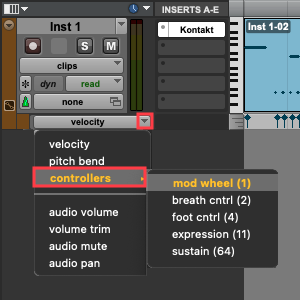
- Click to expand the Lane view selector and select controllers > mod wheel (1). This will display the Mod Wheel automation data on the track timeline.
Note: For a more detailed view, select Window > MIDI Editor from the Pro Tools taskbar.
The Automation data is displayed directly under the MIDI Clip note area and is available for further editing.