This guide explains how to add non-player libraries to the Kontakt 7 and Kontakt 8 Browser. It also outlines how to prepare older libraries for use.
TABLE OF CONTENTS
- Adding a Non-Player Library to the Browser
- Using the Batch Re-save Function for Older Kontakt Libraries
Adding a Non-Player Library to the Browser
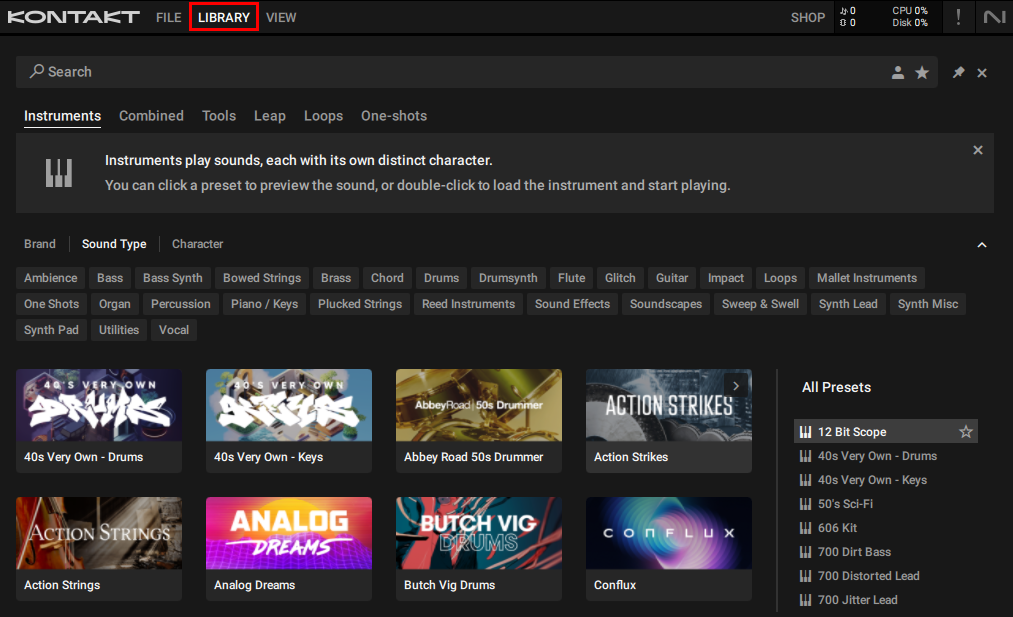
- Open Kontakt.
- Make sure that you have selected the Library Browser.
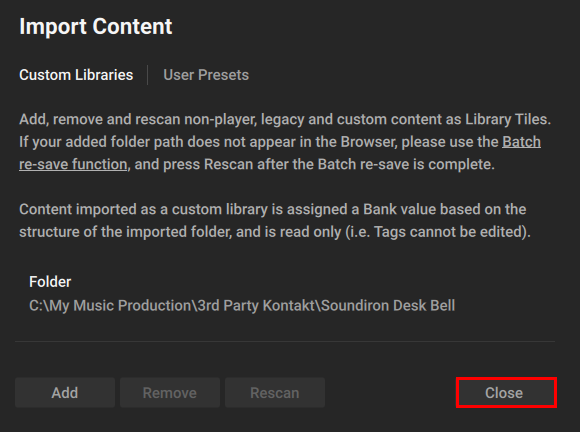
- Click the cogwheel in the bottom left to open the Import Content window and click Add:
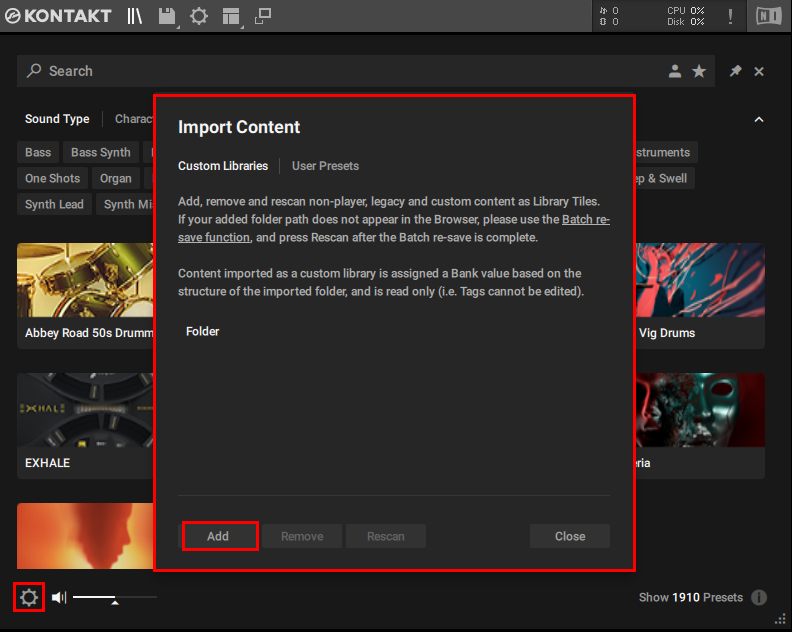
Note: Select the Custom Libraries tab if you want the Library to appear with the regular Factory content. Click the User Presets tab if you want to add it to the User Library.
- Navigate to the Library's folder and and confirm your selection.
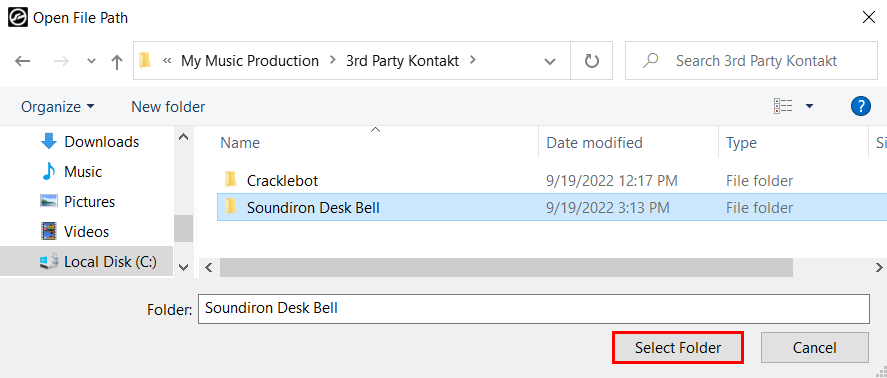
- Click Close.
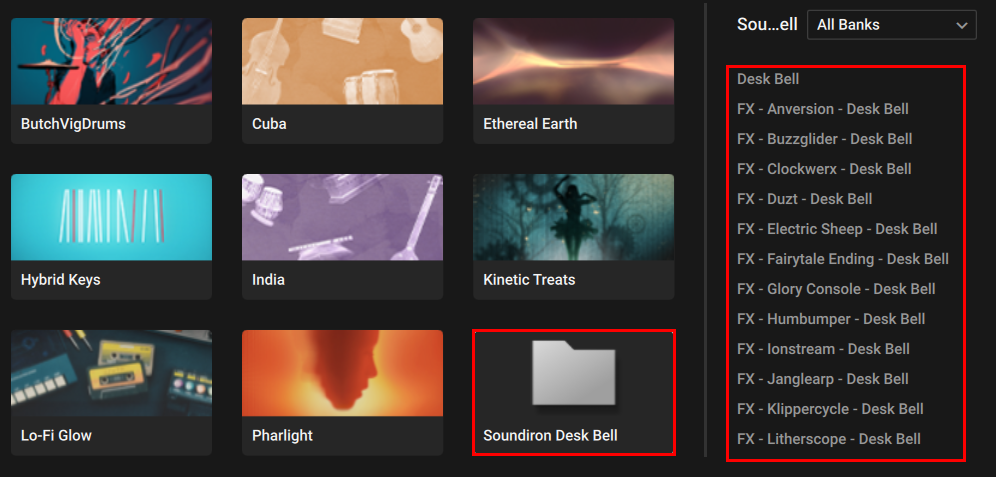
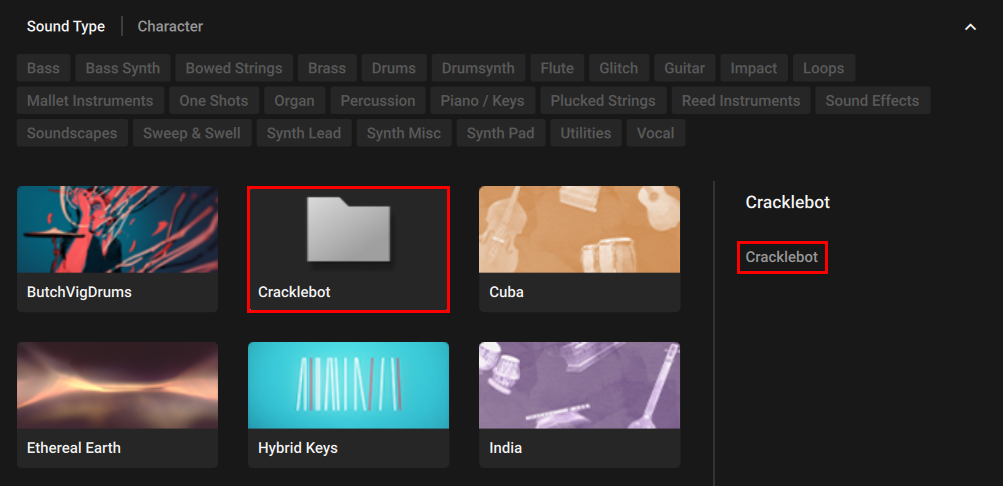
- The Library now appears with a folder icon in Kontakt's Browser. Click the Library's icon to show its instruments:
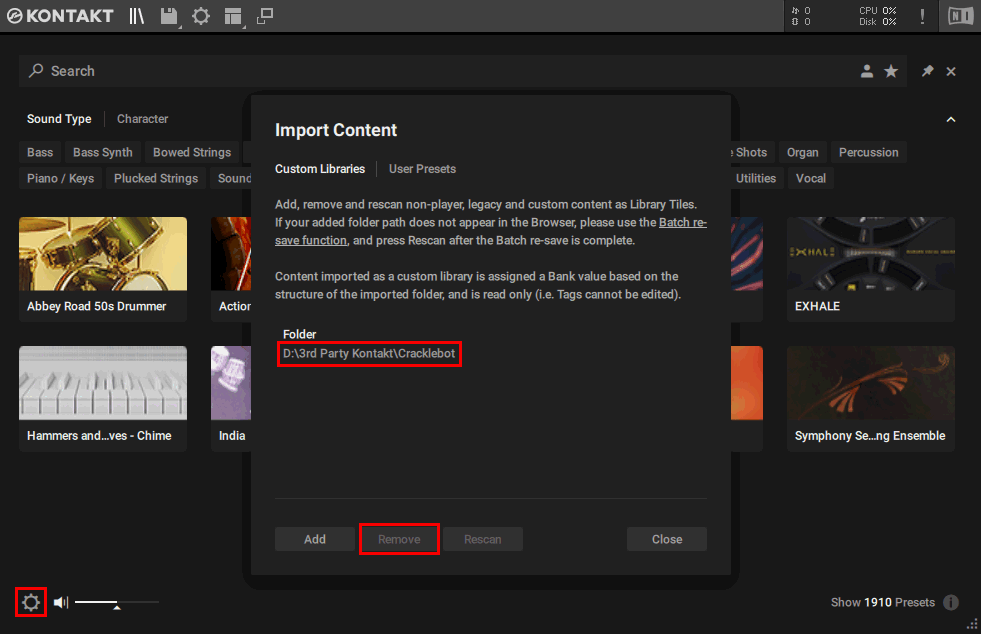
If you want to remove the Non-Player Library from the Browser again, click the cogwheel in the bottom left, select the Library and click the Remove button.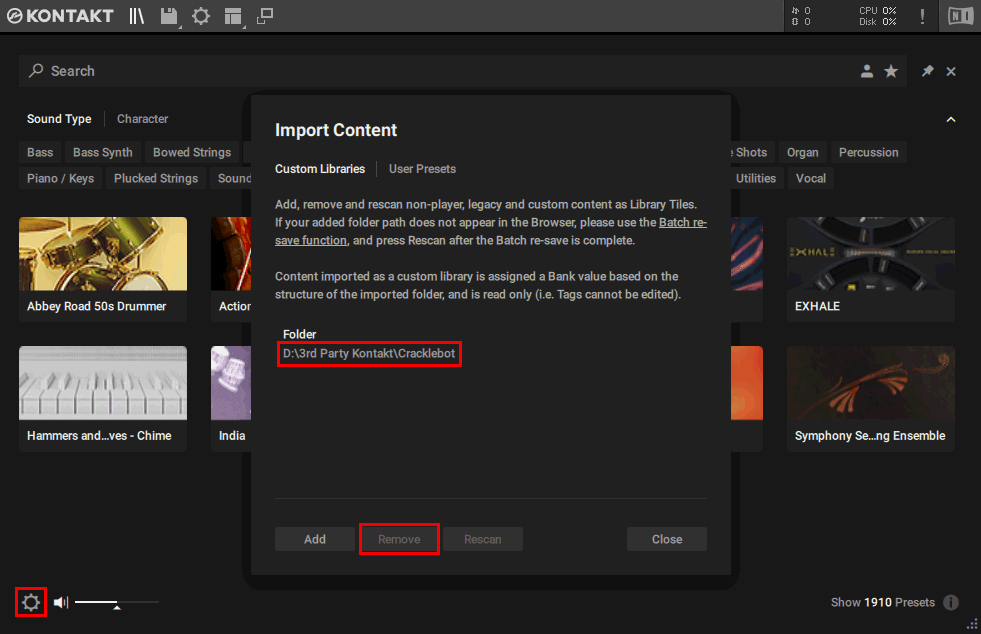
Using the Batch Re-save Function for Older Kontakt Libraries
If the Library doesn't appear in the Browser, the Library was made with a Kontakt version below 5.0. Please use the Batch re-save function to make the Library compatible with Kontakt 7 / 8's Library Browser:
Important - please read before proceeding:
- In case you need to open the Library with an older Kontakt version, use this older version of Kontakt for the Batch re-save process. If you batch re-save a Library with e.g. Kontakt 8, it will no longer load in Kontakt 7, Kontakt 6, etc. If you batch re-save with Kontakt 7, it will no longer load in Kontakt 6, Kontakt 5, etc.
- Batch re-save should only be used on single Libraries. It is not recommended to batch re-save an entire disk or directory of Libraries.
Follow these steps:
- Start Kontakt.
- Click FILE > Batch resave.
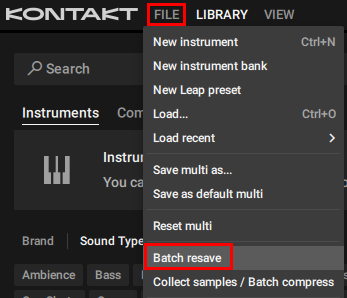
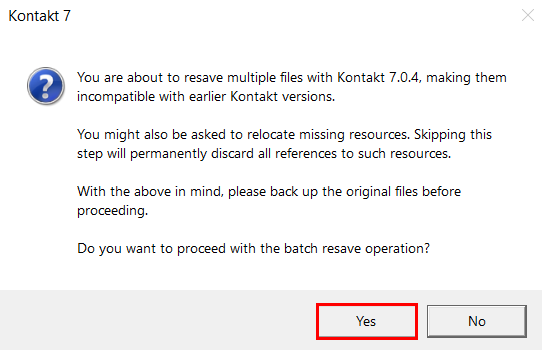
- A warning dialog appears. Click Yes to proceed.
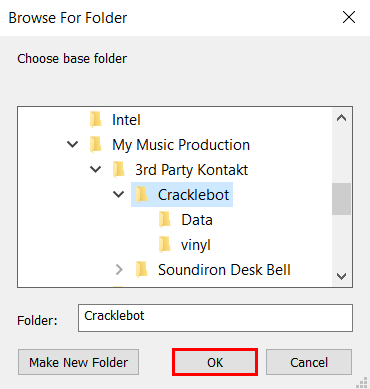
- Navigate to the Library folder and confirm your selection with OK.
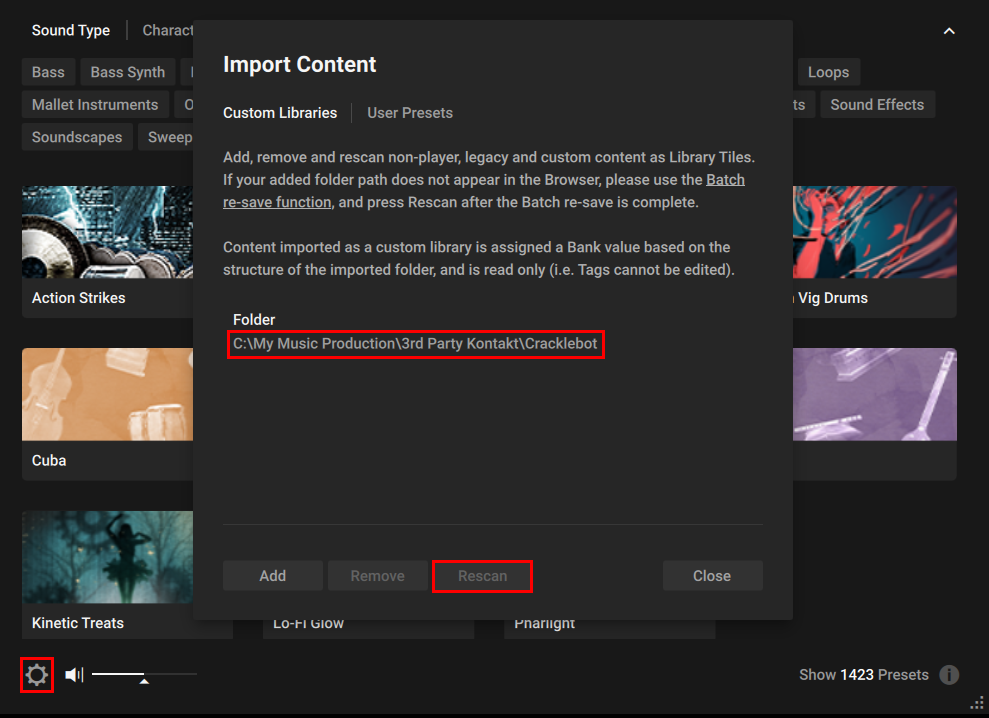
- Click the cogwheel in the bottom left again. Select the Library and click Rescan.
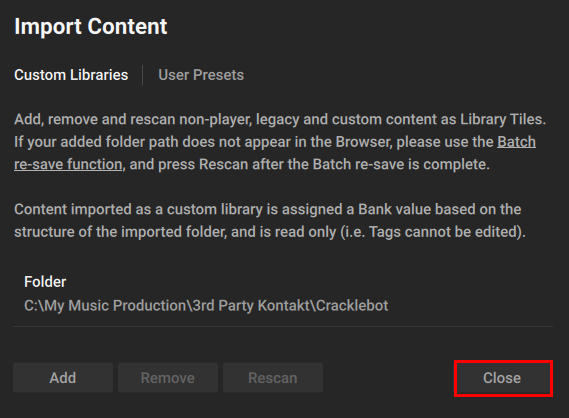
- Click Close.
- The Library now appears in Kontakt's Browser. Click the Library's icon to show its instruments:
If you want to remove the Non-Player Library from the Browser again, click the cogwheel in the bottom left, select the Library and click the Remove button.