
This guide explains how to move a Kontakt library to a new location on your computer.
The steps vary slightly depending on your version of Kontakt, so follow the section that applies to your setup.
TABLE OF CONTENTS
Kontakt 7 / 8
- Close Kontakt, your DAW, and all other Audio / MIDI-related software.
- Move the Library folder to its new location.
- Start Native Access and go to Library > Installed > Kontakt.
- Find the Library and click Repair.
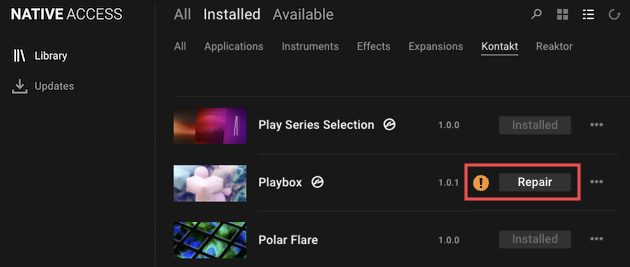
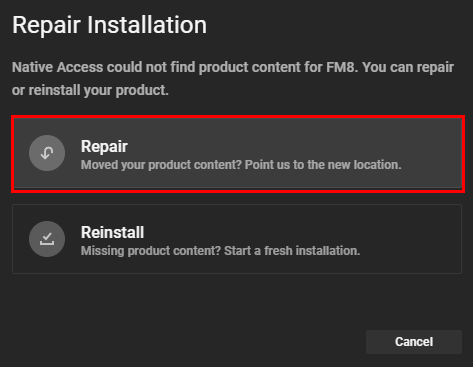
- In the Repair Installation window, click Repair.
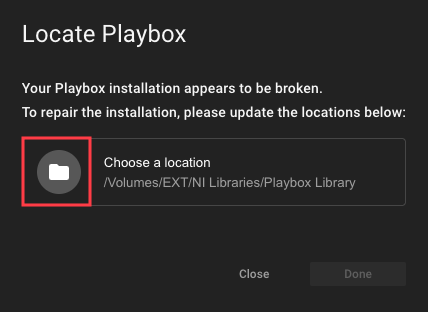
- The Locate window displays the product's last known location. Click the folder symbol.
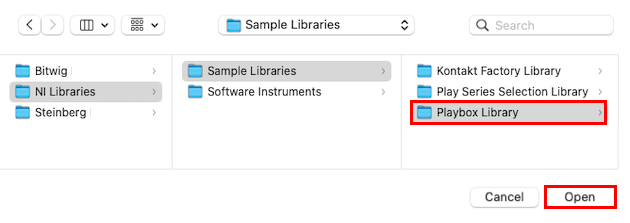
- Browse to the new location and select the Library folder.
- The Locate window will indicate that the library folder was successfully relocated.
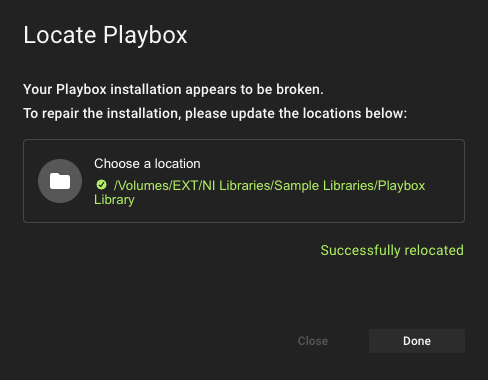
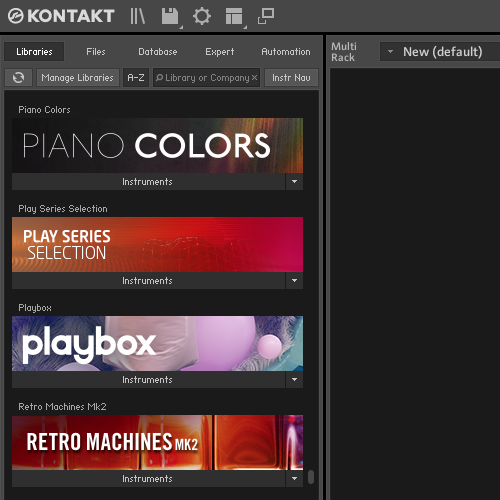
- Click Done to close the Locate window and your Kontakt library will now display correctly in the browser.
Kontakt 6 and Earlier
- Move the Library to the desired location.
- Start Kontakt. You will see the following error message within the Libraries tab in the Kontakt Browser:
Library content not found. Click Locate to set the content.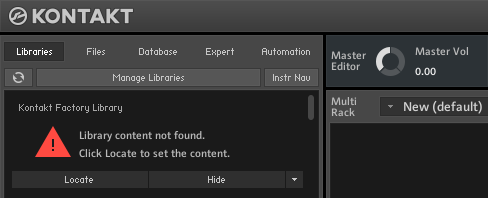
- Click the Locate button.
- In the new window, click Browse for folder:
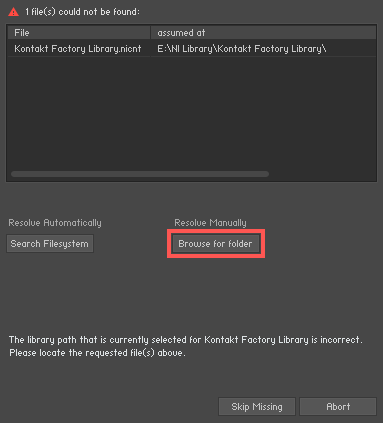
- Browse to the new location of the Kontakt Library.
- Select your Kontakt Library's folder and click Choose / OK.
Now the Library is available in the Kontakt Browser again.