
After registering the Kontrol MK3 in Native Access, the keyboard’s display may still show the welcome screen and prompt you to add the serial number.
This happens when the keyboard has not yet been fully initialized. To resolve this, please install the Hardware Connection Service and update to the latest firmware by following the steps below:
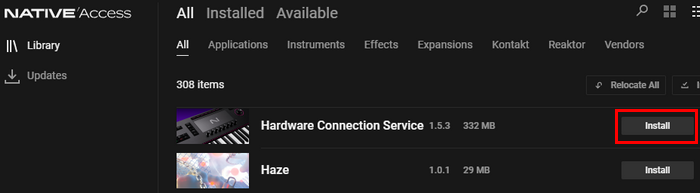
1. Open Native Access > Library > All.
2. Find Hardware Connection Service in the list and click Install.
3. Click here to download the Kontrol S-Series MK3 firmware updater, then unzip it.
4. Connect your keyboard, turn it on and start the Updater application.
5. Click UPDATE and wait for the process to complete.
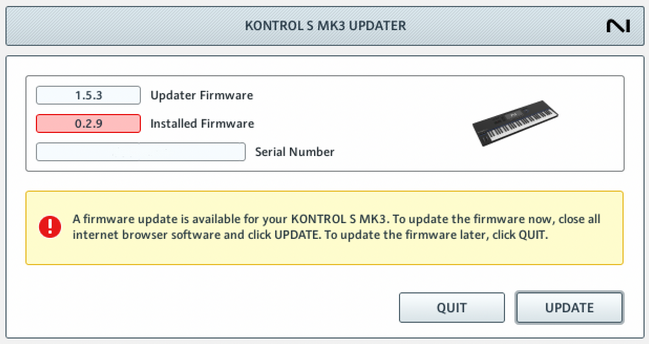
IMPORTANT: This process can take some minutes. Please do not let the computer go to sleep or unplug the device during the update process. Please do not disconnect the power cable.
6. If you haven't already, go back to Native Access and install the Komplete Kontrol software and individual products.