
Important: Many connection issues can be avoided by using a USB-C hub instead of connecting your keyboard directly to your computer. Here you will find info on choosing the right hubs and cables:
USB-C Hubs
- Make sure that the USB-C hub supports power delivery and data transfer functionality.
- Some USB-C hubs have additional ports exclusively designed for charging and don't support data transfer. Don't use these ports to connect your Kontrol MK3 keyboard.
- On Windows, deactivate the "USB selective suspend settings". You can find them here:
Click the Windows Start Button, type Edit power plan and hit enter.
Go to Change advanced power settings > USB settings > USB selective suspend settings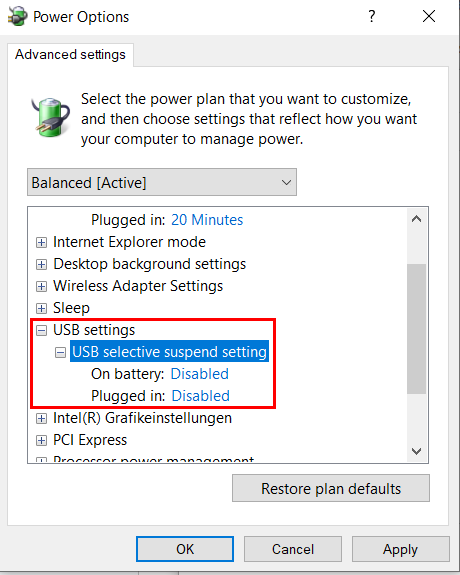
USB-C Cables
- Similar to hubs, make sure that the USB-C cable supports power delivery and data transfer functionality.
- It's important to use high-quality cables, whether to connect with a hub or with the keyboard. Cheap or damaged cables can cause connection problems, data transfer failures, or intermittent connectivity.