
In this article, we explain how to create your own MIDI controller pages for use with MASCHINE+ in standalone operation. This is useful when you wish to send MIDI control to external hardware synthesizers.
Note: If there is already a MIDI Ext. template for your synthesizer or drum machine, please follow this video.
I'm Using a Synthesizer with One Patch
Follow this guide if using a synthesizer with one patch (with one MIDI Channel).
Assigning MIDI CCs in MACRO Pages
- Launch the MASCHINE 2 software on your computer and create a new project.
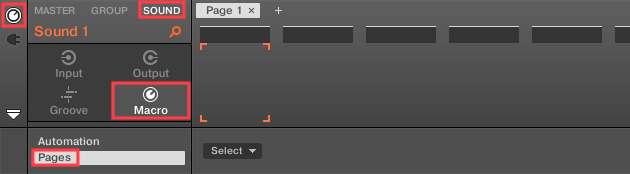
- Click Channel > SOUND > Macro > Pages. A default MacroPage 1 is displayed.
- Click the empty space for the first Macro knob, then click Select > MIDI to choose a MIDI Controller (CC) number.
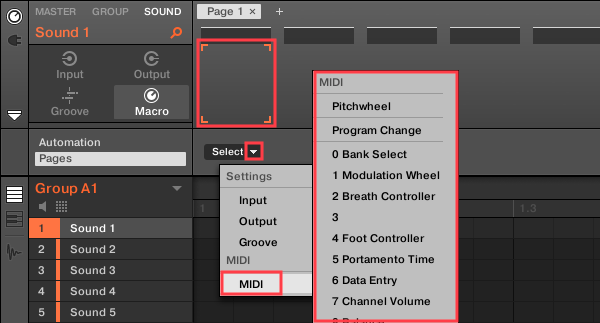
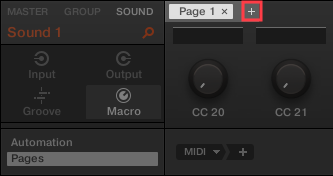
Note: Please consult your synthesizer manual for its MIDI Implementation chart. This will provide a list of its parameters and their assigned MIDI CC numbers. - Repeat this process for all of the MACRO knobs and MIDI CCs needed to control your synthesizer. If more than 8 parameters are needed, click the plus (+) symbol next to Page 1 to create a new page with 8 more MACRO spaces.
- Right-click the MASCHINE Sound slot (e.g. Sound 1), and choose Save As.
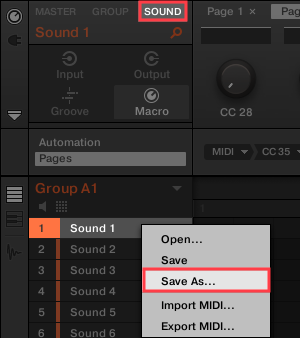
- Name your Sound file (e.g. with the name of your Synth), and save it to a location easy to find, such as your computer's Desktop.
Transferring the MACRO SOUND File to MASCHINE+
- Set your MASCHINE+ to STORAGE mode, by pressing SETTINGS then use buttons5 / 6 to select SYSTEM. Press button3 (STORAGE).
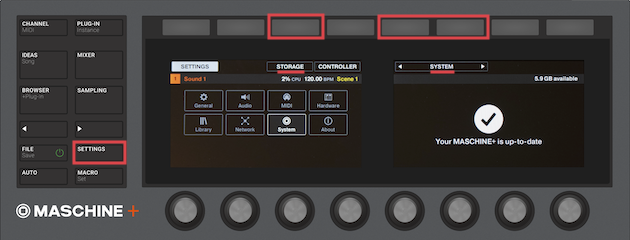
Note: If MASCHINE+ is in Controller mode, press SETTINGS then go to SYSTEM. Press button 4 (STANDALONE), and follow this step △. - Press OK on the right-side display, and the MASCHINE+ SD Card will mount to your computer's file system.
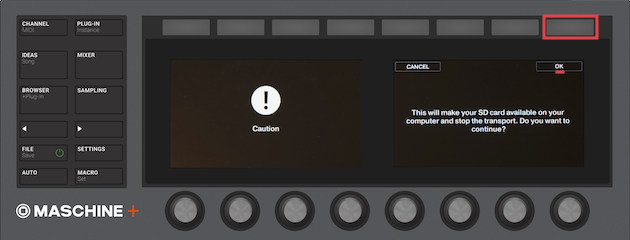
- Open the MASCHINE+ SD Card (named Maschine+).
- Find the MASCHINE Sound file (.mxsnd) you saved on the Desktop, and drag it to the Sounds folder at this location of the MASCHINE+ SD Card: Maschine+ > Native Instruments > Maschine 2 > Sounds.
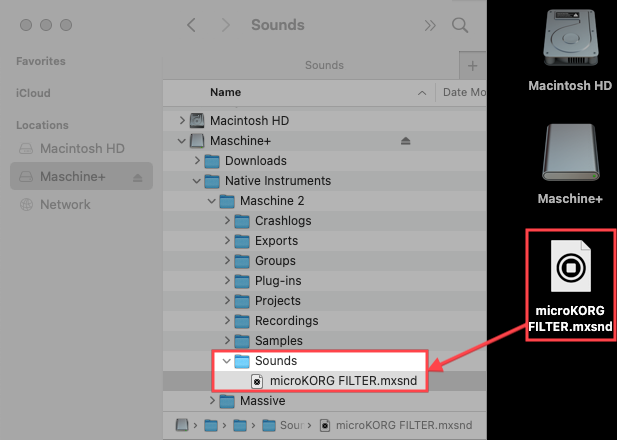
- Eject the MASCHINE+ SD Card from your computer.
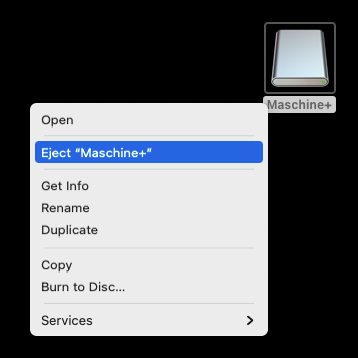
Note: It is very important to eject the SD Card from your computer before doing the next step. - Press DISCONNECT on the right-side display on the MASCHINE+, to mount the SD Card back onto MASCHINE+.
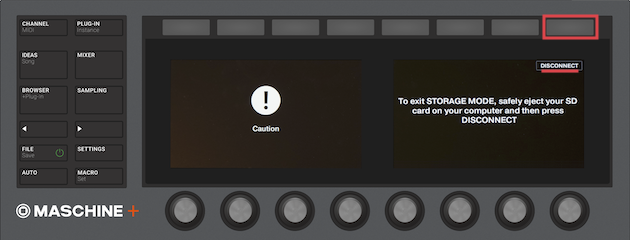
Loading the MACRO SOUND File into MASCHINE+
- On the MASCHINE+ hardware, press BROWSER.
- Use the buttons above the left-side display to select SOUNDS and USER.
- Use knob 8 to select the Sound file, and button 8 to LOAD.
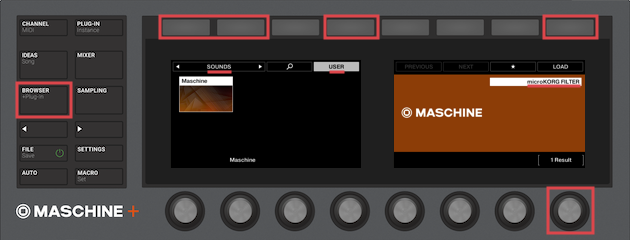
Sending MIDI CCs to Your Hardware Instrument
- On the MASCHINE+ hardware, press CHANNEL and use button 3 to press SOUND.
- Use buttons 5 / 6 to select OUTPUT.
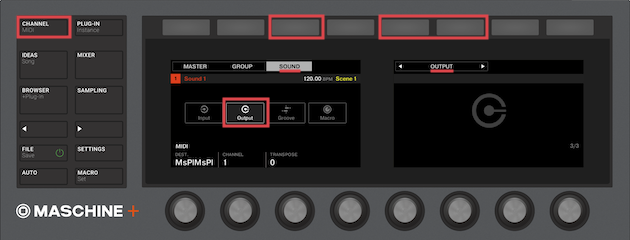
- In OUTPUT, use the Page Left (<) or Page Right (>) buttons to enter the MIDI output page.
- Use knob 1 to select the MIDI Output destination. You can choose the MIDI output built into MASCHINE+ (Maschine Plus (Maschine Plus)), or the USB MIDI interface you have connected to MASCHINE+.
- Use knob 2 to set the MIDI output channel.
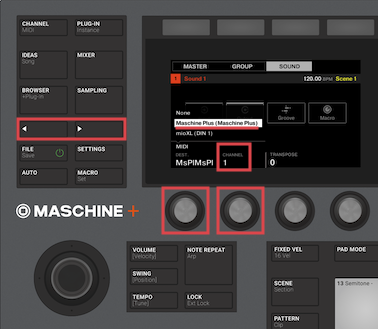
Note: We recommend setting this to MIDI channel 1 unless your synthesizer receives over another MIDI channel. Please consult your synthesizer manual for directions to set the MIDI channel. - Save this setup in a new MASCHINE+ project to use as a template in future sessions with your hardware synthesizer.
I'm Using a Drum Machine or Multi-Sound Module
Follow this guide if using a multi-timbral synthesizer (or drum machine / sampler) consisting of multiple patches over separate MIDI Channels.
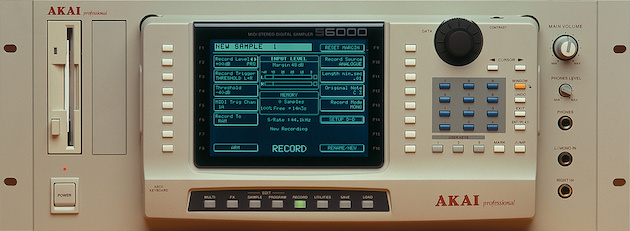
Note: The following directions are similar to the steps in the previous section (above), but this guide applies to multiple MASCHINE Sounds contained within a Group.
Assigning MIDI CCs in MACRO Pages
- Launch the MASCHINE 2 software on your computer and create a new project.
- Click Channel > SOUND > Macro > Pages. A default MacroPage 1 is displayed.
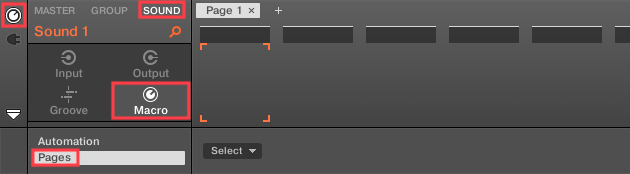
- Click the empty space for the first Macro knob, then click Select > MIDI to choose a MIDI Controller (CC) number.
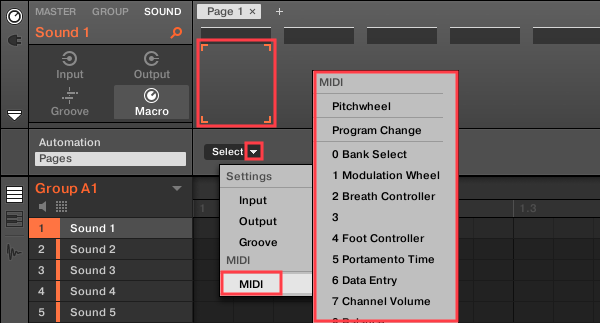
Note: Please consult your synthesizer manual for its MIDI Implementation chart. This will provide a list of its parameters and their assigned MIDI CC numbers. - Repeat this process for all of the MACRO knobs and MIDI CCs needed to control your instrument. If more than 8 parameters are needed, click the plus (+) symbol next to Page 1 to create a new page with 8 more MACRO spaces.
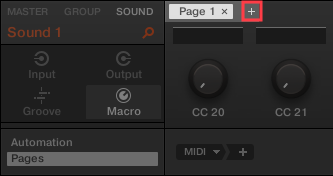
Important Note: Each patch or channel of your sound module must be configured separately, across the individual Maschine Sound slots available. Repeat steps 2-4 above to configure MACRO assignments for each patch or part of your synthesizer. - Once all MIDI CC assignments are made, click Channel > GROUP.
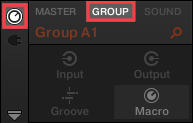
- At the GROUP level, right-click the MASCHINE Group name (e.g. Group A1), and choose Save As.
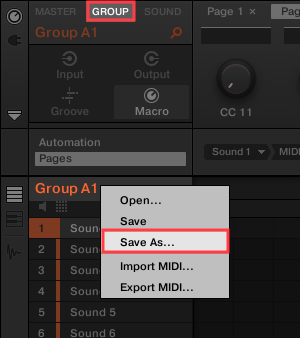
- Name your Group file (e.g. with the name of your Synth or Drum Machine), and save it to a location easy to find, such as your computer's Desktop.
Transferring the MACRO GROUP File to MASCHINE+
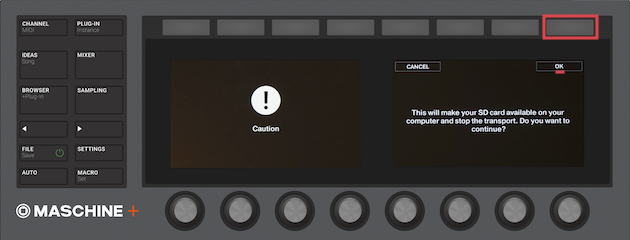
- Set your MASCHINE+ to STORAGE mode by pressing SETTINGS, then use buttons 5 / 6 to select SYSTEM. Press button 3 (STORAGE).
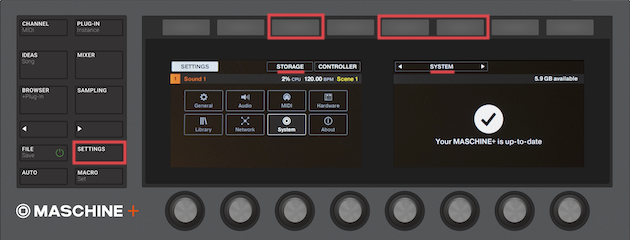
Note: If MASCHINE+ is in Controller mode, press SETTINGS then go to SYSTEM. Press button 4 (STANDALONE), and follow this step △. - Press OK on the right-side display, and the MASCHINE+ SD Card will mount to your computer's file system.
- Open the MASCHINE+ SD Card (named Maschine+).
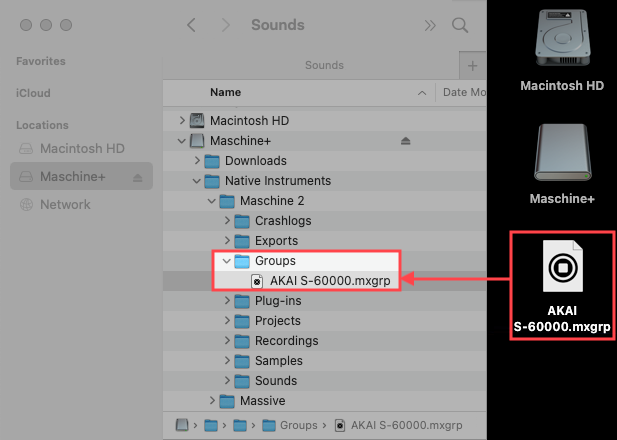
- Find the MASCHINE Group file (.mxgrp) you saved on the Desktop, and drag it to the Groups folder at this location of the MASCHINE+ SD Card: Maschine+ > Native Instruments > Maschine 2 > Groups
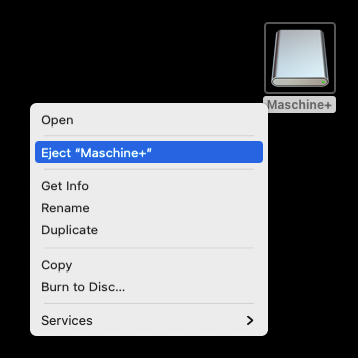
- Eject the MASCHINE+ SD Card from your computer.
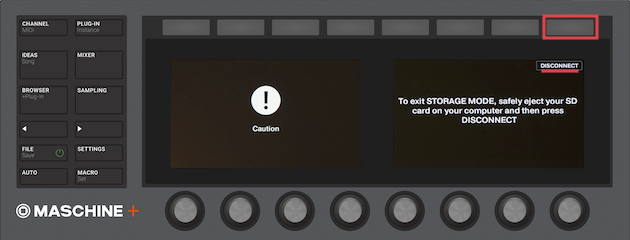
Note: It is very important to eject the SD Card from your computer before doing the next step. - Press DISCONNECT on the right-side display on the MASCHINE+, to mount the SD Card back onto MASCHINE+.
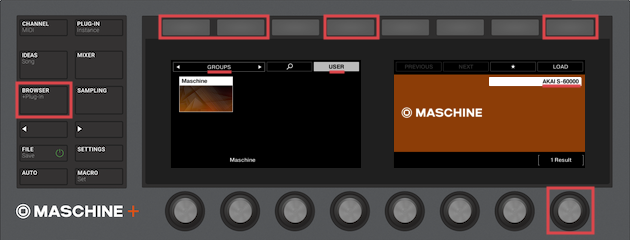
Loading the MACRO GROUP File into MASCHINE+
- On the MASCHINE+ hardware, press BROWSER.
- Use the buttons above the left-side display to select GROUPS and USER.
- Use knob 8 to select the Group file, and button 8 to LOAD.
Sending MIDI CCs to Your Hardware Instrument
- On the MASCHINE+ hardware, press CHANNEL and use button 3 to press SOUND.
- Use buttons 5 / 6 to select OUTPUT.
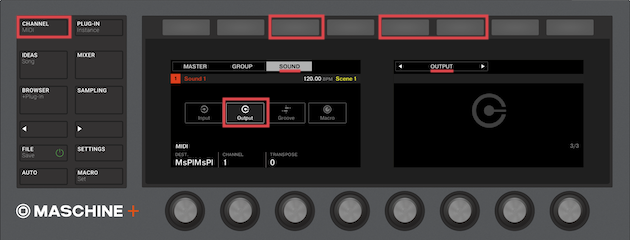
- In OUTPUT, use the Page Left (<) or Page Right (>) buttons to enter the MIDI output page.
- Press Pad 1 so that it's highlighted, and use knob 1 to select the MIDI Output destination. You can choose the MIDI output built into MASCHINE+ (Maschine Plus (Maschine Plus)), or the USB MIDI interface you have connected to MASCHINE+.
- Use knob 2 to set the MIDI output channel.
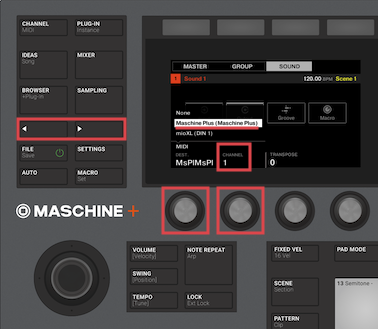
Note: We recommend selecting MIDI channel 1 for the first patch, MIDI channel 2 for the next patch (etc.) for each of the sounds that you need to configure. Please consult your synthesizer manual for directions to assign MIDI channels to its patches. - Repeat this process for all MASCHINE Sound slots in the Group that are sending MIDI control.
- Save this setup in a new MASCHINE+ project to use as a template in future sessions with your hardware synthesizer.