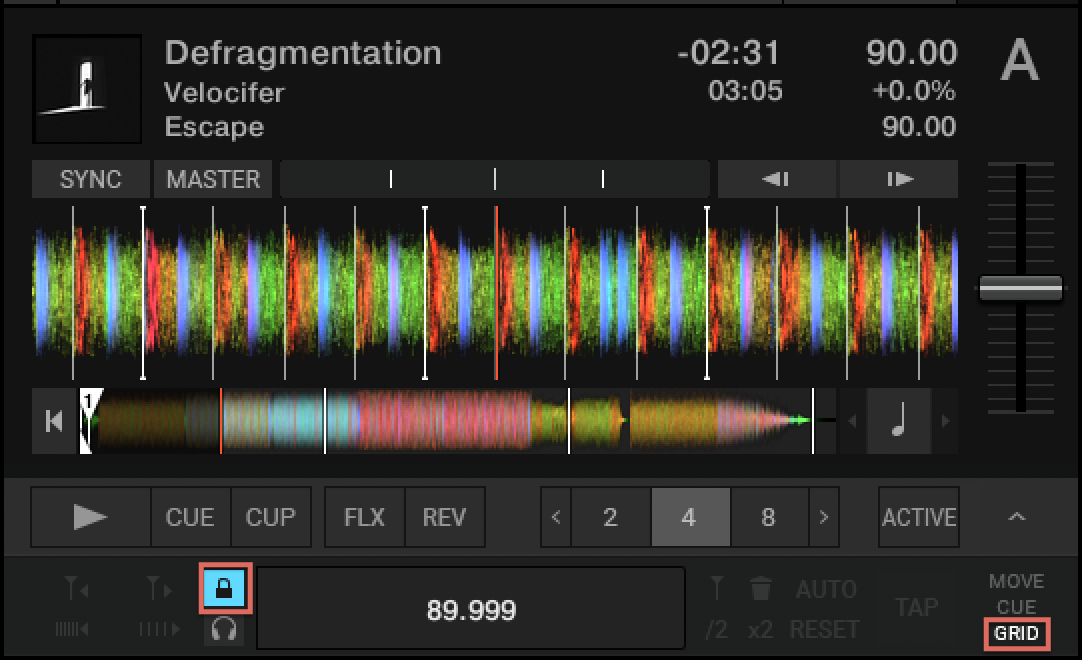
In this article, we explore how Analysis Lock functions in Traktor Pro and how to change the state of the Analysis Lock.
The Analysis Lock freezes all parameters set by the Analysis. Once the Analysis Lock is set active for a track, the following parameters can not be altered manually or via the Analysis process:
- BPM value: In the GRID Panel as well as in the Edit window or Browser List (when using Inline Editing)
- Gridmarkers and their position: In the GRID Panel
- Key: In the Edit window as well as the Browser List (when using Inline Editing)
- Autogain: In the Edit window as well as the Browser List (when using Inline Editing), also with the GAIN knob in Autogain mode (colored orange) as shown in the screenshot below:
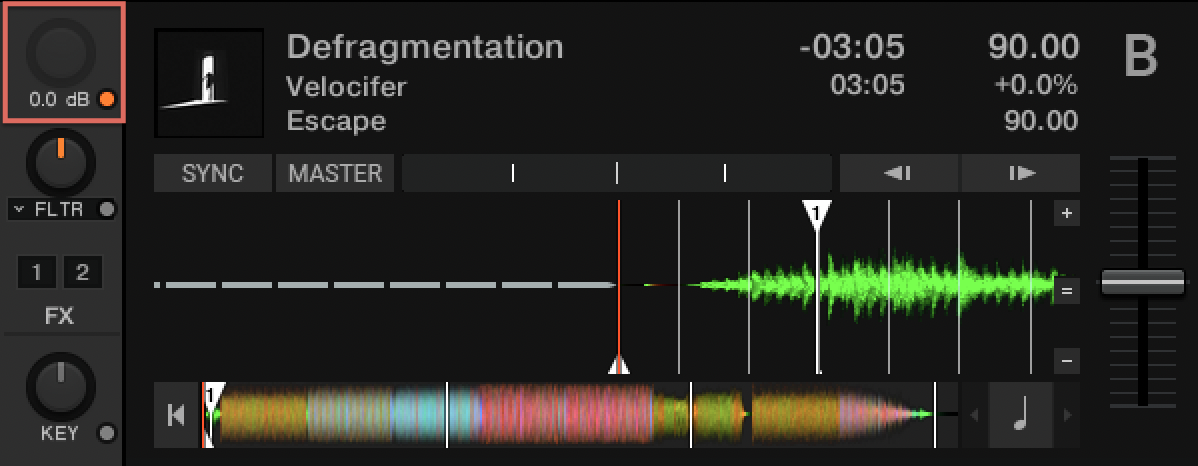
Setting the Analysis Lock active is recommended for all tracks you analyzed and/or manually edited. This way, you can preserve all track-related information even when performing a global Analysis or accidentally hitting the edit functions while performing.
Unlock your tracks only when editing, and set the Analysis Lock back to active when you are done.
Changing the state of the Analysis Lock
Here are two ways to change the state of the Analysis Lock:
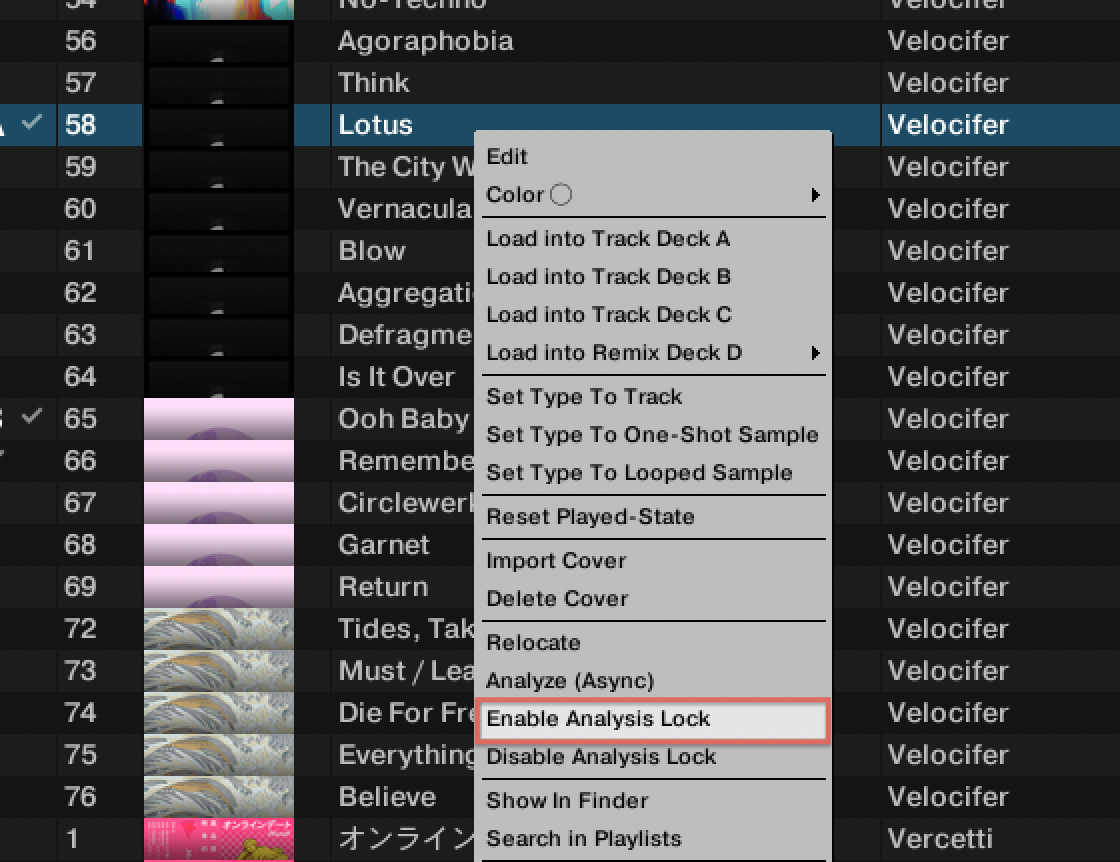
- Right-click a selection of one or more tracks in the Browser List. Then choose Enable Analysis Lock or Disable Analysis Lock, respectively:
- Open the GRID Advanced Panel of your Deck to change the Analysis Lock for the currently loaded track. The Analysis Lock button is labeled with a padlock symbol and lights up when active.
Note: If you can't see the Advanced Panels at the bottom of your Decks. Please follow the steps below:
Go to Preferences > Decks Layout > Deck Layout and change the Size for the appropriate Decks to Full or Advanced.
You can then toggle the Advanced Panels with the little arrow switch located below the loop ACTIVE button in the Deck.