
TABLE OF CONTENTS
Symptom
You cannot hear TRAKTOR's Monitor signal in your headphones.
Solutions
Verify each of the following settings as explained below until your headphone signal is restored:
1. Output Routing
Make sure that the output channel corresponding to the headphones output of your audio interface is selected under Output Monitor (Left and Right) in Preferences > Output Routing.
In the example below, we have verified that 3: Headphone L and 4: Headphone R are selected. This output channel corresponds with the headphone output on the TRAKTOR KONTROL S4 controller.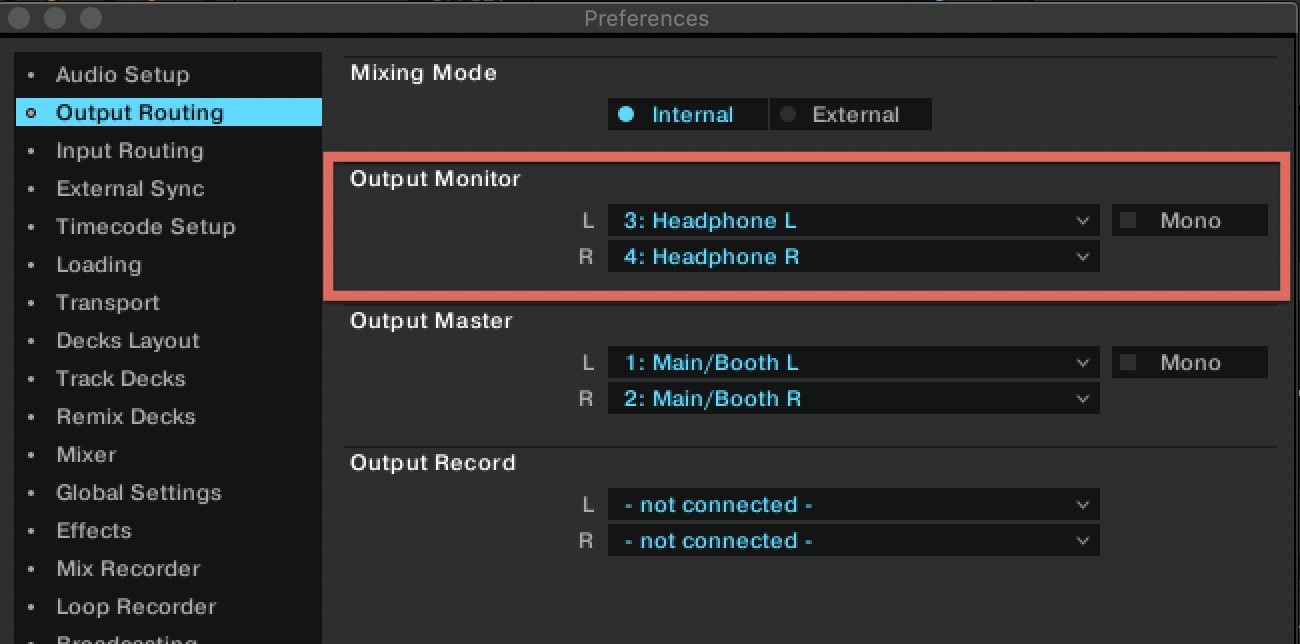
2. Activate Cue
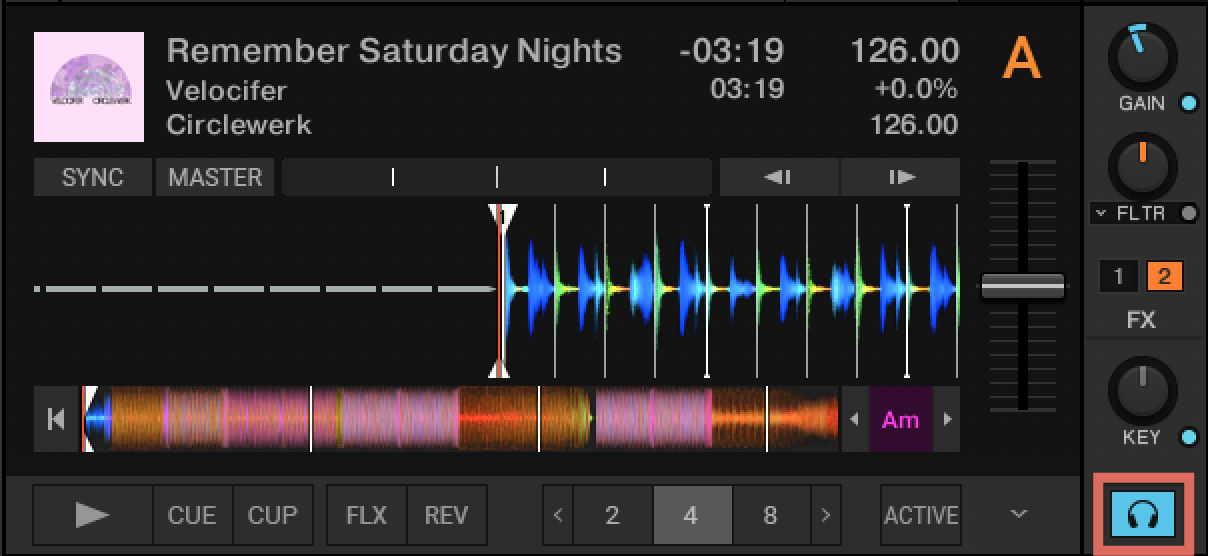
Make sure that the cue signal for the Deck that you wish to pre-listen on your headphones has been activated:
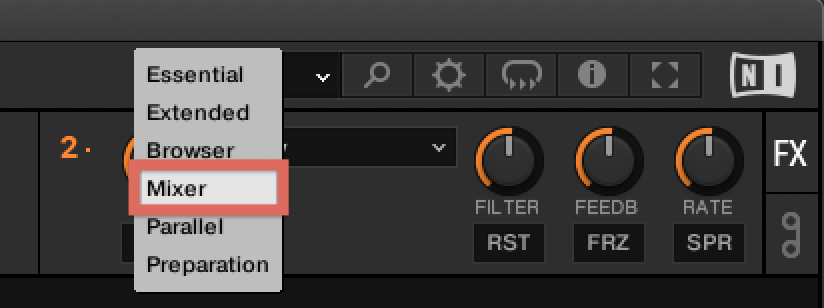
- Switch to the Mixer Layout via the Layout selection drop-down menu.
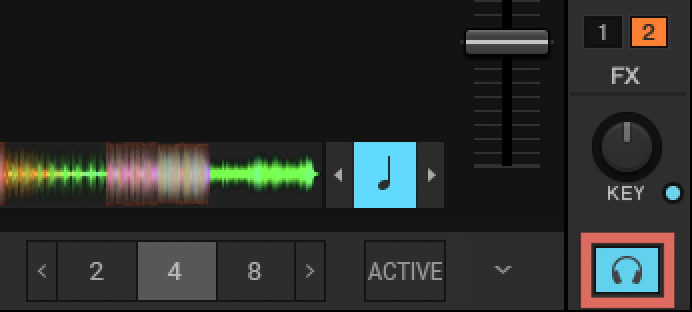
- In the Mixer area of the Deck, you wish to pre-listen, click on the headphones button.
3. Headphone Controls
Make sure that the position of the MIX and VOL knobs in the area below the lower right Deck are set correctly:
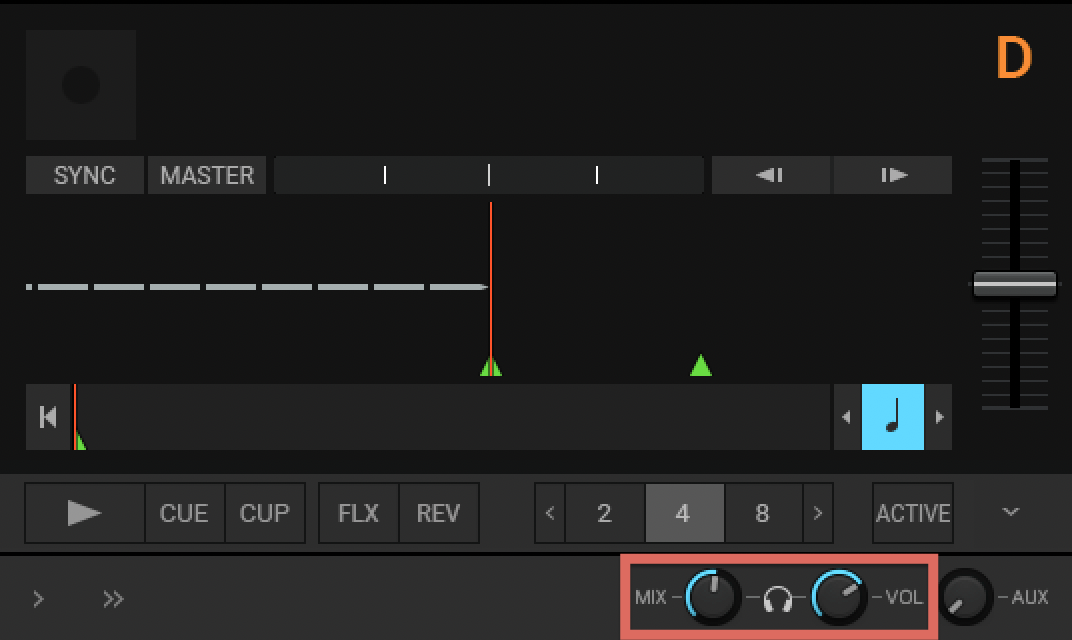
Note: When using the S3 and S4 MK3, these controls become "greyed out" as they are equipped with a cue monitoring section built into the devices. The S2 MK3 cue mix is controlled in the TRAKTOR software but the volume is controlled via the device itself.
- When MIX is turned all the way to the left (0%) you only hear the audio from the cued channel. Activate the headphones button for the Deck you want to pre-listen in order to engage the signal on your headphones.
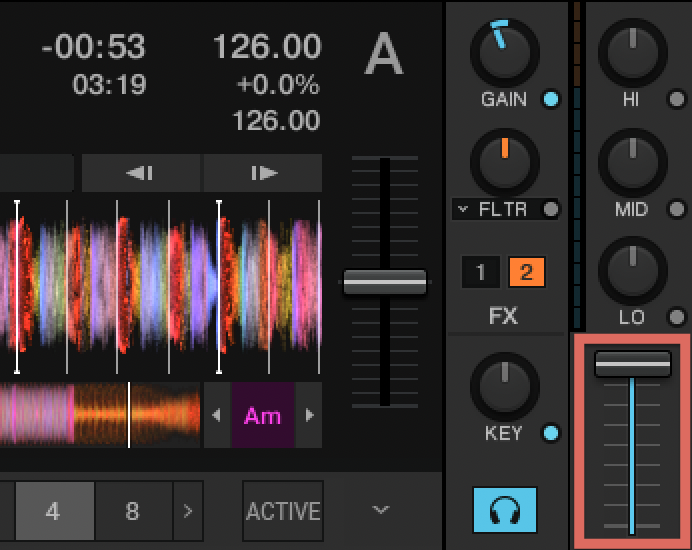
- When MIX is turned all the way to the right (100%) you only hear the audio from the Master Output of TRAKTOR (the music playing on your speakers). Pull up the volume fader of the Deck that is playing in order to hear the Master Output signal via your headphones.
- The VOL knob sets your headphone output volume. Turn it clockwise to increase the volume of the signal coming to your headphones. Some audio interfaces control the amount of the headphone signal volume via a built-in knob on the device. In this case, make sure the VOL knob in the software is turned up; if not, no monitor signal will come through to your audio interface.
4. Test your Headphones
If none of the above settings has restored the headphone signal, please perform the following tests:
- Test another headphone pair on the headphone output of your audio interface.
- Test your headphones on another audio system.
- Test your headphones using another headphone adapter (3.5 mm to 1/4'').
In case the test concludes that your headphones are working correctly, the physical headphone output of your audio interface may be defective.