This article explains how to calibrate the faders and/or knobs on your TRAKTOR KONTROL device to ensure accurate control and response in the TRAKTOR software.
You may need to recalibrate the faders and/or knobs if they behave unexpectedly in the TRAKTOR software. For example, the controls may move on their own, fail to fully mute or reach maximum output, or the on-screen position may not match the physical position on your controller.
Over time, calibration may become inaccurate due to a handful of reasons. Recalibrating your device can help restore precise control and improve performance. Please use the links below to jump directly into calibration instructions for your device:
TABLE OF CONTENTS
- Recalibrating TRAKTOR KONTROL devices (except MK3 models)
- Recalibrating the EQ- and FX-Knobs of your TRAKTOR KONTROL S4 MK3
- TRAKTOR KONTROL Z2 Hardware Fader Calibration
Note: the TRAKTOR KONTROL S2 MK3 and S3 do not allow their controls to be recalibrated.
Recalibrating TRAKTOR KONTROL devices (except MK3 models)
Follow the steps below to run the software calibration for the faders or knobs:
1. Open the TRAKTOR Preferences > Traktor Kontrol *controller model*
2. Under Calibration, click on the Recalibrate button next to the control you wish to calibrate. In this example, we are recalibrating the TRAKTOR KONTROL Z2 controls.
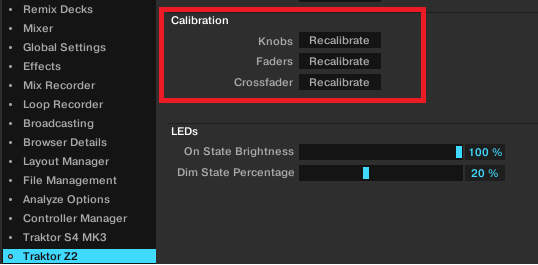
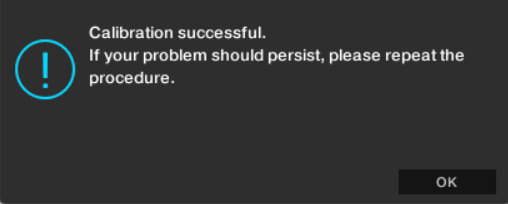
3. Follow the on-screen calibration instructions, confirming every next step with OK until you read the Calibration successful message.
4. Click OK to leave the calibration menu.
Your faders should now be calibrated and ready to use.
Note: If the software calibration fails, TRAKTOR KONTROL Z2 users may additionally calibrate the hardware faders manually, as explained in the image linked at the bottom of this article.
Recalibrating the EQ- and FX-Knobs of your TRAKTOR KONTROL S4 MK3
1. With the S4 MK3 connected to your computer, open TRAKTOR's Preferences.
2. Navigate to the Traktor S4 MK3 entry at the bottom of the menu. Here you will find the Calibration section.
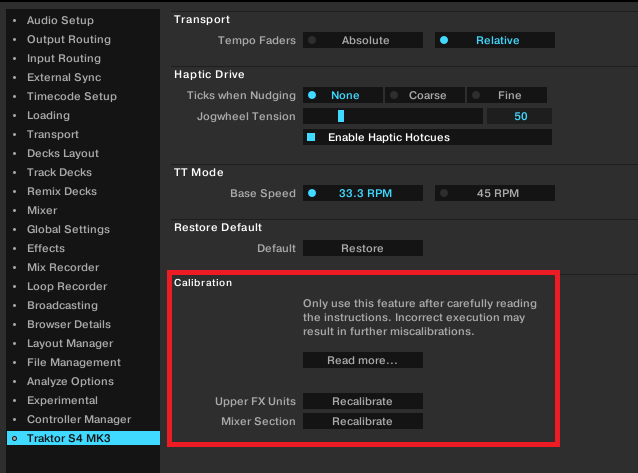
3A. If you want to recalibrate the 4 FX1 and 4 FX2 knobs, click the Recalibrate button corresponding to Upper FX Units.
3B. If you want to recalibrate the 12 EQ and 4 Mixer FX knobs, click the Recalibrate button corresponding to Mixer Section.
Warning: Incorrect execution may result in further miscalibration. Please follow the onscreen prompts carefully!
5. Once the recalibration is complete, click OK to close the dialog box.
TRAKTOR KONTROL Z2 Hardware Fader Calibration
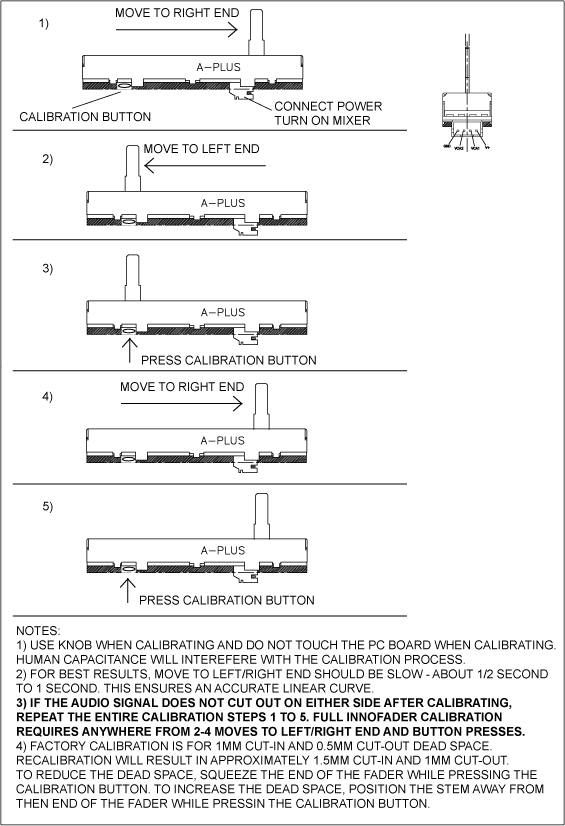
The Innofaders on the TRAKTOR KONTROL Z2 can be calibrated manually. To calibrate an Innofader, follow the instructions in the image below.
WARNING: Please be careful when handling the fader as any physical damage to the TRAKTOR KONTROL Z2 unit may result in the warranty being voided.