
If you want to use a microphone, the input channels must be manually configured in the Input Routing preferences. This only has to be done once in your first session and will be recalled thereafter.
macOS
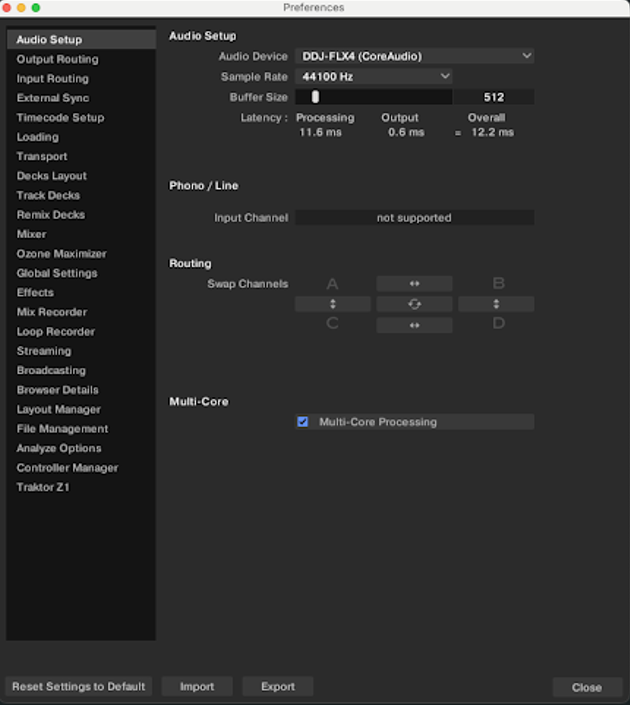
- Make sure that the DDJ-FLX4 is connected and selected as the audio interface on the Audio Setup Preferences page:
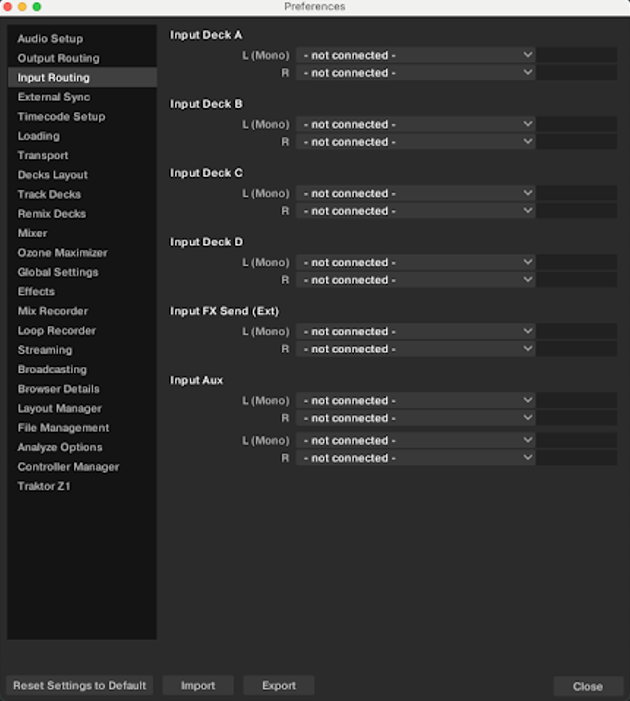
- Open the Input Routing Preferences page:
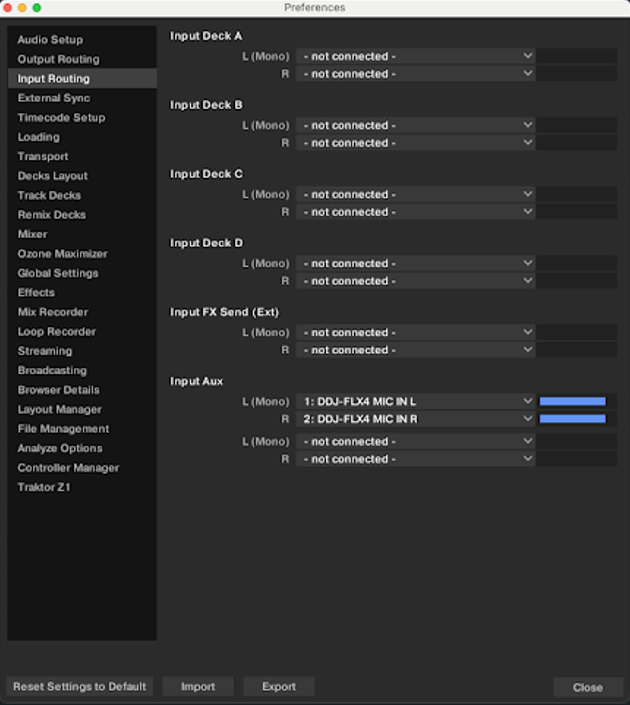
- Select 1: DDJ-FLX4 MIC IN L and 2: DDJ-FLX4 MIC IN R in the Input Aux section. You can verify the correct functionality of our setup via the blue meters on the right side of the Input Channels which show the signal picked up by your microphone.
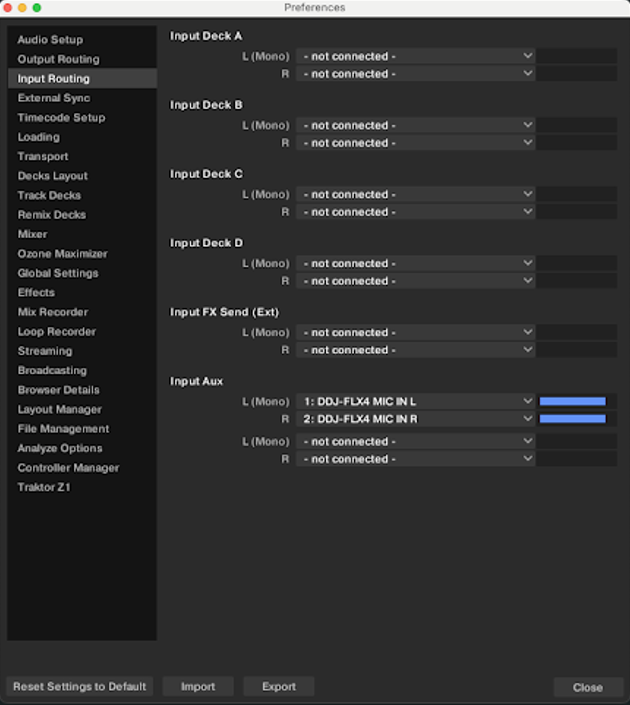
- The setup is done. You can now close the Preferences window. These settings will be recalled and you will not have to redo these steps in your future Traktor sessions.
Windows
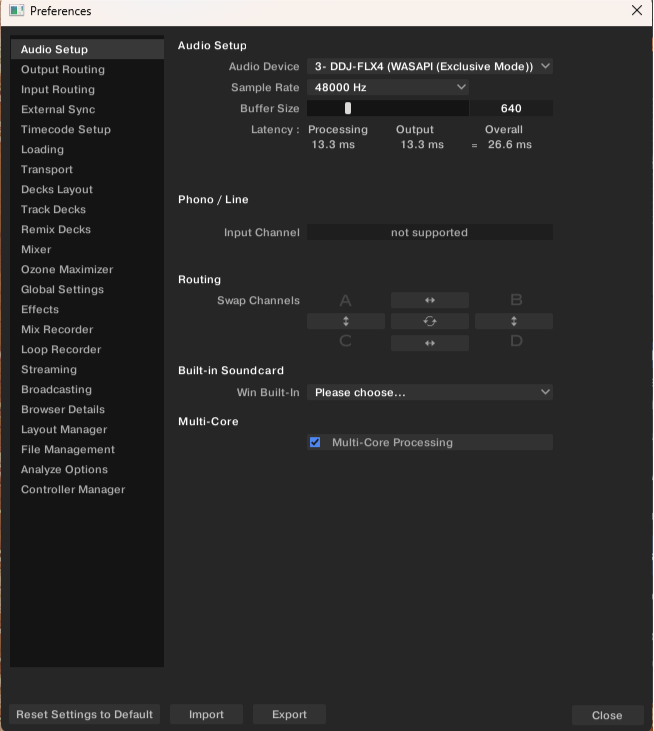
- Make sure that the DDJ-FLX4 is connected and selected as the audio interface on the Audio Setup Preferences page.
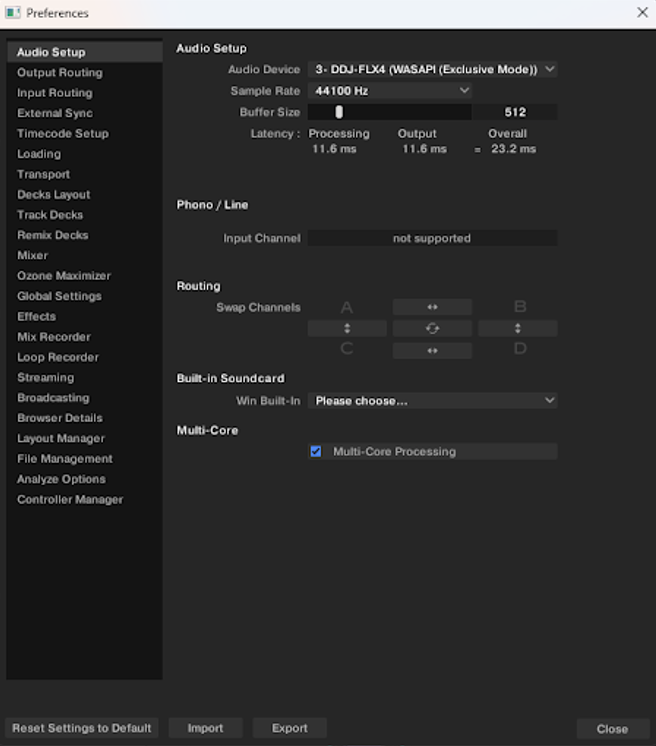
- Slightly raise the buffer size to 640 samples:
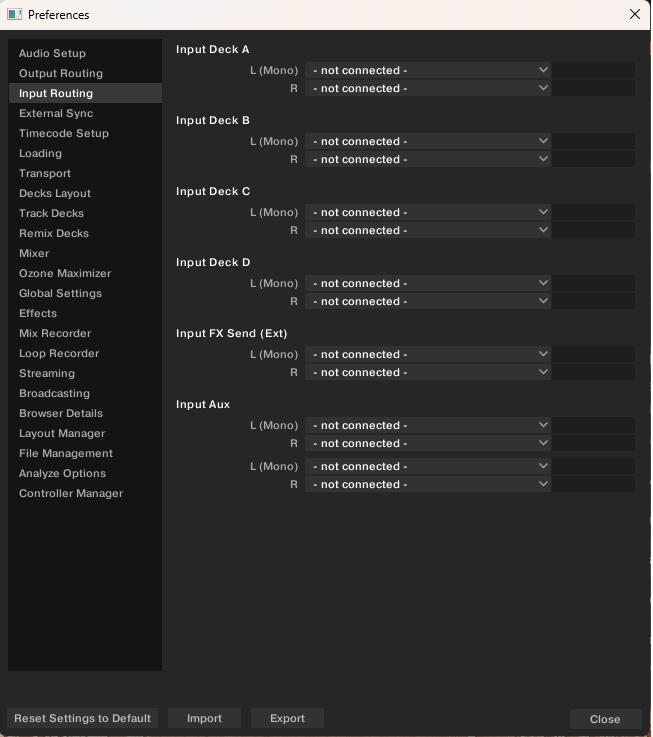
- Open the Input Routing Preferences page:
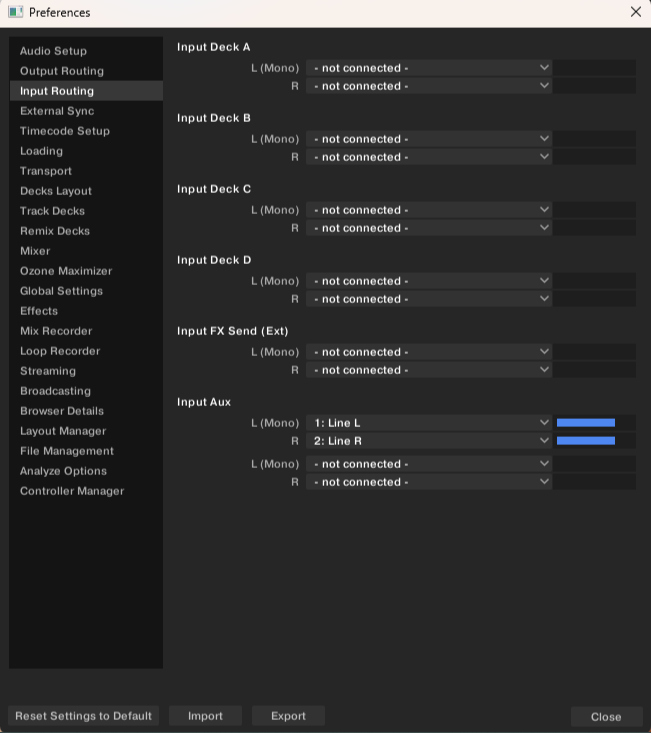
- Select 1: Line L and 2: Line R in the Input Aux section. You can verify the correct functionality of our setup via the blue meters on the right side of the Input Channels which show the signal picked up by your microphone.
- The setup is done. You can now close the Preferences window. These settings will be recalled and you will not have to redo these steps in your future Traktor sessions.