
When starting Traktor Pro 4, the application can crash immediately during the startup sequence and fail to open. This can be caused by incorrect permissions within the __guest folders for Streaming/Beatport and Streaming/Beatsource.
Please follow these steps to reset the __guest folders:
1. Before launching Traktor, verify your network:
- Make sure Internet/Wi-Fi is ON and you have a stable connection.
- Ensure there are no access restrictions to Beatport/Beatsource services.
2. Try to launch Traktor.
- It may crash during the first startup.
- Once it crashes, make sure Traktor is completely closed.
Now, please navigate to the Beatport folder and Beatsource folder, depending on your operating system:
macOS:
- Click Go in the Finder menu bar while holding down the option / alt key on the computer keyboard. Choose the Library entry that appears in the drop-down menu. This will open the 'User Library' folder.
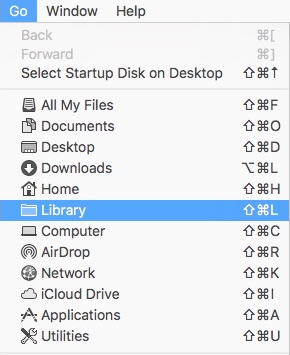
- In the Library folder, navigate to the following locations:
Application Support > Native Instruments > Traktor > Streaming > Beatport
Application Support > Native Instruments > Traktor > Streaming > Beatsource - Delete the __guest folders in both paths.
- Launch Traktor again.
- New __guest folders will be created automatically.
Windows:
- Click on the Windows start button in the bottom left of your screen.
- Type "%localappdata%" and click on the option that appears. This will open the 'Local' folder.
- In the Local folder, navigate to the following locations:
Native Instruments > Traktor > Streaming > Beatport
Native Instruments > Traktor > Streaming > Beatsource - Delete the __guest folders in both paths.
- Launch Traktor again.
- New __guest folders will be created automatically.