
When installing a legacy Native Instruments download product on a macOS system, you may receive the following error message:
"*Product name*" is damaged and can't be opened. You should eject this disk image."
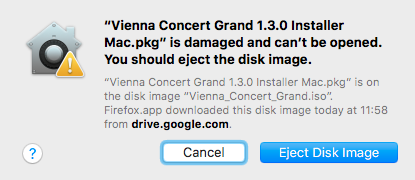
The above message is generated by the Gatekeeper security feature. In the default configuration, it will prevent the use of legacy Native Instruments installers. This article will provide steps to install your legacy Native Instruments product.
Note: All of our current products are Apple-certified, and the installer will run without any issues.
Please follow the steps below in order to install your Native Instruments legacy product:
- Open Applications > Utilities > Terminal.
- Enter the following command in the Terminal, followed by your admin password when prompted:
sudo spctl --master-disable - Go to your Mac's System Preferences... > Security & Privacy.
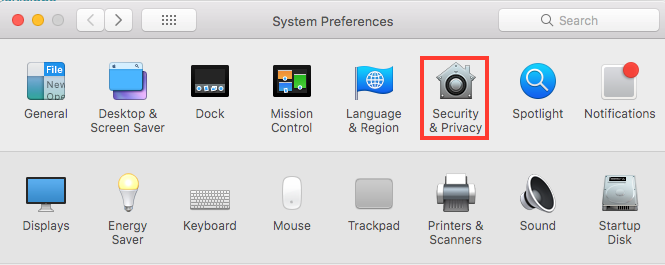
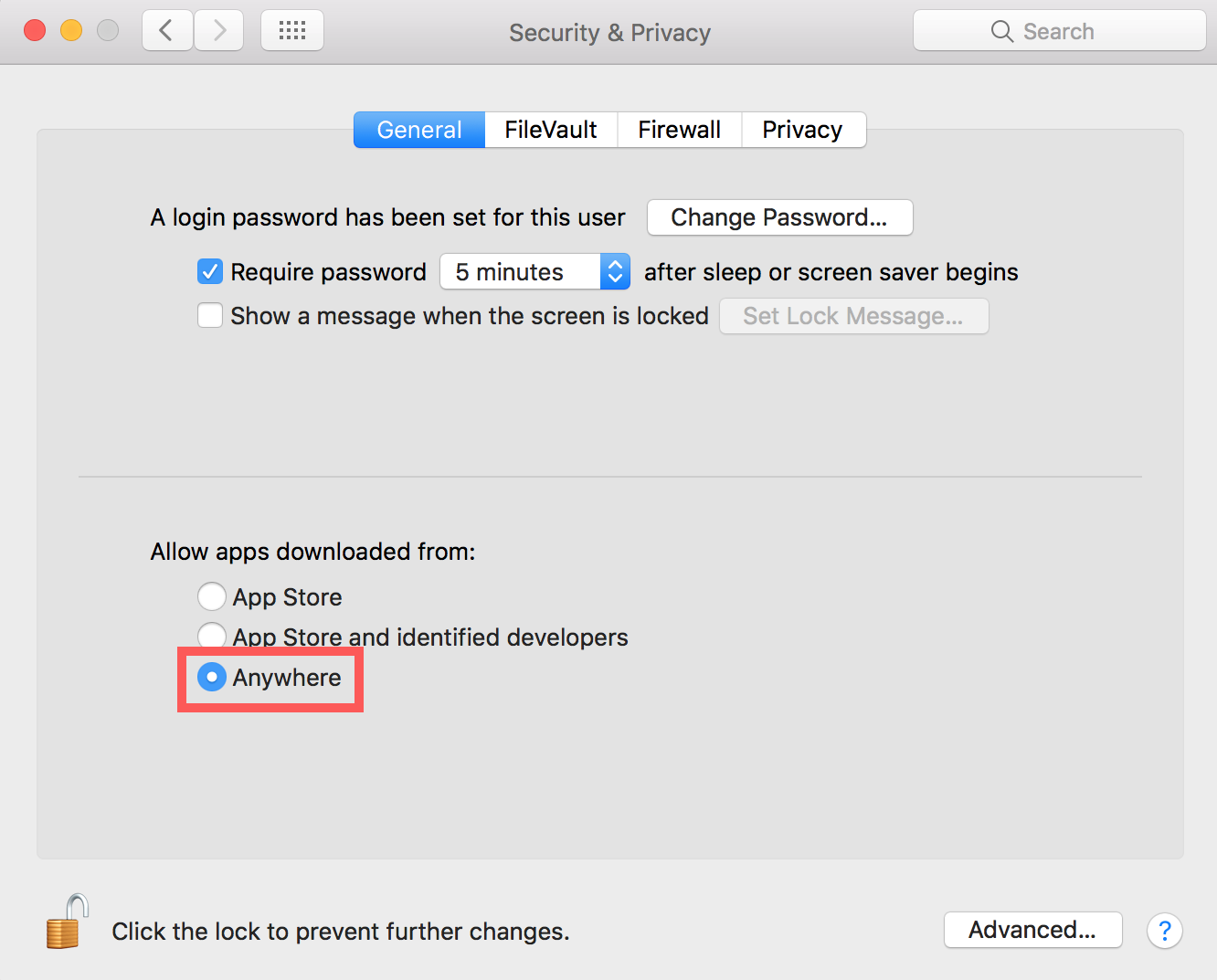
- Click on the lock and enter your admin password. Select Anywhere under Allow apps downloaded from:
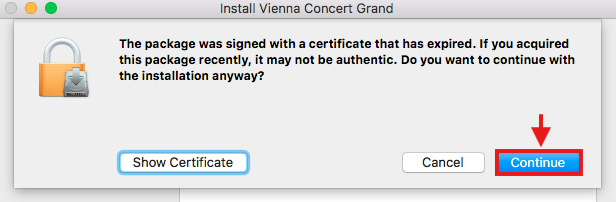
- Close the System Preferences and run the Installer that was causing the error message. At the beginning of the installation process, you will receive the following warning message. Click Continue to proceed.
- Once the installation is complete, go back to the Terminal utility and enter the following command, followed by your admin password when prompted:
sudo spctl --master-enable - Quit the Terminal. Your legacy NI product is now installed, and your macOS security settings are restored to their default state.