
TABLE OF CONTENTS
Symptom
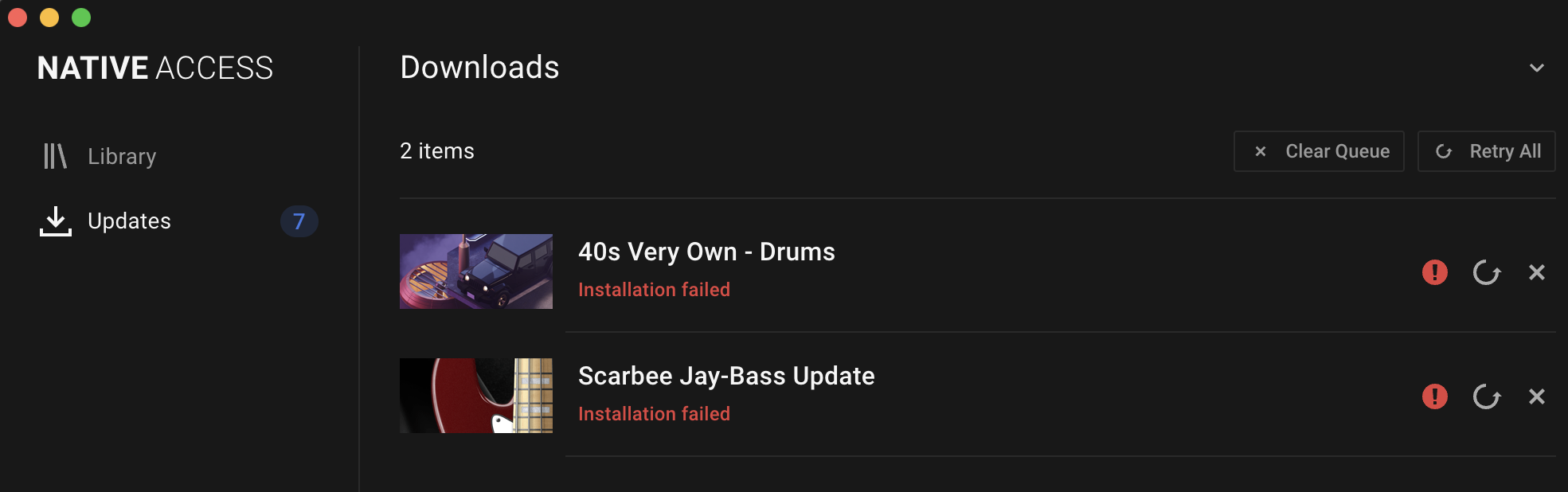
When attempting to install a product from Native Access, the following error message appears:
Installation Failed
macOS
Cause
This issue occurs when Native Access does not have the necessary permissions to complete the installation.
Solutions
Ensure Full Disk Access has been enabled for Native Access & NTKDaemon
- Open your Mac's System Preferences and click Security & Privacy.
- Under the Privacy tab, choose Full Disk Access from the sidebar.
- Click the lock icon in the bottom left of the window (if available) and enter your Mac password.
- Ensure that Native Access & NTKDaemon appear in the list and are activated.
If they do not appear in this list, click the + icon and add the following apps:
Macintosh HD > Applications > Native Access
Macintosh HD > Library > Application Support > Native Instruments > NTK > NTKDaemon
If you are trying to install Komplete Kontrol or Maschine, please also add NIHardwareAgent from:
Macintosh HD > Library > Application Support > Native Instruments > Hardware > NIHArdwareAgent - Once completed, click the lock icon again (if available).
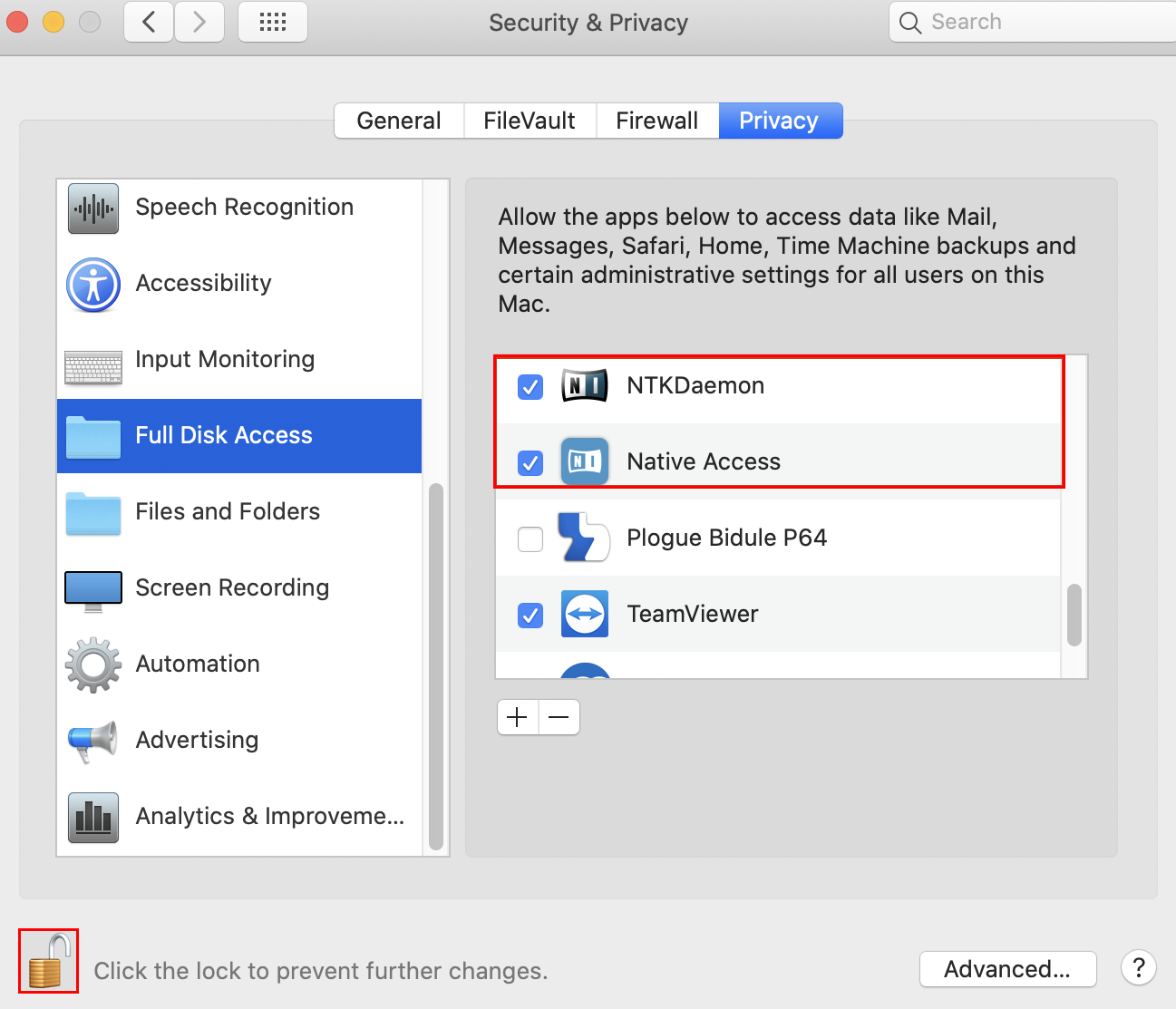
Depending on which macOS you are using, the interface may vary. In doubt, please look up how to open Full Disk Access on your specific macOS. Newer versions look like this: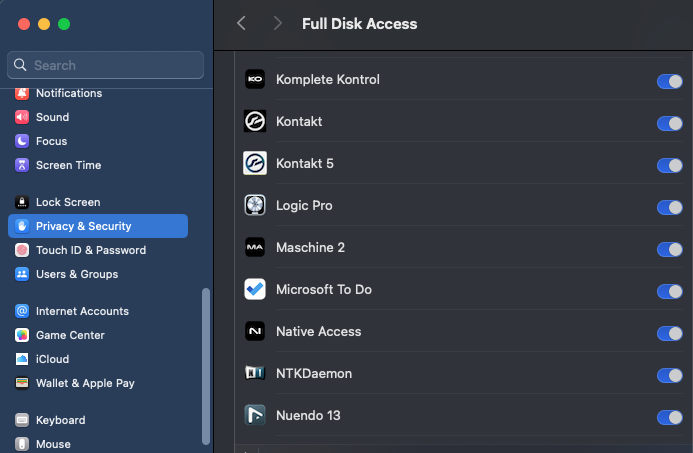
- Restart your computer and start Native Access.
Adjust Read & Write Permissions
- Close Native Access and any Native Instruments applications (Kontakt 8, Maschine 3, etc.)
- Go to the following file location:
/Users - Right-click on the Shared parent folder and select Get Info
- Under Sharing & Permissions, please ensure your account (Me) is present with Read & Write enabled
- If the account is not present, please use the + icon to manually add your account
- Please then use the drop-down menu to enable Apply to enclosed items
Reset Core Native Access Folder
- Quit Native Access and any DAWs / Native Instruments applications already open.
- Go to the following file location in Finder:
/Users/Shared - Rename the Native Instruments folder to: Native Instruments.old
- Restart Native Access
The installations should run correctly now.
Windows
Cause
This issue can be caused by a number of different issues on Windows systems. In this article, we will go through some of the most common causes.
Solutions
An incorrect /unsupported file path is being used
A common cause of this issue is that an unsupported file path is added in the Native Access Preferences. To test this, try the following:
- In Native Access, open Preferences > File Management.
- Click Restore Defaults.
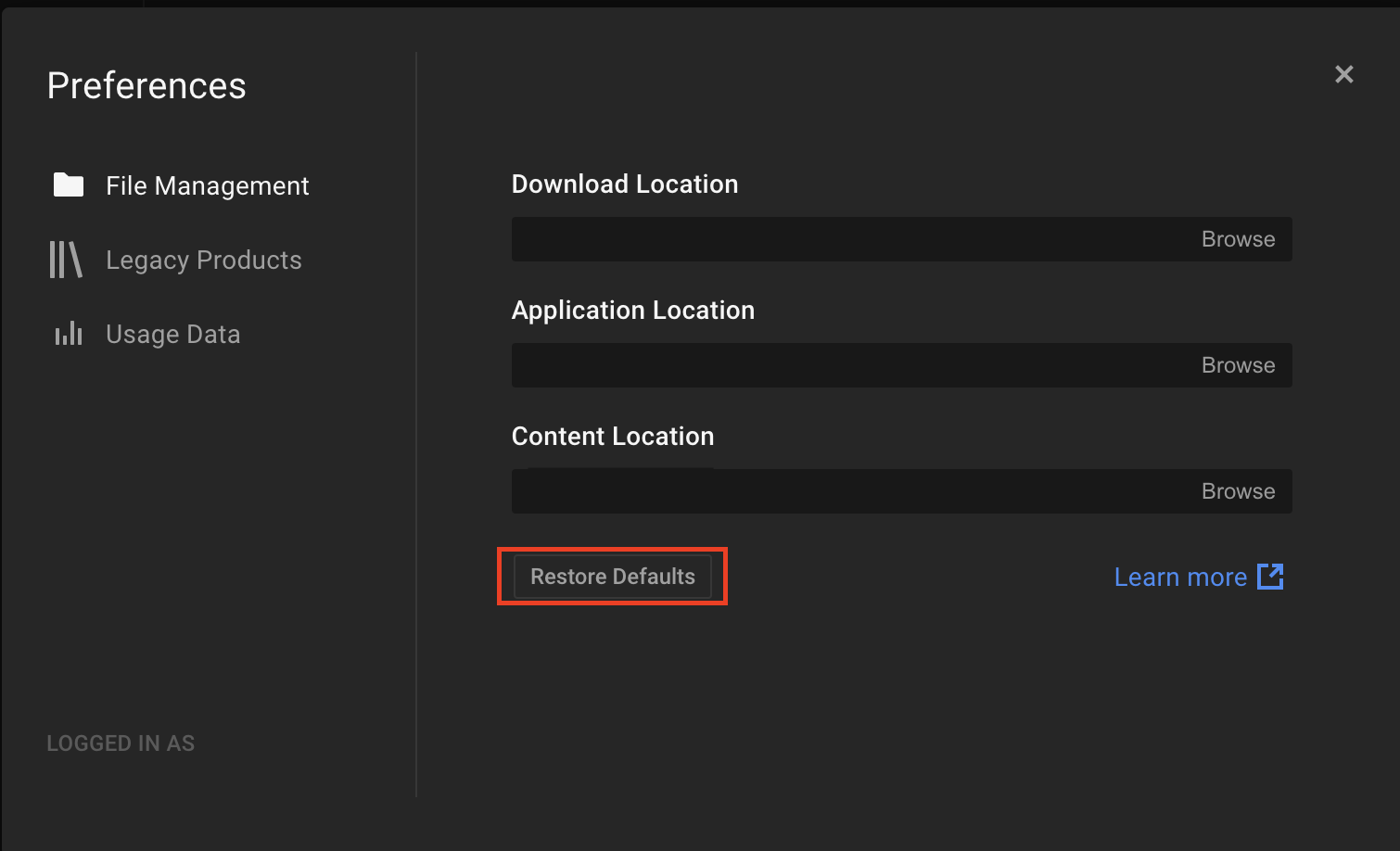
- Close the Preferences and attempt your installation again.
If the installation now runs as expected, then either a selected file path was incorrect, or the location that was selected previously cannot be written to. This could be the result of an incorrectly formatted / damaged external drive, or a permissions issue.
When installing via Native Access, always ensure that a folder is selected to install to, rather than a root drive location. For example, installing to the location D:\ will not work, whereas the location D:\NI Libraries should work fine.
Please also ensure that the Application Location is always left as the default location C:\Program Files\Native Instruments\ - changing this location is not supported.
Reset Core Native Access Folder
- Close Native Access and any DAWs / Native Instruments applications already open.
- Go to the following file location:
C:\Users\Public\Documents - Rename the Native Instruments folder to: Native Instruments.old
- Restart Native Access
A previous installation is corrupt / damaged
This usually happens if a product installation has been interrupted before being completed and the installer is not able to uninstall the previous version.
Steps to resolve this issue can be found in the following guide. Apply the steps to the product you are attempting to install: Fixing Software Update Installation Issues (Windows)
Then try attempting the installation again via Native Access.
Ensure Windows is up-to-date
There can be blocks that can occur in the system when the Windows operating system is on an older build. If the Installation Failed error persists, please ensure your Windows is up-to-date via:
Settings -> Windows Updates

Here you will find all the current system driver and OS updates available for your system.
The Windows Installation is damaged/corrupted or is missing necessary files
Sometimes, Windows installations can become damaged or corrupted, resulting in installation failures and general usage issues. In such cases, this can be checked or repaired by using the following tools from Microsoft:
- Use the System File Checker tool to repair missing or corrupted system files
- Fix Windows Update corruptions and installation failures
Try downloading and running the installer manually
If the behaviour still occurs, please try downloading and running the installer manually via our new Download Manager
Once the installer has been run manually, open Native Access again so that the product gets activated.