
This guide explains how to change install locations in Native Access for future installations and outlines the different types of install paths.
TABLE OF CONTENTS
Before You Begin
Changing install locations in Native Access only affects future installations. Existing products must be moved manually.
Native Access 2: Changing Install Locations
Please select your version of Native Access:
Access the Install Location Settings
- Start Native Access and click Preferences on the lower-left.
- Click File Management to access the location settings to the right.
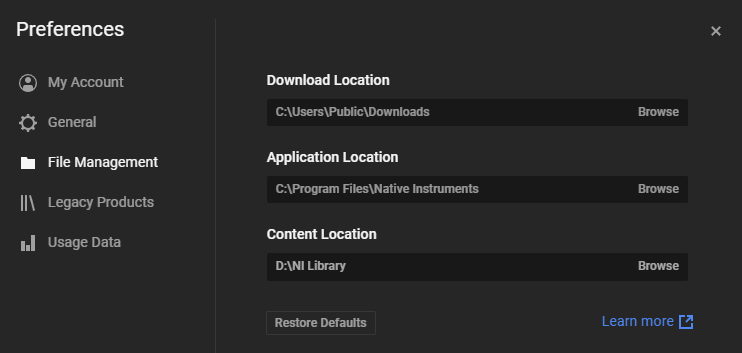
- Click Browse to the right of the location listing (e.g. Download, Application, or Content) to choose a new folder location.
About Install Locations
Please consider these factors when choosing a custom install location:
Download Location
This defines where Native Access will download the product installers. Native Access will automatically delete a product's installer after the installation is complete.
IMPORTANT: Do not use the same location for Downloads and Content! This can cause failed installations in Native Access!
These are the default locations for macOS and Windows:
- macOS: Macintosh HD > Users > *Username* > Downloads
- Windows: C: > Users > Public > Downloads
Application Location
This defines where Native Access will install the product's standalone software (when available). We strongly recommend to keep this location set to its default. These are the default locations for macOS and Windows:
- macOS: Macintosh HD > Applications > Native Instruments
- Windows: C: > Program Files > Native Instruments
Content Location
This defines where Native Access will install a product's content folder. Content products include Kontakt libraries, Reaktor instruments, and Expansions. These are the default locations for macOS and Windows:
- macOS: Macintosh HD > Users > Shared
- Windows: C: > Users > Public > Public Documents
To use a custom location, we recommend creating a folder like "NI Libraries" in a location (e.g. an external drive) that is dedicated to containing large amounts of sample content.
IMPORTANT: Do not use the same location for Downloads and Content! This can cause failed installations in Native Access!

Info about VST plug-in locations (Windows only)
VST3 plug-ins will be installed in the default Windows path:
- C: > Program Files > Common Files > VST3
Some products may still come with VST2 versions. If available, these will be installed in the default paths:
- C: > Program Files > Native Instruments > VSTPlugins 32 bit
- C: > Program Files > Native Instruments > VSTPlugins 64 bit
Native Access (Legacy)
Access the Install Location Settings
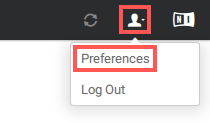
- Start Native Access and select Preferences from the User icon in the upper-right.
- Click File Locations to access the location settings in the area below.
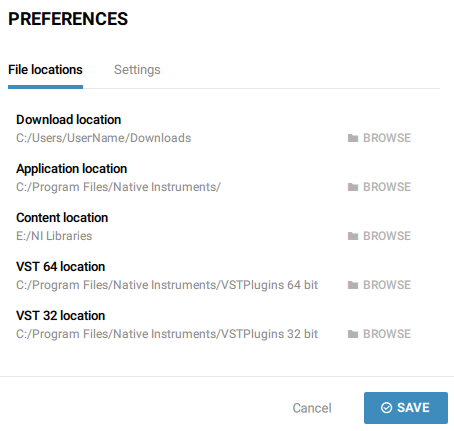
Click Browse to the right of the location listing (e.g. Download, Application, or Content) to choose a new folder location.
Note: VST locations can only be set on Windows Systems. AAX and VST3 locations cannot be customized since these must be installed in dedicated system locations.
About Install Locations
Please consider these factors when choosing a custom install location:
Download Location
This defines where Native Access will download the product installers. Native Access will automatically delete a product's installer after the installation is complete. These are the default locations for macOS and Windows:
- macOS: Macintosh HD > Users > *Username* > Downloads
- Windows: C: > Users > Public > Downloads
Application Location
This defines where Native Access will install the product's standalone software (when available). We strongly recommend to keep this location set to its default. These are the default locations for macOS and Windows:
- macOS: Macintosh HD > Applications > Native Instruments
- Windows: C: > Program Files > Native Instruments
Content Location
This defines where Native Access will install a product's content folder. Content products include KONTAKT libraries, REAKTOR instruments, and KOMPLETE Expansions. These are the default locations for macOS and Windows:
- macOS: Macintosh HD > Users > Shared
- Windows: C: > Users > Public > Public Documents
To use a custom location, we recommend creating a folder like "NI Libraries" in a location (e.g. an external drive) that is dedicated to containing large amounts of sample content.

VST 32 / 64-Bit Locations (Windows Only)
This defines where Native Access will install the product's 32-bit (when available) and 64-bit VST plug-ins. The default locations are:
- C: > Program Files > Native Instruments > VSTPlugins 32 bit
- C: > Program Files > Native Instruments > VSTPlugins 64 bit
Note: Please see this video to learn more about managing VST-plug-ins on Windows systems.