
If an installation gets stuck in Native Access on Windows, it is often related to queued installs or the application needing to be refreshed.
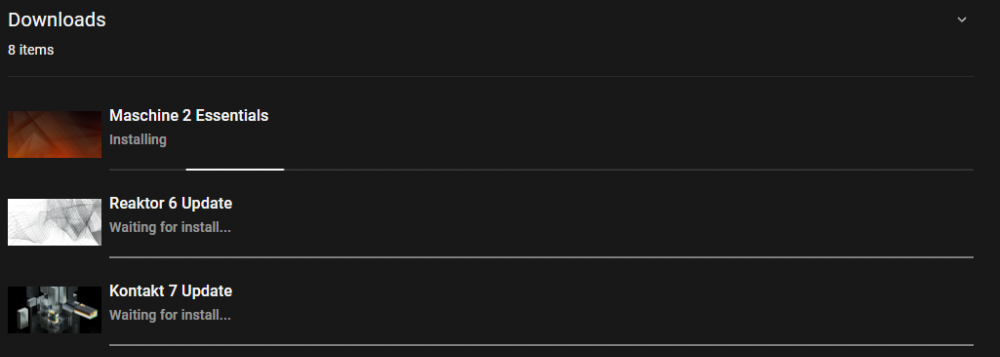
TABLE OF CONTENTS
If your installation is stuck in Native Access, try the following:
Restart Native Access
Quit or force close Native Access, then restart your computer and try again.
Install products individually
Avoid using “Install All” or queuing multiple installs. Install each product one at a time.
Restore file paths
In Native Access, go to Preferences > File Management and click Restore Defaults, then try the installation again. 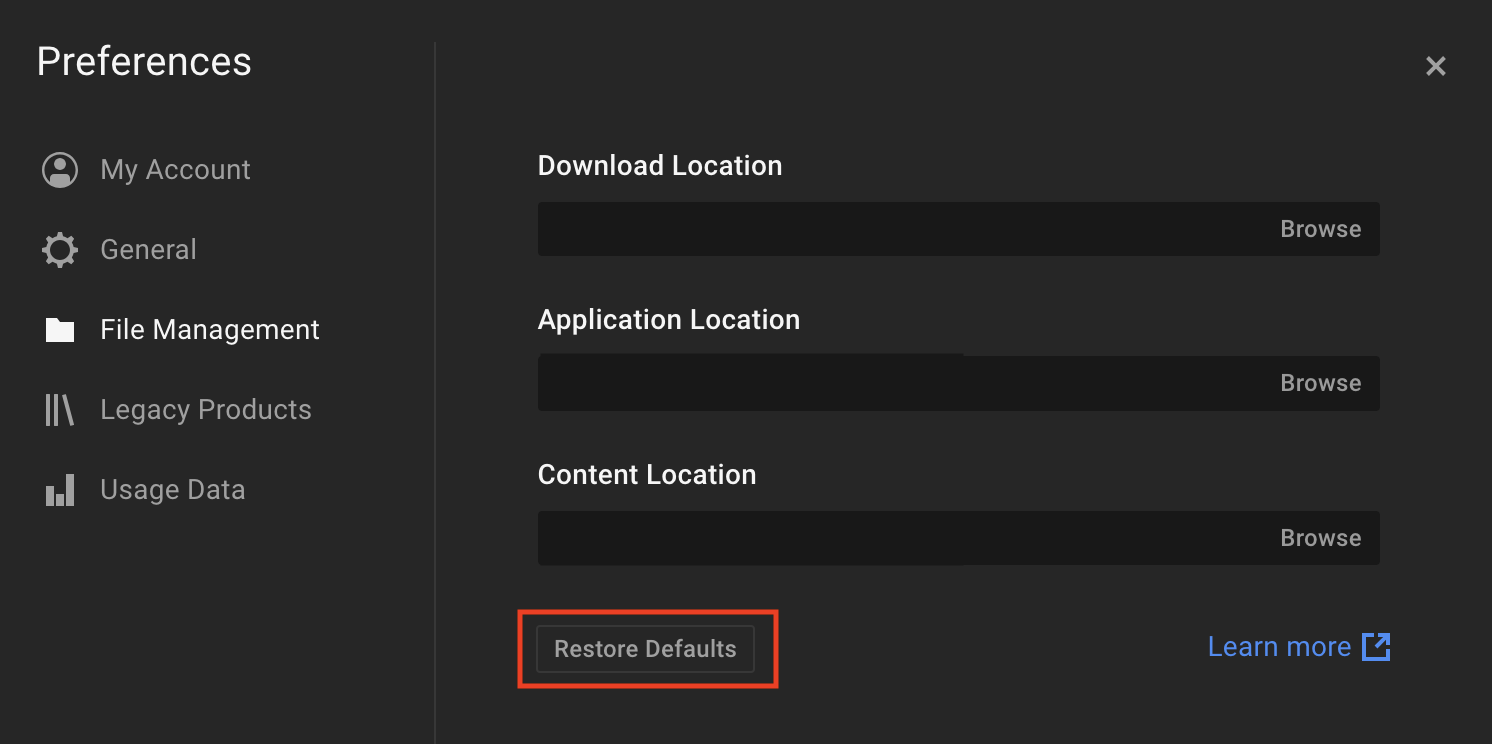
Use manual installer
Download and run the installer manually from your account’s Download Manager.
After installation, reopen Native Access to complete activation.