Troubleshooting tips for Native Access: Registered hardware does not appear in Native Access; Komplete bundles appear only as individual products. Users must log in with the exact email address used for activation. Incompatible products are not displayed. Users should manually refresh Native Access after registrations, ensure that the latest version is installed, and, if necessary, reset the “NativeAccess.xml” file to resolve the issue of missing products.
1. Hardware and Komplete bundle names
Registered NI hardware products will not appear in Native Access.
The same applies to registered NI software bundles like Komplete 15: Native Access will only show the included products, but not the name of the software bundle.
2. Verify your NI email address
When logging into Native Access, please make sure that you use the exact same email address that you used to activate your product.
3. Compatibility
Products that are not compatible with your operating system will not be displayed in Native Access. Please check your products compatibility here:
4. Traktor Pro
- Traktor Pro 3 requires macOS 11 or Windows 10 and higher.
- Traktor Pro 2 cannot be installed on macOS 10.15 or above.
5. Guitar Rig 7 Pro
- Guitar Rig 7 requires macOS 11 or Windows 10 and higher.
6. Native Access Refresh Button
Native Access needs to be manually refreshed after registering a new product. You can find the refresh button in the upper right: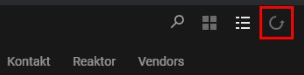
7. Kontakt 6
Please note that Kontakt 6 is only called Kontakt in Native Access: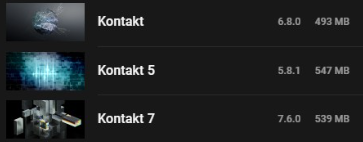
8. Native Access updates
Make sure you are using the latest Native Access version. Usually, Native Access updates itself. But you can always find the latest installer on this page: https://www.native-instruments.com/specials/native-access/
9. Reset the XML file
If you have checked all the above and you are still missing a product, please follow these steps to reset the Native Access XML file:
1. Quit Native Access and all other apps.
2. Open the following location on your computer:
macOS: Macintosh HD > Library > Application Support > Native Instruments > Service Center
Windows: C: > Program Files > Common Files > Native Instruments > Service Center
3. Delete only the file named NativeAccess.xml from the Service Center folder.
4. Start Native Access and click the refresh button.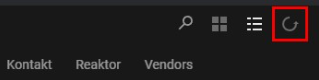
After the scan, all the products from your account should be visible again.
10. Legacy products
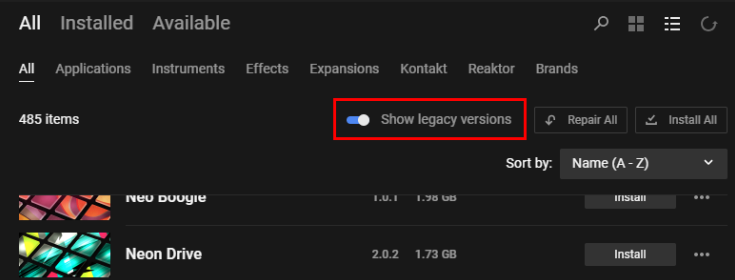
Some older products only appear in Native Access if you switch on the Show legacy versions toggle: