
As Windows configurations can vary from system to system, some users may find they experience GUI issues when attempting to use the Studio Instrument Collection. In this article, we will explore different UI issues and how to fix them.
TABLE OF CONTENTS
Blank/Blacked Out UI
Studio Instrument Collection uses Edge as a webview, which means that it relies on both Edge and WebView2 to run and display as expected.
If you're experiencing problems with a blacked-out GUI, please close the Studio Instrument Collection or any DAW attempting to use it. Then download and install these updates from Microsoft via the links below:
Once both of these have been installed, your GUI will display correctly.
Steps for Firefox User:
If Firefox is your default browser, please follow the steps below:
- Navigate to the Mozilla Firefox settings
- Click Scalable Vector Graphics (SVG)
- Change setting to: Use Windows default application
Cropped UI
In instances where the UI is cropped and you cannot access settings or certain parameters, this is typically linked to Windows' Text Scaling. To correct this, please follow the steps below:
- Close Studio Instrument Collection; please quit/close your DAW if loaded as a plugin
- Go to the following Windows settings:
Windows 11:
Accessibility > Text Size
Windows 10:
Ease of Access > Display > "Make text bigger" and "Make everything bigger" - Adjust to these settings 100%
- Launch Studio Instrument Collection
If you continue to experience issues where the UI is not showing correctly or is cropped, please continue with the troubleshooting steps below.
DPI Scaling
If using a large 4K display or laptop, you may currently have your DPI scaling set high to compensate for the resolution/screen size. This can cause issues with how Studio Instrument Collection shows in the standalone application or as a plugin within your DAW.
Ideally, it's best to set the Windows Display Settings Scale to 100%, but if this cannot be done, please use the following guides if you find the UI is affected by your scale settings.
Standalone Application
To correct any UI issues caused by the Scaling being above 100%, please follow the steps below:
- Close any versions you have opened of Studio Instrument Collection.
- Right-click on the Studio Instrument Collection shortcut on the desktop.
- Select Properties.
- Go to the Compatibility tab.
- Under the Settings section, click on "Change high DPI settings"
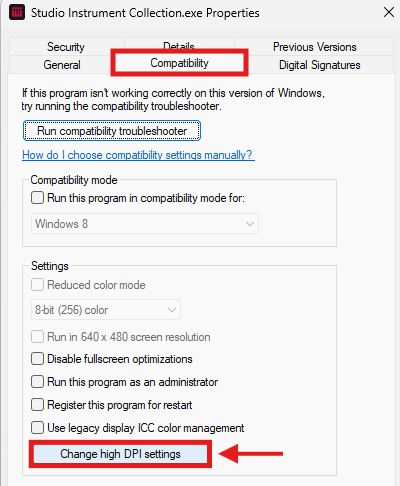
- A new pop-up window will appear
- Towards the bottom, you'll see High DPI scaling override.
- Enable the box where it says "Override high DPI scaling behavior. Scaling performed by: "
- Select “Application” from the drop-down list, then click OK and Apply
You can also try having the scaling performed by SYSTEM instead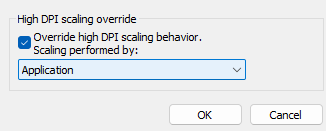
- Start your Studio Instrument Collection software.
Plugin
If you find you're only experiencing UI issues when loading the Studio Instrument Collection as a plugin within your DAW, there will be similar DPI Scaling settings that can be enabled within the DAW.
Please use your DAW's manual for reference when attempting to adjust the DPI behaviour.
Below is an example using Ableton Live 12 Lite for reference:
- Launch Ableton Live 12
- Go to Options -> Settings... (Ctrl + ,)
- Under the Display & Input
- Set Enable HiDPI Mode to On
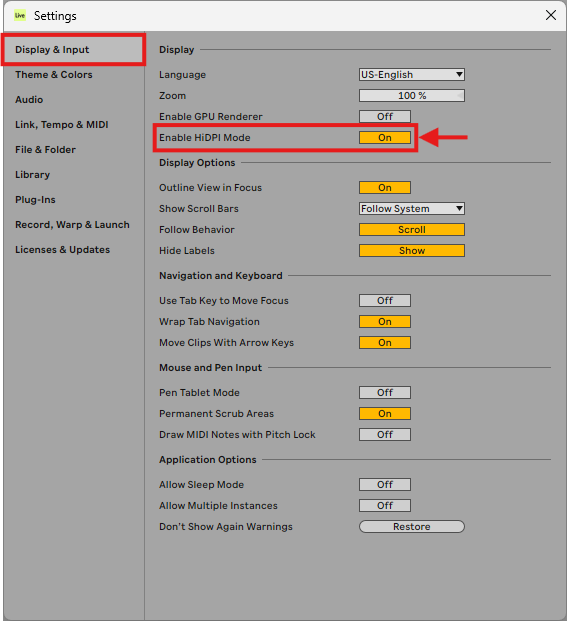
- Once enabled, close the Settings menu
- You will be prompted to restart Ableton for the change to take effect
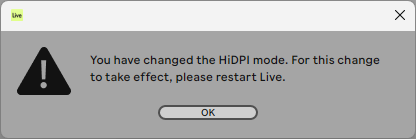
- Quit Ableton, and relaunch Ableton
If you have any issues with the steps above or your UI issue persists, please contact our customer support team directly, providing the details below:
- A screenshot of what you are seeing when attempting to launch the Studio Instrument Collection
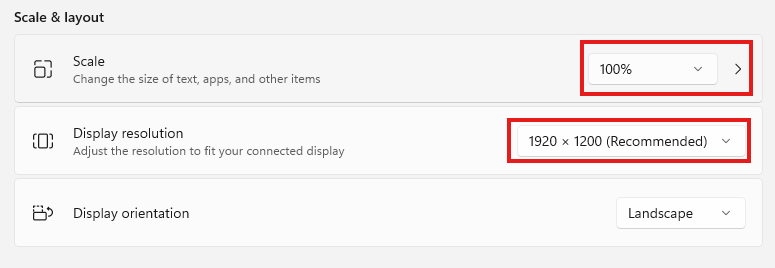
- Your Windows Display Resolution and Scale settings
- System Specifications:
- Do you have an integrated or discrete GPU?
- Are your graphics drivers and other system drivers up-to-date?