

Some users may encounter incorrect articulation triggering when using the Roland TD-20 map in BFD3. The contents of this support article will help you troubleshoot and solve this problem by using an alternative mapping file.
Table of Contents
- Download the Alternative TD-20 Map
- Import the Alternative TD-20 Map into BFD3
- Disable Automatic Key Map Loading
Download the Alternative TD-20 Map
Download the alternative Roland TD-20 Mapping file attached to this article - Scroll down to the bottom of this page, and download it from either a Windows or Mac computer.
Import the Alternative TD-20 Map into BFD3
Launch BFD3.
Click the (☰) Icon, then File in the top menu
Select Load Key Map.
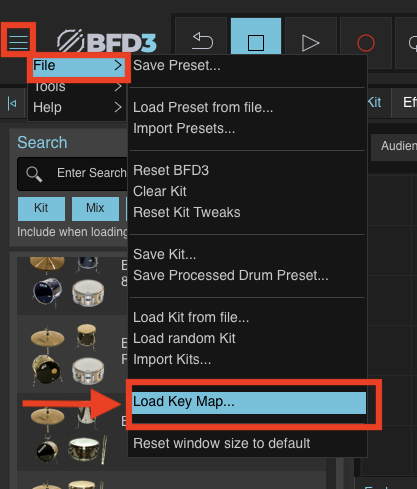
Click Load Key Map from file...
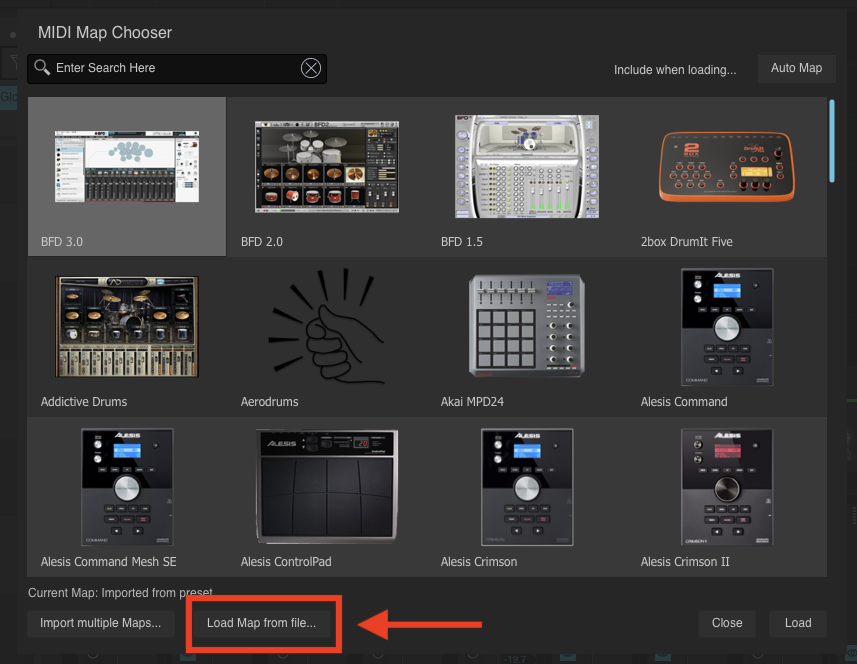
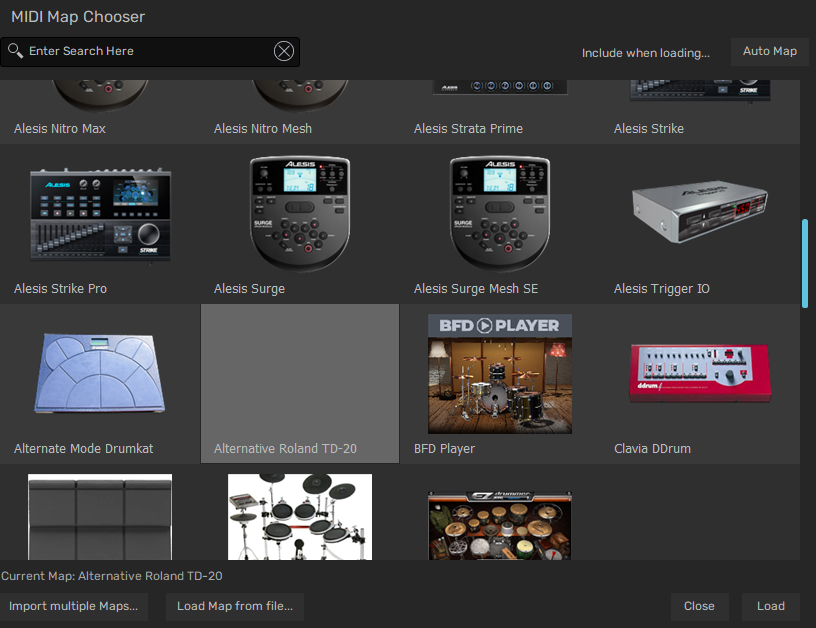
Navigate to the downloaded TD-20.bfd3map file.

Select the file and click Open.
The TD-20 mapping will now be applied.
Disable Automatic Key Map Loading
Some presets in BFD3 automatically load their own key maps, which may override the imported mapping.
To prevent this:
Locate the Key Map section
- Disable automatic key map loading - Note, the 'Key' button will appear greyed out when disabled. If illuminated 'Blue', loading a preset will automatically load the BFD3 map by default.
Load your desired Preset
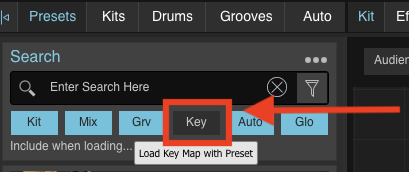
Disabling the 'Key' button allows BFD3 to retain the TD-20 map whenever loading a new preset.