
This article will explain why plugin duplicates occur on the MPC and how to resolve them.
TABLE OF CONTENTS
Duplicate Plugins
If you notice you have duplicate plugins on your MPC, this indicates that the plugins have been downloaded to 2 separate locations:
- Internal drive [User]
- And another drive that is connected to the MPC (a USB drive, SD card or SSD).
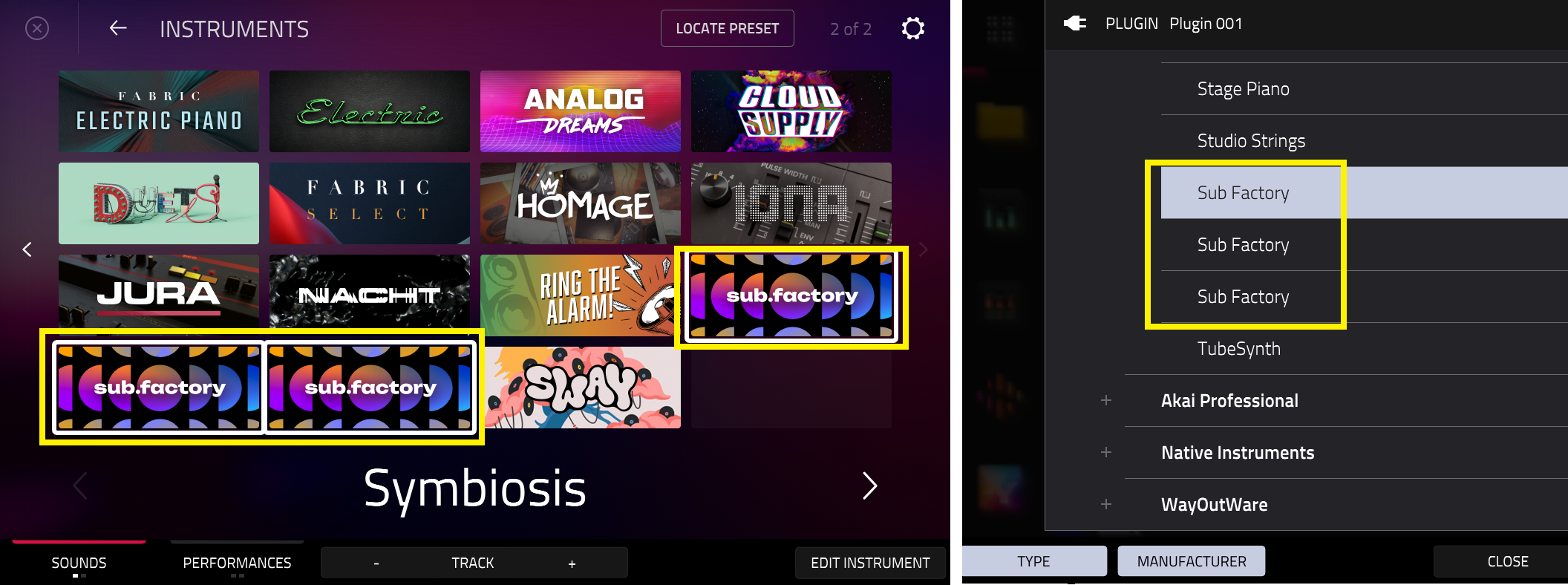
Due to this, the MPC will read both locations and plugins will appear as duplicates in the Sounds menu and plugin field:
Synths Folder
When plugins are downloaded to the MPC, their associated folders/files are stored in a Synths folder. The location of this folder will be on your chosen Content Download Drive that you set in the Activations page
- Internal drive [User]
- Or your own drive (i.e a USB drive, SD card or SSD).
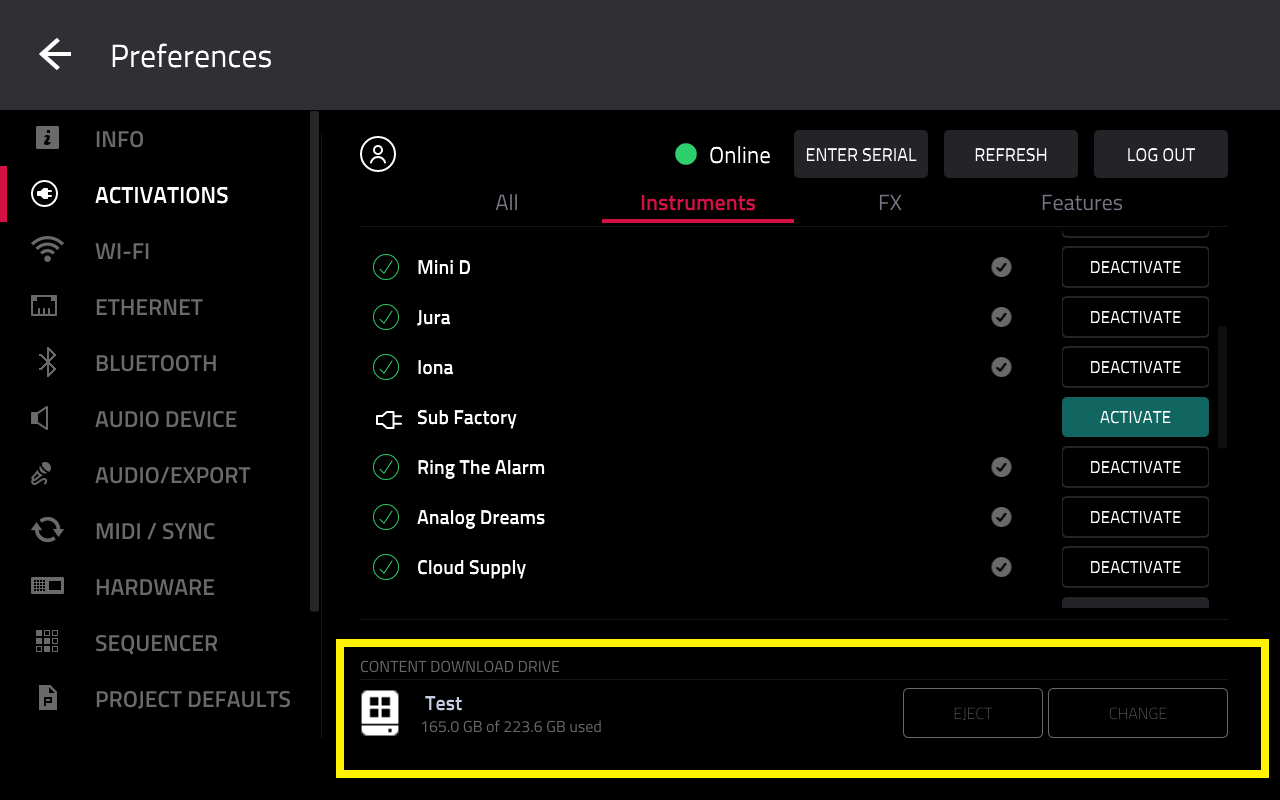
The example below shows our SSD called Test, that we have downloaded our plugins to:
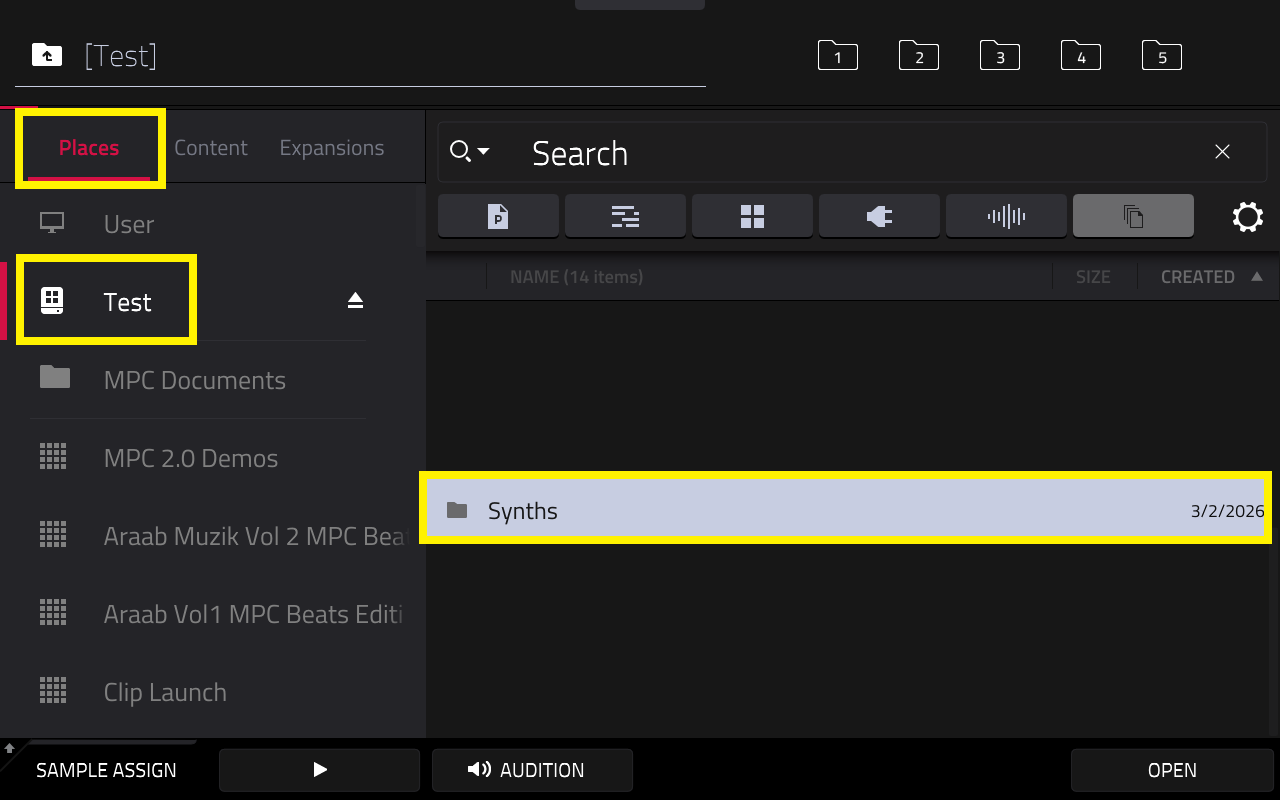
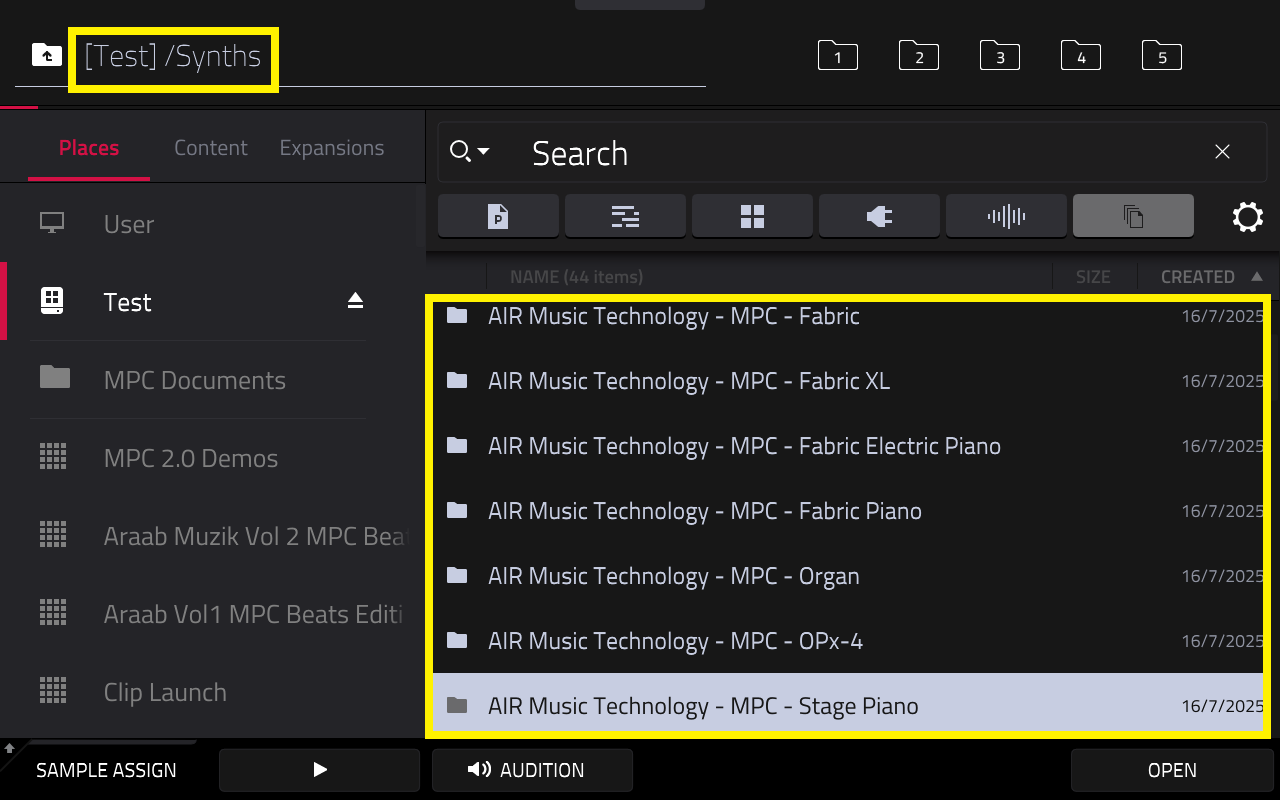
Important: There should only be one Synths folder on the MPC. Either on the MPC's Internal drive [User] or on one of your own drives (a USB drive, SD card or SSD).
If you find there is a Synths folder currently located on your MPC's Internal Drive and on your own drive(s) - this will result in plugin duplicates.
Removing Duplicates
The first step is to decide what drive you want the plugins stored on. Either the Internal [User] drive, or your own drive.
Once you've decided, take the following steps:
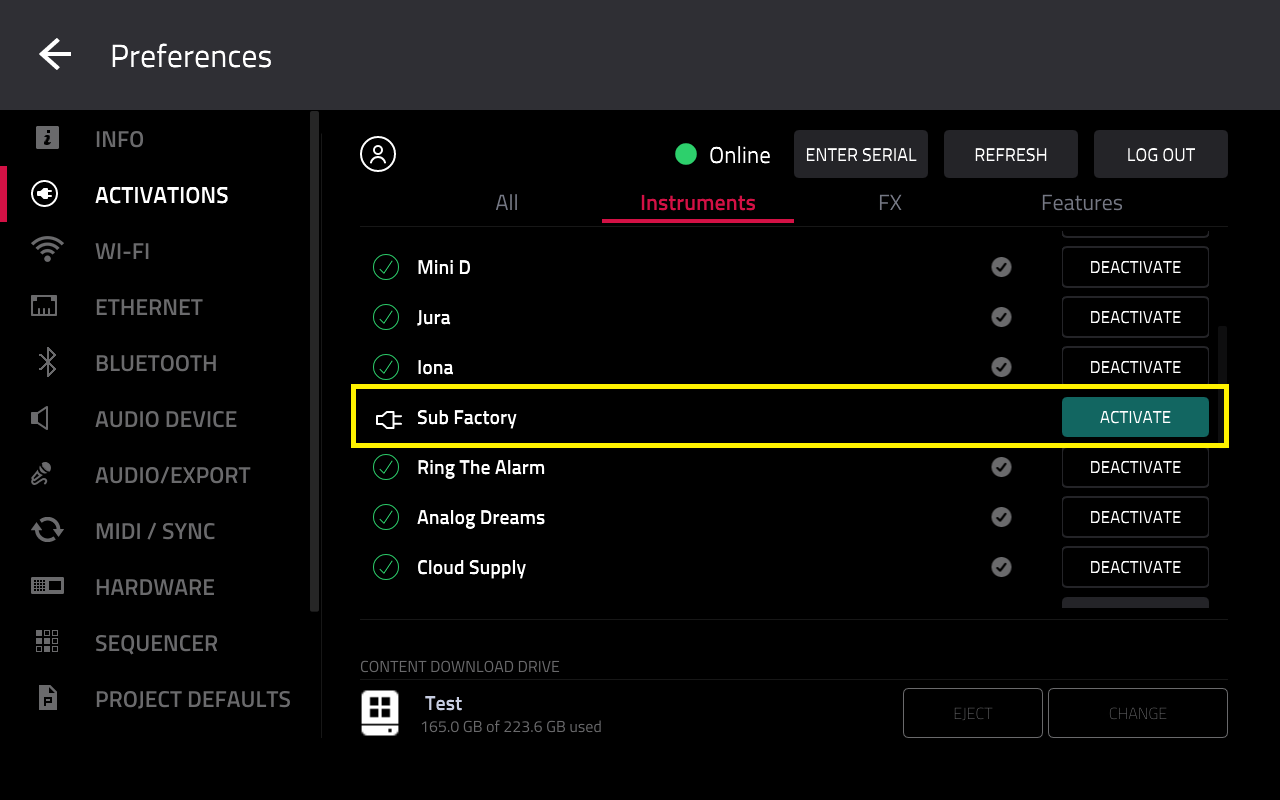
1. Go to Menu > Preferences > Activations and Deactivate the plugins that are duplicated.
Ensure the ‘Activate’ button is blue
2. Go to the following locations:
- Menu > Browser > Places > [User]
- Menu > Browser > Places > [YOUR DRIVE NAME]
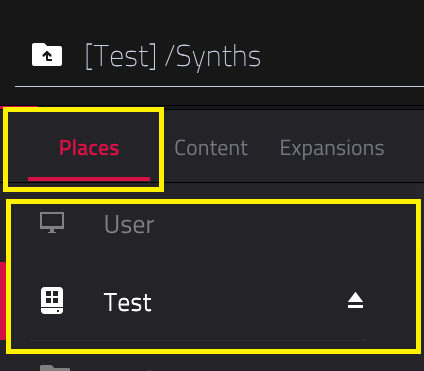
3. There should be a Synths folder in both locations. In this case, you will need to open the Synths folder on the drive you do not want to use
4. Find the plugin folder that is currently duplicated i.e. AIR Music Technology - Qubiq - Sub Factory
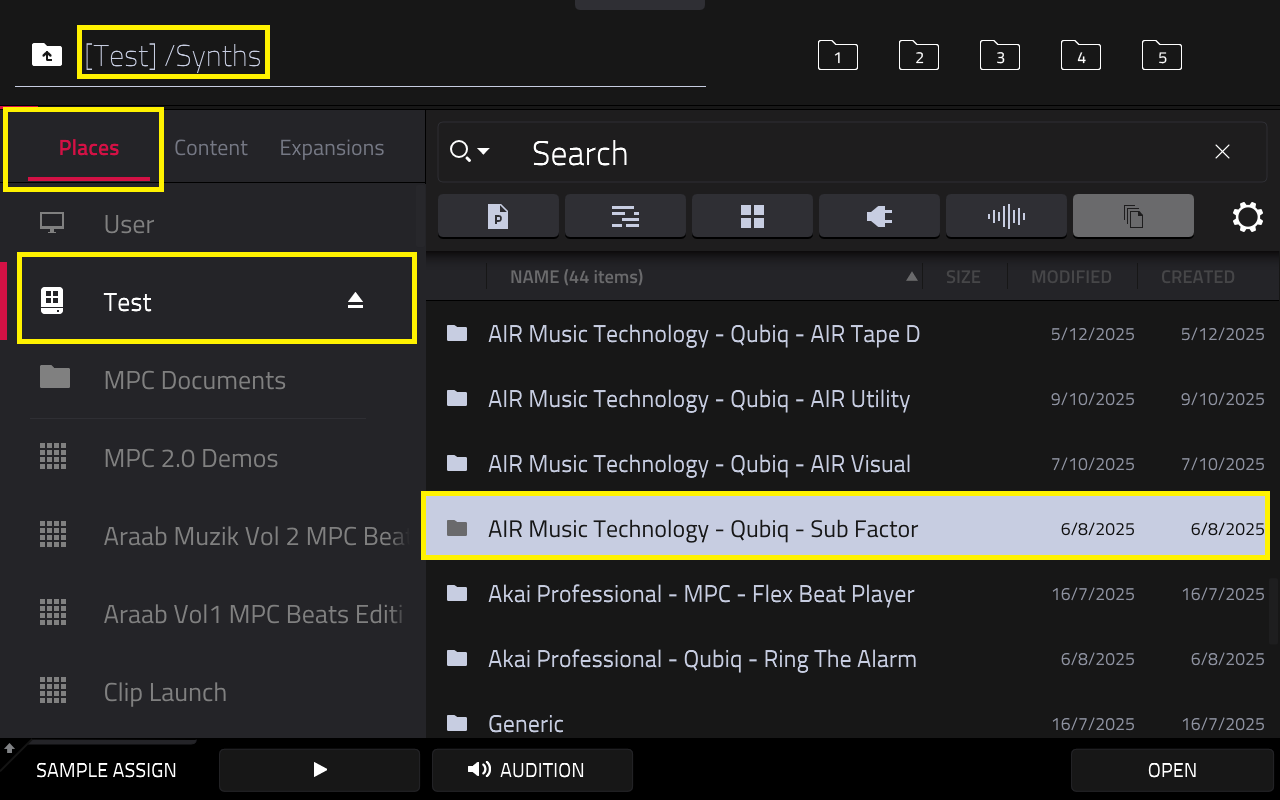
5. You can then delete the folder by holding the Shift button and tap Delete (on screen).
Once this has been done, perform the following steps in order:
1. Power off the MPC
2. Power on the MPC
3. Go to Menu > Preferences > Activations and Activate the plugins that were duplicated
Ensure the ‘Deactivate’ button is black.
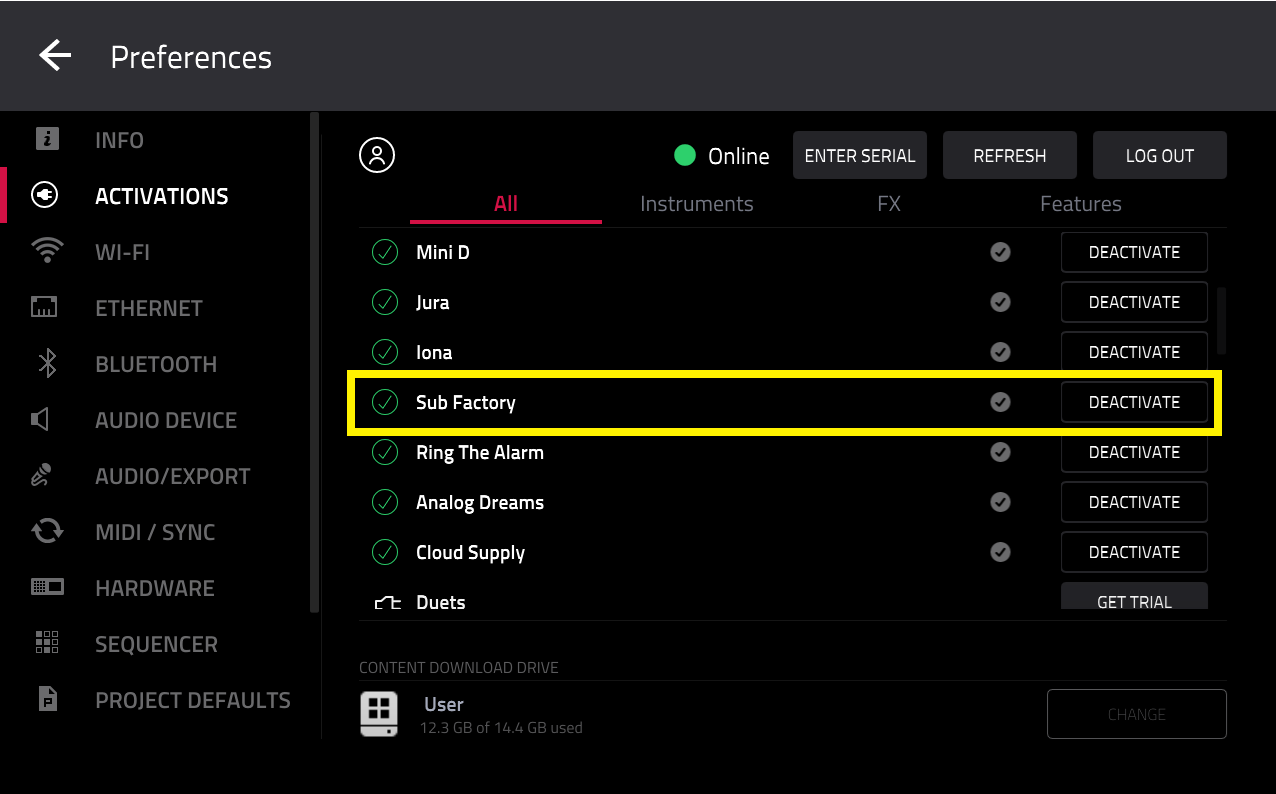
Load a plugin instrument and go to the Sounds menu, you should find that the plugin duplicates have been resolved.
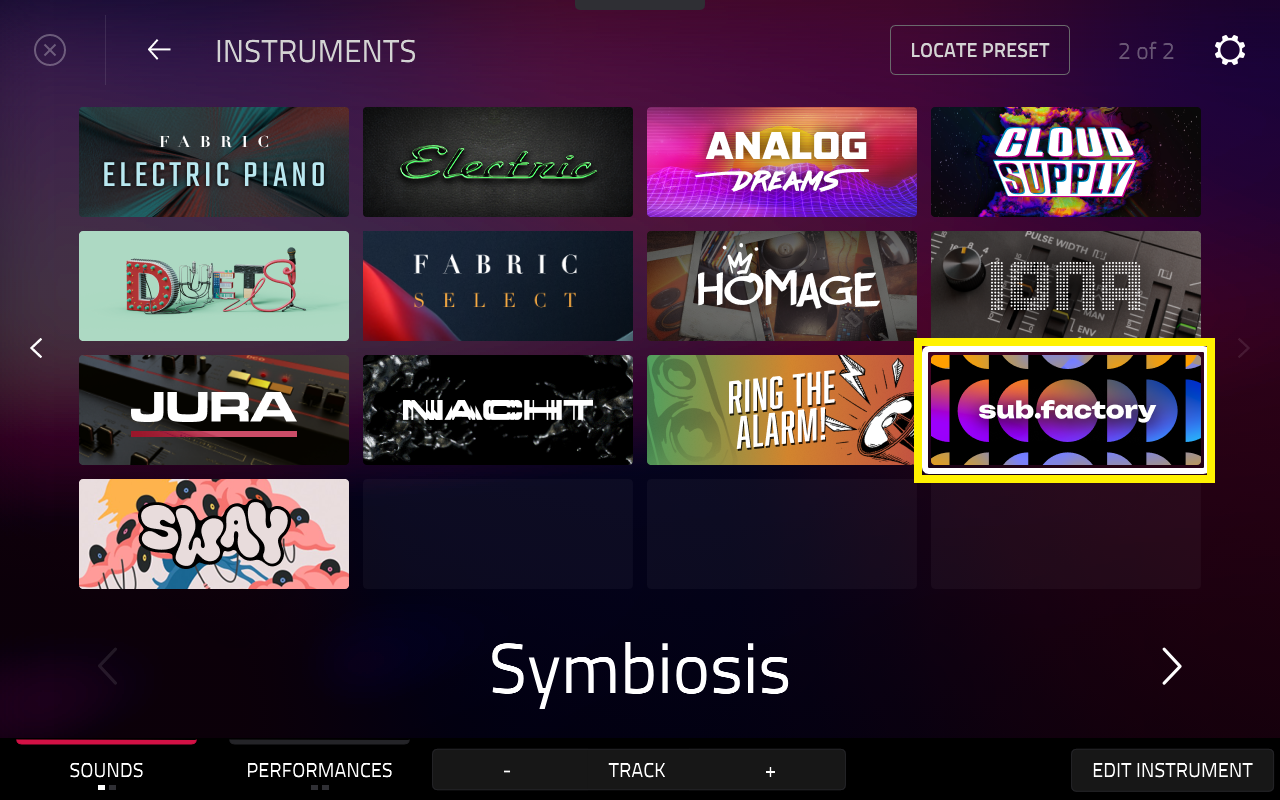
Important: Ensure that your plugin drive is connected to the MPC at all times for seamless usage of your plugins.
Moving All Plugins to A Single Drive
If you still encounter duplicates after following the steps above, we recommend the process of removing and re-installing all plugins to one drive.
1. Go to Menu > Preferences > Activations
2. Tap Change to select a drive
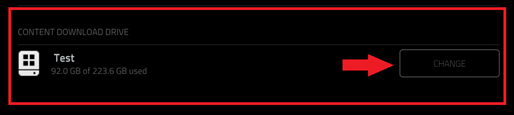
3. Once a drive is selected, go to Menu > Browser > Places > Internal [User]
If there is a Synths folder there, delete the entire Synths folder by holding the Shift button and tap Delete (on screen).
Apply the same steps on your own drive
4. Go to Menu > Browser > Places > [YOUR DRIVE NAME]
If there is a Synths folder on there, delete the entire Synths folder by holding the Shift button and tap Delete (on screen).
Perf
Once this has been done, perform the following steps in order:
1. Power off the MPC
2. Power on the MPC
3. Go to Menu > Preferences > Activations, you should now see download icons appear besides all of your plugins
Tap the download icons to start a fresh installation of your plugins
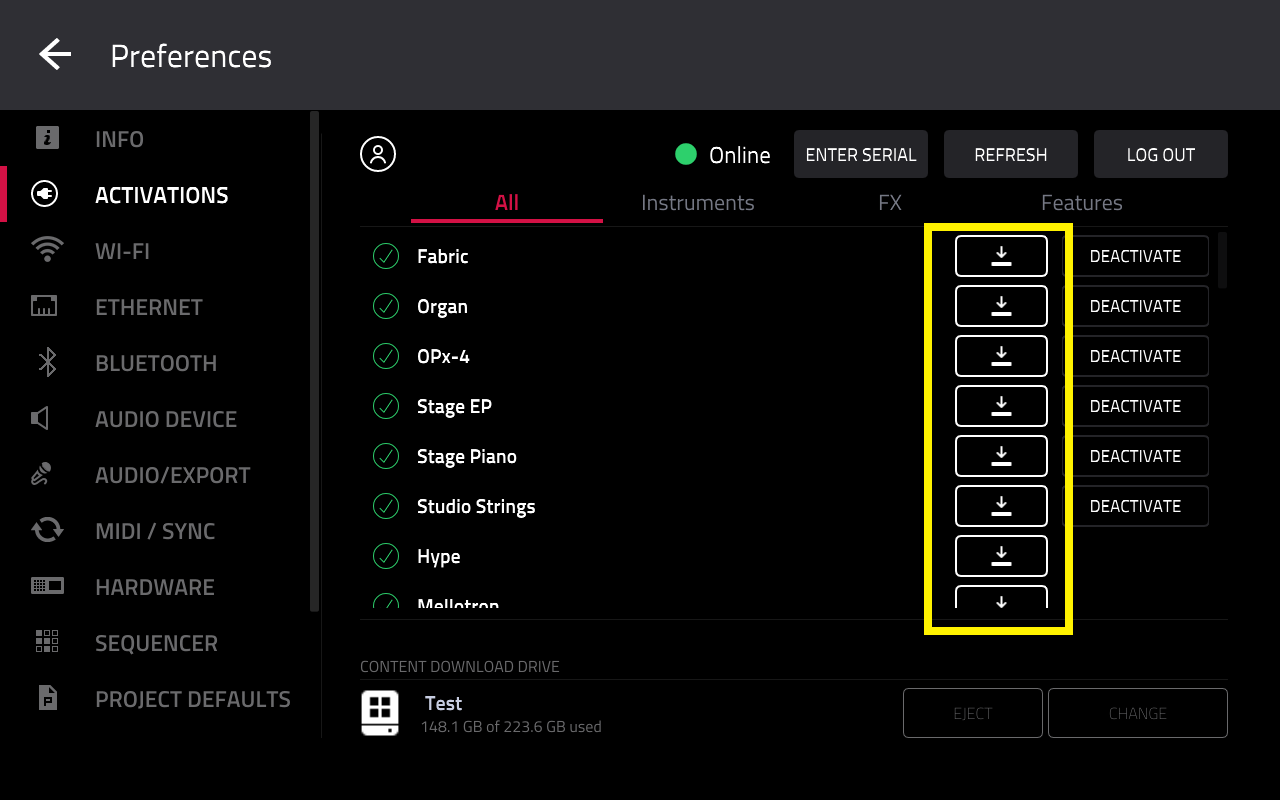
Important: Ensure that your plugin drive is connected to the MPC at all times for seamless usage of your plugins.