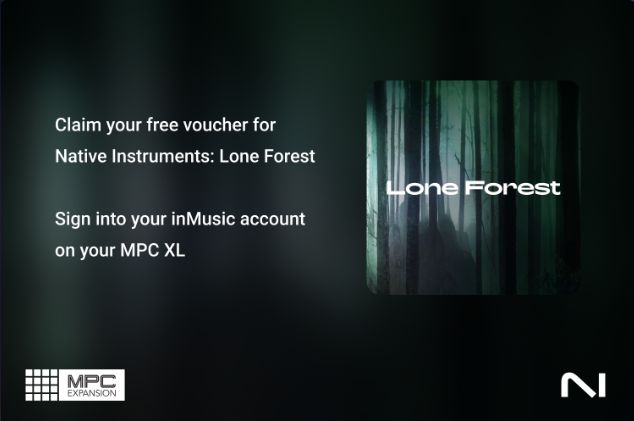
- Sign in to your inMusic Profile account on your MPC XL using the Activations page in Preferences.
- Visit your inMusic Profile online and download the InMusic Software Center if you have not already.
- In the inMusic Software Center, go to the 'My Hardware' tab and select your MPC XL (or check the 'My Expansions' tab), to find your Lone Forest Expansion offer.
- Select 'Get Code' and copy it.
- Click 'Get' - you’ll be taken to the Native Instruments website
- NOTE: If you have not yet signed into inMusic Profile on your MPC XL in step 1, the 'Get Code' button will not be available.
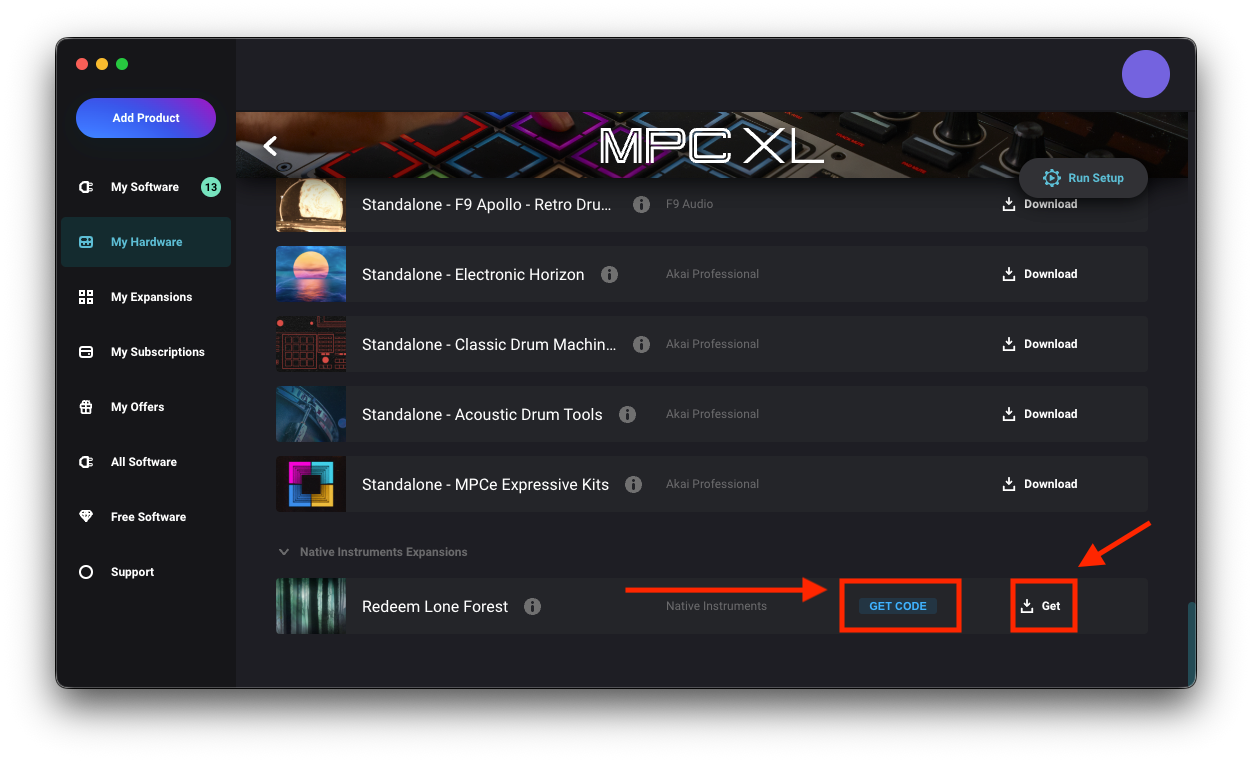
- NOTE: If you have not yet signed into inMusic Profile on your MPC XL in step 1, the 'Get Code' button will not be available.
- Add the MPC Expansion to your cart and apply your voucher code at checkout. Important: Do not continue until the cart total shows £0 / $0 after the voucher is applied.
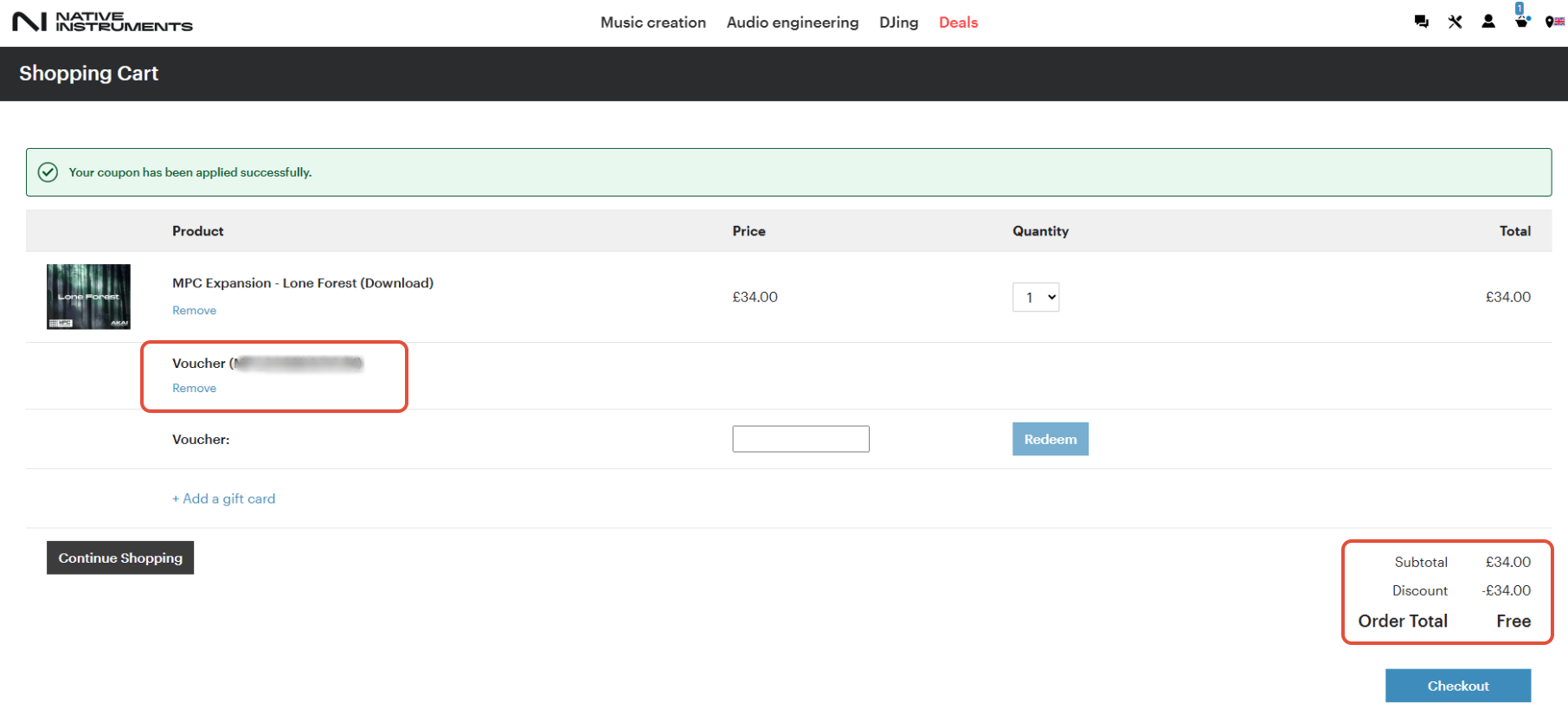
- Once the total is zero, complete the checkout.
- Sign in with your existing Native Instruments account, or create a new one if needed.
- After checkout, you’ll receive a serial number for your MPC Expansion via email from Native Instruments.
- Return to the inMusic Software Center.
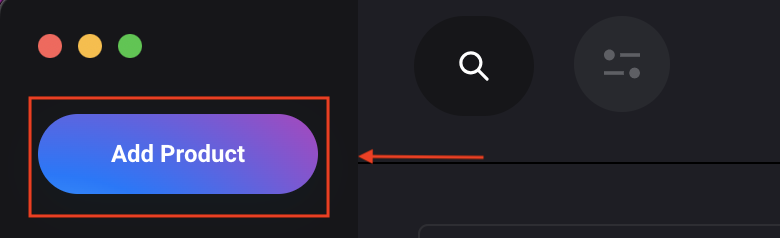
- Sign in, and click Add Product
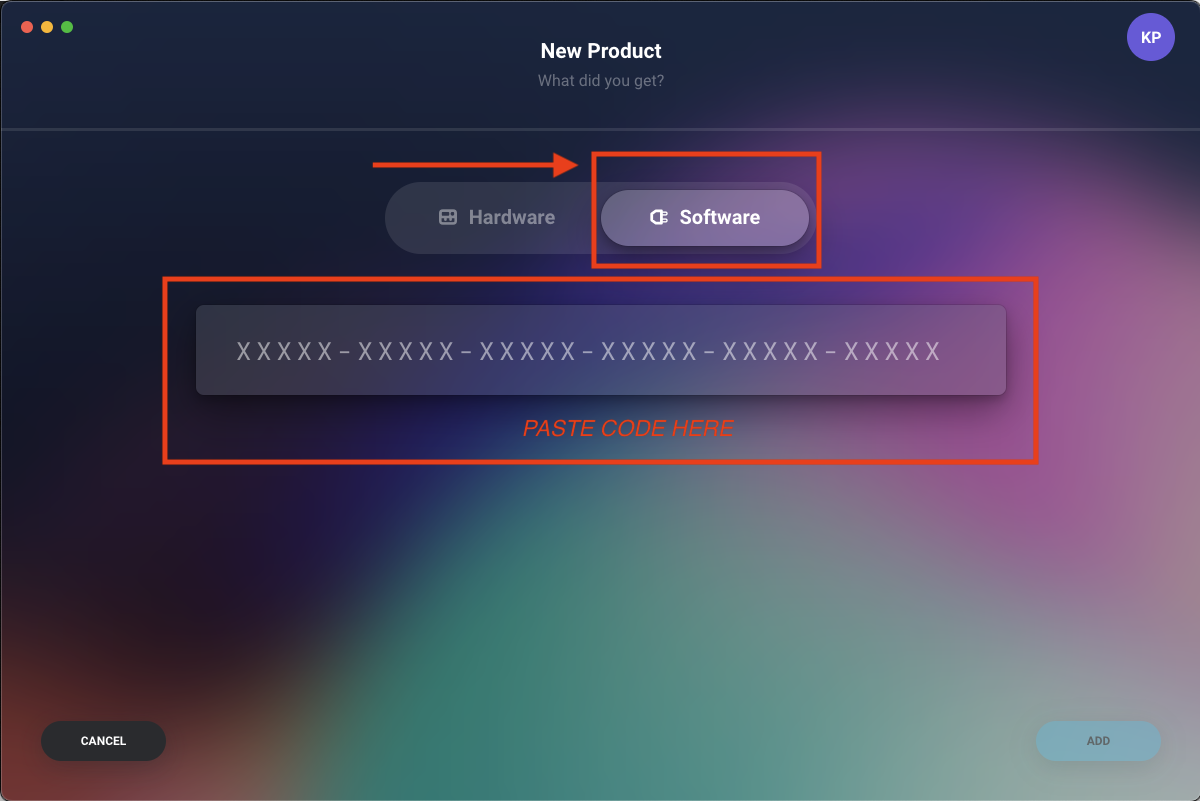
- Click 'Software' and paste the 30-Digit code from your Native Instruments confirmation email
- Click 'Add' from the bottom right of your Window - Your Expansion will register successfully
Click the 'My Expansions' tab to locate and download your Native Instruments expansion pack