This article serves as a guide to understand how to locate the Pro Pack features on the MPC Live III.
TABLE OF CONTENTS
Standalone
The Pro Pack features are built into the MPC Live III's operating system, and will not appear in the activations menu.
To verify that it is in our account, ensure you have logged in to your inMusic Profile on the MPC Live III itself to redeem the licence by going to Menu > Preferences > Activations
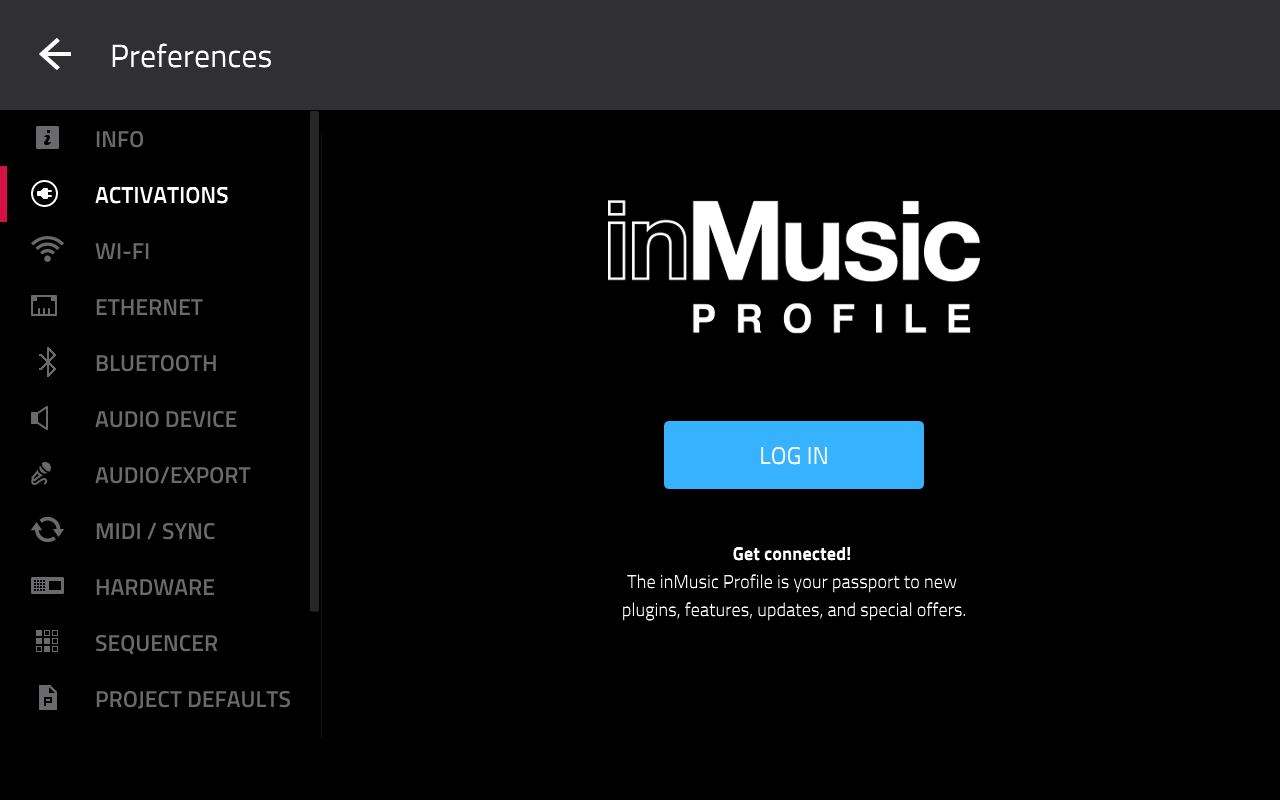
Once done, you'll find the Pro Pack features in the following locations on your MPC Live III
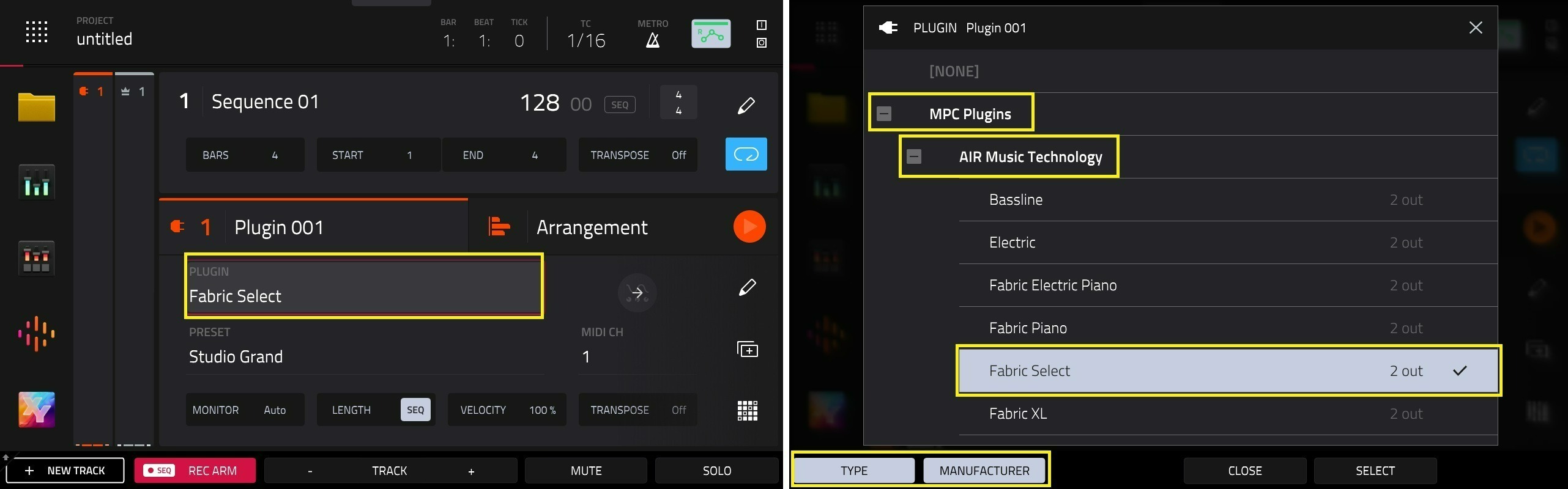
Fabric Select: To use this plugin, please create a new plugin track
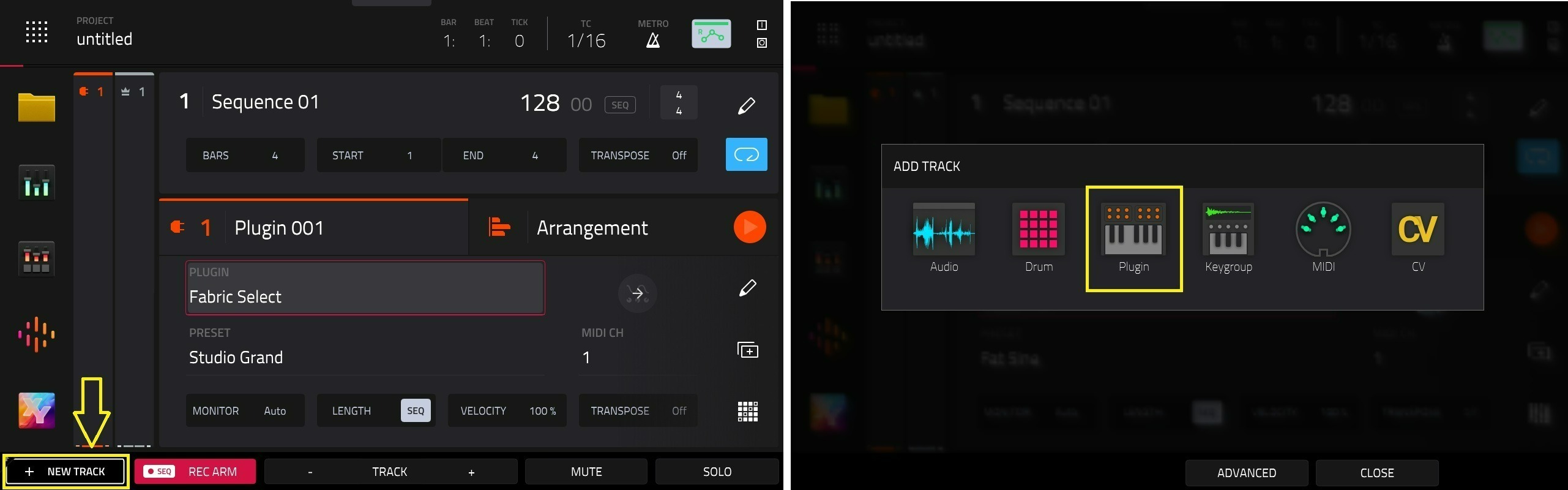
You can locate Fabric Select in the Plugin Field via MPC Plugins > AIR Music Technology
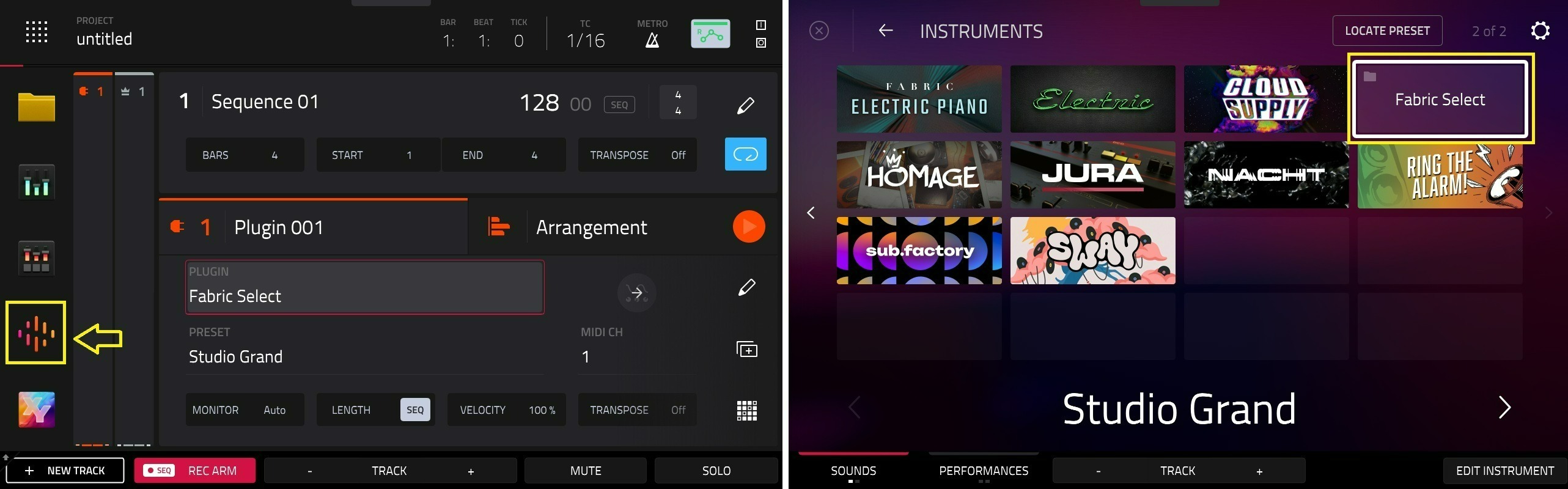
Alternatively, you can find Fabric Select in the Sounds menu:
If you do not see it immediately, please use the > arrow to reveal the second page
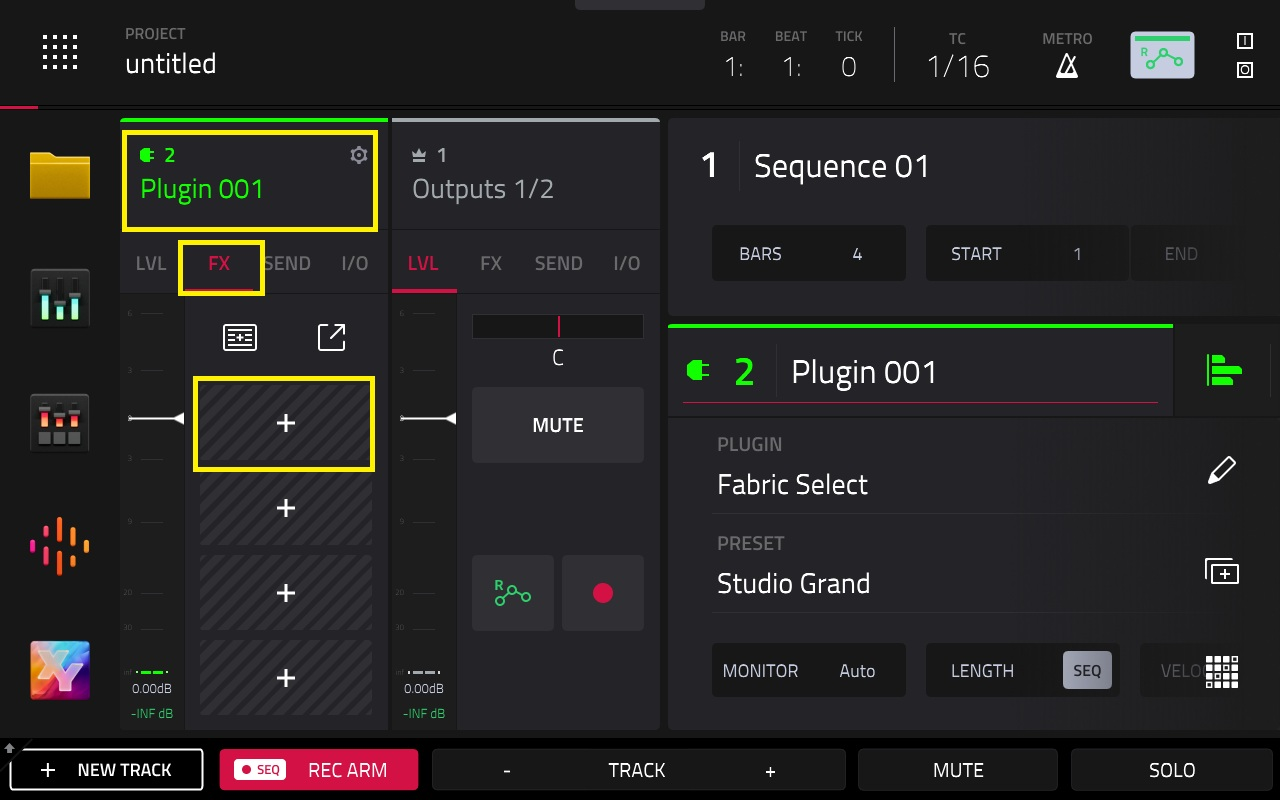
FX: To use the included FX, you'll need to open up the FX inset slot on a track, then tap the + icon
AIR Visual EQ: Will be in EQ/Filter > AIR Music Technology
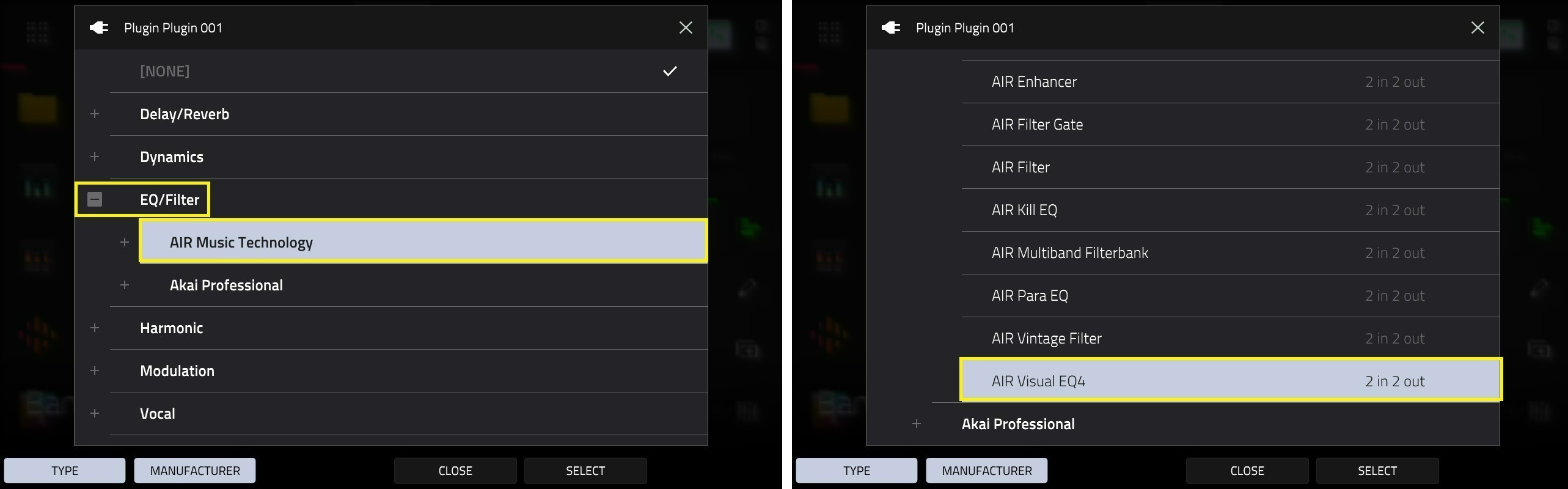
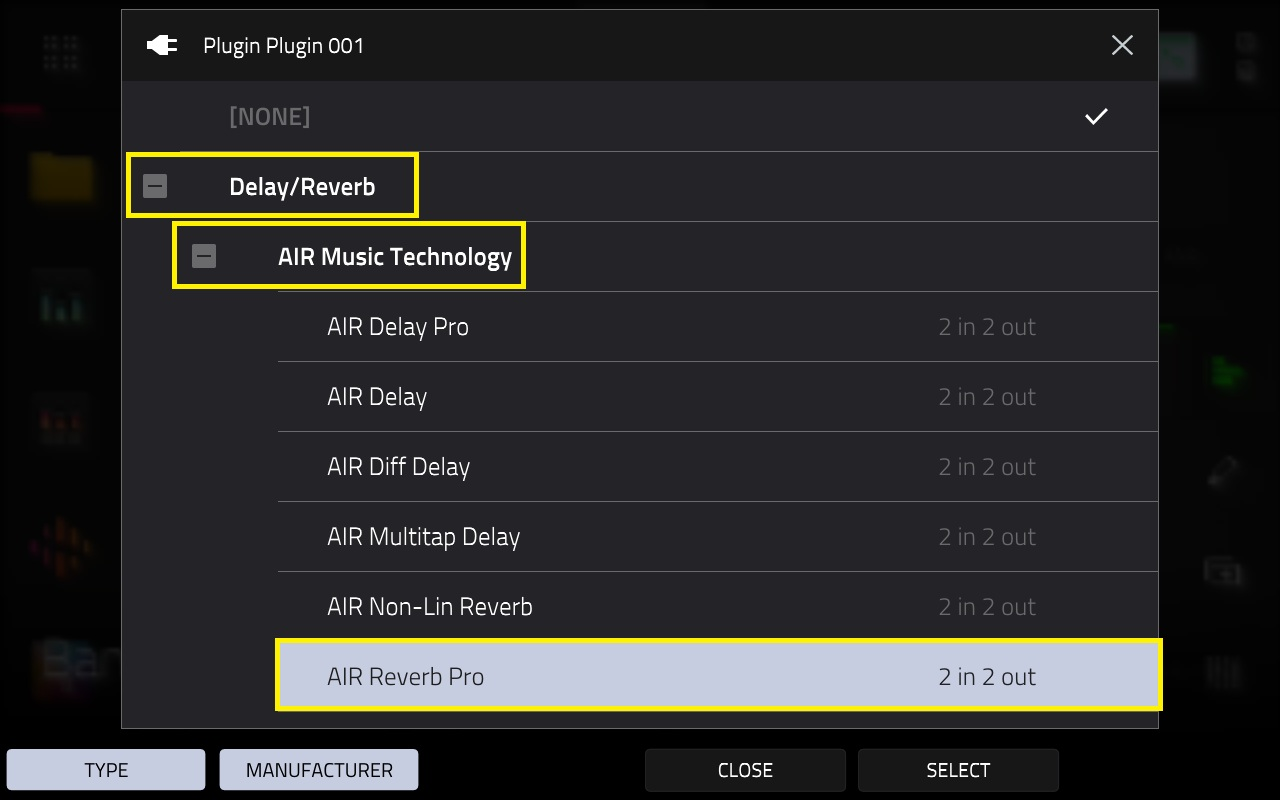
AIR Reverb Pro: Will be in Delay/Reverb > AIR Music Technology
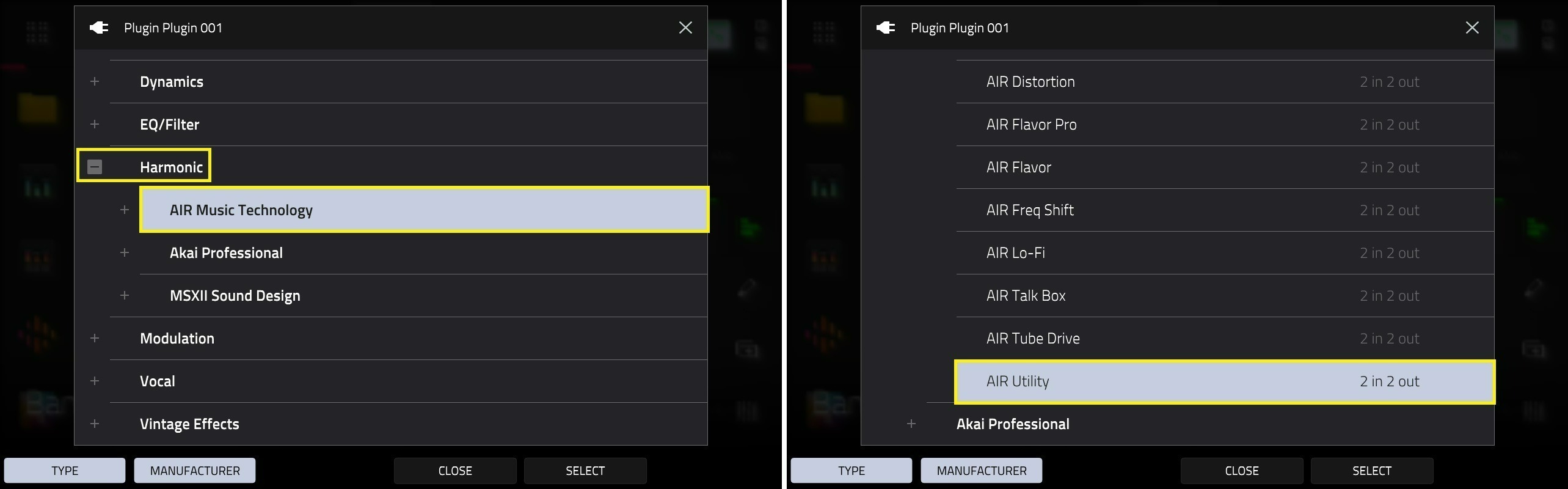
AIR Utility: Will be in Harmonic > AIR Music Technology
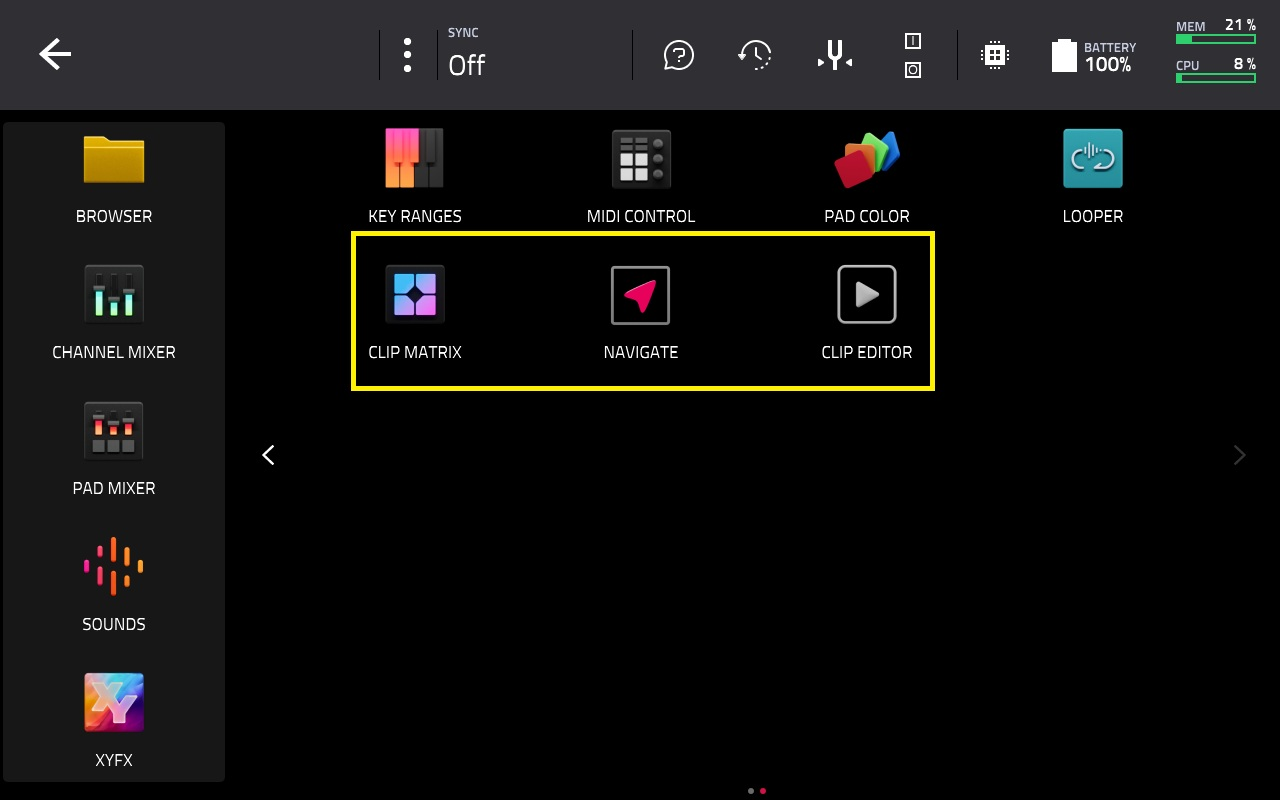
Clip Workflow features are found in the Main Menu:
Desktop
- Ensure you're running MPC 3.6 Desktop (Public Beta) or later.
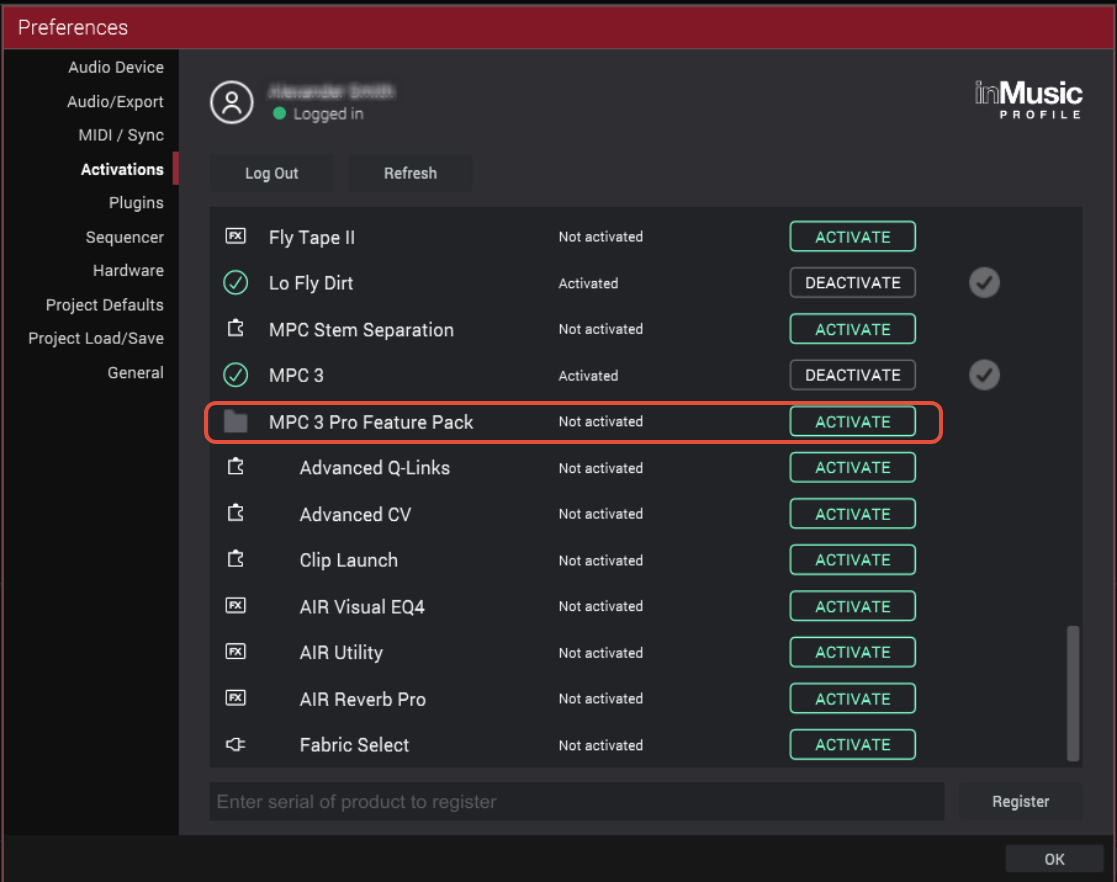
- Post Update / Installation, navigate to Edit > Preferences > Activations
- Click 'Activate'
- Then, click 'Download'

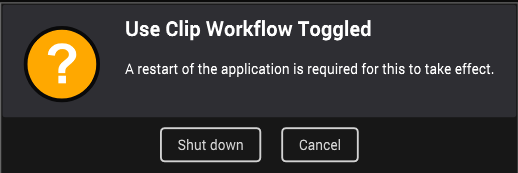
- This will automatically turn on Clip Workflow, which requires the program to be restarted: