

This article will explain and provide solutions to resolve the message 'Failed to eject, drive in use. To eject please shut down' on your MPC.
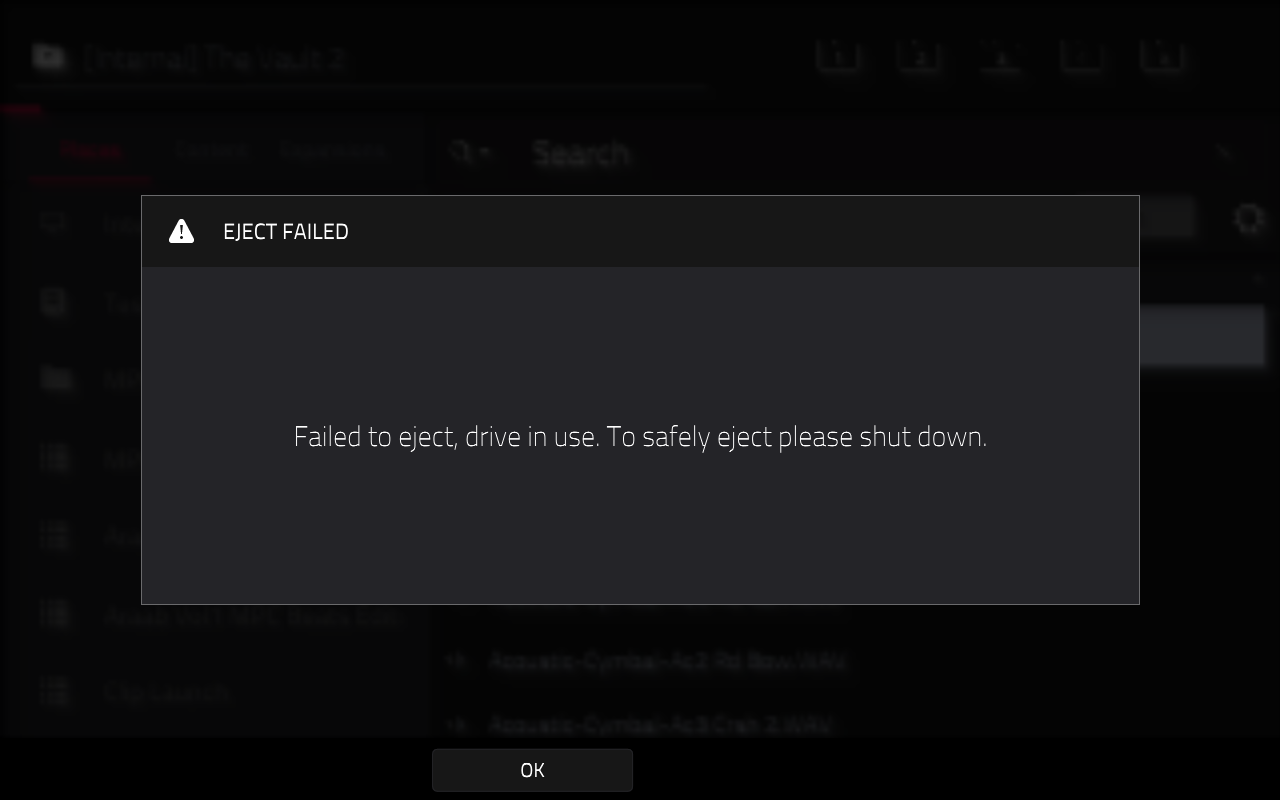
The MPC will block drive ejection if the active project is using plugin instrument or plugin FX that are also stored on the drive you are attempting to eject.
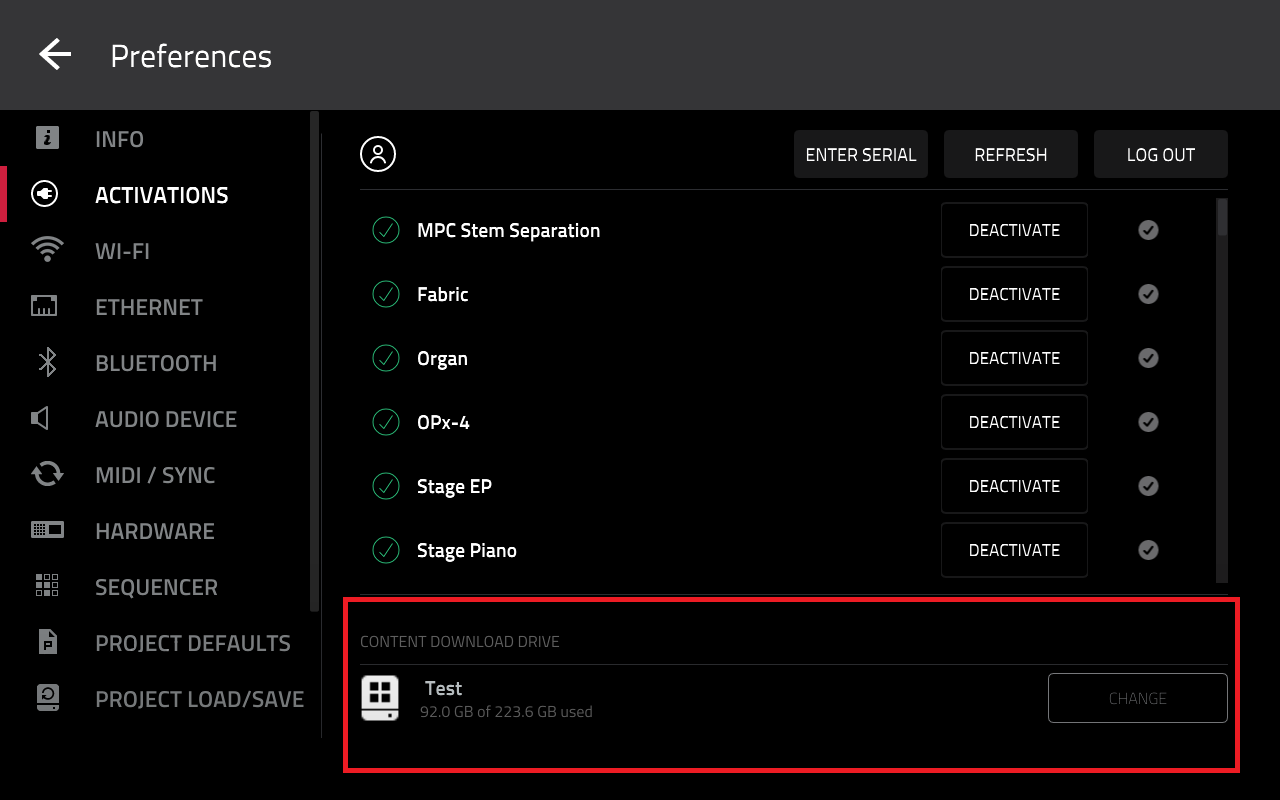
When plugin instruments and FX are downloaded on your MPC, they will be stored in a Synths folder on a Content Download Drive (Internal, SSD, USB drive, SD card etc).
This is selected in Menu > Preferences > Activations.
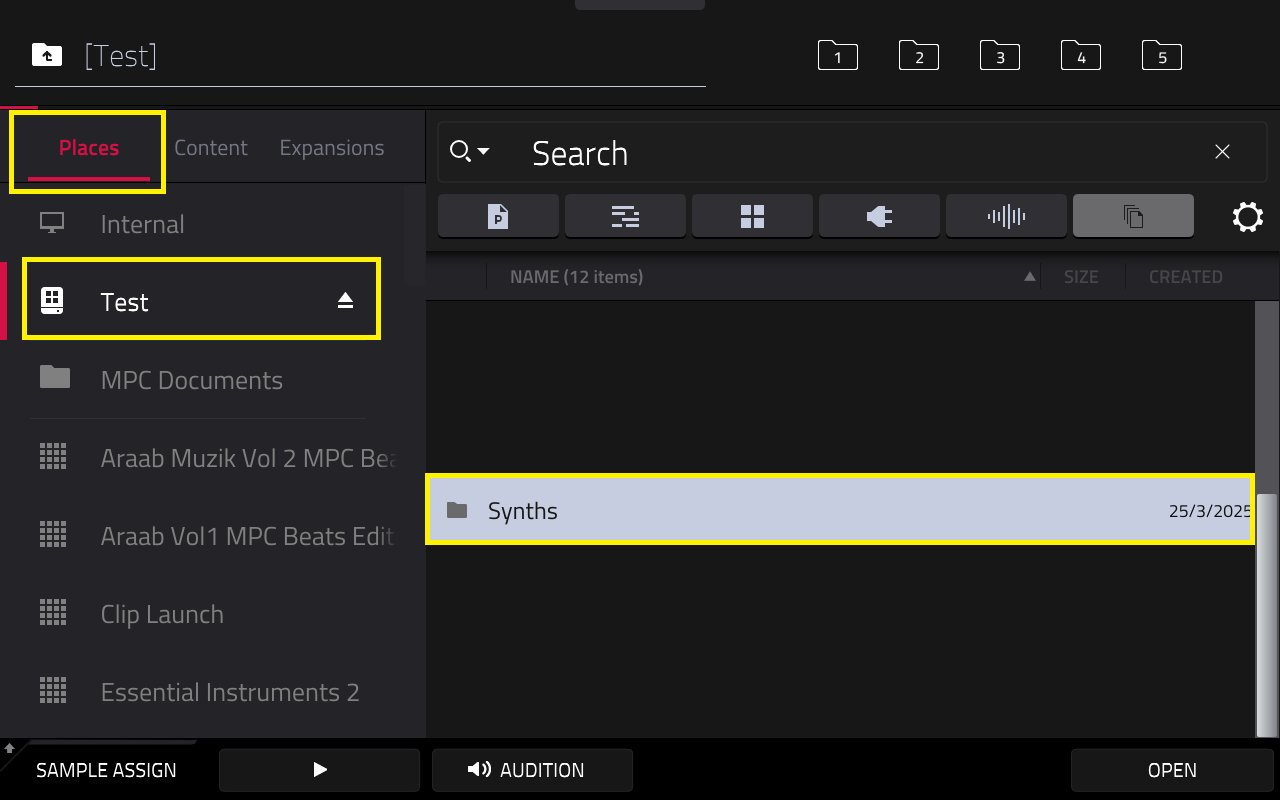
Once your plugins have been downloaded, they will be stored in a Synths folder. You can view this location by going to Menu > Browser > Places > [Your Drive Name] > Synths.
The example below shows an SSD drive called Test, that we have downloaded our plugins to:
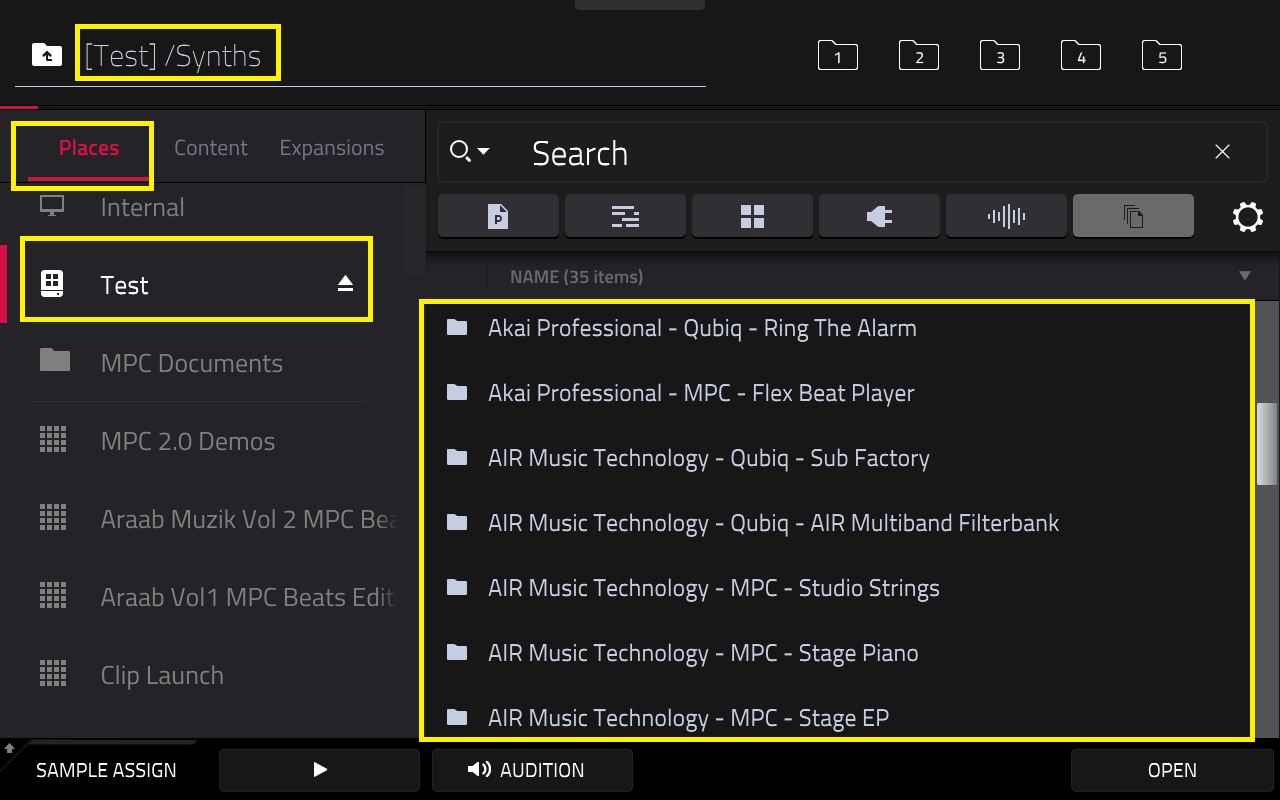
When you enter the Synths folder, you will find sub-folders containing data of your plugin instruments and FX:
To resolve the eject failed error, take either of the following steps:
Method 1: Delete/remove any plugin instruments or FX from the active project. You will be able to eject the drive.
Method 2: Go to Menu > Preferences > Project Load/Save > New Project Behaviour > Empty Project.
This will ensure all new projects are loaded empty. You can navigate to Menu > New Project to quickly eject the drive on an empty project.
Method 3: Use one drive for projects, and another drive as the content download drive (for plugins). This will allow you to freely eject the 'project' drive at any time
Should you require assistance with moving your plugins to another drive, please refer to this article: Akai Pro MPC Series | Managing Plugins